> ## Documentation Index
> Fetch the complete documentation index at: https://documentation.2cloudnine.com/llms.txt
> Use this file to discover all available pages before exploring further.
# QRG Create and Manage Assignment Schedules
export const InlineImage = ({src, alt = "", height = "1.6em"}) => {
return  ;
};
## Purpose
The purpose of this quick reference guide is to step through the process of creating and managing Assignment Schedules as a means of relating a Published Work Schedule to an Assignment. The intended audience for this document are Standard Payroll Users.
## Steps
### Create Assignment Schedules
Assignment Schedules form the relationship between a Published Work Schedule record and the Assignment record.
1. The creation of a new Assignment Schedule can be initiated from 3 different locations:
1. Go to **App Launcher** > **Assignment**. Within the Assignment record, click the **New** button under the Assignment Schedule related list (see Figure 1). This is the recommended approach as then the details of the Assignment will also default on it.
;
};
## Purpose
The purpose of this quick reference guide is to step through the process of creating and managing Assignment Schedules as a means of relating a Published Work Schedule to an Assignment. The intended audience for this document are Standard Payroll Users.
## Steps
### Create Assignment Schedules
Assignment Schedules form the relationship between a Published Work Schedule record and the Assignment record.
1. The creation of a new Assignment Schedule can be initiated from 3 different locations:
1. Go to **App Launcher** > **Assignment**. Within the Assignment record, click the **New** button under the Assignment Schedule related list (see Figure 1). This is the recommended approach as then the details of the Assignment will also default on it.
 **OR**
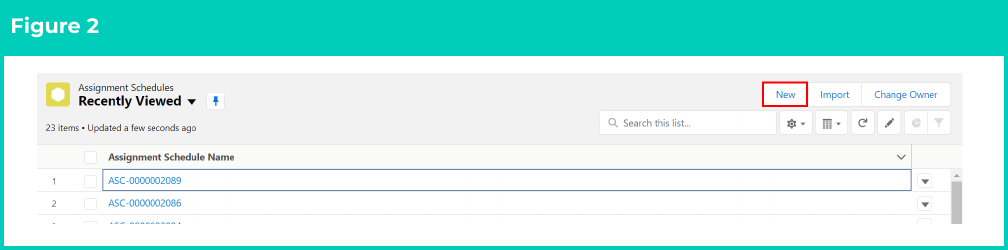
2. Go to **App Launcher** > **Assignment Schedules**. Click on the **New** button on the Assignment Schedule list view (see Figure 2).
**OR**
2. Go to **App Launcher** > **Assignment Schedules**. Click on the **New** button on the Assignment Schedule list view (see Figure 2).
 **OR**
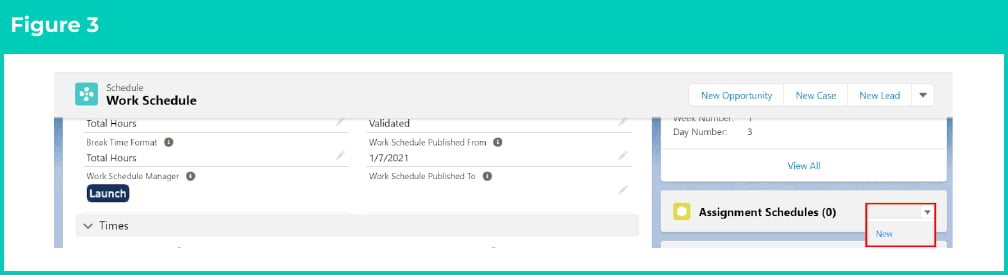
3. Go to **App Launcher** > **Work Schedule**. Within the Work Schedule record, click the **New** button under the Assignment Schedule related list (see Figure 3).
**OR**
3. Go to **App Launcher** > **Work Schedule**. Within the Work Schedule record, click the **New** button under the Assignment Schedule related list (see Figure 3).
 2. In all of these locations, once the **New** button is clicked, a new Assignment Schedule record will open ready to be populated with the necessary details.
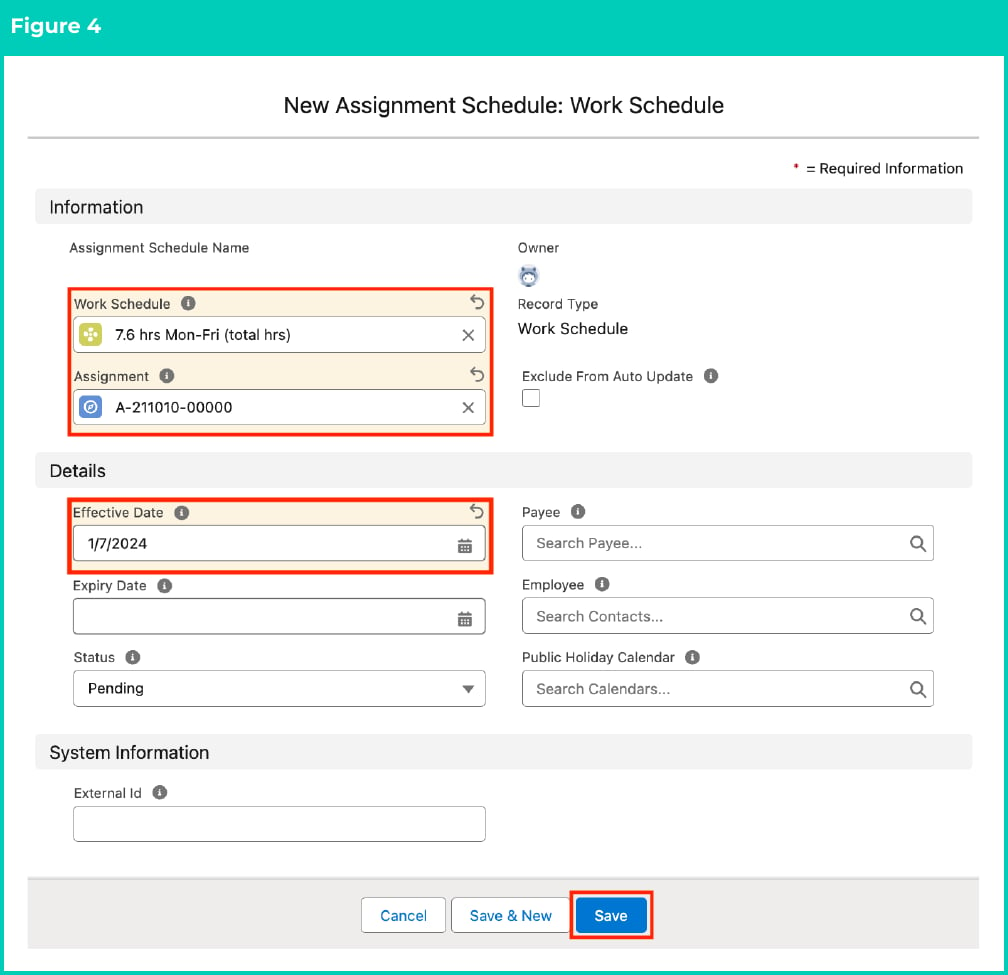
3. Populate the following required fields: (see Figure 4)
1. **Work Schedule**
2. **Assignment record**
3. **Effective Date**
4. To add an expiry date to the record, populate the optional field **Expiry Date** (see Figure 4).
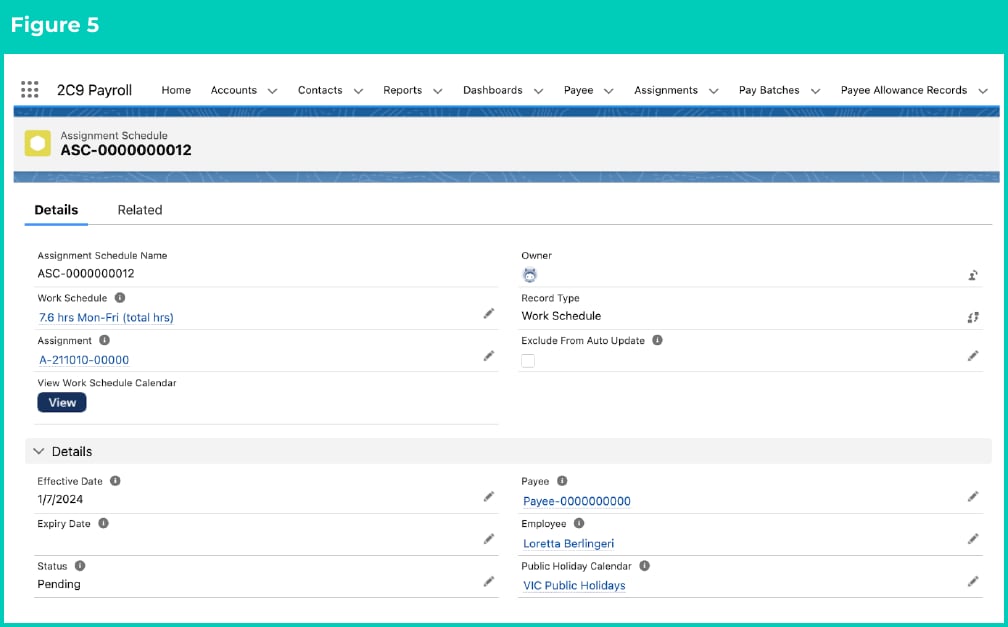
5. The following 3 fields can be left blank to auto-populate upon saving the record, based on the values in the associated Assignment, or alternatively Users can manually populate them: (see Figure 5)
1. To assign this Work Schedule record to a specific Payee, populate the **Payee** field.
2. To assign this Work Schedule record to a specific Employee, populate the **Employee** field.
3. To allocate a Public Holiday Calendar to this Work Schedule record which will be used to calculate payment on public holidays, populate the **Public Holiday Calendar** field.
6. Click on the **Save** button.
2. In all of these locations, once the **New** button is clicked, a new Assignment Schedule record will open ready to be populated with the necessary details.
3. Populate the following required fields: (see Figure 4)
1. **Work Schedule**
2. **Assignment record**
3. **Effective Date**
4. To add an expiry date to the record, populate the optional field **Expiry Date** (see Figure 4).
5. The following 3 fields can be left blank to auto-populate upon saving the record, based on the values in the associated Assignment, or alternatively Users can manually populate them: (see Figure 5)
1. To assign this Work Schedule record to a specific Payee, populate the **Payee** field.
2. To assign this Work Schedule record to a specific Employee, populate the **Employee** field.
3. To allocate a Public Holiday Calendar to this Work Schedule record which will be used to calculate payment on public holidays, populate the **Public Holiday Calendar** field.
6. Click on the **Save** button.
 Information held on the Assignment Schedule can now be used for auto-populating the Timesheet Entries and Payroll Processing.
If the related Assignment has a Record Type of Employee, the Public Holiday Calendar can be set on the Assignment which will default it on the Assignment Schedule.
7. A new **Assignment Schedule** record is now created. (See Figure 5)
Information held on the Assignment Schedule can now be used for auto-populating the Timesheet Entries and Payroll Processing.
If the related Assignment has a Record Type of Employee, the Public Holiday Calendar can be set on the Assignment which will default it on the Assignment Schedule.
7. A new **Assignment Schedule** record is now created. (See Figure 5)
 A Work Schedule cannot be related to an Assignment record until it has been successfully Published.
Assignment Schedule records CAN NOT be deleted if they have related records or are used in other records. Deleting records is not recommended unless absolutely essential.
8. To modify an existing **Assignment Schedule** record, open the required record and select the **Edit** button available on the top right side of the page. You can also double-click in any of the fields that need editing or just click on the **pencil icon** that appears within fields when you move your cursor over the field.
9. When complete, click on the **Save** button.
## Field descriptions
| Field | Description |
| :------------------------------ | :----------------------------------------------------------------------------------------------------------------------------------- |
| **Assignment** | is the related Assignment record. |
| **Effective Date** | is the effective date of this Assignment Schedule. |
| **Employee** | is the related Employee record. |
| **Exclude From Auto Update** | When this box is checked the record will be skipped by the Automatic Status Update scheduled job. |
| **Expiry Date** | is the Expiry date of this Assignment Schedule. |
| **External Id (checkbox)** | is the external Id from another system. |
| **Payee** | is the related Payee record. |
| **Public Holiday Calendar** | is the related Public Holiday Calendar which will be used to calculate payment on public holidays. |
| **Status** | is the status of this Assignment Schedule record. |
| **View Work Schedule Calendar** | is the button that is used to open the Assignment Schedule Shifts in a Calendar View, and only appears once the new record is saved. |
| **Work Schedule** | is the related Work Schedule record. |
## Further Information
| Document | Document Type | Description |
| :--------------------------------------------------------------------------------------------------------- | :-------------------------- | :--------------------------------------------------------------------------------------------------------------------------------------------------------------------------------------------------------------------------------------------------- |
| [Quick Reference Guide Index - Work Schedules](/qrgs/index) | Index | An index document that lists and provides links to all Quick Reference Guides relating to Work Schedules. |
| [Managing Work Schedules Key Information](/qrgs/work-schedules/qrg-managing-work-schedule-key-information) | Information Quick Reference | A quick reference guide outlining useful information relevant to the Work Schedule functionality. The document includes definitions, prerequisites and other non-instructional information relating to Work Schedules and the Work Schedule Manager. |
A Work Schedule cannot be related to an Assignment record until it has been successfully Published.
Assignment Schedule records CAN NOT be deleted if they have related records or are used in other records. Deleting records is not recommended unless absolutely essential.
8. To modify an existing **Assignment Schedule** record, open the required record and select the **Edit** button available on the top right side of the page. You can also double-click in any of the fields that need editing or just click on the **pencil icon** that appears within fields when you move your cursor over the field.
9. When complete, click on the **Save** button.
## Field descriptions
| Field | Description |
| :------------------------------ | :----------------------------------------------------------------------------------------------------------------------------------- |
| **Assignment** | is the related Assignment record. |
| **Effective Date** | is the effective date of this Assignment Schedule. |
| **Employee** | is the related Employee record. |
| **Exclude From Auto Update** | When this box is checked the record will be skipped by the Automatic Status Update scheduled job. |
| **Expiry Date** | is the Expiry date of this Assignment Schedule. |
| **External Id (checkbox)** | is the external Id from another system. |
| **Payee** | is the related Payee record. |
| **Public Holiday Calendar** | is the related Public Holiday Calendar which will be used to calculate payment on public holidays. |
| **Status** | is the status of this Assignment Schedule record. |
| **View Work Schedule Calendar** | is the button that is used to open the Assignment Schedule Shifts in a Calendar View, and only appears once the new record is saved. |
| **Work Schedule** | is the related Work Schedule record. |
## Further Information
| Document | Document Type | Description |
| :--------------------------------------------------------------------------------------------------------- | :-------------------------- | :--------------------------------------------------------------------------------------------------------------------------------------------------------------------------------------------------------------------------------------------------- |
| [Quick Reference Guide Index - Work Schedules](/qrgs/index) | Index | An index document that lists and provides links to all Quick Reference Guides relating to Work Schedules. |
| [Managing Work Schedules Key Information](/qrgs/work-schedules/qrg-managing-work-schedule-key-information) | Information Quick Reference | A quick reference guide outlining useful information relevant to the Work Schedule functionality. The document includes definitions, prerequisites and other non-instructional information relating to Work Schedules and the Work Schedule Manager. |