> ## Documentation Index
> Fetch the complete documentation index at: https://documentation.2cloudnine.com/llms.txt
> Use this file to discover all available pages before exploring further.
# QRG Create and Manage Shift Records
export const InlineImage = ({src, alt = "", height = "1.6em"}) => {
return  ;
};
## Purpose
The purpose of this quick reference guide is to step through the process of creating and managing Shift Records using the Work Schedule Manager. The intended audience for this document are standard Payroll Users.
## Steps
### Entering the Work Schedule into Edit Mode
Entering the Work Schedule into Edit Mode will not only allow the Work Schedule to be modified, it also makes functionality to Create Shifts and Add Weeks available for use.
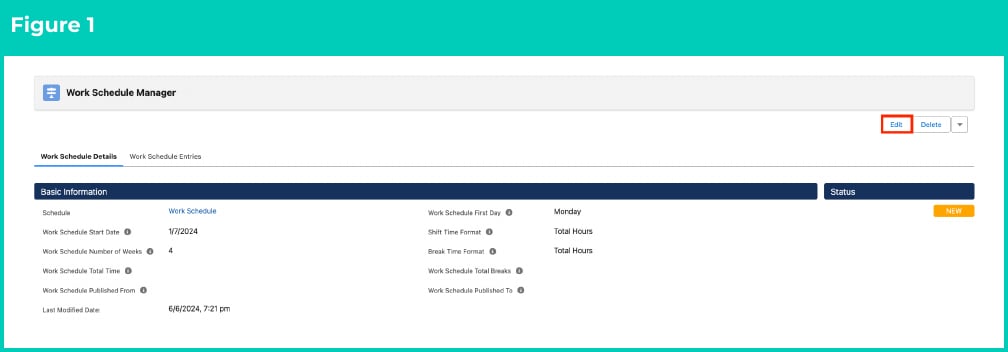
1. When a Work Schedule with a status of either New or Validated is opened in the Work Schedule Manager, click the **Edit** button (see Figure 1).
;
};
## Purpose
The purpose of this quick reference guide is to step through the process of creating and managing Shift Records using the Work Schedule Manager. The intended audience for this document are standard Payroll Users.
## Steps
### Entering the Work Schedule into Edit Mode
Entering the Work Schedule into Edit Mode will not only allow the Work Schedule to be modified, it also makes functionality to Create Shifts and Add Weeks available for use.
1. When a Work Schedule with a status of either New or Validated is opened in the Work Schedule Manager, click the **Edit** button (see Figure 1).
 2. The Work Schedule will go into Edit Mode. Fields within the main Work Schedule record can be updated and saved. Buttons will be visible for additional functionality (see Figure 2).
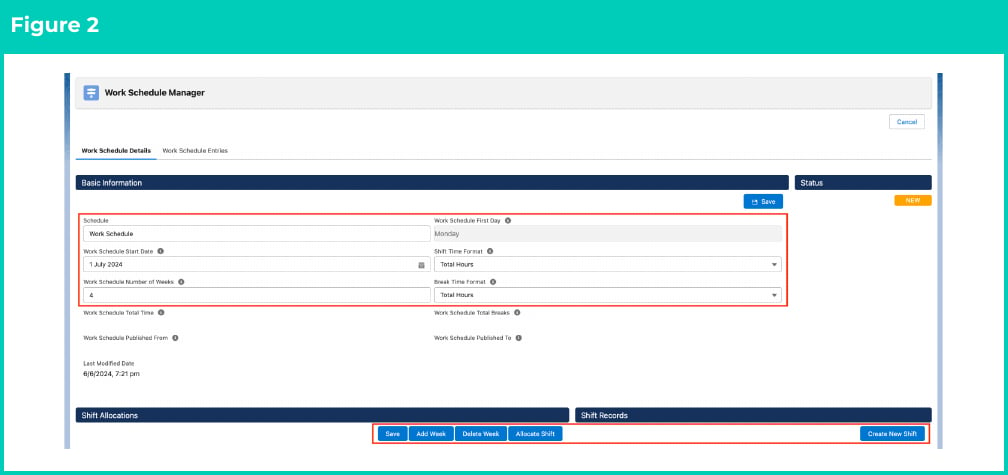 Only the Work Schedules that have the Status of New or Validated can be modified and therefore edited within Edit Mode through the Work Schedule Manager.
### Create a Shift Record
Once the basic Work Schedule record is created, the Shift Records section of the Work Schedule Manager becomes available. Within this section, recent Shift Records can be viewed / modified and new Shift Records can be defined.
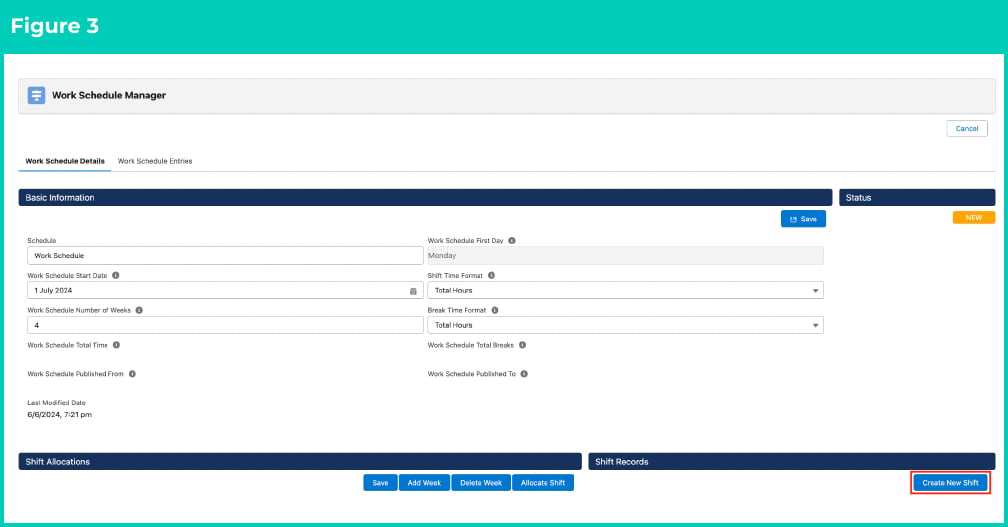
1. Within Work Schedule Edit Mode, click on the **Create New Shift** button (see Figure 3). The Edit / Add Shift Record page will open to define the further details.
Only the Work Schedules that have the Status of New or Validated can be modified and therefore edited within Edit Mode through the Work Schedule Manager.
### Create a Shift Record
Once the basic Work Schedule record is created, the Shift Records section of the Work Schedule Manager becomes available. Within this section, recent Shift Records can be viewed / modified and new Shift Records can be defined.
1. Within Work Schedule Edit Mode, click on the **Create New Shift** button (see Figure 3). The Edit / Add Shift Record page will open to define the further details.
 2. Populate the following required fields on the Edit / Add Shift Record page (see Figure 4):
1. **Schedule Item Name**
2. **Day Off** (Yes or No)
3. **Shift Time Format** (must be the same as the Work Schedule record)
4. **Break Time Format** (must be the same as the Work Schedule record)
2. Populate the following required fields on the Edit / Add Shift Record page (see Figure 4):
1. **Schedule Item Name**
2. **Day Off** (Yes or No)
3. **Shift Time Format** (must be the same as the Work Schedule record)
4. **Break Time Format** (must be the same as the Work Schedule record)
 For a shift with Day Off set as Yes, the remaining fields within Step 2 are not required. Skip to Step 3.
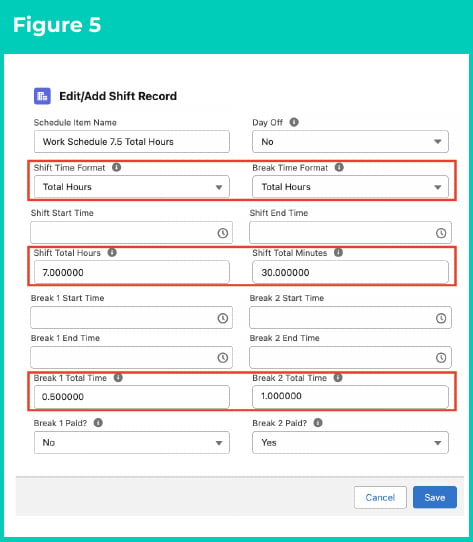
5. If the Shift Time Format selected is **Total Hours**, populate the following fields (see Figure 5):
1. **Shift Total Hours** (the hours component of the Total Hours i.e. if 7.5 hours you would enter 7 hours here)
2. **Shift Total Minutes** (the minutes component of the Total Hours i.e. if 7.5 hours you would enter 30 minutes here)
6. If the Break Time Format selected is **Total Hours**, populate the following fields:
1. **Break 1 Total Time** (in minutes)
2. **Break 2 Total Time** (optional - in minutes)
For a shift with Day Off set as Yes, the remaining fields within Step 2 are not required. Skip to Step 3.
5. If the Shift Time Format selected is **Total Hours**, populate the following fields (see Figure 5):
1. **Shift Total Hours** (the hours component of the Total Hours i.e. if 7.5 hours you would enter 7 hours here)
2. **Shift Total Minutes** (the minutes component of the Total Hours i.e. if 7.5 hours you would enter 30 minutes here)
6. If the Break Time Format selected is **Total Hours**, populate the following fields:
1. **Break 1 Total Time** (in minutes)
2. **Break 2 Total Time** (optional - in minutes)
 7. If the Shift Time Format selected is **Start / End Time**, populate the following fields (see Figure 6):
1. **Shift Start Time** (in time format)
2. **Shift End Time** (in time format)
8. If the Break Time Format selected is **Total Hours**, populate the following fields:
1. **Break 1 Start Time** (in time format)
2. **Break 1 End Time** (in time format)
3. **Break 2 Start Time** (optional - in time format)
4. **Break 2 End Time** (optional - in time format)
7. If the Shift Time Format selected is **Start / End Time**, populate the following fields (see Figure 6):
1. **Shift Start Time** (in time format)
2. **Shift End Time** (in time format)
8. If the Break Time Format selected is **Total Hours**, populate the following fields:
1. **Break 1 Start Time** (in time format)
2. **Break 1 End Time** (in time format)
3. **Break 2 Start Time** (optional - in time format)
4. **Break 2 End Time** (optional - in time format)
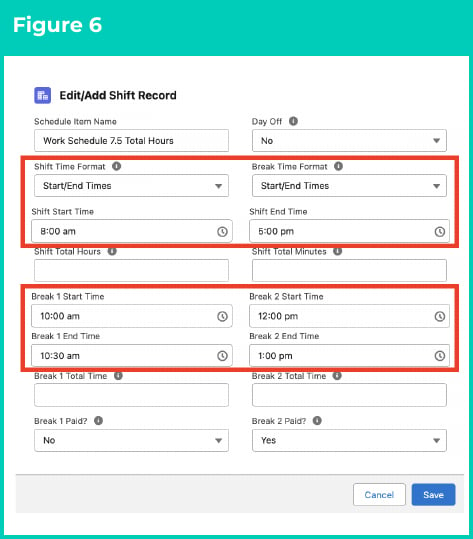 9. **Break 1 Paid?** (Yes/No) (see Figure 7)
10. **Break 2 Paid?** (Yes/No)
9. **Break 1 Paid?** (Yes/No) (see Figure 7)
10. **Break 2 Paid?** (Yes/No)
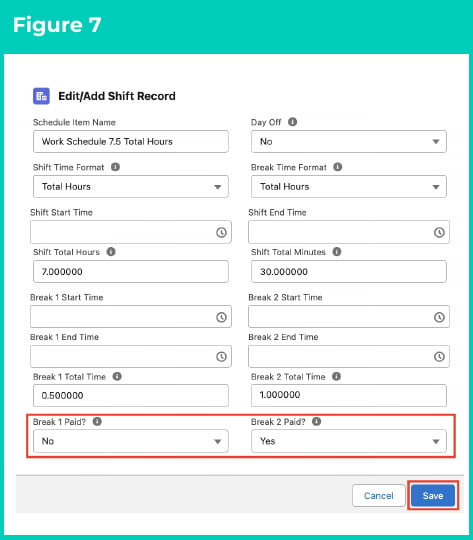 3. Click on the **Save** button.
4.
The Shift Record will be saved and listed under the Shift Records section of the Work Schedule Manager, ready for allocation (see Figure 8). Please note that the shifts displayed in the list are only the ones that the user has recently viewed.
3. Click on the **Save** button.
4.
The Shift Record will be saved and listed under the Shift Records section of the Work Schedule Manager, ready for allocation (see Figure 8). Please note that the shifts displayed in the list are only the ones that the user has recently viewed.
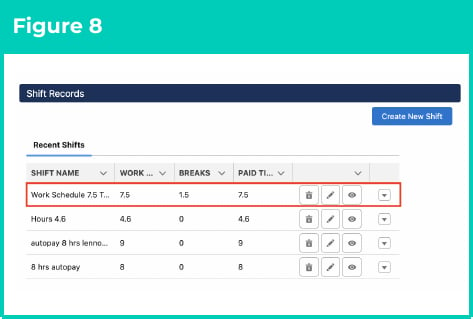 If Start / End Time was selected for the Shift Time Format, the Shift Total Hours and Shift Total Minutes will be calculated as part of the process of saving the Shift Record. Likewise, the same will occur for the Break 1 Total Time and Break 2 Total Time fields if the Start / End Time was selected for the Break Time Format.
The Recent Shifts list displays Shift Records that have been recently created, modified or viewed by the logged-in user.
### Manage Shift Records
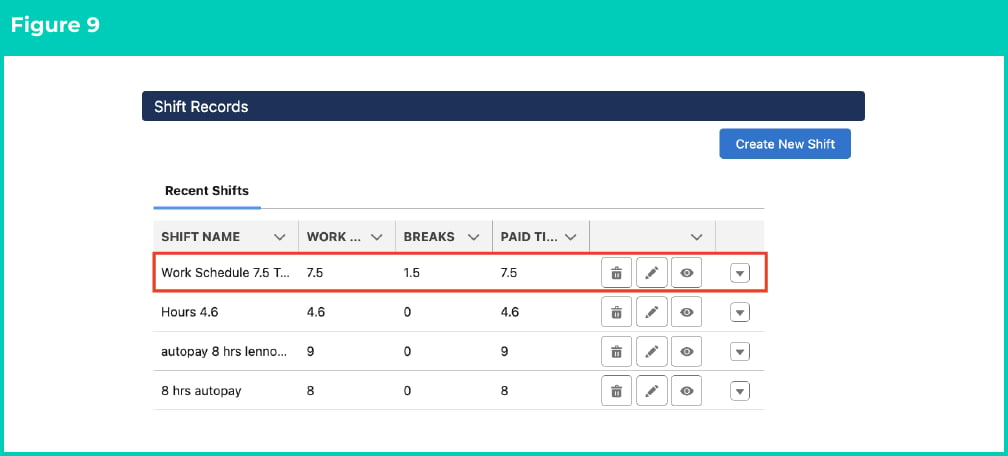
In addition to creating Shift Records, when the Work Schedule Manager is in Edit Mode, the following functions can be completed to manage Shift Records (see Figure 9).
If Start / End Time was selected for the Shift Time Format, the Shift Total Hours and Shift Total Minutes will be calculated as part of the process of saving the Shift Record. Likewise, the same will occur for the Break 1 Total Time and Break 2 Total Time fields if the Start / End Time was selected for the Break Time Format.
The Recent Shifts list displays Shift Records that have been recently created, modified or viewed by the logged-in user.
### Manage Shift Records
In addition to creating Shift Records, when the Work Schedule Manager is in Edit Mode, the following functions can be completed to manage Shift Records (see Figure 9).
 To Delete an existing Shift Record:
1. Navigate to the record to be deleted.
2. Click the button. The record selected will be deleted.
To Preview an existing Shift Record:
1. Navigate to the record to be viewed.
2. Click the button. The record selected will be opened in read-only mode.
To Edit an existing Shift Record:
1. Navigate to the record to be edited.
2. Click the button. The Edit / Add Shift Record page will open.
3. Modify / update the Shift Record as required.
4. Click the **Save** button. The changes made to the selected Shift Record will be saved.
Please note that all the shifts are NOT visible in the Recent Shifts screen (as shown above in Figure 9). It shows some of the recent ones only.
## Field Descriptions
| Field Name | Description |
| :---------------------- | :----------------------------------------------------------- |
| **Break 1 Start Time** | indicates the time when Break 1 starts. |
| **Break 2 Start Time** | indicates the time when Break 2 starts. |
| **Break 1 End Time** | indicates the time when Break 1 ends. |
| **Break 2 End Time** | indicates the time when Break 2 ends. |
| **Break 1 Total Time** | indicates the total time or length of Break 1. |
| **Break 2 Total Time** | indicates the total time or length of Break 2. |
| **Break 1 Paid?** | indicates if Break 1 will be paid or not. |
| **Break 2 Paid?** | indicates if Break 2 will be paid or not. |
| **Break Time Format** | indicates how the break time will be entered. |
| **Day Off** | indicates that this is a non working day. |
| **Schedule Item Name** | is the name given to the Shift Record that is being created. |
| **Shift End Time** | is the end time of this shift. |
| **Shift Start Time** | is the start time of this shift. |
| **Shift Time Format** | indicates how the work hours will be entered. |
| **Shift Total Hours** | is the number of expected whole work hours. |
| **Shift Total Minutes** | is the number of expected additional minutes. |
## Further Information
| Document | Document Type | Description |
| :-------------------------------------------------------------------------------------------------------------- | :-------------------------- | :--------------------------------------------------------------------------------------------------------------------------------------------------------------------------------------------------------------------------------------------------- |
| [Quick Reference Guide Index - Work Schedules](/qrgs/index) | Index | An index document that lists and provides links to all Quick Reference Guides relating to Work Schedules. |
| [Managing Work Schedules Key Information](/qrgs/work-schedules/qrg-managing-work-schedule-key-information) | Information Quick Reference | A quick reference guide outlining useful information relevant to the Work Schedule functionality. The document includes definitions, prerequisites and other non-instructional information relating to Work Schedules and the Work Schedule Manager. |
| [Manage Weekly and Daily Shift Allocations](/qrgs/work-schedules/qrg-manage-weekly-and-daily-shift-allocations) | Task Instructions | How to manage Shift Allocation Weeks and Shift Allocation Days using the Work Schedule Manager. |
| [Manage Shift Allocations](/qrgs/work-schedules/qrg-manage-shift-allocations) | Task Instructions | How to allocate and manage shifts to a Work Schedule record through the Work Schedule Manager. |
To Delete an existing Shift Record:
1. Navigate to the record to be deleted.
2. Click the button. The record selected will be deleted.
To Preview an existing Shift Record:
1. Navigate to the record to be viewed.
2. Click the button. The record selected will be opened in read-only mode.
To Edit an existing Shift Record:
1. Navigate to the record to be edited.
2. Click the button. The Edit / Add Shift Record page will open.
3. Modify / update the Shift Record as required.
4. Click the **Save** button. The changes made to the selected Shift Record will be saved.
Please note that all the shifts are NOT visible in the Recent Shifts screen (as shown above in Figure 9). It shows some of the recent ones only.
## Field Descriptions
| Field Name | Description |
| :---------------------- | :----------------------------------------------------------- |
| **Break 1 Start Time** | indicates the time when Break 1 starts. |
| **Break 2 Start Time** | indicates the time when Break 2 starts. |
| **Break 1 End Time** | indicates the time when Break 1 ends. |
| **Break 2 End Time** | indicates the time when Break 2 ends. |
| **Break 1 Total Time** | indicates the total time or length of Break 1. |
| **Break 2 Total Time** | indicates the total time or length of Break 2. |
| **Break 1 Paid?** | indicates if Break 1 will be paid or not. |
| **Break 2 Paid?** | indicates if Break 2 will be paid or not. |
| **Break Time Format** | indicates how the break time will be entered. |
| **Day Off** | indicates that this is a non working day. |
| **Schedule Item Name** | is the name given to the Shift Record that is being created. |
| **Shift End Time** | is the end time of this shift. |
| **Shift Start Time** | is the start time of this shift. |
| **Shift Time Format** | indicates how the work hours will be entered. |
| **Shift Total Hours** | is the number of expected whole work hours. |
| **Shift Total Minutes** | is the number of expected additional minutes. |
## Further Information
| Document | Document Type | Description |
| :-------------------------------------------------------------------------------------------------------------- | :-------------------------- | :--------------------------------------------------------------------------------------------------------------------------------------------------------------------------------------------------------------------------------------------------- |
| [Quick Reference Guide Index - Work Schedules](/qrgs/index) | Index | An index document that lists and provides links to all Quick Reference Guides relating to Work Schedules. |
| [Managing Work Schedules Key Information](/qrgs/work-schedules/qrg-managing-work-schedule-key-information) | Information Quick Reference | A quick reference guide outlining useful information relevant to the Work Schedule functionality. The document includes definitions, prerequisites and other non-instructional information relating to Work Schedules and the Work Schedule Manager. |
| [Manage Weekly and Daily Shift Allocations](/qrgs/work-schedules/qrg-manage-weekly-and-daily-shift-allocations) | Task Instructions | How to manage Shift Allocation Weeks and Shift Allocation Days using the Work Schedule Manager. |
| [Manage Shift Allocations](/qrgs/work-schedules/qrg-manage-shift-allocations) | Task Instructions | How to allocate and manage shifts to a Work Schedule record through the Work Schedule Manager. |