> ## Documentation Index
> Fetch the complete documentation index at: https://documentation.2cloudnine.com/llms.txt
> Use this file to discover all available pages before exploring further.
# QRG Manage Shift Allocations
export const InlineImage = ({src, alt = "", height = "1.6em"}) => {
return  ;
};
## Purpose
The purpose of this quick reference guide is to step through the process of allocating Shifts to a Work Schedule using the Work Schedule Manager. The intended audience for this document are Standard Payroll Users.
## Steps
### Allocate Shifts to a Work Schedule
Once Work Schedule records are created, existing Shift Records can be allocated to the Work Schedule to define the Shifts that apply. While the Work Schedule Manager is in Edit Mode, there are 2 methods to Allocate Shifts:
1. The Picklist option, available in the Weekly Lists under the Shift Allocation section of the Work Schedule Manager, allows allocation on a day by day basis.
2. The Allocate Shift Page option, available through both the Shift Allocation and Shift Records sections of the Work Schedule Manager, enables the allocation of existing Shift Records on a repetitive / sequence work pattern basis.
### Allocate Shifts to a Work Schedule Using the Picklist method
To assign or edit Shift Allocations for individual days listed in the Weekly List displayed within the Shift Allocation section:
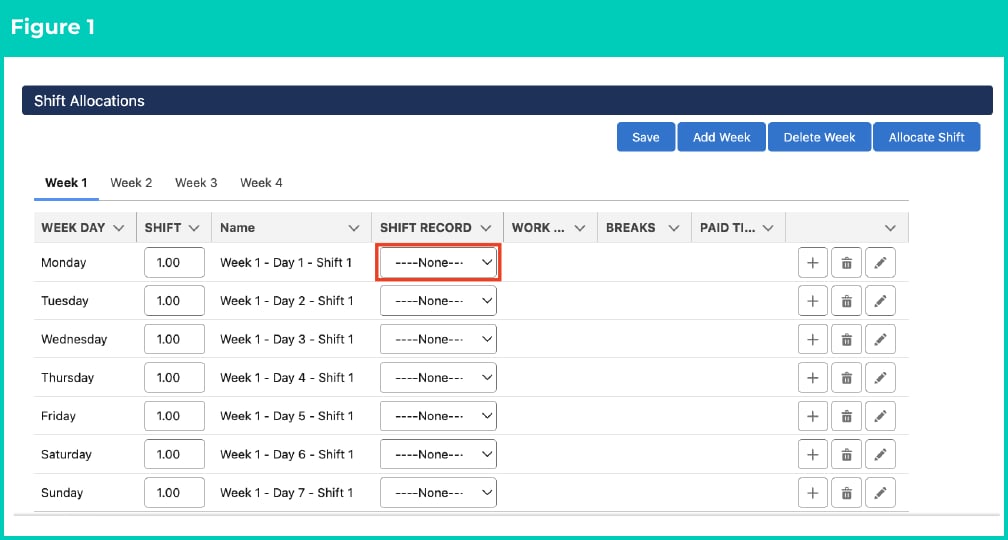
1. While the Work Schedule is in Edit Mode, navigate to the Shift Allocations section of the Work Schedule Manager (see Figure 1).
2. Within the Weekly List displayed, navigate to a daily record that needs a **Shift Record** assigned, or changed.
;
};
## Purpose
The purpose of this quick reference guide is to step through the process of allocating Shifts to a Work Schedule using the Work Schedule Manager. The intended audience for this document are Standard Payroll Users.
## Steps
### Allocate Shifts to a Work Schedule
Once Work Schedule records are created, existing Shift Records can be allocated to the Work Schedule to define the Shifts that apply. While the Work Schedule Manager is in Edit Mode, there are 2 methods to Allocate Shifts:
1. The Picklist option, available in the Weekly Lists under the Shift Allocation section of the Work Schedule Manager, allows allocation on a day by day basis.
2. The Allocate Shift Page option, available through both the Shift Allocation and Shift Records sections of the Work Schedule Manager, enables the allocation of existing Shift Records on a repetitive / sequence work pattern basis.
### Allocate Shifts to a Work Schedule Using the Picklist method
To assign or edit Shift Allocations for individual days listed in the Weekly List displayed within the Shift Allocation section:
1. While the Work Schedule is in Edit Mode, navigate to the Shift Allocations section of the Work Schedule Manager (see Figure 1).
2. Within the Weekly List displayed, navigate to a daily record that needs a **Shift Record** assigned, or changed.
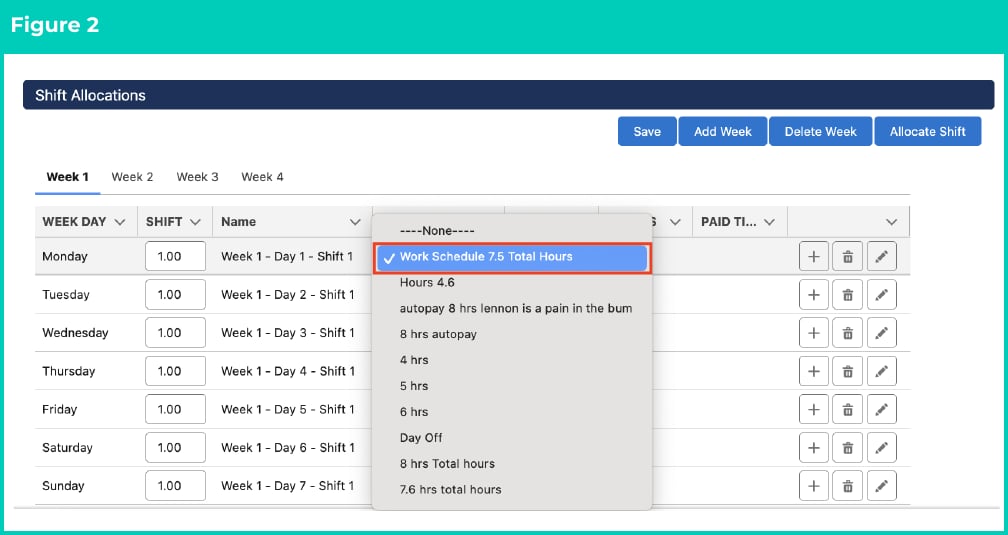
 3. Click on the **Shift Record** picklist to view the available Shift Records. Only Shift Records that have a matching Shift Time Format and Break Time Format to the Work Schedule will be listed for selection. They will be sorted based on the Last Modified Date of the Shift Record (see Figure 2).
4. Scroll down and select the required **Shift Record**.
3. Click on the **Shift Record** picklist to view the available Shift Records. Only Shift Records that have a matching Shift Time Format and Break Time Format to the Work Schedule will be listed for selection. They will be sorted based on the Last Modified Date of the Shift Record (see Figure 2).
4. Scroll down and select the required **Shift Record**.
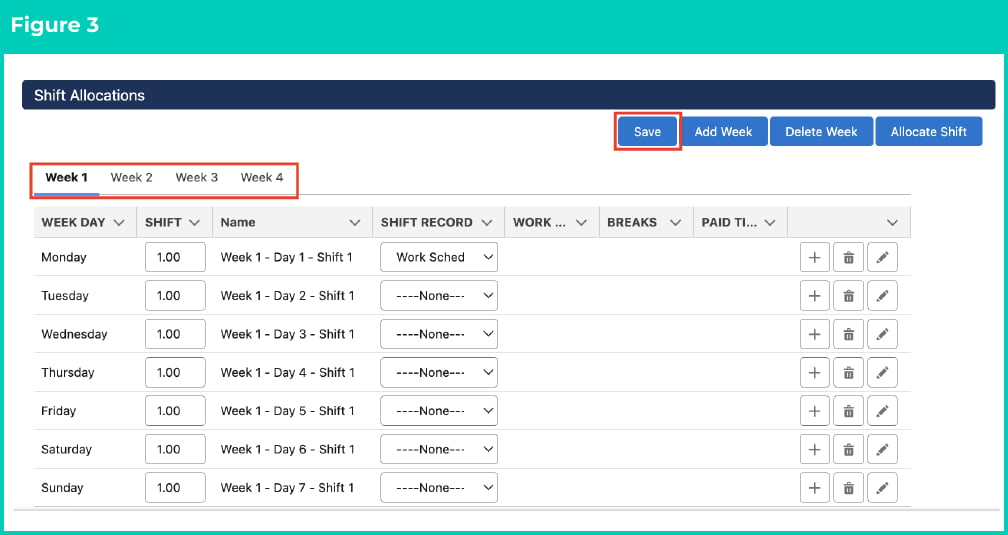
 5. Navigate through the Weekly List tabs as needed, repeating Steps 2 to 4 for each daily record that needs a Shift Record assigned, or changed (see Figure 3).
6. When all Daily Records have a shift allocated, click on the **Save** button. Shift Allocation records will be saved against the Work Schedule and are ready to be Validated.
5. Navigate through the Weekly List tabs as needed, repeating Steps 2 to 4 for each daily record that needs a Shift Record assigned, or changed (see Figure 3).
6. When all Daily Records have a shift allocated, click on the **Save** button. Shift Allocation records will be saved against the Work Schedule and are ready to be Validated.
 Each day must have a Shift Record allocated to it even if no work will be done on that day. In that scenario, you will be required to assign the Day Off Shift Record.
### Allocate Shifts to a Work Schedule Using the Allocate Shift Record Page
To complete Shift Record allocations against multiple days, on a repetitive / sequenced basis, using the Allocate Shift Record Page:
1. Open the Allocate Shift Record Page. This can be completed via 2 methods while the Work Schedule is in Edit Mode:
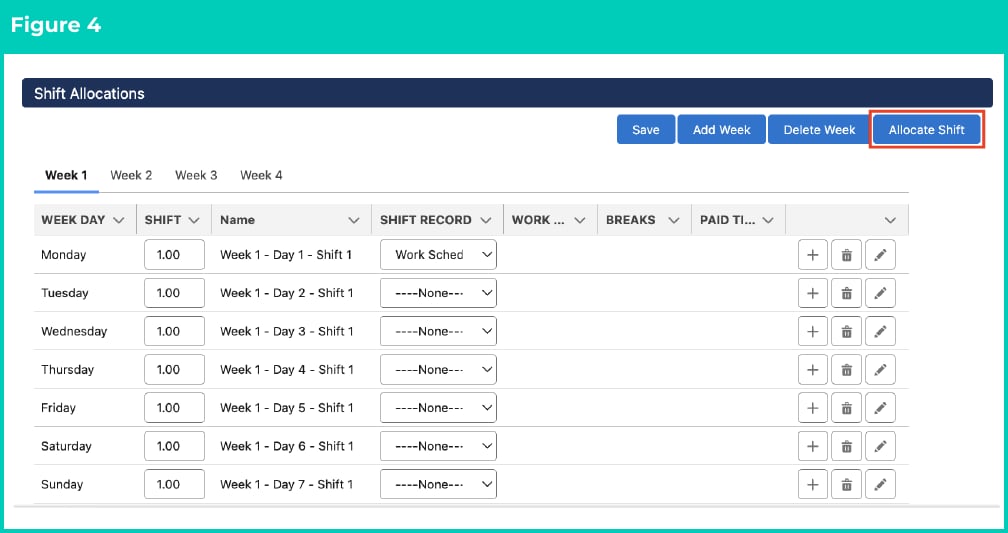
1. Navigate to the **Shift Allocations** section of the Work Schedule Manager (see Figure 4):
1. Click on the **Allocate Shift** button; or
Each day must have a Shift Record allocated to it even if no work will be done on that day. In that scenario, you will be required to assign the Day Off Shift Record.
### Allocate Shifts to a Work Schedule Using the Allocate Shift Record Page
To complete Shift Record allocations against multiple days, on a repetitive / sequenced basis, using the Allocate Shift Record Page:
1. Open the Allocate Shift Record Page. This can be completed via 2 methods while the Work Schedule is in Edit Mode:
1. Navigate to the **Shift Allocations** section of the Work Schedule Manager (see Figure 4):
1. Click on the **Allocate Shift** button; or
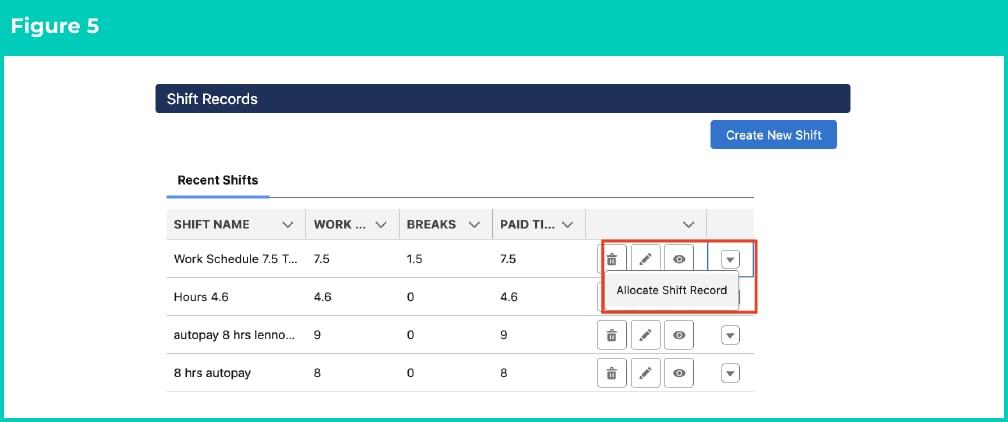
 2. Navigate to the **Shift Records** section of the Work Schedule Manager (see Figure 5):
1. Click on the action button against a relevant Shift Record.
2. Select the **Allocate Shift Record** option.
2. Navigate to the **Shift Records** section of the Work Schedule Manager (see Figure 5):
1. Click on the action button against a relevant Shift Record.
2. Select the **Allocate Shift Record** option.
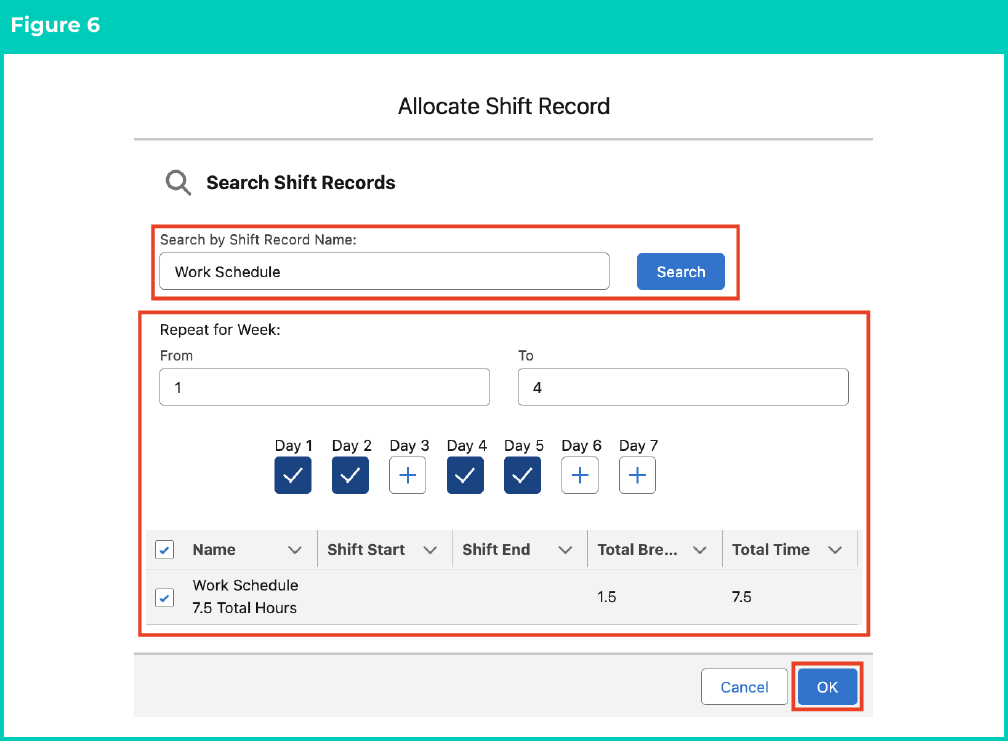
 2. Populate the **Shift Record Name** in the Search by Shift Record Name field. This can be the whole name or part of the name (see Figure 6).
3. Click on the **Search** button.
4. Select the **Shift Record** to be allocated from the list displayed.
5. Define which weeks within the Work Schedule the Shift Allocation will be applied to, using the **Repeat for Week: From** and **To** fields.
6. Select the days of the week that the Shift Allocation will be applied for the weeks defined in Step 5. Select the **Days** by clicking on the buttons.
7. Click on the **Ok** button.
When populating the Day fields within the Allocate Shift Record Page, consider that Day 1 will always represent the Work Schedule First Day.
2. Populate the **Shift Record Name** in the Search by Shift Record Name field. This can be the whole name or part of the name (see Figure 6).
3. Click on the **Search** button.
4. Select the **Shift Record** to be allocated from the list displayed.
5. Define which weeks within the Work Schedule the Shift Allocation will be applied to, using the **Repeat for Week: From** and **To** fields.
6. Select the days of the week that the Shift Allocation will be applied for the weeks defined in Step 5. Select the **Days** by clicking on the buttons.
7. Click on the **Ok** button.
When populating the Day fields within the Allocate Shift Record Page, consider that Day 1 will always represent the Work Schedule First Day.
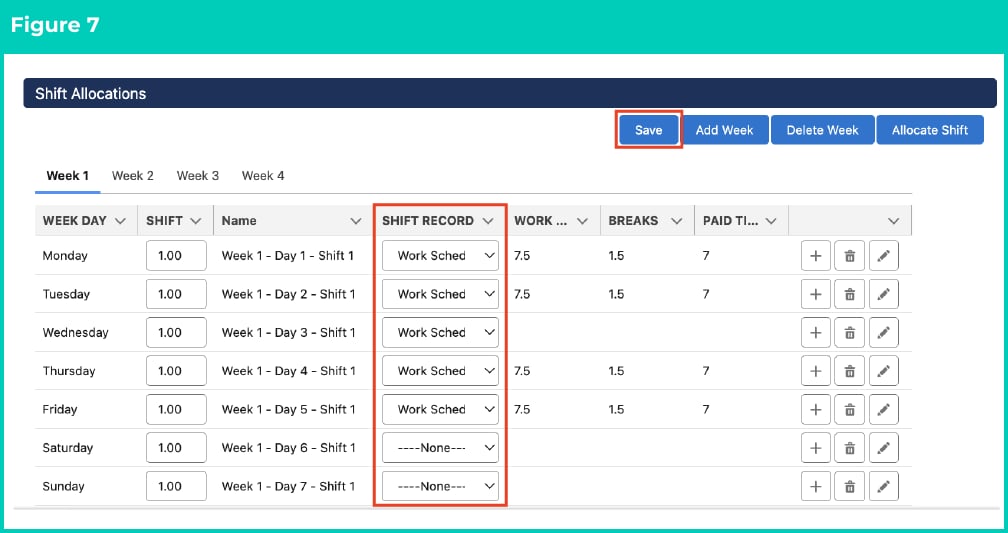
 8. The Allocate Shift Record Page will close. For the Weeks / Days specified, the Shift Records will be populated against the records shown in the Weekly Lists (see Figure 7). If required, these can be edited via the Picklist Method detailed in the above section.
9. Repeat Steps 1 to 7 until Shift Records for all the Days / Rows shown under the Weekly List Tabs are allocated.
10. Click on the **Save** button. Shift Allocation records will be saved against the Work Schedule ready to be Validated.
8. The Allocate Shift Record Page will close. For the Weeks / Days specified, the Shift Records will be populated against the records shown in the Weekly Lists (see Figure 7). If required, these can be edited via the Picklist Method detailed in the above section.
9. Repeat Steps 1 to 7 until Shift Records for all the Days / Rows shown under the Weekly List Tabs are allocated.
10. Click on the **Save** button. Shift Allocation records will be saved against the Work Schedule ready to be Validated.
 ## Field Descriptions
| Field Name | Description |
| :-------------------- | :------------------------------------------------------------------------------------------ |
| **Shift Record** | is the definition of the relationship between shift and a shift allocation. |
| **Shift Record Name** | is the Schedule Item Name or the name of the Shift Record that is being searched. |
| **Repeat for Week** | fields define which weeks within the Work Schedule the Shift Allocation will be applied to. |
## Further Information
| Document | Document Type | Description |
| :----------------------------------------------------------------------------------------------------------------------- | :-------------------------- | :--------------------------------------------------------------------------------------------------------------------------------------------------------------------------------------------------------------------------------------------------- |
| [Quick Reference Guide Index - Work Schedules](/qrgs/index) | Index | An index document that lists and provides links to all Quick Reference Guides relating to Work Schedules. |
| [Managing Work Schedules Key Information](/qrgs/work-schedules/qrg-managing-work-schedule-key-information) | Information Quick Reference | A quick reference guide outlining useful information relevant to the Work Schedule functionality. The document includes definitions, prerequisites and other non-instructional information relating to Work Schedules and the Work Schedule Manager. |
| [Manage Weekly and Daily Shift Allocations](/qrgs/work-schedules/qrg-manage-weekly-and-daily-shift-allocations) | Task Instructions | How to manage Shift Allocation Weeks and Shift Allocation Days using the Work Schedule Manager. |
| [Validate, Publish and Unpublish Work Schedules](/qrgs/work-schedules/qrg-validate-publish-and-unpublish-work-schedules) | Task Instructions | How to validate, publish and unpublish Work Schedules through the Work Schedule Manager. |
## Field Descriptions
| Field Name | Description |
| :-------------------- | :------------------------------------------------------------------------------------------ |
| **Shift Record** | is the definition of the relationship between shift and a shift allocation. |
| **Shift Record Name** | is the Schedule Item Name or the name of the Shift Record that is being searched. |
| **Repeat for Week** | fields define which weeks within the Work Schedule the Shift Allocation will be applied to. |
## Further Information
| Document | Document Type | Description |
| :----------------------------------------------------------------------------------------------------------------------- | :-------------------------- | :--------------------------------------------------------------------------------------------------------------------------------------------------------------------------------------------------------------------------------------------------- |
| [Quick Reference Guide Index - Work Schedules](/qrgs/index) | Index | An index document that lists and provides links to all Quick Reference Guides relating to Work Schedules. |
| [Managing Work Schedules Key Information](/qrgs/work-schedules/qrg-managing-work-schedule-key-information) | Information Quick Reference | A quick reference guide outlining useful information relevant to the Work Schedule functionality. The document includes definitions, prerequisites and other non-instructional information relating to Work Schedules and the Work Schedule Manager. |
| [Manage Weekly and Daily Shift Allocations](/qrgs/work-schedules/qrg-manage-weekly-and-daily-shift-allocations) | Task Instructions | How to manage Shift Allocation Weeks and Shift Allocation Days using the Work Schedule Manager. |
| [Validate, Publish and Unpublish Work Schedules](/qrgs/work-schedules/qrg-validate-publish-and-unpublish-work-schedules) | Task Instructions | How to validate, publish and unpublish Work Schedules through the Work Schedule Manager. |