> ## Documentation Index
> Fetch the complete documentation index at: https://documentation.2cloudnine.com/llms.txt
> Use this file to discover all available pages before exploring further.
# QRG Manage Weekly and Daily Shift Allocations
export const InlineImage = ({src, alt = "", height = "1.6em"}) => {
return  ;
};
## Purpose
The purpose of this quick reference guide is to step through the process of managing Shift Allocation Weeks and Shift Allocation Days using the Work Schedule Manager. The intended audience for this document are Standard Payroll Users.
## Steps
### Managing Shift Allocation Weeks
The Weeks that are included within the Work Schedule are originally defined by the value within the Work Schedule Number of Weeks field. The number of weeks can be modified with the Shift Allocation section of the Work Schedule Manager.
;
};
## Purpose
The purpose of this quick reference guide is to step through the process of managing Shift Allocation Weeks and Shift Allocation Days using the Work Schedule Manager. The intended audience for this document are Standard Payroll Users.
## Steps
### Managing Shift Allocation Weeks
The Weeks that are included within the Work Schedule are originally defined by the value within the Work Schedule Number of Weeks field. The number of weeks can be modified with the Shift Allocation section of the Work Schedule Manager.
1. To add an extra week to the Work Schedule:
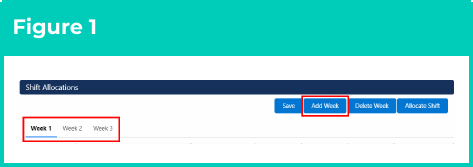
1. While the Work Schedule is in Edit Mode, navigate to the Shift Allocations section of the Work Schedule Manager. Click on the **Add Week** button (see Figure 1).
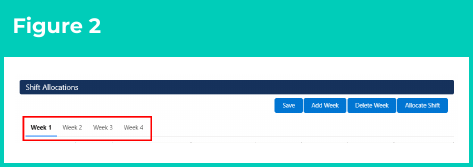
2. When clicked, an extra week is added to the value held in the Work Schedule Number of Weeks field within the Work Schedule record. Further, an additional Weekly List Tab will be available for selection when managing shifts (see Figure 2).
2. To remove an extra week from the Work Schedule:
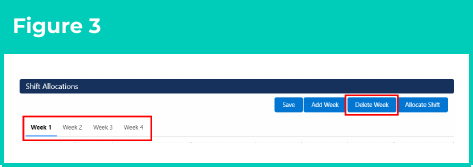
1. Click on the **Delete Week** button (see Figure 3).
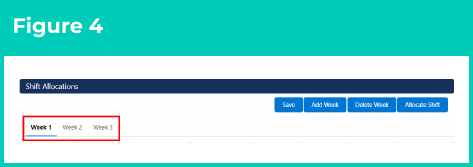
2. When clicked, a week will be deleted from the value held in the Work Schedule Number of Weeks field within the Work Schedule record. Further, the **Weekly List Tabs** available for selection when managing shifts will be reduced by one (see Figure 4).
Any updates to the Work Schedule must be saved before the Weekly List Tabs displayed in the Allocation Shifts section will reflect the correct number of weeks.
### Managing Shift Allocation Days / Rows
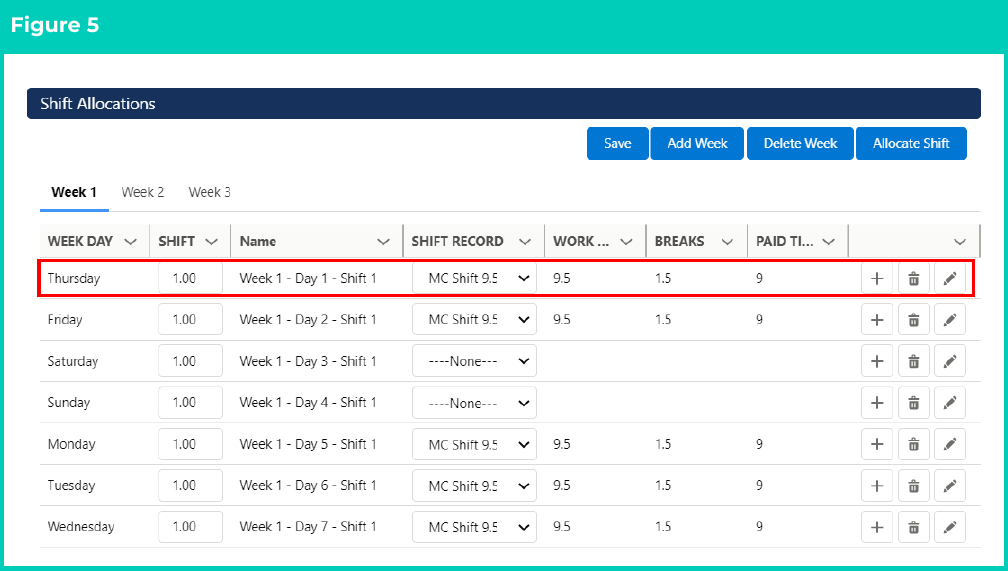
In addition to allocating Shifts Records, when the Work Schedule Manager is in Edit Mode, the following functions can be completed to manage Shift Allocation Days / Rows (see Figure 5).
 1. To Add Shift Allocation Days / Rows:
1. Within the **Weekly List Tabs** displayed, navigate to a **Day / Row** that needs an additional row created.
2. Click the button. When clicked, an additional row will be added for the Day within the displayed Weekly List. By default:
1. The value in the Shift column, which represents the ordering of multiple Shift Allocations within a day, will be defaulted as the value held in the row from which the button was clicked plus 1.
2. The value in the Shift Record column will also be defaulted as the value held in the row from which the button was clicked.
Both the Shift and Shift Record options can be modified and saved as needed via their associated picklist.
2. To Delete Shift Allocation Days / Rows:
1. Within the **Weekly List Tabs** displayed, navigate to a **Day / Row** that needs to be deleted.
2. Click the button. When clicked, the row will be removed from the Weekly List. Further, the Shift Allocation record will be deleted.
3. To Edit Shift Allocation Days / Rows:
1. Within the **Weekly List Tabs** displayed, navigate to a **Day / Row** that needs to be edited.
2. Click on the button.
3. When clicked, the Edit Shift Allocation Record page will open.
4. Modify / update the **Shift Allocation** details as required.
5. Click on the **Save** button. The changes made to the selected Shift Allocation will be saved.
## Field Descriptions
No field descriptions are required for this QRG document.
## Further Information
| Document | Document Type | Description |
| :--------------------------------------------------------------------------------------------------------- | :-------------------------- | :--------------------------------------------------------------------------------------------------------------------------------------------------------------------------------------------------------------------------------------------------- |
| [Quick Reference Guide Index - Work Schedules](/qrgs/index) | Index | An index document that lists and provides links to all Quick Reference Guides relating to Work Schedules. |
| [Managing Work Schedules Key Information](/qrgs/work-schedules/qrg-managing-work-schedule-key-information) | Information Quick Reference | A quick reference guide outlining useful information relevant to the Work Schedule functionality. The document includes definitions, prerequisites and other non-instructional information relating to Work Schedules and the Work Schedule Manager. |
| [Manage Shift Allocations](/qrgs/work-schedules/qrg-manage-shift-allocations) | Task Instructions | How to allocate and manage shifts to a Work Schedule record through the Work Schedule Manager. |
1. To Add Shift Allocation Days / Rows:
1. Within the **Weekly List Tabs** displayed, navigate to a **Day / Row** that needs an additional row created.
2. Click the button. When clicked, an additional row will be added for the Day within the displayed Weekly List. By default:
1. The value in the Shift column, which represents the ordering of multiple Shift Allocations within a day, will be defaulted as the value held in the row from which the button was clicked plus 1.
2. The value in the Shift Record column will also be defaulted as the value held in the row from which the button was clicked.
Both the Shift and Shift Record options can be modified and saved as needed via their associated picklist.
2. To Delete Shift Allocation Days / Rows:
1. Within the **Weekly List Tabs** displayed, navigate to a **Day / Row** that needs to be deleted.
2. Click the button. When clicked, the row will be removed from the Weekly List. Further, the Shift Allocation record will be deleted.
3. To Edit Shift Allocation Days / Rows:
1. Within the **Weekly List Tabs** displayed, navigate to a **Day / Row** that needs to be edited.
2. Click on the button.
3. When clicked, the Edit Shift Allocation Record page will open.
4. Modify / update the **Shift Allocation** details as required.
5. Click on the **Save** button. The changes made to the selected Shift Allocation will be saved.
## Field Descriptions
No field descriptions are required for this QRG document.
## Further Information
| Document | Document Type | Description |
| :--------------------------------------------------------------------------------------------------------- | :-------------------------- | :--------------------------------------------------------------------------------------------------------------------------------------------------------------------------------------------------------------------------------------------------- |
| [Quick Reference Guide Index - Work Schedules](/qrgs/index) | Index | An index document that lists and provides links to all Quick Reference Guides relating to Work Schedules. |
| [Managing Work Schedules Key Information](/qrgs/work-schedules/qrg-managing-work-schedule-key-information) | Information Quick Reference | A quick reference guide outlining useful information relevant to the Work Schedule functionality. The document includes definitions, prerequisites and other non-instructional information relating to Work Schedules and the Work Schedule Manager. |
| [Manage Shift Allocations](/qrgs/work-schedules/qrg-manage-shift-allocations) | Task Instructions | How to allocate and manage shifts to a Work Schedule record through the Work Schedule Manager. |