> ## Documentation Index
> Fetch the complete documentation index at: https://documentation.2cloudnine.com/llms.txt
> Use this file to discover all available pages before exploring further.
# QRG Managing Work Schedules - Key Information
## About
Work Schedules functionality is used to define the work roster. Work Schedules can be created in a few easy steps which include shift creation and Allocation. This document covers the entire process of creating, allocating, validating, and publishing the Work Schedule records.
## Prerequisites
Prior to the management of a Work Schedule record either through the Work Schedule Manager or directly through standard record pages, the following prerequisites must be met:
1. Users must have sufficient privileges to manage Work Schedules and their related records. See your System Administrator if you do not have the required access.
2. 2cloudnine Payroll Users must be running the Salesforce Lightning Experience.
3. Ensure the latest version of Payroll and Time2Pay packages are installed.
4. Pay Codes must be appropriately set up and functional.
## Work Schedules Interface Appearance and Usability
* All dates and times are displayed as per the location of the logged-in User.
* The default display resolution supported for the Work Schedules is 1920 x 1080 (1080p) scaled at 100%. The minimum display resolution supported is 1024 x 768 as per the Salesforce standard.
* The pages within the Work Schedules will automatically resize in width and height so that the components are stretched appropriately depending on resolution.
* If the fields / tabs within the package are unclear or overlap, zoom out (or zoom in) through the web browser as needed.
## Definitions
### Work Schedule Records
* **Work Schedule**\
Holds basic information about the Work Schedule, including relevant dates and the number of weeks the Work Pattern within the Work Schedule will be defined for. It also includes key Status information which determines what functionality is available to the Work Schedule.
* **Shift Record**\
Provides the details of an individual Shift including the Shift Start / End Times and / or Total Hours as well as Break details. A Shift Record is not directly related to the Work Schedule, instead it is related via the Shift Allocation record. This allows for a single Shift Record to be related to multiple Work Schedules as well as the reverse, a single Work Schedule related to multiple Shift Records. Shift Records are created as Schedule Item records with a Record Type of Shift.
* **Shift Allocation**\
Forms a relationship between a Shift Record and a Work Schedule. These are specifically used to define the Work Pattern that will then be replicated to cover the entire period of the Work Schedule when creating Work Schedule Entries. Shift Allocations are created as Schedule Item records with a Record Type of Shift Allocations.
* **Work Schedule Entries**\
Forms a relationship between a Shift Record and a Work Schedule. These records are generated on a per Day / Shift basis for the entire period covered by the Work Schedule. The Work Pattern outlined on the relevant Shift Allocation records is used to determine the correct Shift Records to apply to each Day / Shift. Once the Work Schedule record is published, Work Schedule Entries are created as Schedule Item records with a Record Type of Work Schedule Entry.
* **Validate and Publish Work Schedules**\
This functionality allows Users to validate newly created or existing Work Schedule records prior to them being Published. Work Schedules that are in a State of Published and need to be modified can also be Unpublished, updated, Validated and then Published again, as long as they are not currently used within an Assignment Schedule.
### Work Schedules Status Definition
* **New**\
Indicates that the Work Schedule, and its related Schedule Items, have not been Validated. At this stage, the Work Schedule can be modified and Validated, however, it cannot be applied to an Assignment via an Assignment Schedule.
* **Validated**\
Indicates that the Work Schedule and its related Schedule Items have been Validated to ensure completeness. At this stage, the Work Schedule can be Published but cannot be applied to an Assignment via an Assignment Schedule.
* **Published**\
Indicates that the Work Schedule has been Published and is ready to be applied to an Assignment via an Assignment Schedule. At this stage, the Work Schedule and its related Schedule Items can no longer be modified unless Unpublished.
* **Failed**\
Indicates that there was a failure during one of the system processes relating to Work Schedule Validation, Publishing, or Unpublishing. When the Work Schedule has a Status of Failed, there will be a Debug Header / Log(s) outlining the reason for the failure. These issues must be resolved before the Work Schedule can be Validated and Published. At this stage, the Work Schedule cannot be applied to an Assignment via an Assignment Schedule.
* **In Progress**\
Indicates that one of the system processes relating to Work Schedule Validation, Publishing, and Unpublishing is underway. This is not a User-driven status and will update automatically when the process is complete.
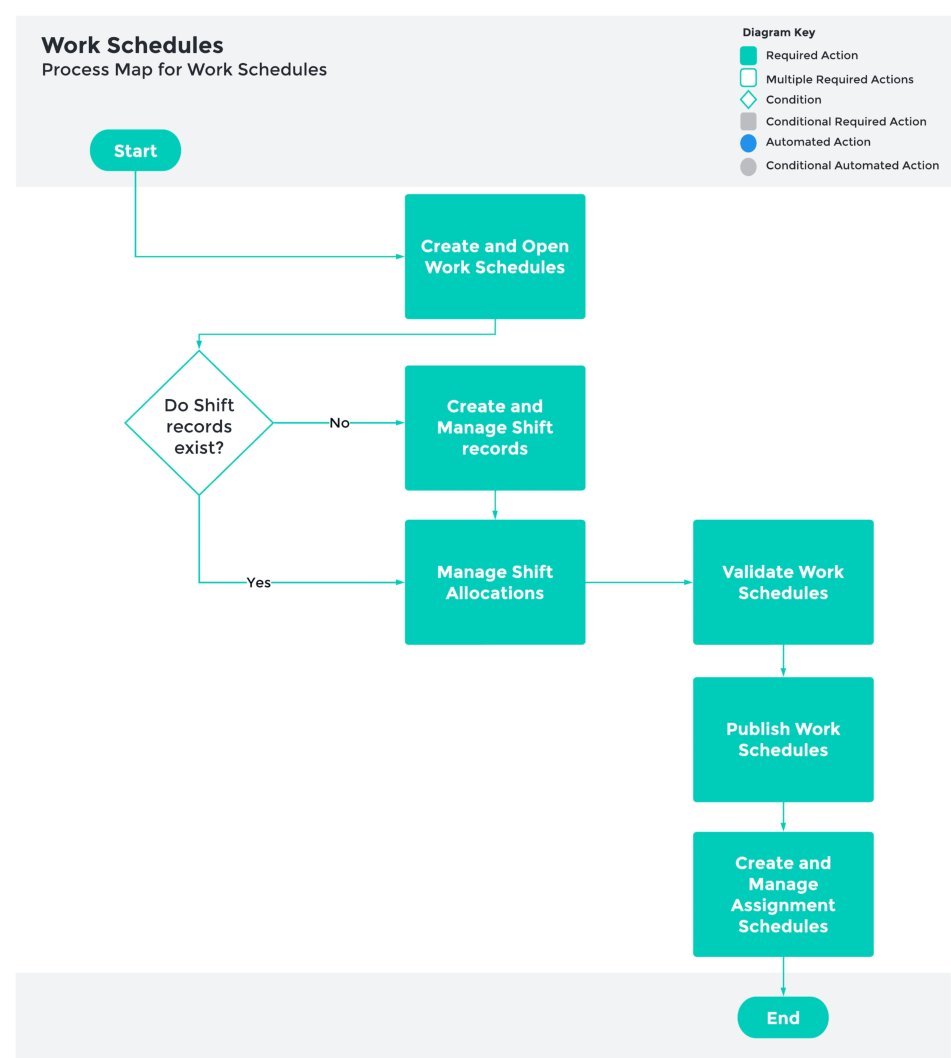
## General Overviews
### Work Schedule Manager Functionality
* Create and Open Work Schedules
* Create and Manage Shift Records
* Manage Shift Allocations
* Validate Work Schedule
* Publish Work Schedule
* Unpublish Work Schedule (as required)
* Create and Manage Assignment Schedules
 ## System Process Outlines
### Work Schedules, Assignments and Assignment Schedules
* The Assignment Schedule forms a relationship between the Assignment and Work Schedules as that information can then be used for ongoing activities such as Timesheet hours population and Payroll Processing.
* A single Assignment can be related to multiple Work Schedules as well as the reverse, a single Work Schedule can be related to multiple Assignments.
### Work Schedules and Payroll
* Once assigned to an Assignment Schedule, the information held on the Work Schedule can be used throughout the Payroll Process.
* For Employees based on Timesheet submission, the Work Schedule will be used to pre-populate specific times / hours onto the Timesheets for the period the Work Schedule has been Published, or until the end of the Assignment, whichever comes first.
* For Remuneration / Auto Pay based Employees:
* The Work Schedule can be used in identifying and creating the Pay Transactions required to be processed in a Pay Batch.
* For Work Schedule information to be included within the Pay Batch, the following fields held on any related Assignment Rate(s) must be populated as follows:
* Auto Pay Calculation Basis field must have a value of Work Schedule
* Auto Pay field must have a value of Yes
* Pro-Rata Method field must have a value of Work Schedule
* Unless a Part Day Override has been specified on a Payee Leave Event, the Hours to be applied to the Leave will automatically be calculated based on the Total Hours of the Work Schedule Entries that apply to the Leave date(s). If Part Day Override is specified, Leave will be calculated based on the Hours defined on the Payee Leave Event.
* Work Schedule Entries that fall on Public Holidays will be processed as a Public Holiday when a related Public Holiday Calendar includes the date as a Public Holiday Calendar Period and is assigned to the Assignment. Please ensure a Public Holiday Pay Code is nominated on the Assignment’s Pay Schedule for Auto Pay Public Holidays to process automatically.
### Validation Process Outlined
* A Work Schedule cannot be Validated successfully unless all the Shift Allocation records that have been created to establish the Work Pattern have all the necessary fields populated.
* The Validation Process will check the data held within all Shift Allocations related to the Work Schedule to ensure their completeness.
* If all the Shift Allocation records are complete, the Status of the Work Schedule will be updated to Validated when the Validate button is pressed.
* If any of the Shift Allocation records are incomplete, the Status of the Work Schedule will update to Failed, and a Debug Header / Log(s) will be generated to provide the necessary details to the User.
### Publishing Process Outlined
* The Publish Process can only be initiated if the Status of the Work Schedule is Validated. The Publish button remains faded until the Status is Validated.
* Upon initiating the Publish Process for a Work Schedule, the Users will be asked to define the end date that the Work Schedule will apply for. The Published From date will automatically populate based on either the Work Schedule Start Date or the previous Published To date + 1, depending if the Work Schedule has already been Published or not. Work Schedules can only be Published for a maximum of 2.5 years initially, but if required to be a longer period, this can be done after the initial Publish Status is successful.
* The information on the Shift Allocations related to the Work Schedule will be used to determine the Work Pattern that needs to be repeated when creating Work Schedule Entries that cover the Published period of time defined by the User.
* For example, a Work Schedule may include Shift Allocations that define a Work Pattern for 4 weeks. When the User initiates the Publish Process, they may enter a date range that covers 16 weeks. This means that the Work Pattern defined will be repeated 4 times during the entire Work Schedule period. Work Schedule Entries will be created to reflect this.
* Where the Work Schedule has previously been Published / Unpublished, any existing Work Schedule Entries will be edited / deleted to ensure the current specified Work Pattern is maintained.
* If the Publish Process is completed successfully, the Status of the Work Schedule will be updated to Published.
* If the Publish Process fails to complete successfully, the Status of the Work Schedule will update to Failed and a Debug Header / Log(s) will be generated to provide the details to the User for the failure.
* The Work Schedule and corresponding Work Schedule Entries are all locked and cannot be changed whilst in a status of Published.
### Unpublish Process Outlined
* The Unpublish Process can only be initiated if the Status of the Work Schedule equals Published.
* A Work Schedule cannot be modified or Unpublished once it has one or more related Assignment Schedules. The system will perform a check to ensure that there are no related Assignment Schedules and, if there are, the Unpublish Process will not proceed. An error message will be presented to the User reflecting this.
* If the Unpublish Process is completed successfully, the Status of the Work Schedule will be updated to New.
* If the Unpublish Process fails to complete successfully, the Status of the Work Schedule will update to Failed and a Debug Header / Log(s) will be generated to provide details to the User for the failure.
* After completing the Unpublish process, the Work Schedule and corresponding Work Schedule Entries are all unlocked and can be edited / deleted as required.
## Further Information
| Document | Document Type | Description |
| :----------------------------------------------------------------------------------------------------------------------- | :---------------- | :------------------------------------------------------------------------------------------------------------ |
| [Create and Open Work Schedules](/qrgs/work-schedules/qrg-create-and-open-work-schedules) | Task Instructions | How to launch the Work Schedule Manager to create a new Work Schedule record and how to open a Work Schedule. |
| [Create and Manage Shift Records](/qrgs/work-schedules/qrg-create-and-manage-shift-records) | Task Instructions | How to create and manage Shift Records using the Work Schedule Manager. |
| [Manage Weekly and Daily Shift Allocations](/qrgs/work-schedules/qrg-manage-weekly-and-daily-shift-allocations) | Task Instructions | How to manage Shift Allocation Weeks and Shift Allocation Days using the Work Schedule Manager. |
| [Manage Shift Allocations](/qrgs/work-schedules/qrg-manage-shift-allocations) | Task Instructions | How to allocate and manage Shift Records to a Work Schedule record through the Work Schedule Manager. |
| [Validate, Publish and Unpublish Work Schedules](/qrgs/work-schedules/qrg-validate-publish-and-unpublish-work-schedules) | Task Instructions | How to validate, publish and unpublish Work Schedules through the Work Schedule Manager. |
| [Create and Manage Assignment Schedules](/qrgs/work-schedules/qrg-create-and-manage-assignment-schedules) | Task Instructions | How to create and manage Assignment Schedules to relate a Published Work Schedule to an Assignment. |
## System Process Outlines
### Work Schedules, Assignments and Assignment Schedules
* The Assignment Schedule forms a relationship between the Assignment and Work Schedules as that information can then be used for ongoing activities such as Timesheet hours population and Payroll Processing.
* A single Assignment can be related to multiple Work Schedules as well as the reverse, a single Work Schedule can be related to multiple Assignments.
### Work Schedules and Payroll
* Once assigned to an Assignment Schedule, the information held on the Work Schedule can be used throughout the Payroll Process.
* For Employees based on Timesheet submission, the Work Schedule will be used to pre-populate specific times / hours onto the Timesheets for the period the Work Schedule has been Published, or until the end of the Assignment, whichever comes first.
* For Remuneration / Auto Pay based Employees:
* The Work Schedule can be used in identifying and creating the Pay Transactions required to be processed in a Pay Batch.
* For Work Schedule information to be included within the Pay Batch, the following fields held on any related Assignment Rate(s) must be populated as follows:
* Auto Pay Calculation Basis field must have a value of Work Schedule
* Auto Pay field must have a value of Yes
* Pro-Rata Method field must have a value of Work Schedule
* Unless a Part Day Override has been specified on a Payee Leave Event, the Hours to be applied to the Leave will automatically be calculated based on the Total Hours of the Work Schedule Entries that apply to the Leave date(s). If Part Day Override is specified, Leave will be calculated based on the Hours defined on the Payee Leave Event.
* Work Schedule Entries that fall on Public Holidays will be processed as a Public Holiday when a related Public Holiday Calendar includes the date as a Public Holiday Calendar Period and is assigned to the Assignment. Please ensure a Public Holiday Pay Code is nominated on the Assignment’s Pay Schedule for Auto Pay Public Holidays to process automatically.
### Validation Process Outlined
* A Work Schedule cannot be Validated successfully unless all the Shift Allocation records that have been created to establish the Work Pattern have all the necessary fields populated.
* The Validation Process will check the data held within all Shift Allocations related to the Work Schedule to ensure their completeness.
* If all the Shift Allocation records are complete, the Status of the Work Schedule will be updated to Validated when the Validate button is pressed.
* If any of the Shift Allocation records are incomplete, the Status of the Work Schedule will update to Failed, and a Debug Header / Log(s) will be generated to provide the necessary details to the User.
### Publishing Process Outlined
* The Publish Process can only be initiated if the Status of the Work Schedule is Validated. The Publish button remains faded until the Status is Validated.
* Upon initiating the Publish Process for a Work Schedule, the Users will be asked to define the end date that the Work Schedule will apply for. The Published From date will automatically populate based on either the Work Schedule Start Date or the previous Published To date + 1, depending if the Work Schedule has already been Published or not. Work Schedules can only be Published for a maximum of 2.5 years initially, but if required to be a longer period, this can be done after the initial Publish Status is successful.
* The information on the Shift Allocations related to the Work Schedule will be used to determine the Work Pattern that needs to be repeated when creating Work Schedule Entries that cover the Published period of time defined by the User.
* For example, a Work Schedule may include Shift Allocations that define a Work Pattern for 4 weeks. When the User initiates the Publish Process, they may enter a date range that covers 16 weeks. This means that the Work Pattern defined will be repeated 4 times during the entire Work Schedule period. Work Schedule Entries will be created to reflect this.
* Where the Work Schedule has previously been Published / Unpublished, any existing Work Schedule Entries will be edited / deleted to ensure the current specified Work Pattern is maintained.
* If the Publish Process is completed successfully, the Status of the Work Schedule will be updated to Published.
* If the Publish Process fails to complete successfully, the Status of the Work Schedule will update to Failed and a Debug Header / Log(s) will be generated to provide the details to the User for the failure.
* The Work Schedule and corresponding Work Schedule Entries are all locked and cannot be changed whilst in a status of Published.
### Unpublish Process Outlined
* The Unpublish Process can only be initiated if the Status of the Work Schedule equals Published.
* A Work Schedule cannot be modified or Unpublished once it has one or more related Assignment Schedules. The system will perform a check to ensure that there are no related Assignment Schedules and, if there are, the Unpublish Process will not proceed. An error message will be presented to the User reflecting this.
* If the Unpublish Process is completed successfully, the Status of the Work Schedule will be updated to New.
* If the Unpublish Process fails to complete successfully, the Status of the Work Schedule will update to Failed and a Debug Header / Log(s) will be generated to provide details to the User for the failure.
* After completing the Unpublish process, the Work Schedule and corresponding Work Schedule Entries are all unlocked and can be edited / deleted as required.
## Further Information
| Document | Document Type | Description |
| :----------------------------------------------------------------------------------------------------------------------- | :---------------- | :------------------------------------------------------------------------------------------------------------ |
| [Create and Open Work Schedules](/qrgs/work-schedules/qrg-create-and-open-work-schedules) | Task Instructions | How to launch the Work Schedule Manager to create a new Work Schedule record and how to open a Work Schedule. |
| [Create and Manage Shift Records](/qrgs/work-schedules/qrg-create-and-manage-shift-records) | Task Instructions | How to create and manage Shift Records using the Work Schedule Manager. |
| [Manage Weekly and Daily Shift Allocations](/qrgs/work-schedules/qrg-manage-weekly-and-daily-shift-allocations) | Task Instructions | How to manage Shift Allocation Weeks and Shift Allocation Days using the Work Schedule Manager. |
| [Manage Shift Allocations](/qrgs/work-schedules/qrg-manage-shift-allocations) | Task Instructions | How to allocate and manage Shift Records to a Work Schedule record through the Work Schedule Manager. |
| [Validate, Publish and Unpublish Work Schedules](/qrgs/work-schedules/qrg-validate-publish-and-unpublish-work-schedules) | Task Instructions | How to validate, publish and unpublish Work Schedules through the Work Schedule Manager. |
| [Create and Manage Assignment Schedules](/qrgs/work-schedules/qrg-create-and-manage-assignment-schedules) | Task Instructions | How to create and manage Assignment Schedules to relate a Published Work Schedule to an Assignment. |