> ## Documentation Index
> Fetch the complete documentation index at: https://documentation.2cloudnine.com/llms.txt
> Use this file to discover all available pages before exploring further.
# Eucalyptus '25 - Upgrade Guide
export const InlineImage = ({src, alt = "", height = "1.6em"}) => {
return  ;
};
### Overview
| **Release:** | Eucalyptus '25 |
| --------------------- | --------------------------------------------------------------------------------------------------------------------------------------------------------------------------------------------------------------------------------------------------------------------------------------------------------------------------------------------------------------------------------------------------------------------------------------------------------------------------------------------------------------------------------------------------------------------------------------------------------------------------- |
| **Version:** | v1.234.6 |
| **Published Date:** | 18/09/2025 |
| **Packages updated:** |
;
};
### Overview
| **Release:** | Eucalyptus '25 |
| --------------------- | --------------------------------------------------------------------------------------------------------------------------------------------------------------------------------------------------------------------------------------------------------------------------------------------------------------------------------------------------------------------------------------------------------------------------------------------------------------------------------------------------------------------------------------------------------------------------------------------------------------------------- |
| **Version:** | v1.234.6 |
| **Published Date:** | 18/09/2025 |
| **Packages updated:** | - 2cloudnine Payroll v1.234.6
(incorporates v1.224 to v1.234.6) - 2cloudnine Payroll Time2Pay Extension v1.215
(incorporates v1.203 to v1.215) - 2cloudnine Payroll Communities Extension v1.77
(incorporates v1.71 to v1.77) - 2cloudnine Data Creation v1.77.2
(incorporates v1.70 to v1.77.2) - 2cloudnine Payroll Reconciliation v1.29
(incorporates v1.27 to v1.29) - 2cloudnine Payroll General Ledger Extension v1.70
(incorporates v1.70 to v1.70) - 2cloudnine Payroll Aus Extension v1.103
(incorporates v1.101 to v1.103)
|
## Important Information
Only your authorised Salesforce System Administrator or Partner should be actioning any installation,
configuration items, and related tasks.
Installing the Import Tool v 1.43 (or higher) package must only be actioned if the Integrated Import Tool is
required. Implementing it will require assistance from the Integration Team.
The 2cloudnine Payroll Package & Time2Pay Extension Package within this release must be updated if
they are already being used. There may be compulsory and optional configuration items and tasks that
need to be completed pre and post the installation of the packages. These will be outlined in the
checklists below, with further details given within this document.
The installer will be responsible for ensuring all these configuration items and tasks are completed within
a reasonable timeframe of the packages being installed. Please ensure you have familiarised yourself
with all of the requirements before installing the packages and that you have sufficient time and
resources available. Failing to do so can negatively impact the User experience and stability of 2cloudnine
Payroll.
This guide should always be opened and used via your web browser. This will ensure you are viewing the
most recent version of the document. Further, downloading the document and opening it with desktop
programs, such as Adobe, has been found to cause errors when copying and using the scripts provided
for data updates. These errors do not occur when viewed through a browser.
## Pre-Installation Checklist
The following items are highly recommended to be completed before commencing the installation and
configuration of packages within this release.
| | Configuration Item/Task | Requirement? |
| ------------------------------------------------------------------------------- | ------------------------------------------------------------ | -------------- |
| Existing Component Review | | |
| | Check the current version of the packages that are installed | **Compulsory** |
| New Component Review | | |
| | Remove/rename duplicate objects | **Optional** |
| | Remove/rename duplicate record types | **Optional** |
| | Remove/rename duplicate fields | **Optional** |
## Icons
Please refer to the legend below when referencing the icons used throughout the document:
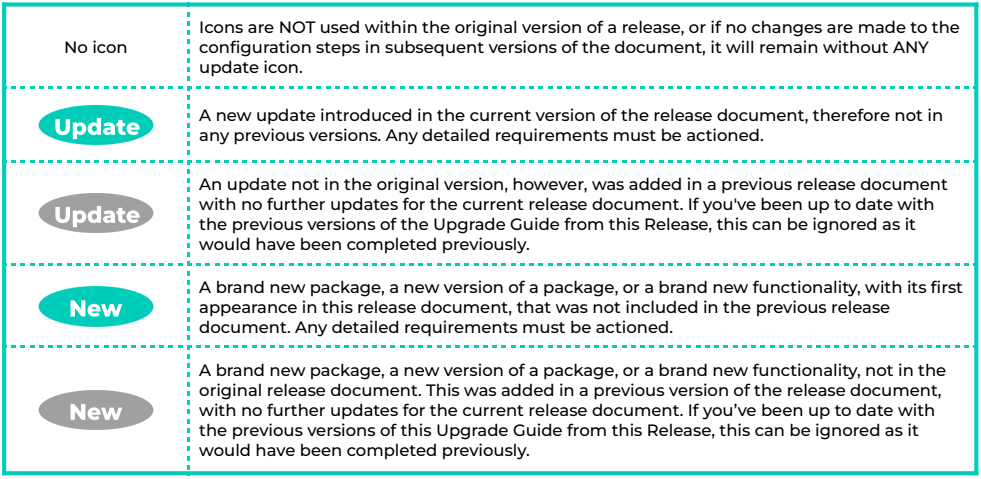 **IMPORTANT:** If you are installing the Eucalyptus release for the first time, then the above icons can be
ignored as you will need to install and configure this entire document.
## Installation and Configuration Checklist
The following items must be completed in the listed order to install and configure the packages within
this release.
| | Configuration Item / Task | Requirement? |
| -------------------------------------------------------------------------------------------------------------------------------------------------------------- | -------------------------------------------------------------------------------------------------------------- | -------------------------------------------------- |
| [Package Installation](#package-installation) | | |
| | Ensure 2cloudnine Payroll v1.234.6 is installed and configured | **Compulsory** Update |
| | Ensure 2cloudnine Payroll Time2Pay Extension v1.215 is installed
**IMPORTANT:** If you are installing the Eucalyptus release for the first time, then the above icons can be
ignored as you will need to install and configure this entire document.
## Installation and Configuration Checklist
The following items must be completed in the listed order to install and configure the packages within
this release.
| | Configuration Item / Task | Requirement? |
| -------------------------------------------------------------------------------------------------------------------------------------------------------------- | -------------------------------------------------------------------------------------------------------------- | -------------------------------------------------- |
| [Package Installation](#package-installation) | | |
| | Ensure 2cloudnine Payroll v1.234.6 is installed and configured | **Compulsory** Update |
| | Ensure 2cloudnine Payroll Time2Pay Extension v1.215 is installed
and configured | **Compulsory** Update |
| | Ensure 2cloudnine Payroll Communities Extension v1.77 is
installed and configured | **Compulsory** Update |
| | Ensure 2cloudnine Data Creation v1.78 is installed and configured | **Compulsory** Update |
| | Ensure 2cloudnine Payroll Reconciliation v1.29 is installed and
configured | **Compulsory** |
| | Ensure 2cloudnine Payroll General Ledger Extension v1.70 is
installed and configured | **Compulsory** |
| | Ensure 2cloudnine Payroll Aus Extension v1.103 is installed and
configured | **Compulsory** |
| [Updates to the 2025/2026 PAYG Tables for STSL, Lump Sums A, B, D, and ETP Rates](#updates-to-the-20252026-payg-tables-for-stsl-lump-sums-a-b-d-and-etp-rates) | | |
| | [Complete the Setup Payroll Process](#complete-the-setup-payroll-process-compulsory) | **Compulsory** |
| | [Adhere to the 2025/2026 Superannuation Changes](#adhere-to-the-20252026-superannuation-changes) | **Compulsory** |
| | [2026 Public Holiday Available Via Bulk Data Creation](#2026-public-holidays-available-via-bulk-data-creation) | **Compulsory** |
| [Updates to Payment Detail Page Layouts](#updates-to-payment-detail-page-layouts) | | |
| | [Payment Detail](#payment-detail-optional) | **Optional** |
| [2cloudnine View Setup Permission Set](#2cloudnine-view-setup-permission-set) | | |
| | 2cloudnine View Setup Permission Set | **Conditionally Compulsory** |
| [Run Script for Payee Exit](#run-script-for-payee-exit) | | |
| | [Run Script for Payee Exit](#run-script-for-payee-exit-compulsory) | **Compulsory** |
| [Enhancement to easily create non-packaged Public Holiday Calendars](#enhancement-to-easily-create-non-packaged-public-holiday-calendars) | | |
| | Enhancement to easily create non-packaged Public Holiday
Calendars | **Optional** |
| [Page Layout Updates](#page-layout-updates) | | |
| | [Update Payroll Page Layouts](#update-payroll-page-layouts) | **Compulsory** |
| [Update Batch Job for Pay Advices](#update-batch-job-for-pay-advices) | | |
| | [Update Batch Job for Pay Advices](#update-batch-job-for-pay-advices) | **Compulsory** |
| [Disable Assignment Record Type Validations](#disable-assignment-record-type-validations-optional) | | |
| | Disable Assignment Record Type Validations | **Optional** |
| [Update the Help text for the Total Deduction Limit field](#update-the-help-text-for-the-total-deduction-limit-field-compulsory) | | |
| | Update the Help text for the Total Deduction Limit field | **Compulsory** |
| [Enable Pay Batch Manager Hard Delete](#enable-pay-batch-manager-hard-delete-optional) | | |
| | Enable Pay Batch Manager Hard Delete | **Optional** |
| [Update Report Type and Package the ETP Review Report](#update-report-type-and-package-the-etp-review-report-compulsory) | | |
| | Update Report Type and Package the ETP Review Report | **Compulsory** |
| [Assign Reconciliation Permission Set to Users](#assign-reconciliation-permission-set-to-users-conditionally-compulsory) | | |
| | Assign Reconciliation Permission Set to Users | **Conditionally Compulsory** |
## Package Installation
The installation of the following packages must be completed as part of the Eucalyptus ‘25 release
upgrade.
| Package | Version | Install Link |
| -------------------------------------------------------- | ------------------------------------------------- | ----------------------------------------------------------------------- |
| 2cloudnine Payroll | Update
v1.234.6 | packaging/installPackage.apexp?p0=04tIS0000
00YH3l
|
| 2cloudnine Payroll Time2Pay
Extension | Update
v1.215 | packaging/installPackage.apexp?p0=04tGB000
003jXmI
|
| 2cloudnine Payroll
Communities/Experience Extension | Update
v1.77 | packaging/installPackage.apexp?p0=04tGC000
0079WIH
|
| 2cloudnine Data Creation Extension | Update
v1.78 | packaging/installPackage.apexp?p0=04tIg0000
00gOU5\&isdtp=p1
|
| 2cloudnine Payroll Reconciliation | v1.29 | packaging/installPackage.apexp?p0=04tJ30000
008qnd
|
| 2cloudnine Payroll General Ledger
Extension | v1.70 | packaging/installPackage.apexp?p0=04tGC000
0071fou
|
| 2cloudnine Payroll Aus Extension | v1.103 | packaging/installPackage.apexp?p0=04tIS0000
00gdUY
|
## Dependencies
This version of the Eucalyptus Release contains multiple packages that have been updated, with some
packages having dependencies on other packages. Any packages that have been listed as Compulsory in
the Installation and Configuration checklist must be updated, and this should be done in the sequence
given in the checklist.
## Configuration Items
### Updates to the 2025/2026 PAYG Tables for STSL, Lump Sums A, B, D, and ETP Rates Update EOFY
The update, which allows users to pay PAYG employees based on the 2025/2026 tax rates is compulsory,
and all of the following configuration steps must be completed.
Please note, this update also includes the new STSL Withholding calculations, which have been
published by the ATO and are mandatory for Payroll calculations on and after 24 September 2025.
Configuration steps:
1. Complete the Setup Payroll Process (Compulsory)
#### Complete the Setup Payroll Process (Compulsory) Update
This configuration also completes the configuration for the Adhere to the 2025/2026
Superannuation Changes and 2026 Public Holiday Available Via Bulk Data Creation sections below. You
must run the Setup Payroll regardless of whether you have completed it previously.
1. Go to App Launcher
2. Select the **Setup Payroll** item.
Based on whether the Setup Payroll Process has been completed previously, it will walk you
through what needs to be done.
* If the Setup Payroll Process has already been run in the Org, you’ll be taken directly to the
appropriate page for performing the update required.
* If the Setup Payroll Process has not previously been run in the Org, it will start the whole
process, and the new updates will be included along with the other records created.
3. Follow the online instructions to complete the Setup Payroll Process.
4. Once this is done, the process is complete and provides you with a summary of the changes
made. Make sure both ‘Withholding Rules September 2025’ and ‘Public Holidays (2026)’ are
included in the list. This depends on whether you have completed the setup previously or not. If
they are not included, run the Setup Payroll Process again.
### Adhere to the 2025/2026 Superannuation Changes Update
The update, which allows users to adhere to the 2025/2026 Superannuation
changes to the SGC rate and threshold amounts, is Compulsory, however, the configuration
steps that need to be completed are grouped together with the configuration steps for Updates to the
2025/2026 PAYG Tables for STSL, Lump Sums A, B, and D, and ETP Rates. After you have completed the
configuration outlined in the above section, this item is also complete.
### 2026 Public Holidays Available Via Bulk Data Creation Update
The update that allows users to install the 2026 Public Holidays is Compulsory,
however, the configuration steps that need to be completed are grouped together with
the configuration steps for Updates to the 2025/2026 PAYG Tables for STSL, Lump Sums A, B, and D and
ETP Rates. After you have completed the configuration outlined in the above section, this item is also
complete.
At the time of this release, the Victorian state public holiday for the ‘Friday before the AFL Grand
Final had not been proclaimed yet for 2026, and, as such, it has not been included in the Bulk Data
Creation for Public Holiday. If it is proclaimed for 2026, and it applies to one of your organisations
Calendars, it will need a Calendar Period record created manually.
### Updates to Payment Detail Page Layouts Update
The Eucalyptus ‘25 Release includes the following enhancements to the Page Layouts in addition to the
ones provided in the previous release cycle (available further down within this document). The
configuration below is optional:
Configuration steps:
1. Payment Detail (Optional)
#### Payment Detail (Optional) Update
The following Page Layout updates are Optional:
Go to **Setup** - **Object Manager** - **Payment Detail** - **Page Layouts**
1. Select **TC9PR Payment Detail Payee AUS Bank Layout** .
2. Remove the following fields from the Page Layout:
1. Payment Method
3. Click **Save** .
4. Repeat the above steps for the following Page Layouts:
1. TC9PR Payment Detail Payee Cash Layout
2. TC9PR Payment Detail Payee Cheque Layout
3. TC9PR Payment Detail Payee INTL Bank Layout
4. TC9PR Payment Detail Payment Entity Layout
5. Click **Save** .
### 2cloudnine View Setup Permission Set
With recent changes to security features introduced, it has been discovered that there are
times when a non-System Admin User encounters issues with Invoice PDF or Pay Advice PDFs. To resolve
the issues, we have packaged a new Permission Set, however, the following configuration needs to be
applied to existing orgs to replicate it:
Configuration steps:
1. View Setup and Configuration (Conditionally Compulsory)
Go to **Setup > Permission Sets**
1. Click the **New** button.
2. Enter a suitable name in the Label field, such as **2cloudnine View Setup Permission Set**, and
select **Enter** to auto-populate the API Name.
3. Provide a description by populating the **Description** field.
4. To ensure the Permission Set is available now, skip the checkbox **Session Activation Required** .
5. Skip the step of assigning a Licence to this Permission Set so it can be assigned to Users
regardless of the Licence they are on. If it’s associated with a specific License, it can only include
the permission and settings entitled by that License.
6. Click on the **Save** button.
7. Select **System Permissions** .
8. Select the Edit button, and scroll down to select the checkbox **View Setup and Configuration**
(this may also tick the checkbox for View Roles and Role Hierarchy) .
9. Click the **Save** button.
When assigning this Permission Set, it can not be assigned to anyone with the Customer Community
Licence.
### Run Script for Payee Exit Update
To ensure that existing Payee Exit Calculations are not paid again in a future Pay Batch, a
script must be run as provided below.
Configuration steps:
1. Run Script for Payee Exit (Compulsory)
#### Run Script for Payee Exit (Compulsory) Update
Go to **Setup** - **Developer Console > Debug > Open Execute Anonymous Window**
1. Paste in the copied script from the script box below.
2. Click the **Execute** button.
```apex theme={null}
/* Script 1 for Payee Exit Updates */
List payeeExits = [Select Id from tc9_pr__Pay_Batch_Event__c where tc9_pr__Payee_Exit_Calculation__c != null AND tc9_pr__Payee_Exit_Calculation__r.tc9_pr__Calculation_Status__c = 'Confirmed' AND tc9_Pr__Processing_Status__c = 'New' AND tc9_pr__Payee_Exit_Calculation__r.tc9_pr__Commit_Final_Payment__c = null];
for(tc9_pr__Pay_Batch_Event__c payeeExit : payeeExits){
payeeExit.tc9_pr__Processing_Status__c = 'Fully Processed';
}
update payeeExits;
```
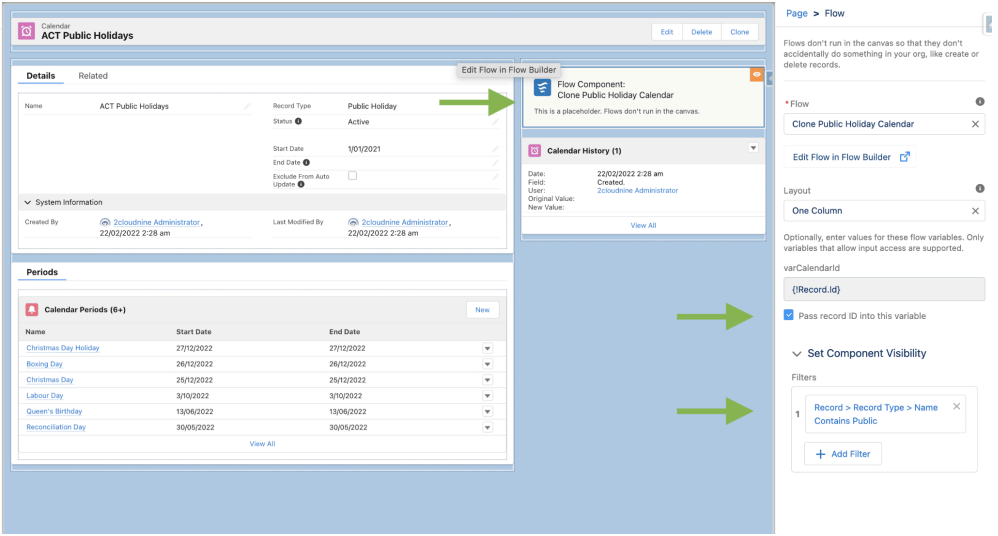
### Enhancement to easily create non-packaged Public Holiday Calendars
An optional component can be added to the Public Holiday Lightning Page Layout, enabling Users to
clone an existing Public Holiday Calendar and its related Calendar Periods, to assist with the creation of
non-packaged Public Holiday Calendars.
Users are required to enter the date from which they wish to clone the related Calendar Periods and set it
as the Start Date of the new Public Holiday Calendar. The 'Clone Calendar Periods From' date will
automatically default to either 1 Jan of the current year, or the Start Date of the Calendar being cloned,
whichever date is closest to today's date. Users are also required to enter the name of the new Public
Holiday Calendar.
To configure this within existing Orgs, follow the steps below:
1. Go to **Calendar** Object.
2. Open any Public Holiday Calendar record.
3. Select the Cogs icon (like you do to go to Setup), but select Edit Page.
4. Go to the Flow Component in the list of Components and drag it onto the page in the desired
area.
5. In the Flow field, enter **Clone Public Holiday Calendar** and select it as it becomes available in the
lookup.
6. Tick true on the checkbox **Pass record ID into this variable** .
7. Select **Set Component Visibility**, and select the button Add Filter.
8. In the Filter Type, select Advanced.
9. Select the Field button, and in the popup, select the dropdown arrows to select the listed values
of **Record** - **Record Type** - **Name** - and select the **Done** button.
10. Ensure the Operator field is showing Contains.
11. In the **Value** field, type 'Public'.
12. Select the **Done** button, then click the **Save** button at the top, and then the **Activation** button,
and assign this as the Org Default, or as required to ensure this is visible on all Public Holiday
Calendar records.
 ### Page Layout Updates
The Eucalyptus ‘25 Release includes new enhancements to the Page Layouts. Some of these Page Layout
updates are Compulsory, while others are optional. Please refer to the details below for more information
about these updates.
Configuration steps:
1. Update Payroll Page Layouts
#### Update Payroll Page Layouts
The Compulsory Page Layouts below must be updated for all the Orgs, whereas the Optional Page
Layout updates only need to be completed if the option to use this functionality is taken. To incorporate
these enhancements, follow the steps below:
##### Employee (Compulsory) New
The following Page Layout updates are Compulsory:
Go to **Setup > Object Manager > Contact > Page Layouts**
1. Select **TC9PR Employee Layout** .
2. Add the following fields to the Page Layout, at the bottom right of the Contact Information
section:
1. Primary Payee Record
3. Click **Save** .
##### Award Classifications and Award Levels (Optional)
The below Page Layout updates are Optional, but must be applied where Orgs have transitioned to the
new Minimum Pay Rates functionality:
Go to **Setup > Object Manager > Award Classifications and Levels > Page Layouts**
1. Select **Award Classifications and Levels Layout** .
2. Remove the following fields from the Page Layout:
1. Status
3. Click **Save** .
##### Employer Id Junction (Optional)
A new Page Layout for the Superannuation Employer ID Junction Object has now been included in the
package, and it is recommended to assign it as the default in all Orgs:
Go to **Setup** - **Object Manager** - **Superannuation Fund** - **Page Layouts**
1. Click the **Page Layout Assignment** button, then the **Edit Assignments** button.
2. Click the Record Type **Employer Id Junction**, which should highlight all rows below.
3. In the Picklist for Page Layout To Use, select **TC9PR Employer ID Junction** .
4. Click **Save** .
##### Employment Cost (Optional)
The below Page Layout updates are Optional, however are highly recommended for all Orgs using Rate
Calculators:
Go to **Setup > Object Manager > Employment Cost > Page Layouts**
1. Select any **Employment Cost** Page Layout.
2. Go to the Mobile & Lightning Actions components, and add the following to the Page Layout:
1. Employment Cost Manager
3. Click **Save** .
4. Repeat the above steps for all available Page Layouts.
##### Employment Cost Item (Optional)
The below Page Layout updates are Optional, however, are highly recommended for all Orgs using Rate
Calculators:
Go to **Setup > Object Manager > Employment Cost Item > Page Layouts**
1. Select any **Employment Cost Item** Page Layout.
2. Remove the following buttons from the Page Layout:
1. Clone
3. Click **Save** .
4. Repeat the above steps for all available Page Layouts.
5. Go to the List View Button Layout, select Edit, and untick the checkbox “New \[New]”
6. Click **Save** .
Please note that if a new backdated Employment Cost Item is required, this will need to be done outside
the UI. The new record must be created with an Effective Date AND Expiry Date before the previous
record’s Effective date.
##### Lodgement Item AU (Compulsory)
The Page Layout for Lodgement Item AU requires updating to include the ETP Taxable Amount and ETP
Non Taxable Amount fields, which provide greater visibility of ETP amounts reported via STP. To complete
this, please follow the steps detailed below:
Go to **Setup** - **Object Manager** - **Lodgement Item AU** - **Page Layouts**
1. Click the **Page Layout Assignments** button.
2. Select the page layout assigned to the STP - ETP Record Type (i.e. TC9EAU STP2 ETP Layout).
3. Add the following field to the Page Layout, underneath the Payee ETP Payment Date field, within
the ETP Details section:
1. ETP Taxable Amount
2. ETP Non Taxable Amount
4. Click **Save** .
##### Minimum Pay Rate (Optional)
The below Page Layout updates are Optional, but must be applied where Orgs have transitioned to the
new Minimum Pay Rates functionality:
Go to **Setup > Object Manager > Minimum Pay Rate > Page Layouts**
1. Select **Time2Pay Minimum Pay Rate Layout** .
2. Add the following fields to the Page Layout, at the bottom right of the Information section:
1. Parent Minimum Pay Rate
2. Project Code
3. Timesheet Activity
3. Click **Save** .
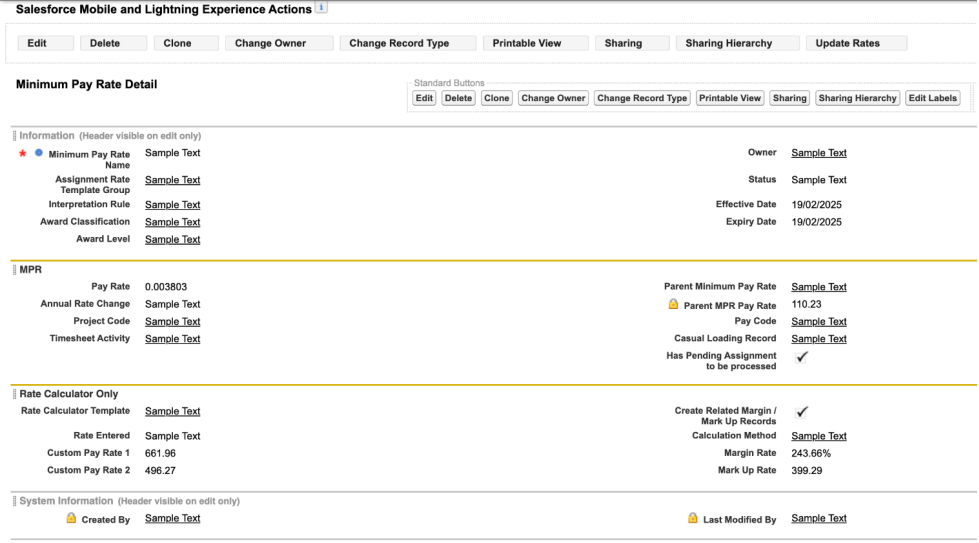
**IMPORTANT:** Please refer to the screenshot below and confirm the fields listed below are available on the
Page Layout named ‘Time2Pay Minimum Pay Rate Layout’ in the Org. It is important to ensure the
sequence of the fields and headings corresponds precisely to what is displayed in the attached
screenshots below:
Please ensure that the Related List is also updated to include the following Objects:
1. Minimum Pay Rates
2. Assignment Rates
3. Mark Up/Margin Rate Records
4. Rate Calculator Rates
5. Minimum Pay Rate History
### Page Layout Updates
The Eucalyptus ‘25 Release includes new enhancements to the Page Layouts. Some of these Page Layout
updates are Compulsory, while others are optional. Please refer to the details below for more information
about these updates.
Configuration steps:
1. Update Payroll Page Layouts
#### Update Payroll Page Layouts
The Compulsory Page Layouts below must be updated for all the Orgs, whereas the Optional Page
Layout updates only need to be completed if the option to use this functionality is taken. To incorporate
these enhancements, follow the steps below:
##### Employee (Compulsory) New
The following Page Layout updates are Compulsory:
Go to **Setup > Object Manager > Contact > Page Layouts**
1. Select **TC9PR Employee Layout** .
2. Add the following fields to the Page Layout, at the bottom right of the Contact Information
section:
1. Primary Payee Record
3. Click **Save** .
##### Award Classifications and Award Levels (Optional)
The below Page Layout updates are Optional, but must be applied where Orgs have transitioned to the
new Minimum Pay Rates functionality:
Go to **Setup > Object Manager > Award Classifications and Levels > Page Layouts**
1. Select **Award Classifications and Levels Layout** .
2. Remove the following fields from the Page Layout:
1. Status
3. Click **Save** .
##### Employer Id Junction (Optional)
A new Page Layout for the Superannuation Employer ID Junction Object has now been included in the
package, and it is recommended to assign it as the default in all Orgs:
Go to **Setup** - **Object Manager** - **Superannuation Fund** - **Page Layouts**
1. Click the **Page Layout Assignment** button, then the **Edit Assignments** button.
2. Click the Record Type **Employer Id Junction**, which should highlight all rows below.
3. In the Picklist for Page Layout To Use, select **TC9PR Employer ID Junction** .
4. Click **Save** .
##### Employment Cost (Optional)
The below Page Layout updates are Optional, however are highly recommended for all Orgs using Rate
Calculators:
Go to **Setup > Object Manager > Employment Cost > Page Layouts**
1. Select any **Employment Cost** Page Layout.
2. Go to the Mobile & Lightning Actions components, and add the following to the Page Layout:
1. Employment Cost Manager
3. Click **Save** .
4. Repeat the above steps for all available Page Layouts.
##### Employment Cost Item (Optional)
The below Page Layout updates are Optional, however, are highly recommended for all Orgs using Rate
Calculators:
Go to **Setup > Object Manager > Employment Cost Item > Page Layouts**
1. Select any **Employment Cost Item** Page Layout.
2. Remove the following buttons from the Page Layout:
1. Clone
3. Click **Save** .
4. Repeat the above steps for all available Page Layouts.
5. Go to the List View Button Layout, select Edit, and untick the checkbox “New \[New]”
6. Click **Save** .
Please note that if a new backdated Employment Cost Item is required, this will need to be done outside
the UI. The new record must be created with an Effective Date AND Expiry Date before the previous
record’s Effective date.
##### Lodgement Item AU (Compulsory)
The Page Layout for Lodgement Item AU requires updating to include the ETP Taxable Amount and ETP
Non Taxable Amount fields, which provide greater visibility of ETP amounts reported via STP. To complete
this, please follow the steps detailed below:
Go to **Setup** - **Object Manager** - **Lodgement Item AU** - **Page Layouts**
1. Click the **Page Layout Assignments** button.
2. Select the page layout assigned to the STP - ETP Record Type (i.e. TC9EAU STP2 ETP Layout).
3. Add the following field to the Page Layout, underneath the Payee ETP Payment Date field, within
the ETP Details section:
1. ETP Taxable Amount
2. ETP Non Taxable Amount
4. Click **Save** .
##### Minimum Pay Rate (Optional)
The below Page Layout updates are Optional, but must be applied where Orgs have transitioned to the
new Minimum Pay Rates functionality:
Go to **Setup > Object Manager > Minimum Pay Rate > Page Layouts**
1. Select **Time2Pay Minimum Pay Rate Layout** .
2. Add the following fields to the Page Layout, at the bottom right of the Information section:
1. Parent Minimum Pay Rate
2. Project Code
3. Timesheet Activity
3. Click **Save** .
**IMPORTANT:** Please refer to the screenshot below and confirm the fields listed below are available on the
Page Layout named ‘Time2Pay Minimum Pay Rate Layout’ in the Org. It is important to ensure the
sequence of the fields and headings corresponds precisely to what is displayed in the attached
screenshots below:
Please ensure that the Related List is also updated to include the following Objects:
1. Minimum Pay Rates
2. Assignment Rates
3. Mark Up/Margin Rate Records
4. Rate Calculator Rates
5. Minimum Pay Rate History
 ##### Pay Schedule (Compulsory)
The Page Layout for Pay Schedule requires updating to include the new field of Payroll Jurisdiction. To
complete this, please follow the steps detailed below.
Go to **Setup** > **Object Manager** > **Schedule** > **Page Layouts**
1. Click the **Page Layout Assignments** button.
2. Select the page layout assigned to the Pay Schedule Record Type (i.e. **TC9ET Pay Schedule Layout** ).
3. Add the following fields to the Page Layout, underneath the field Finalise Based On:
1. Payroll Jurisdiction
4. Click **Save** .
##### Pay Transaction (Compulsory)
The Page Layout for Pay Transaction requires updating to include the new field of ETP PAYG Type, which
makes the ETP PAYG Pay Transactions more easily identifiable in the Manual Adjustments UI of the Pay
Batch Manager. To complete this, please follow the steps detailed below.
Go to **Setup** - **Object Manager** - **Pay Transaction** - **Page Layouts**
1. Click the **Page Layout Assignments** button.
2. Select the page layout assigned to the Withholding - ETP PAYG Record Type (i.e. Time2Pay Pay
Transaction - Withholding - PAYG, ETP PAYG, HELP and SFSS).
3. Add the following field to the Page Layout, underneath the PAYG field, within the Withholding
section:
1. ETP PAYG Type
4. Click **Save** .
##### Payee Aggregate (Compulsory)
The Page Layout for Leave Accrual record types of Payee Aggregates requires compulsory updating to
include the new Leave Balance Offset field. To complete this, please follow the steps detailed below:
Go to **Setup** - **Object Manager** - **Payee Aggregate** - **Page Layouts**
1. Click the **Page Layout Assignments** button.
2. Select the page layout assigned to the Record Type Leave Accruals (i.e. **TC9PR Payee Aggregate Leave Layout** ).
3. Add the following field to the Page Layout, underneath the field Leave Taken, within the Leave
Aggregates section:
1. Leave Balance Offset
4. Add the following field to the Page Layout, underneath the field Leave Taken Days, within the
Leave Aggregates section:
1. Leave Balance Offset Days
5. Click **Save** .
##### Payee Pay Batch (Compulsory)
The Payee Pay Batch Object includes new fields that are compulsory to be added to the Page Layout.
Go to **Setup** - **Object Manager** - **Payee Pay Batch** - **Page Layouts**
1. Select **TC9PR Pay Batch Item Layout** .
2. Add the following two fields under the section Deductions (add one field under each of the
existing fields):
1. STP2 CSA Deductions (tc9\_pr**STP2\_CSA\_Deductions**c)
2. STP2 CSA Garnishees (tc9\_pr**STP2\_CSA\_Garnishees**c)
3. Navigate to the ETPs Page Section and add/update the fields as displayed below in the left-hand
column:
1. Non Taxable ETPs
2. ETP Non Taxable B
3. ETP Non Taxable D
4. ETP Non Taxable N
5. ETP Non Taxable O
6. ETP Non Taxable P
7. ETP Non Taxable R
8. ETP Non Taxable S
9. ETP Non Taxable T
4. Navigate to the ETPs Page Section and add/update the fields as displayed below in the
right-hand column:
1. Taxable ETPs
2. ETP Taxable B
3. ETP Taxable D
4. ETP Taxable N
5. ETP Taxable O
6. ETP Taxable P
7. ETP Taxable R
8. ETP Taxable S
9. ETP Taxable T
5. Select **Save** .
Once completed, please ensure that if using any custom page layouts, the required changes are also
applied to those page layouts.
##### Timesheet Entry (Optional)
The below Page Layout updates are Optional, but must be applied where Orgs are using the Shift logic
for interpretations:
Go to **Setup > Object Manager > Timesheet Entry > Page Layouts**
1. Select **Time2Pay Timesheet Entry** .
2. Add the following fields to the Page Layout, underneath the Entry Details section:
1. Shift Start Time
2. Shift Start Date
3. Shift End Time
4. Shift End Date
3. Once the fields have been added, ensure that all these fields are set to READ ONLY.
4. Click **Save** .
### Update Batch Job for Pay Advices
To ensure 2cloudnine will use the latest improvements to the Pay Advices Scheduled Job, the existing
Scheduled Job must be deleted and then rescheduled.
Configuration steps:
1. Delete existing Scheduled Job (Compulsory)
2. Set a New Scheduled Job (Compulsory)
#### Delete existing Scheduled Job (Compulsory)
IMPORTANT: The configuration below is compulsory, however before deleting, please review the
scheduled frequency of the jobs, and if they are different from the times listed below in Script 1, it is
recommended to take a screenshot of them to ensure that when they are rescheduled, they reflect the
same frequency as the existing one.
Go to **Setup** - **Environments** - **Jobs** - **Scheduled Jobs**
1. Scroll down the list of scheduled jobs until you locate all that contain PayAdvice (i.e.
ScheduleCreatePayAdvice or ScheduleSendPayAdvice).
2. Select the **Del** button next to these Scheduled Jobs listed, and then select **OK** from the pop-up.
3. Repeat for all Pay Advices jobs scheduled.
#### Set a New Scheduled Job (Compulsory)
If you have deleted the existing Scheduled Jobs for Pay Advices, they need to be rescheduled so that they
use the latest updates to the code. Please identify if the scheduled jobs are the same frequency as listed
in the script, and ensure the frequency is as per the original jobs.
Go to **Setup** - **Developer Console**
1. **Debug** - **Open Execute Anonymous Window**
2. Delete or comment out any code that is in the window
3. Paste in the copied script from the script box below.
4. Click the **Execute** button.
```apex theme={null}
//script for pay advice PDF creation & email
System.schedule('ScheduleCreatePayAdvicePDF 00', '0 00 * * * ?', new tc9_pr.ScheduleCreationPayAdvicePDF());
System.schedule('ScheduleCreatePayAdvicePDF 20', '0 20 * * * ?', new tc9_pr.ScheduleCreationPayAdvicePDF());
System.schedule('ScheduleCreatePayAdvicePDF 40', '0 40 * * * ?', new tc9_pr.ScheduleCreationPayAdvicePDF());
System.schedule('ScheduleSendPayAdviceEmail 10', '0 10 * * * ?', new tc9_pr.ScheduleSendPayAdviceEmail());
System.schedule('ScheduleSendPayAdviceEmail 30', '0 30 * * * ?', new tc9_pr.ScheduleSendPayAdviceEmail());
System.schedule('ScheduleSendPayAdviceEmail 50', '0 50 * * * ?', new tc9_pr.ScheduleSendPayAdviceEmail());
```
### Disable Assignment Record Type Validations (Optional)
The configuration below is Optional. If you have an integration within your Org which utilises Template
Record Types, you may require the validations to be disabled to save the Assignments. If this is occurring
within your Org, System Administrators will be required to populate the new Custom Setting as detailed
below:
Go to **Setup** - **Custom Settings**
1. Click **Manage** next to **Disable Assignment RecordType Validation** .
2. Click the **New** button.
3. Enter the Developer Name in the **Name** field.
4. Enter the Record Id of the Custom Record Type of Assignment for which 2cloudnine validations
are to be ignored.
5. Click **Save** .
Repeat the above process for each Custom Record Type of Assignment that is required to bypass the
validations, keeping in mind that this will not apply to the standard 2cloudnine Record Types of
Assignments.
##### Pay Schedule (Compulsory)
The Page Layout for Pay Schedule requires updating to include the new field of Payroll Jurisdiction. To
complete this, please follow the steps detailed below.
Go to **Setup** > **Object Manager** > **Schedule** > **Page Layouts**
1. Click the **Page Layout Assignments** button.
2. Select the page layout assigned to the Pay Schedule Record Type (i.e. **TC9ET Pay Schedule Layout** ).
3. Add the following fields to the Page Layout, underneath the field Finalise Based On:
1. Payroll Jurisdiction
4. Click **Save** .
##### Pay Transaction (Compulsory)
The Page Layout for Pay Transaction requires updating to include the new field of ETP PAYG Type, which
makes the ETP PAYG Pay Transactions more easily identifiable in the Manual Adjustments UI of the Pay
Batch Manager. To complete this, please follow the steps detailed below.
Go to **Setup** - **Object Manager** - **Pay Transaction** - **Page Layouts**
1. Click the **Page Layout Assignments** button.
2. Select the page layout assigned to the Withholding - ETP PAYG Record Type (i.e. Time2Pay Pay
Transaction - Withholding - PAYG, ETP PAYG, HELP and SFSS).
3. Add the following field to the Page Layout, underneath the PAYG field, within the Withholding
section:
1. ETP PAYG Type
4. Click **Save** .
##### Payee Aggregate (Compulsory)
The Page Layout for Leave Accrual record types of Payee Aggregates requires compulsory updating to
include the new Leave Balance Offset field. To complete this, please follow the steps detailed below:
Go to **Setup** - **Object Manager** - **Payee Aggregate** - **Page Layouts**
1. Click the **Page Layout Assignments** button.
2. Select the page layout assigned to the Record Type Leave Accruals (i.e. **TC9PR Payee Aggregate Leave Layout** ).
3. Add the following field to the Page Layout, underneath the field Leave Taken, within the Leave
Aggregates section:
1. Leave Balance Offset
4. Add the following field to the Page Layout, underneath the field Leave Taken Days, within the
Leave Aggregates section:
1. Leave Balance Offset Days
5. Click **Save** .
##### Payee Pay Batch (Compulsory)
The Payee Pay Batch Object includes new fields that are compulsory to be added to the Page Layout.
Go to **Setup** - **Object Manager** - **Payee Pay Batch** - **Page Layouts**
1. Select **TC9PR Pay Batch Item Layout** .
2. Add the following two fields under the section Deductions (add one field under each of the
existing fields):
1. STP2 CSA Deductions (tc9\_pr**STP2\_CSA\_Deductions**c)
2. STP2 CSA Garnishees (tc9\_pr**STP2\_CSA\_Garnishees**c)
3. Navigate to the ETPs Page Section and add/update the fields as displayed below in the left-hand
column:
1. Non Taxable ETPs
2. ETP Non Taxable B
3. ETP Non Taxable D
4. ETP Non Taxable N
5. ETP Non Taxable O
6. ETP Non Taxable P
7. ETP Non Taxable R
8. ETP Non Taxable S
9. ETP Non Taxable T
4. Navigate to the ETPs Page Section and add/update the fields as displayed below in the
right-hand column:
1. Taxable ETPs
2. ETP Taxable B
3. ETP Taxable D
4. ETP Taxable N
5. ETP Taxable O
6. ETP Taxable P
7. ETP Taxable R
8. ETP Taxable S
9. ETP Taxable T
5. Select **Save** .
Once completed, please ensure that if using any custom page layouts, the required changes are also
applied to those page layouts.
##### Timesheet Entry (Optional)
The below Page Layout updates are Optional, but must be applied where Orgs are using the Shift logic
for interpretations:
Go to **Setup > Object Manager > Timesheet Entry > Page Layouts**
1. Select **Time2Pay Timesheet Entry** .
2. Add the following fields to the Page Layout, underneath the Entry Details section:
1. Shift Start Time
2. Shift Start Date
3. Shift End Time
4. Shift End Date
3. Once the fields have been added, ensure that all these fields are set to READ ONLY.
4. Click **Save** .
### Update Batch Job for Pay Advices
To ensure 2cloudnine will use the latest improvements to the Pay Advices Scheduled Job, the existing
Scheduled Job must be deleted and then rescheduled.
Configuration steps:
1. Delete existing Scheduled Job (Compulsory)
2. Set a New Scheduled Job (Compulsory)
#### Delete existing Scheduled Job (Compulsory)
IMPORTANT: The configuration below is compulsory, however before deleting, please review the
scheduled frequency of the jobs, and if they are different from the times listed below in Script 1, it is
recommended to take a screenshot of them to ensure that when they are rescheduled, they reflect the
same frequency as the existing one.
Go to **Setup** - **Environments** - **Jobs** - **Scheduled Jobs**
1. Scroll down the list of scheduled jobs until you locate all that contain PayAdvice (i.e.
ScheduleCreatePayAdvice or ScheduleSendPayAdvice).
2. Select the **Del** button next to these Scheduled Jobs listed, and then select **OK** from the pop-up.
3. Repeat for all Pay Advices jobs scheduled.
#### Set a New Scheduled Job (Compulsory)
If you have deleted the existing Scheduled Jobs for Pay Advices, they need to be rescheduled so that they
use the latest updates to the code. Please identify if the scheduled jobs are the same frequency as listed
in the script, and ensure the frequency is as per the original jobs.
Go to **Setup** - **Developer Console**
1. **Debug** - **Open Execute Anonymous Window**
2. Delete or comment out any code that is in the window
3. Paste in the copied script from the script box below.
4. Click the **Execute** button.
```apex theme={null}
//script for pay advice PDF creation & email
System.schedule('ScheduleCreatePayAdvicePDF 00', '0 00 * * * ?', new tc9_pr.ScheduleCreationPayAdvicePDF());
System.schedule('ScheduleCreatePayAdvicePDF 20', '0 20 * * * ?', new tc9_pr.ScheduleCreationPayAdvicePDF());
System.schedule('ScheduleCreatePayAdvicePDF 40', '0 40 * * * ?', new tc9_pr.ScheduleCreationPayAdvicePDF());
System.schedule('ScheduleSendPayAdviceEmail 10', '0 10 * * * ?', new tc9_pr.ScheduleSendPayAdviceEmail());
System.schedule('ScheduleSendPayAdviceEmail 30', '0 30 * * * ?', new tc9_pr.ScheduleSendPayAdviceEmail());
System.schedule('ScheduleSendPayAdviceEmail 50', '0 50 * * * ?', new tc9_pr.ScheduleSendPayAdviceEmail());
```
### Disable Assignment Record Type Validations (Optional)
The configuration below is Optional. If you have an integration within your Org which utilises Template
Record Types, you may require the validations to be disabled to save the Assignments. If this is occurring
within your Org, System Administrators will be required to populate the new Custom Setting as detailed
below:
Go to **Setup** - **Custom Settings**
1. Click **Manage** next to **Disable Assignment RecordType Validation** .
2. Click the **New** button.
3. Enter the Developer Name in the **Name** field.
4. Enter the Record Id of the Custom Record Type of Assignment for which 2cloudnine validations
are to be ignored.
5. Click **Save** .
Repeat the above process for each Custom Record Type of Assignment that is required to bypass the
validations, keeping in mind that this will not apply to the standard 2cloudnine Record Types of
Assignments.
 ### Update the Help text for the Total Deduction Limit field (Compulsory)
This configuration to update the Help text for the Total Deduction Limit field on the Payee Deduction
Template Object is Compulsory. To update the Help Text, please follow the steps below:
Go to **Setup** > **Object Manager** > **Payee Deduction Template** > **Fields & Relationships**
1. Click on the field **Total Deduction Limit** .
1. Click the **Edit** button.
2. In the field Help Text, replace the existing text with “Defines an upper limit to the
deduction amount that can be withheld for the deduction. When deductions are
calculated, the deduction amount withheld will be adjusted to ensure this amount is not
exceeded. If blank, no limit applies.”.
3. Click **Save** .
### Enable Pay Batch Manager Hard Delete (Optional)
An optional custom setting has been added to enable the hard deletion of Pay Batches. Once the data is
deleted, it is not sent to the Recycle Bin. Therefore, the deleted records cannot be restored. To enable the
setting:
Go to **Setup** - **Custom Settings**
1. Click **Manage** next to **Payroll Configuration** .
2. Click the **Edit** button.
3. Tick the checkbox next to the **Enable Pay Batch Hard Delete** field to make sure that it's enabled.
4. Click **Save** .
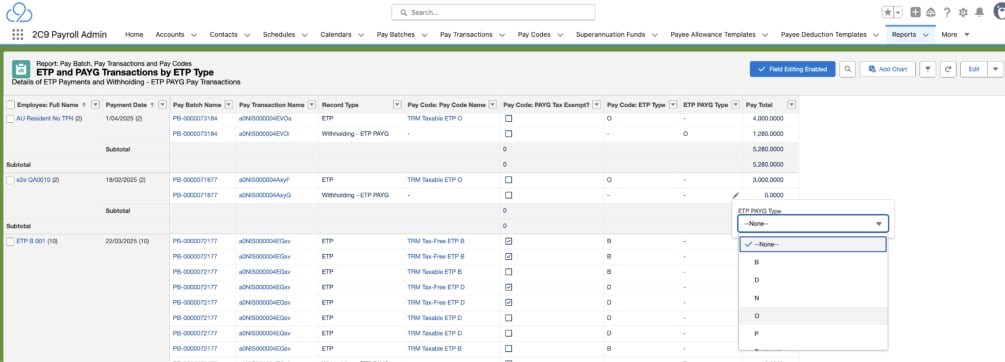
### Update Report Type and Package the ETP Review Report (Compulsory)
The configuration below is Compulsory. A new report has been created to review the ETP Pay
Transactions and the Withholding ETP PAYG Transactions by ETP PAYG Type, for Consultants to use to
update the ETP PAYG Type field on Pay Transactions for Withholding. To complete, please follow the
steps below:
1. Go to **Reports** .
2. Run the ETP and PAYG Transactions by ETP Type report.
3. Review the **ETP PAYG Type** field on each Pay Transaction with Record Type **Withholding - ETP PAYG** .
4. If the ETP PAYG Type field is blank on the Withholding - ETP PAYG Pay Transaction, populate it
with the same value as the one in the Pay Code: ETP Type column (do not update any values in
the Pay Code: ETP Type column).
5. Ensure you don't have any Pay Transactions in the report with Record Type Withholding - ETP
PAYG where the ETP PAYG Type column is blank.
### Update the Help text for the Total Deduction Limit field (Compulsory)
This configuration to update the Help text for the Total Deduction Limit field on the Payee Deduction
Template Object is Compulsory. To update the Help Text, please follow the steps below:
Go to **Setup** > **Object Manager** > **Payee Deduction Template** > **Fields & Relationships**
1. Click on the field **Total Deduction Limit** .
1. Click the **Edit** button.
2. In the field Help Text, replace the existing text with “Defines an upper limit to the
deduction amount that can be withheld for the deduction. When deductions are
calculated, the deduction amount withheld will be adjusted to ensure this amount is not
exceeded. If blank, no limit applies.”.
3. Click **Save** .
### Enable Pay Batch Manager Hard Delete (Optional)
An optional custom setting has been added to enable the hard deletion of Pay Batches. Once the data is
deleted, it is not sent to the Recycle Bin. Therefore, the deleted records cannot be restored. To enable the
setting:
Go to **Setup** - **Custom Settings**
1. Click **Manage** next to **Payroll Configuration** .
2. Click the **Edit** button.
3. Tick the checkbox next to the **Enable Pay Batch Hard Delete** field to make sure that it's enabled.
4. Click **Save** .
### Update Report Type and Package the ETP Review Report (Compulsory)
The configuration below is Compulsory. A new report has been created to review the ETP Pay
Transactions and the Withholding ETP PAYG Transactions by ETP PAYG Type, for Consultants to use to
update the ETP PAYG Type field on Pay Transactions for Withholding. To complete, please follow the
steps below:
1. Go to **Reports** .
2. Run the ETP and PAYG Transactions by ETP Type report.
3. Review the **ETP PAYG Type** field on each Pay Transaction with Record Type **Withholding - ETP PAYG** .
4. If the ETP PAYG Type field is blank on the Withholding - ETP PAYG Pay Transaction, populate it
with the same value as the one in the Pay Code: ETP Type column (do not update any values in
the Pay Code: ETP Type column).
5. Ensure you don't have any Pay Transactions in the report with Record Type Withholding - ETP
PAYG where the ETP PAYG Type column is blank.
 ### Assign Reconciliation Permission Set to Users (Conditionally Compulsory)
A new Permission Set has been created for Payroll Users using the Reconciliation functionality. To assign
this Permission Set to Users, follow the steps below:
Go To **Setup > Permission Sets**
1. Open the new Permission Set **2cloudnine Payroll Reconciliation** .
2. Select the **Manage Assignments** button and click the **Add Assignment** button.
3. Select the checkboxes of the various Users who require this Permission Set to be assigned to
them, and select the **Next** button.
4. Select the radio button for **No Expiry Date** and select the **Assign** button.
5. Assignment Summary will show the confirmation of the successful and failed assignments of the
Permission Sets to the Users selected.
## Appendix 1
The table below defines the access that must be granted to Internal Users for new components introduced to provide further enhancements to the Pay Batch Manager.
**Users Key**
| | |
| ---------- | ------------------------------------------------------------------------ |
| **User 1** | Users who are Payroll Users and will create and edit a Pay Batch |
| **User 2** | Users who are System Administrators and will create and edit a Pay Batch |
| **User 3** | Users who will view a Pay Batch |
**Minimum Access Key**
| | |
| ----- | -------- |
| **R** | Read |
| **C** | Create |
| **E** | Edit |
| **A** | Assigned |
| Type | Name | User 1 | User 2 | User 3 | User 4 |
| ------------------- | ------------------------------------------------------------------------------------------------------ | ------ | ------ | ------ | ------ |
| Object: | Schedule | -- | -- | -- | |
| Fields: | Payroll Jurisdiction | R/E | R/E | R | |
| Object: | Pay Batch | -- | -- | -- | |
| Fields: | Payroll Jurisdiction | R/E | R/E | R | |
| Object: | Pay Batch Item | -- | -- | -- | |
| Fields: | Payroll Jurisdiction
### Assign Reconciliation Permission Set to Users (Conditionally Compulsory)
A new Permission Set has been created for Payroll Users using the Reconciliation functionality. To assign
this Permission Set to Users, follow the steps below:
Go To **Setup > Permission Sets**
1. Open the new Permission Set **2cloudnine Payroll Reconciliation** .
2. Select the **Manage Assignments** button and click the **Add Assignment** button.
3. Select the checkboxes of the various Users who require this Permission Set to be assigned to
them, and select the **Next** button.
4. Select the radio button for **No Expiry Date** and select the **Assign** button.
5. Assignment Summary will show the confirmation of the successful and failed assignments of the
Permission Sets to the Users selected.
## Appendix 1
The table below defines the access that must be granted to Internal Users for new components introduced to provide further enhancements to the Pay Batch Manager.
**Users Key**
| | |
| ---------- | ------------------------------------------------------------------------ |
| **User 1** | Users who are Payroll Users and will create and edit a Pay Batch |
| **User 2** | Users who are System Administrators and will create and edit a Pay Batch |
| **User 3** | Users who will view a Pay Batch |
**Minimum Access Key**
| | |
| ----- | -------- |
| **R** | Read |
| **C** | Create |
| **E** | Edit |
| **A** | Assigned |
| Type | Name | User 1 | User 2 | User 3 | User 4 |
| ------------------- | ------------------------------------------------------------------------------------------------------ | ------ | ------ | ------ | ------ |
| Object: | Schedule | -- | -- | -- | |
| Fields: | Payroll Jurisdiction | R/E | R/E | R | |
| Object: | Pay Batch | -- | -- | -- | |
| Fields: | Payroll Jurisdiction | R/E | R/E | R | |
| Object: | Pay Batch Item | -- | -- | -- | |
| Fields: | Payroll Jurisdiction
Flag Payee Cessation Date | R/E | R/E | R | |
| Object: | Payee Aggregate | -- | -- | -- | |
| Custom
Fields: | Leave Balance Offset
Leave Balance\_Offset Days | R/E | R/E | R | |
| Object: | Calendar | -- | -- | -- | |
| Custom
Field: | Pay Schedule Period Type | R/E | R/E | R | |
| Object: | Calendar Period | -- | -- | -- | |
| Custom
Fields: | Tax Period | R/E | R/E | R | |
| Object: | Payee Exit Calculation | -- | -- | -- | |
| Custom
Field: | Commit Final Payment | R/E | R/E | R | |
| Custom
Label | VMSG Schedule Payroll Jurisdiction
VMSG Validate Payroll System
VMSG Validate Payroll System | R/E | R/E | R | |
| Object | Payroll Configuration | -- | -- | -- | |
| Custom
Setting | Enable Pay Batch Hard Delete | R/E | R/E | R | |
| Custom
Setting | | | | | |
## Appendix 2
The table below defines the access that must be granted to Internal Users for new components introduced to provide further enhancements to Payee Exit.
**Users Key**
| | |
| ---------- | ------------------------------------------------------------------------ |
| **User 1** | Users who are Payroll Users and will create and edit Payee Exits |
| **User 2** | Users who are System Administrators and will create and edit Payee Exits |
| **User 3** | Users who will view Payee Exits |
**Minimum Access Key**
| | |
| ----- | -------- |
| **R** | Read |
| **C** | Create |
| **E** | Edit |
| **A** | Assigned |
| Type | Name | User 1 | User 2 | User 3 | User 4 |
| ---------- | ------------------------------- | -------- | -------- | -------- | ------ |
| Apex Class | PayeeExitTransactionFactory\_AU | Assigned | Assigned | Assigned | |
## Appendix 3
The table below defines the access that must be granted to Internal Users for new components introduced to provide further enhancements to Assignments.
**Users Key**
| | |
| ---------- | ------------------------------------------------------------------------ |
| **User 1** | Users who are Payroll Users and will create and edit Assignments |
| **User 2** | Users who are System Administrators and will create and edit Assignments |
| **User 3** | Users who will view Assignments |
**Minimum Access Key**
| | |
| ----- | -------- |
| **R** | Read |
| **C** | Create |
| **E** | Edit |
| **A** | Assigned |
| Type | Name | User 1 | User 2 | User 3 | User 4 |
| -------------------- | ----------------------------------------- | ------ | ------ | ------ | ------ |
| Custom
Setting: | Disable Assignment Record Type Validation | -- | -- | | |
| Custom
Field: | Custom Record Type Id | R/E | R/E | | |
## Appendix 4
The table below defines the access that must be granted to Internal Users for new components introduced to provide further enhancements to the Rate Calculator.
**Users Key**
| | |
| ---------- | ----------------------------------------------------------------------------- |
| **User 1** | Users who are Payroll Users and will create and edit Rate Calculators |
| **User 2** | Users who are System Administrators and will create and edit Rate Calculators |
| **User 3** | Users who will view Rate Calculators |
**Minimum Access Key**
| | |
| ----- | -------- |
| **R** | Read |
| **C** | Create |
| **E** | Edit |
| **A** | Assigned |
| Type | Name | User 1 | User 2 | User 3 | User 4 |
| ---------- | ------------------------------------------------------------------- | -------- | -------- | -------- | ------ |
| Apex Class | Batch\_Rate\_Calc\_Line\_Generation
invoke\_RateCalculationNEW | Assigned | Assigned | Assigned | |
## Appendix 5
The table below defines the access that must be granted to Internal Users for new components introduced to provide further enhancements to the Invoicing function.
**Users Key**
| | |
| ---------- | ----------------------------------------------------------------------------------------- |
| **User 1** | Users who are Payroll Users and will create and edit Invoices and Templates Groups |
| **User 2** | Users who are System Administrators and will create and edit Invoices and Template Groups |
| **User 3** | Users who will view Invoices and Template Groups |
**Minimum Access Key**
| | |
| ----- | -------- |
| **R** | Read |
| **C** | Create |
| **E** | Edit |
| **A** | Assigned |
| Type | Name | User 1 | User 2 | User 3 | User 4 |
| ------------------ | ------------------------------------------ | ------ | ------ | ------ | ------ |
| Object: | Template Group | -- | -- | -- | |
| Record
Types | Invoice Settings | R/E | R/E | R | |
| Object: | Assignment | -- | -- | -- | |
| Custom
Field: | Invoice Settings Template Group | R/E | R/E | R | |
| Object: | Invoice Setting | -- | -- | -- | |
| Custom
Field: | Template Group
Invoice Group By | R/E | R/E | R | |
| Object: | Template Group | -- | -- | -- | |
| Page
Layout | Time2Pay Template Group - Invoice Settings | R/E | R/E | R | |
## Appendix 6
The table below defines the access that must be granted to Internal Users for new components introduced to provide further enhancements to Assignments using Custom Settings.
**Users Key**
| | |
| ---------- | ----------------------------------------------------------------------- |
| **User 1** | Users who are Payroll Users and will update the Custom Settings |
| **User 2** | Users who are System Administrators and will update the Custom Settings |
| **User 3** | Users who will view the Custom Settings |
**Minimum Access Key**
| | |
| ----- | -------- |
| **R** | Read |
| **C** | Create |
| **E** | Edit |
| **A** | Assigned |
| Type | Name | User 1 | User 2 | User 3 | User 4 |
| ------------------- | ---------------------------------------- | ------ | ------ | ------ | ------ |
| Custom
Setting | Disable Assignment RecordType Validation | R/E | R/E | R | |
## Appendix 7
The table below defines the access that must be granted to Internal Users for new components introduced to provide further enhancements to STP2 reporting and error handling.
**Users Key**
| | |
| ---------- | ---------------------------------------------------------------------------- |
| **User 1** | Users who are Payroll Users and will handle STP reporting and errors |
| **User 2** | Users who are System Administrators and will handle STP reporting and errors |
| **User 3** | Users who will view STP reporting and errors |
**Minimum Access Key**
| | |
| ----- | -------- |
| **R** | Read |
| **C** | Create |
| **E** | Edit |
| **A** | Assigned |
| Type | Name | User 1 | User 2 | User 3 | User 4 |
| ----------------- | --------------------------------- | -------- | -------- | -------- | ------ |
| Apex Class | BatchApexErrorEventTriggerHandler | Assigned | Assigned | Assigned | |
| Apex
Trigger | BatchApexErrorEventTrigger | Assigned | Assigned | Assigned | |