

Purpose
The purpose of this quick reference guide is to step through the process of creating AU Super Payee Withholding records. The intended audience for this document is System Administrators / Standard Users.Steps
Create a New Superannuation Payee Withholding Record
The AU Super Payee Withholding record holds the General Information, Superannuation Fund Details, and Superannuation Controls for a Payee’s superannuation entitlements. Create an AU Super Payee Withholding by following the steps below:- Navigate to the Payee record.
- To identify a Payee record from an Employee record, enter the Employee name into the Global Search (see Figure 1).
- Select the Employee record from the suggestions provided.
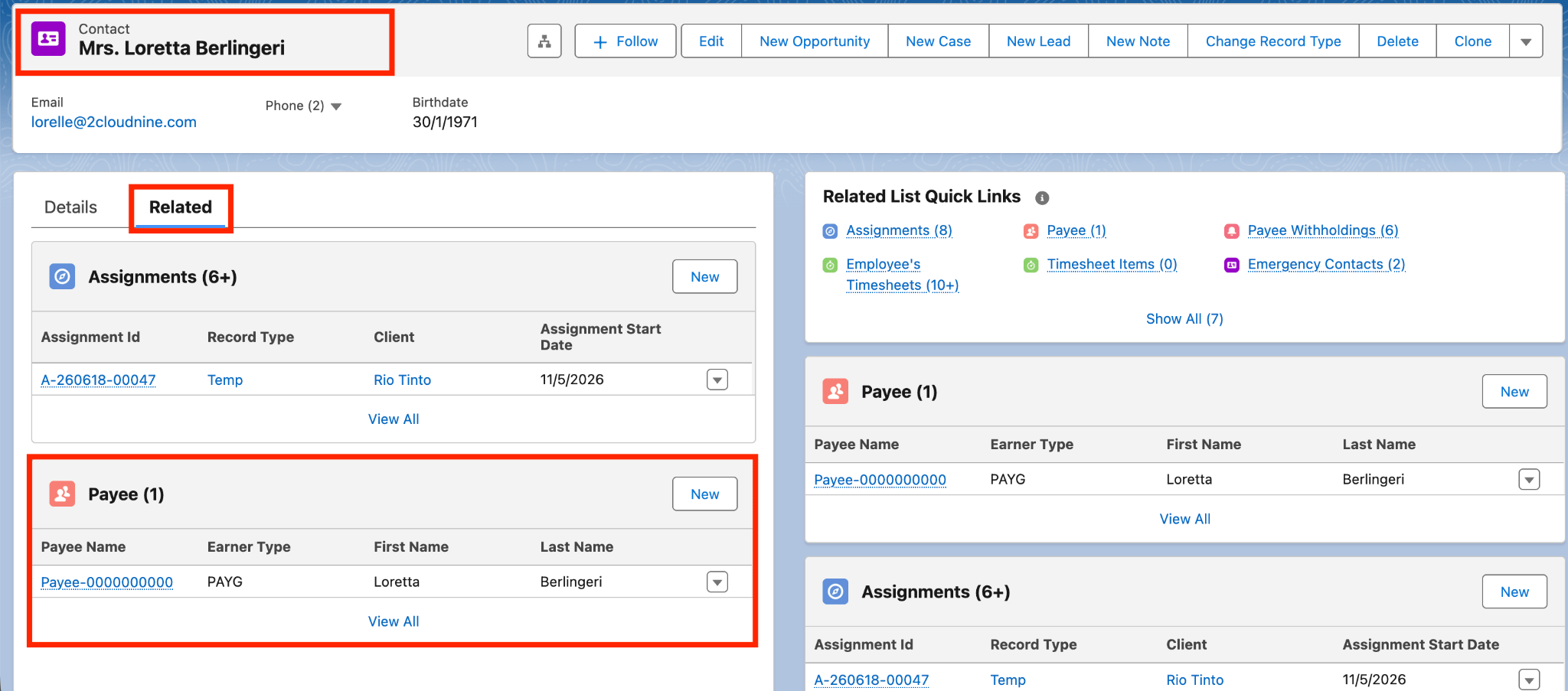
- Open the Related tab (see Figure 2)
- Identify the Payee record(s).
- Select the Payee record

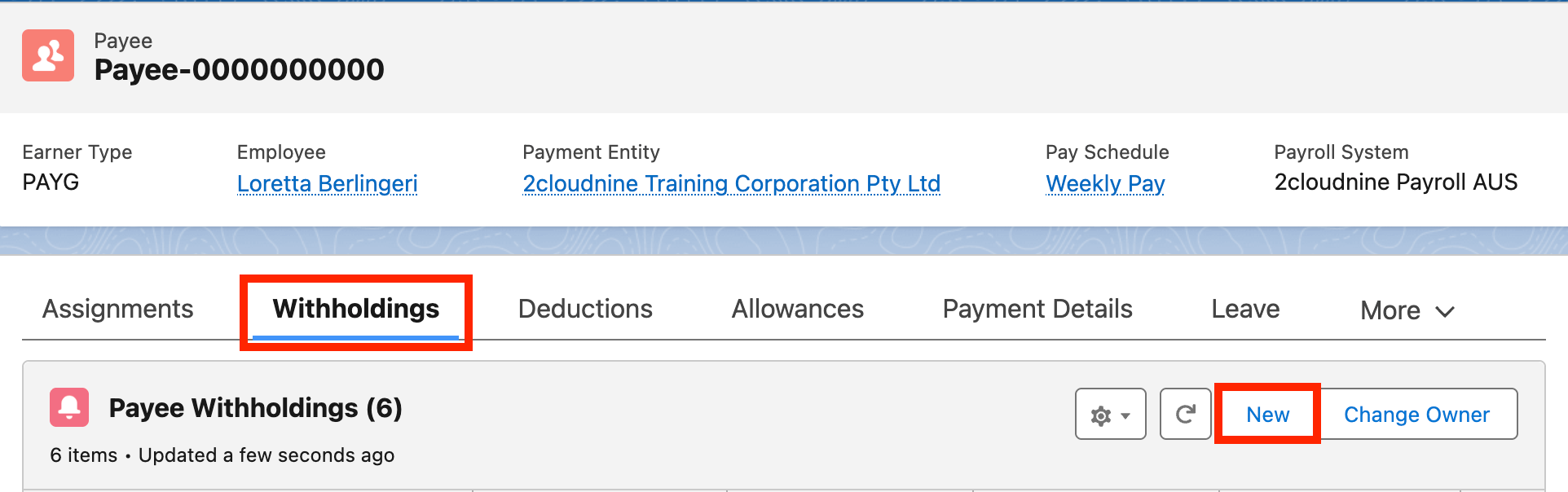
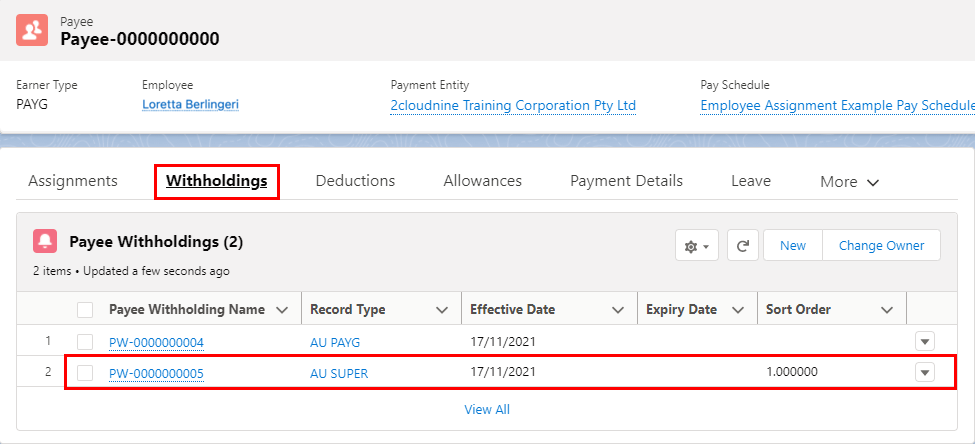
- Click Withholdings from the tab options (see Figure 3).
- Click New.
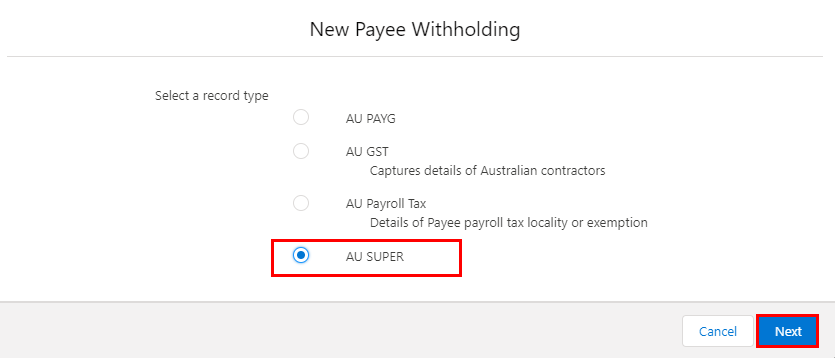
- Select AU SUPER from the available Record Types and click the Next button (see Figure 4).
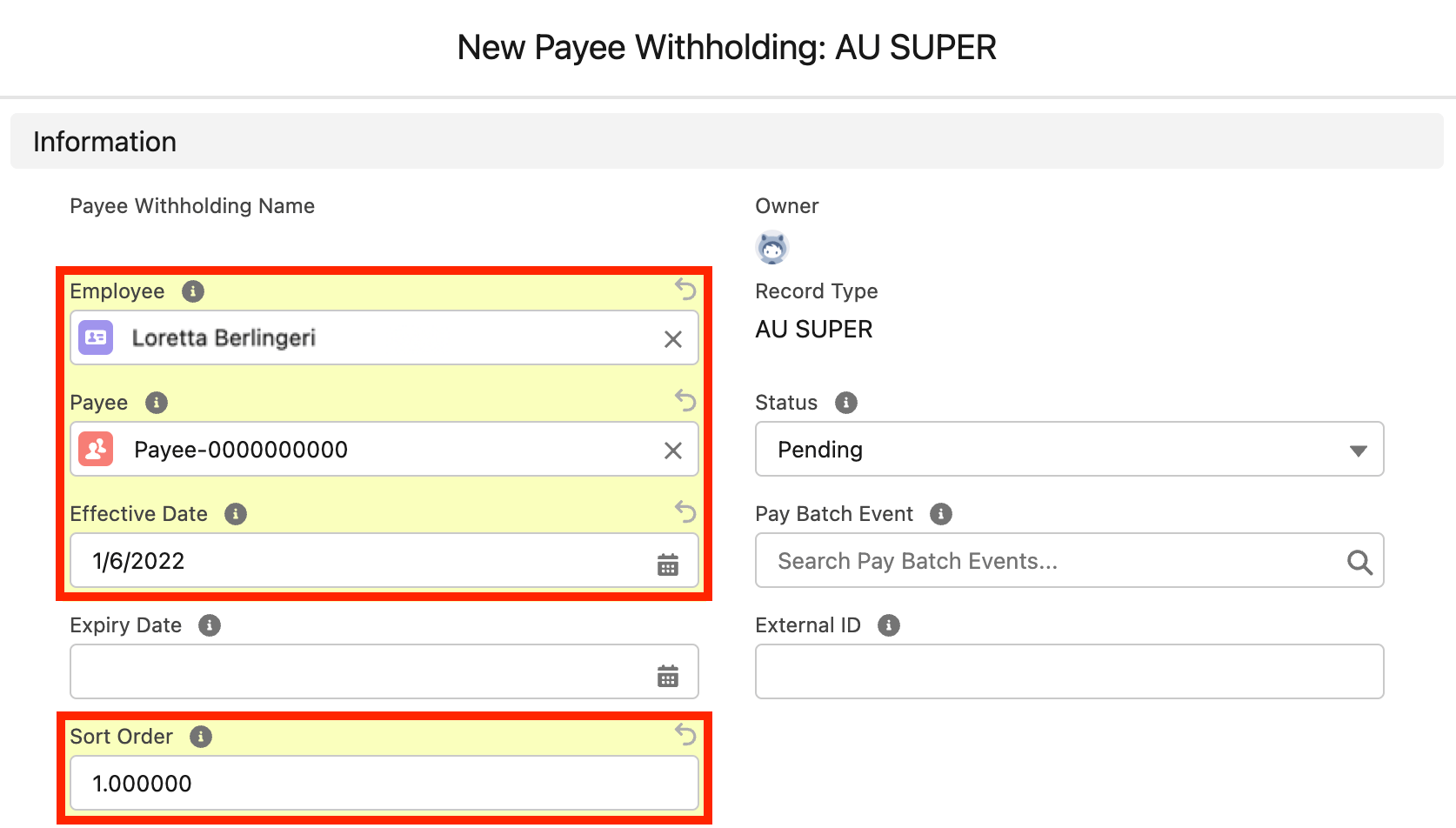
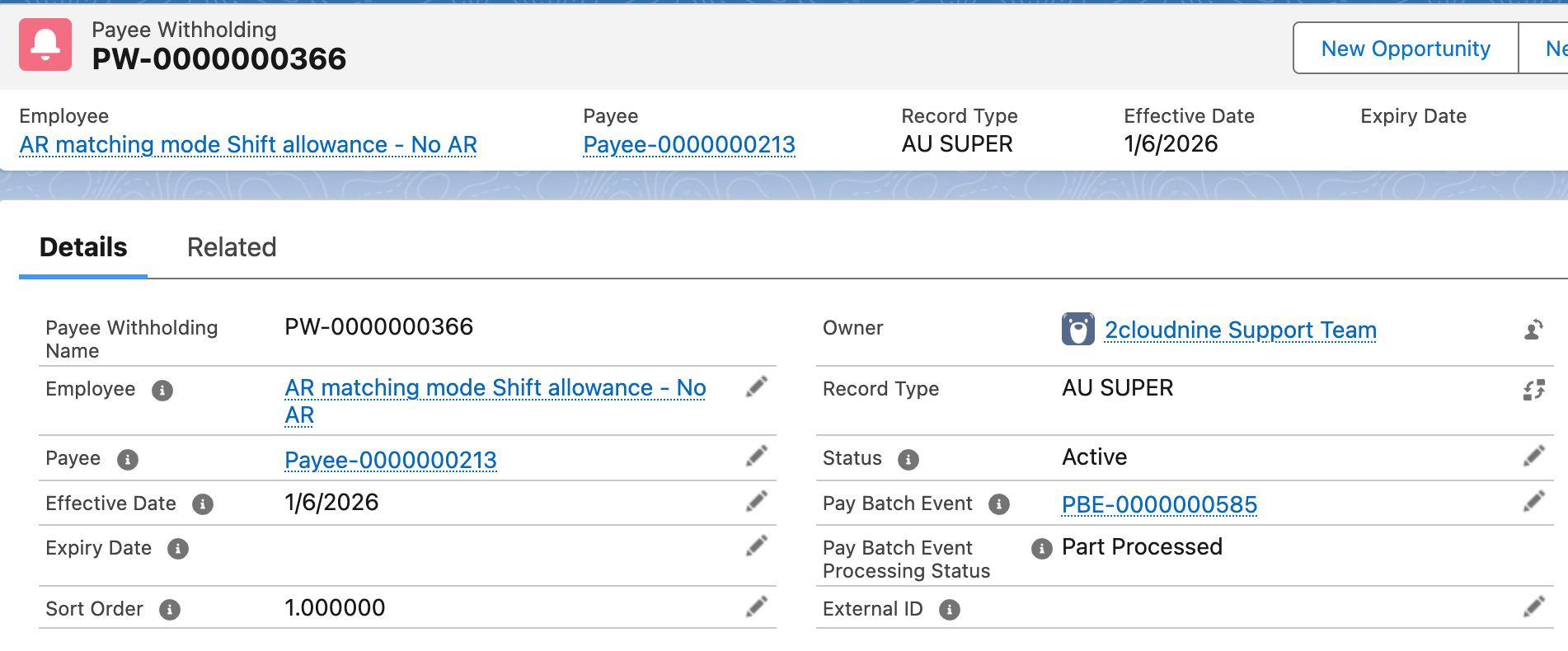
- Populate the following required fields to provide the base details of the Payee Withholding record (see Figure 5):
- Employee
- Payee
- Effective Date
- Sort Order
- Populate the following optional fields as required (see Figure 5):
- Expiry Date
Important Notes (Pay Batch Event fields, Status, and External ID)The Pay Batch Event field will be automatically populated upon saving the record and should not be manually entered.The Status of the Payee Withholding record will be automatically updated upon saving the record, based on the Effective Date and Expiry Date.The External ID field is available and should only be populated where system integration is required for the record.
- Populate the following fields to provide the base details of the Payee Withholding record (see Figure 6):
- To define the Employee-nominated superannuation account, populate the Superannuation Fund using the lookup options available.
- Suppose no superannuation account has been provided and cannot be identified for the Employee via ATO Online Services. In that case, you may nominate Default Employer Fund within the Superannuation Fund Nomination field as this will automatically populate the Superannuation Fund field with the details of the Default Employer Fund after saving.
- To define the Employee-nominated superannuation account, populate the Superannuation Fund using the lookup options available.
- Populate the following optional fields as required (see Figure 6):
- If known, enter the membership number in the Super Membership Number field.
- For APRA/RSA or Self-Managed Funds, validate the type of Fund nominated in the Superannuation Fund field by selecting from the available picklist options in the Superannuation Fund Nomination field.
- To set up a Superannuation Variation from the standard SGC amount, select from the available picklist options in the Employee Influenced Super Variation field.
- If ‘Yes’ is selected, any Employer Superannuation Contributions above the current SGC rate will be calculated separately as Employer Additional and reported as RESC.
- If ‘No’ is selected, the Employer Contributions will be listed on the SuperStream Lodgements as Award Contributions.
- If you require it to be reported as SGC, this field should be blank.
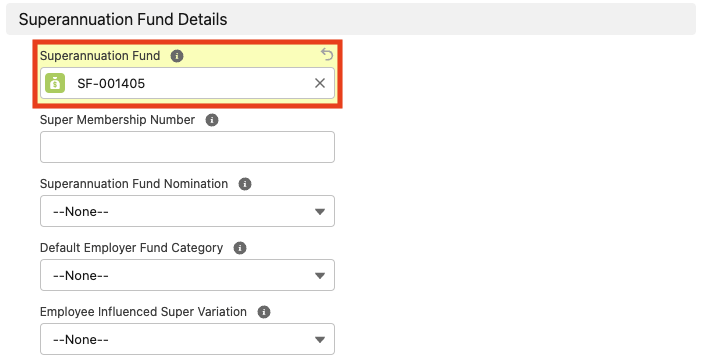
Important Notes (Superannuation Fund)If the Super Fund nominated by the Employee cannot be identified, contact your System Administrator for assistance with the creation of a new Superannuation fund record.If no Default Employer Fund has been configured within your Org, follow the QRG Create Superannuation Fund - Default Employer Fund to create the necessary record to enable Payees to successfully nominate the Default Fund on their Payee Withholding Records - Superannuation.Although it is optional, it is recommended that the Super Membership Number be populated to eliminate delays when processing Superstream reporting and payments.For Default Employer Fund nominations, the Superannuation Fund field may be automatically populated by selecting Default Employer Fund from the picklist values in the Superannuation Fund Nomination field. Any other values will be validated against the populated Superannuation Fund.
- Populate the following required fields to provide the base details of the Payee Withholding record (see Figure 7):
- To determine how excess Employer Super Contributions should be processed, select from the available picklist options in the Excess SGC Action field.
- Populate the following optional fields as required (see Figure 7):
- To define a value for the Superannuation Variation, populate either the Super Variation Percentage field or the Super Variation Amount field.
- To define an exemption from Employer SGC calculation for this Payee, select from the available picklist options in the Super Exempt field, and populate the Super Exempt Reason field.
- To override any Minimum Monthly Earnings limitations defined in the related Withholding Rule Item, populate the Minimum Monthly Earnings field.
- To override any Maximum Super Contribution Base limitations defined in the related Withholding Rule Item, populate the Maximum Super Contribution Base field.
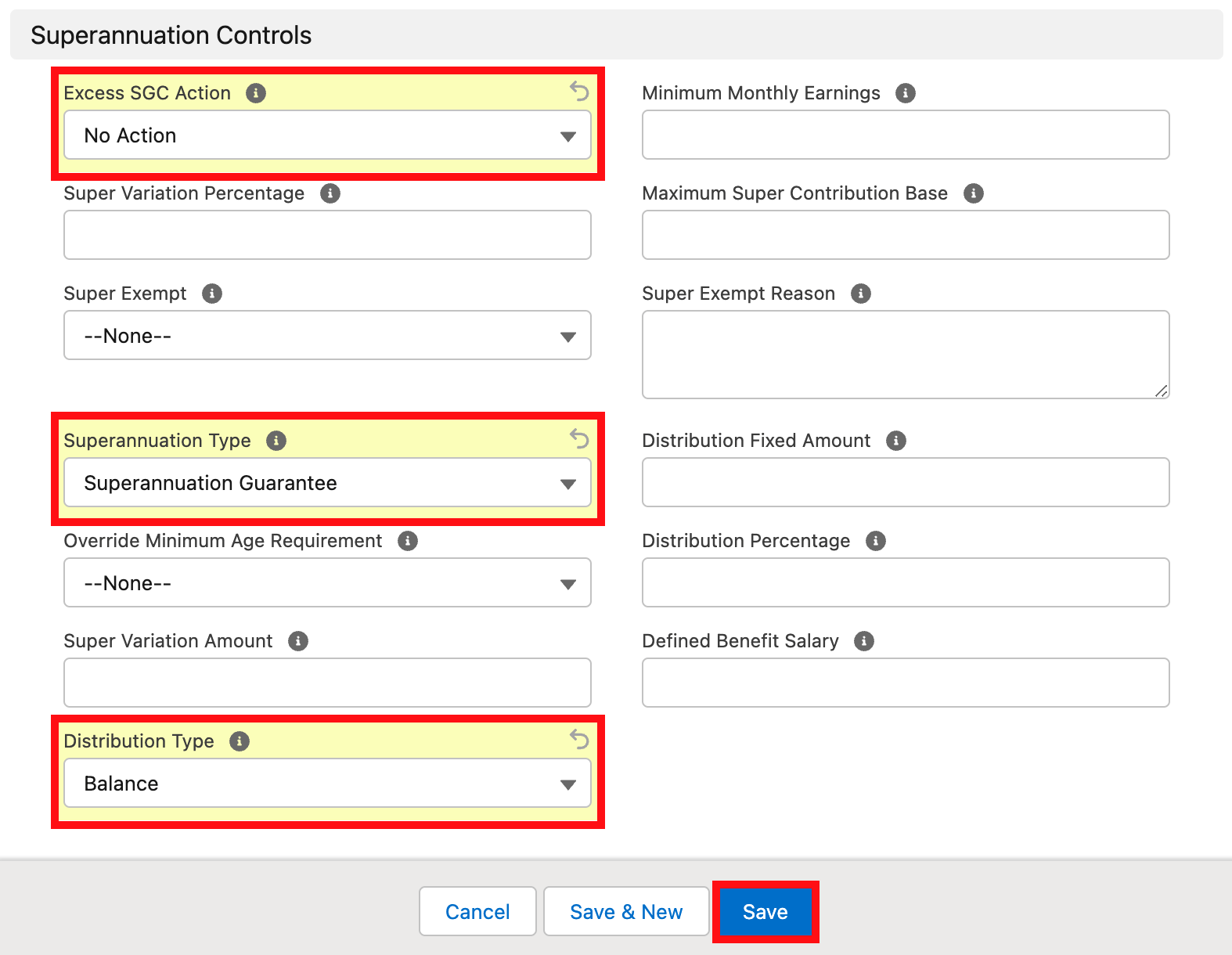
Important Notes (Superannuation Fund)If you require SGC to continue to calculate beyond the default Maximum Super Contributions Base, users are required to enter a higher value into the field ‘Maximum Super Contributions Base’ on the Payee Withholding Record. If there is no limit, the recommended amount to enter is 9999999.
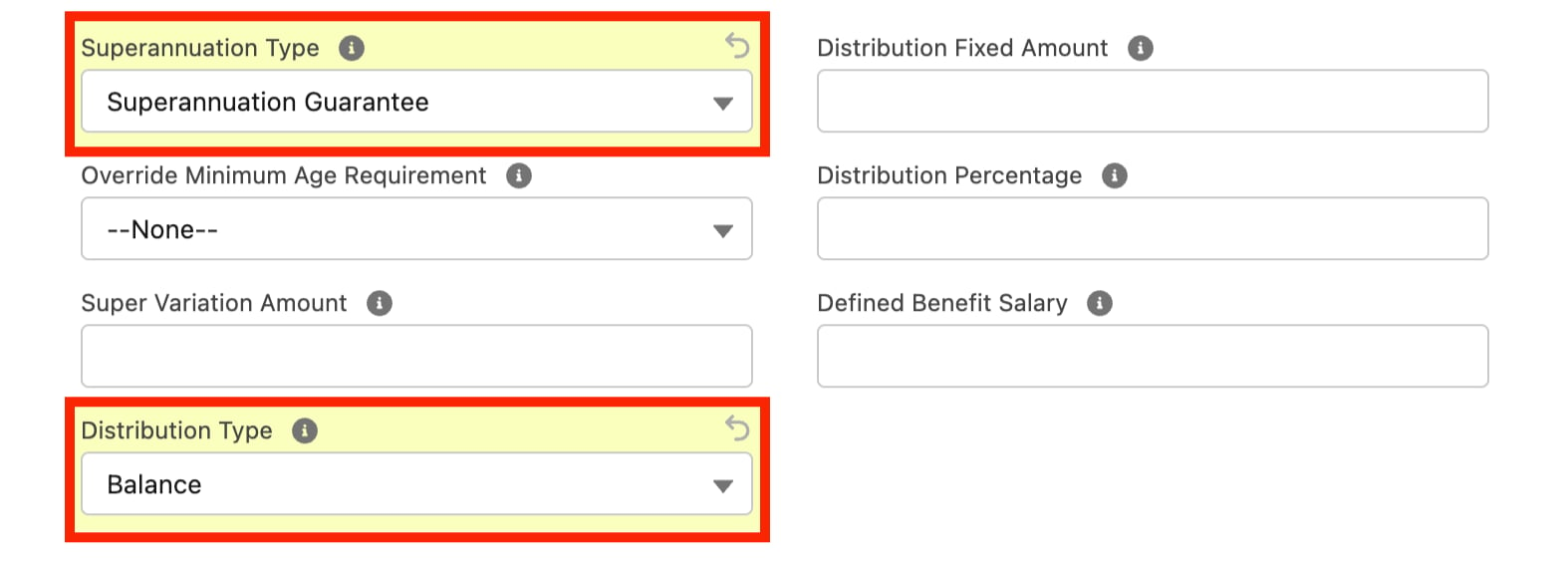
- Populate the following required fields to provide the base details of the Payee Withholding record (see Figure 8):
- To determine how Super should be calculated for this Payee, select from the available picklist options in the Superannuation Type field.
- To determine how Super funds should be allocated to the Payee, select from the available picklist values in the Distribution Type field.
- If Balance is selected, all unallocated Super funds will be allocated to the Payee.
- If Distribution Fixed Amount is selected, the related field will need to be populated with an amount.
- If Distribution Percentage is selected, the related field will need to be populated with a percentage.
- Populate the following optional fields as required (see Figure 8):
- To define a value for the Superannuation Variation, populate either the Super Variation Percentage field or the Super Variation Amount field.
- To override the minimum age and working hour requirements for Super calculations, select from the available picklist options in the Override Minimum Age Requirement field.
- To define the annual salary on which defined benefit contributions will be calculated, populate the Defined Benefit Salary field.
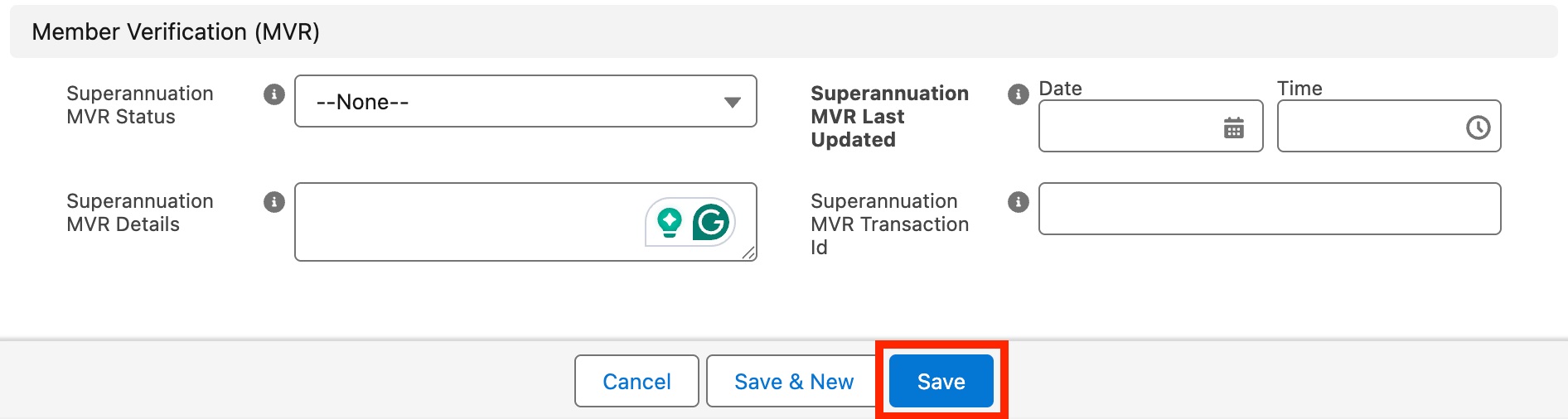
- DO NOT populate the following fields. The system populates them automatically when an MVR is submitted (see Figure 9):
- Superannuation MVR Status
- Superannuation MVR Details
- Superannuation MVR Last Updated
- Superannuation MVR Transaction Id
- Click on the Save button.
- To modify an existing Payee Withholding record, open the required record and select the Edit button available on the top right side of the page. You can also double-click within fields that need editing or just click on the pencil icon that appears within fields when hovering with your cursor.
- When complete, click on the Save button.
Member Verification Request (MVR)
Membership Verification (MVR) is a new service that lets employers confirm a fund can accept a contribution before the first payment is made. You can raise an MVR from three places:- Payee Withholding Record page — use the Verify Membership and Check Verification buttons to raise an MVR for a single record.
- Payee Withholding List View — the same buttons are available here to raise MVRs in bulk for selected records.
- MVR Batch Operations — the same buttons are available from App Launcher > MVR Batch Operations to raise MVRs in bulk for all records, rather than the ones you select.
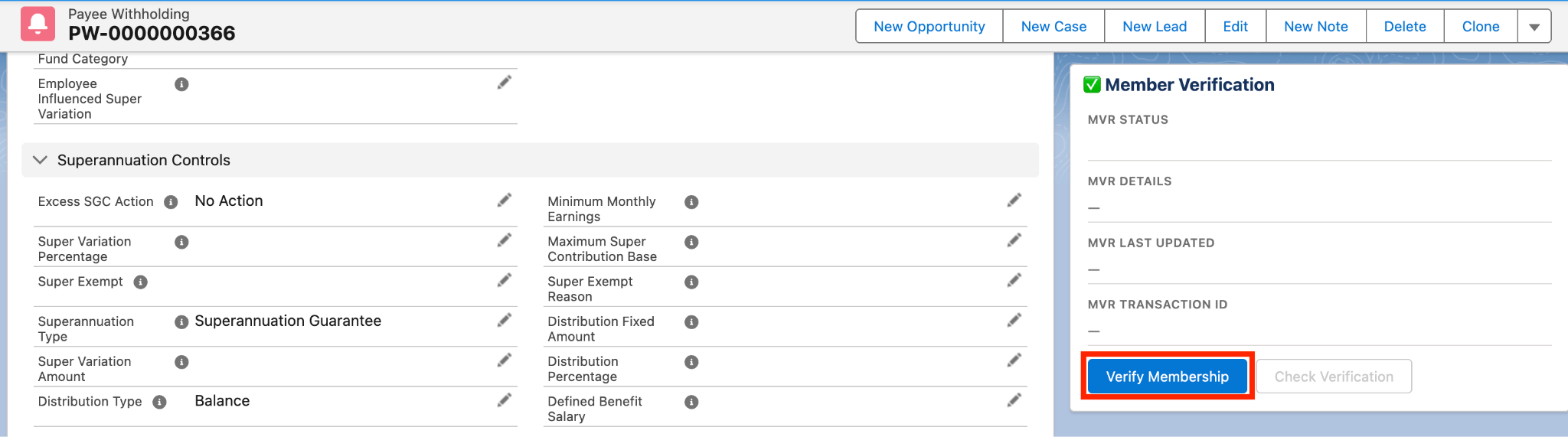
- Verify Membership — sends the member verification request to SuperChoice for a single record or in bulk. Use this button first. It is enabled by default and is disabled once the request is submitted successfully.
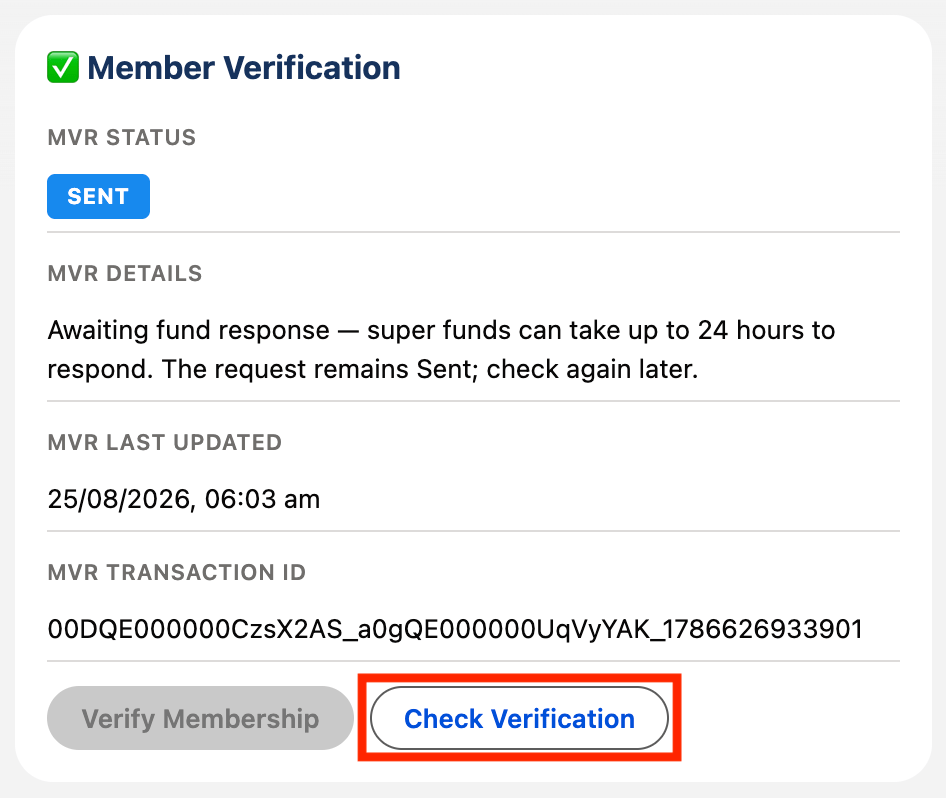
- Check Verification — reads back the fund’s response and writes the outcome to the record. It is disabled by default and becomes enabled once the MVR is submitted successfully using the Verify Membership button above.
Important Notes (Check Verification)Verify Membership and Check Verification only function when the SuperChoice API is enabled on the Payment Entity. Check Verification also requires the Payee Withholding record to have an eligible MVR status with a transaction ID to function.
Verify Membership and Check Verification for individual records
- Open a new or existing Payee Withholding record (see Figure 11).
- Scroll to the Member Verification box on the right and click Verify Membership (see Figure 12).
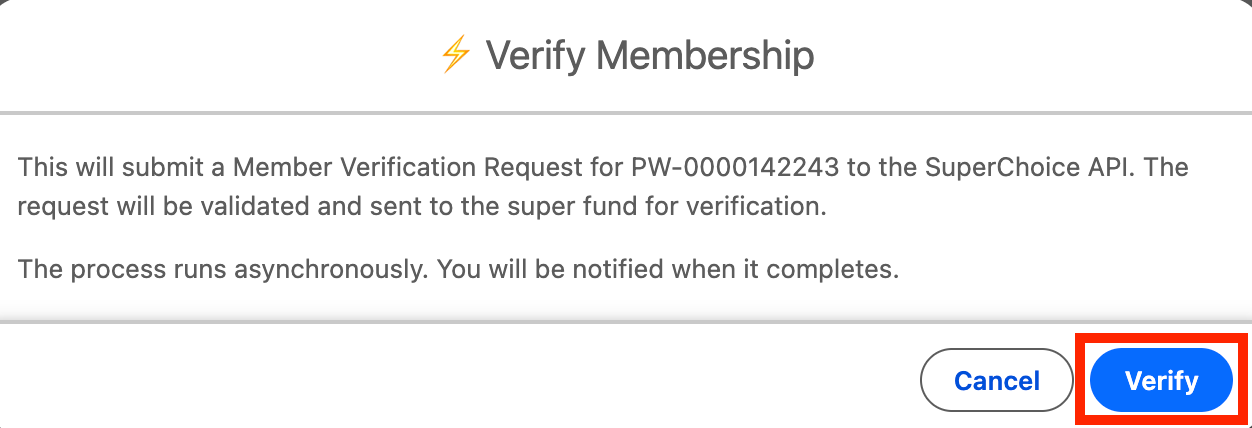
- In the confirmation pop-up, click Verify (see Figure 13).
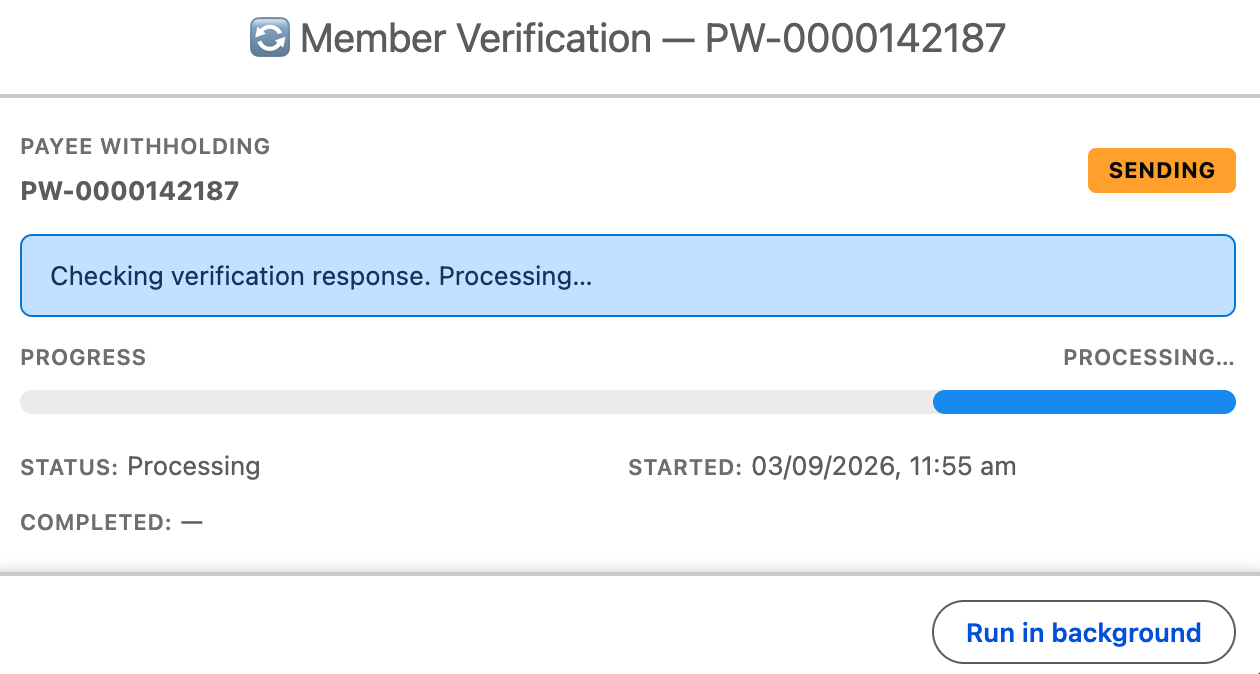
- A progress pop-up appears while the system processes the request. Wait until it completes (see Figure 14).
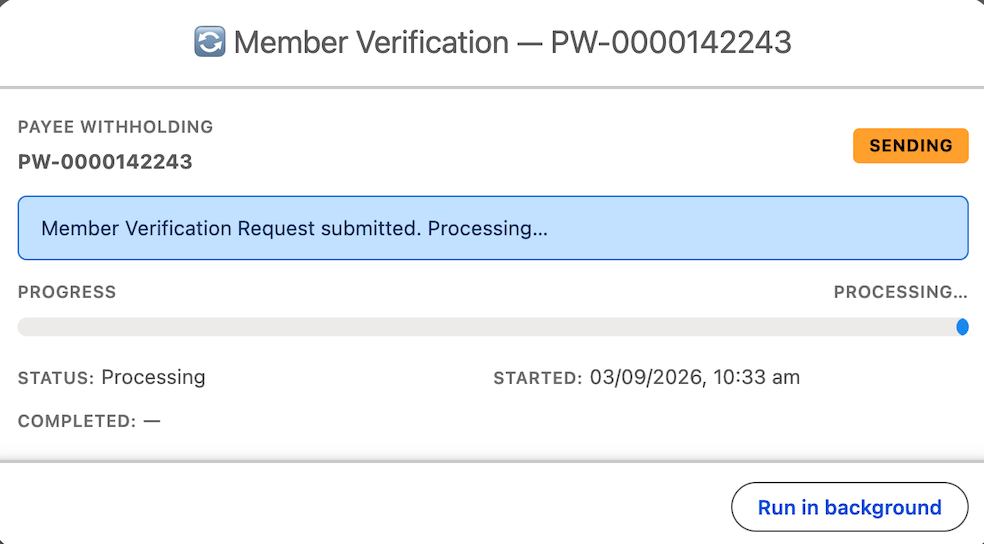
- If successful, the MVR Status will change to Sent (see Figure 15). This can take up to 24 hours.
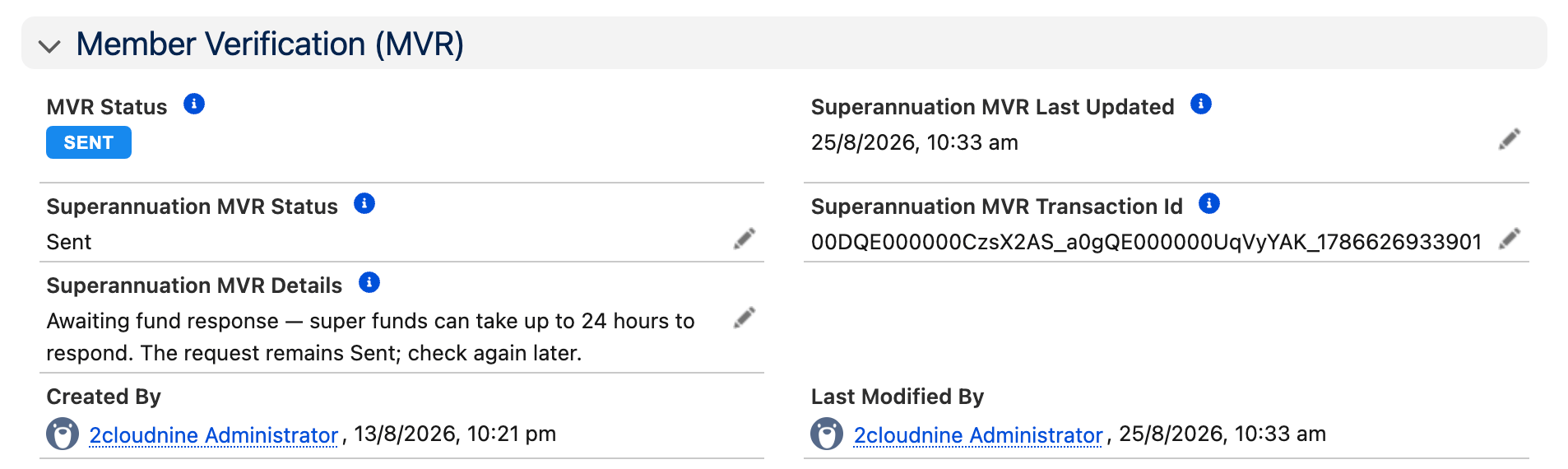
- Confirm the Check Verification button is now enabled.
- Wait for the Funds to respond. This can take up to 24 hours.
- Click Check Verification once the response is available to read it (see Figure 16).
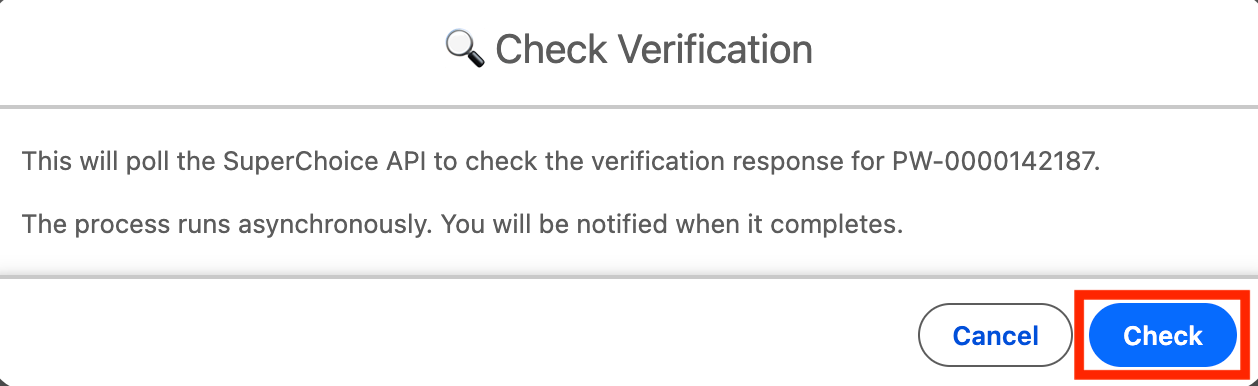
- In the confirmation pop-up, click Check (see Figure 17).
- A progress pop-up appears while the system processes the request. If successful, the status will change to Completed. (see Figure 18).
Verify Membership and Check Verification in bulk
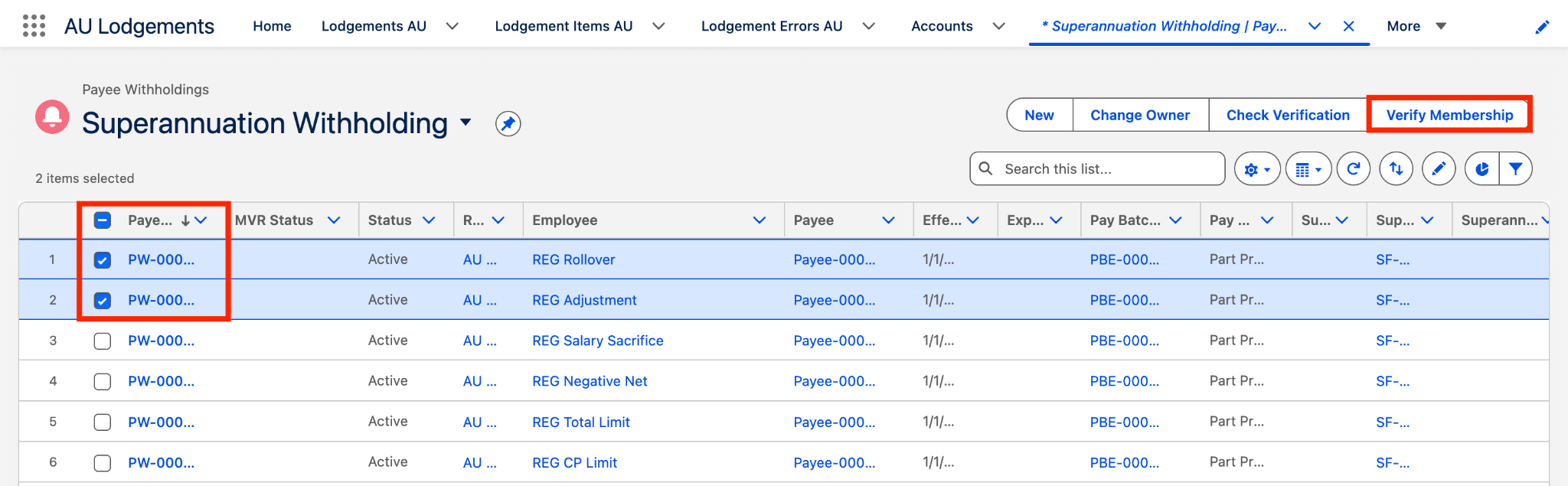
- On the Payee Withholdings tab, select the List View for Superannuation Withholding records (see Figure 19).

- Tick the checkboxes next to the required Payee Withholding records and then click Verify Membership (see Figure 20).
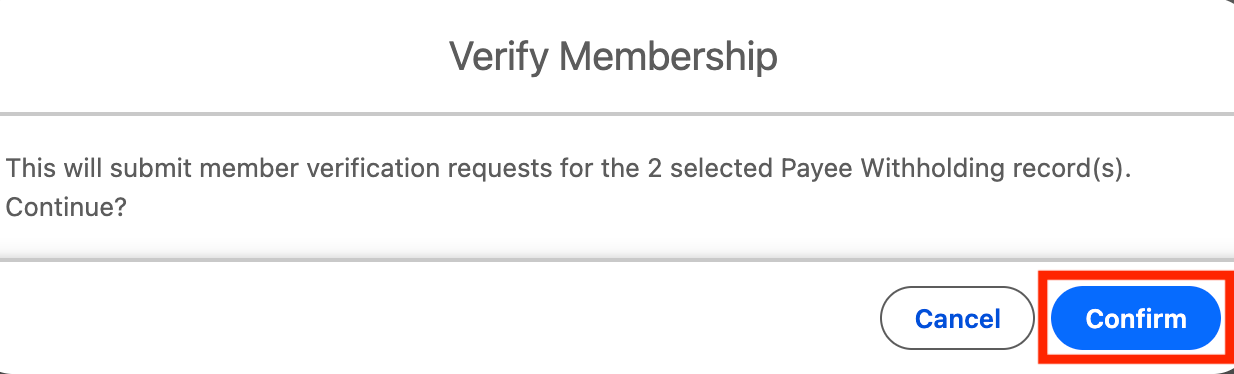
- In the confirmation pop-up, click Confirm (see Figure 21).
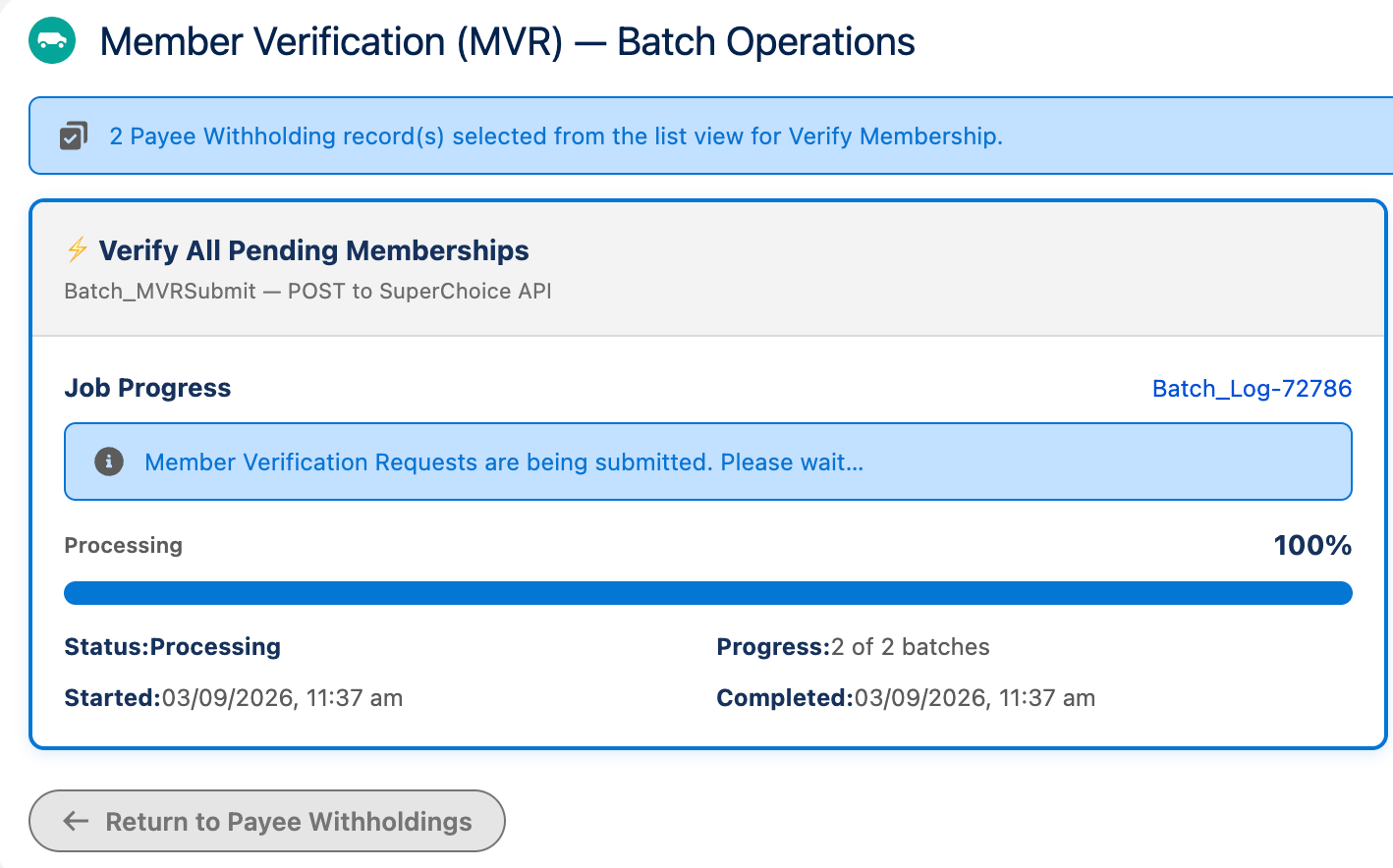
- A job progress pop-up appears while the system processes the request. Wait until it completes (see Figure 22).
- If successful, the MVR Status will change to Sent (see Figure 23). The fund can take up to 24 hours to respond.
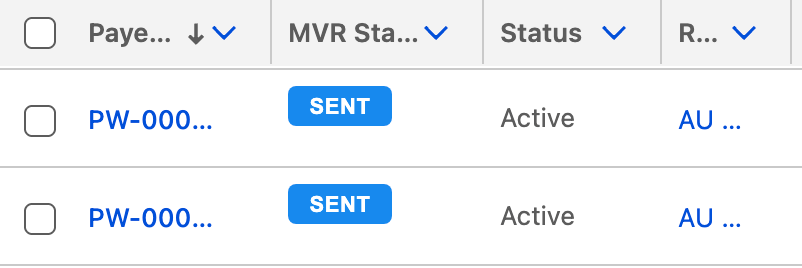
- Wait for the Fund to respond. This can take up to 24 hours.
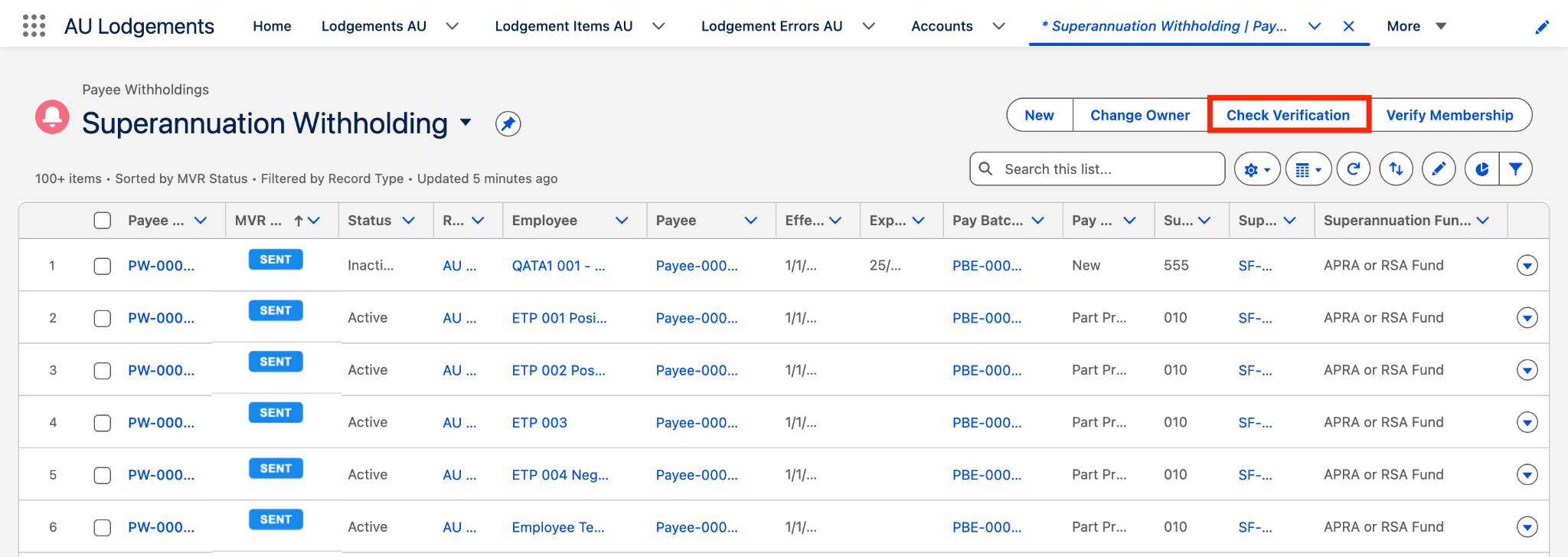
- Return to the screen once the response is available, and leave all rows unticked. Click Check Verification to read the Fund’s response (see Figure 24).
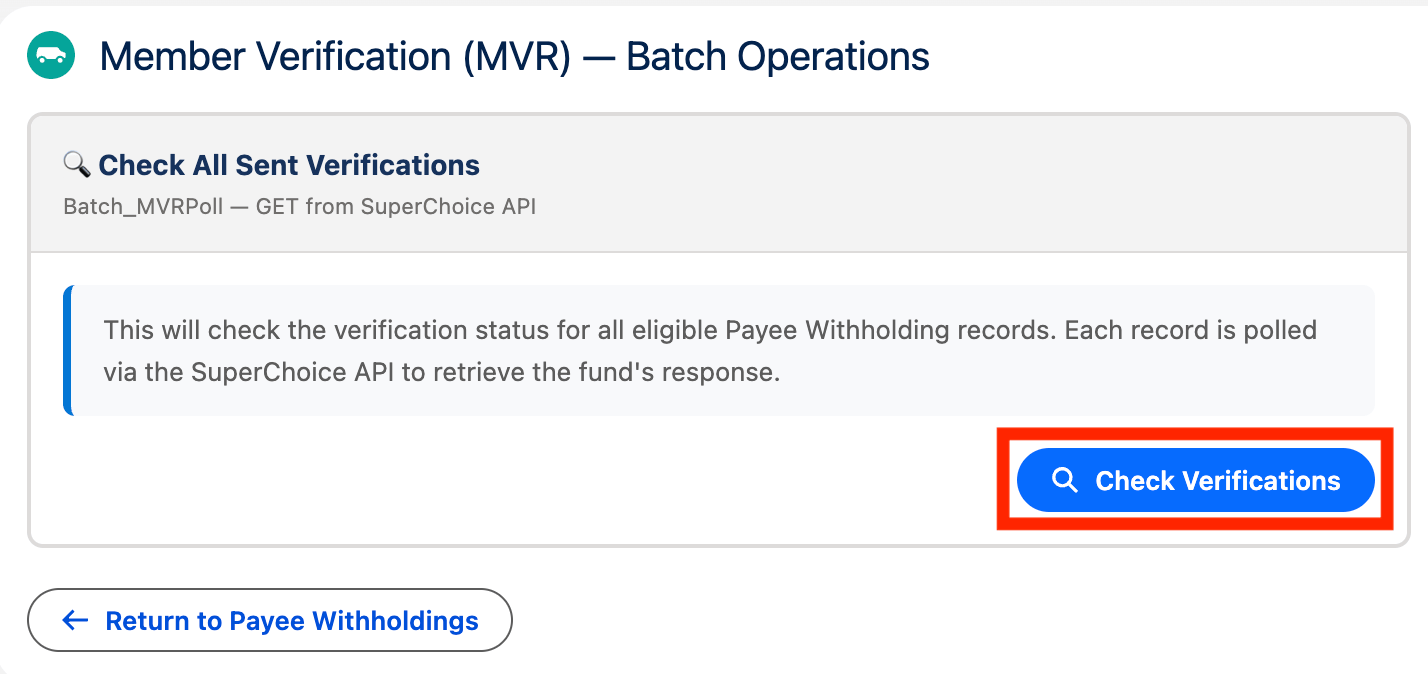
- In the confirmation pop-up, click Check Verifications (see Figure 25).
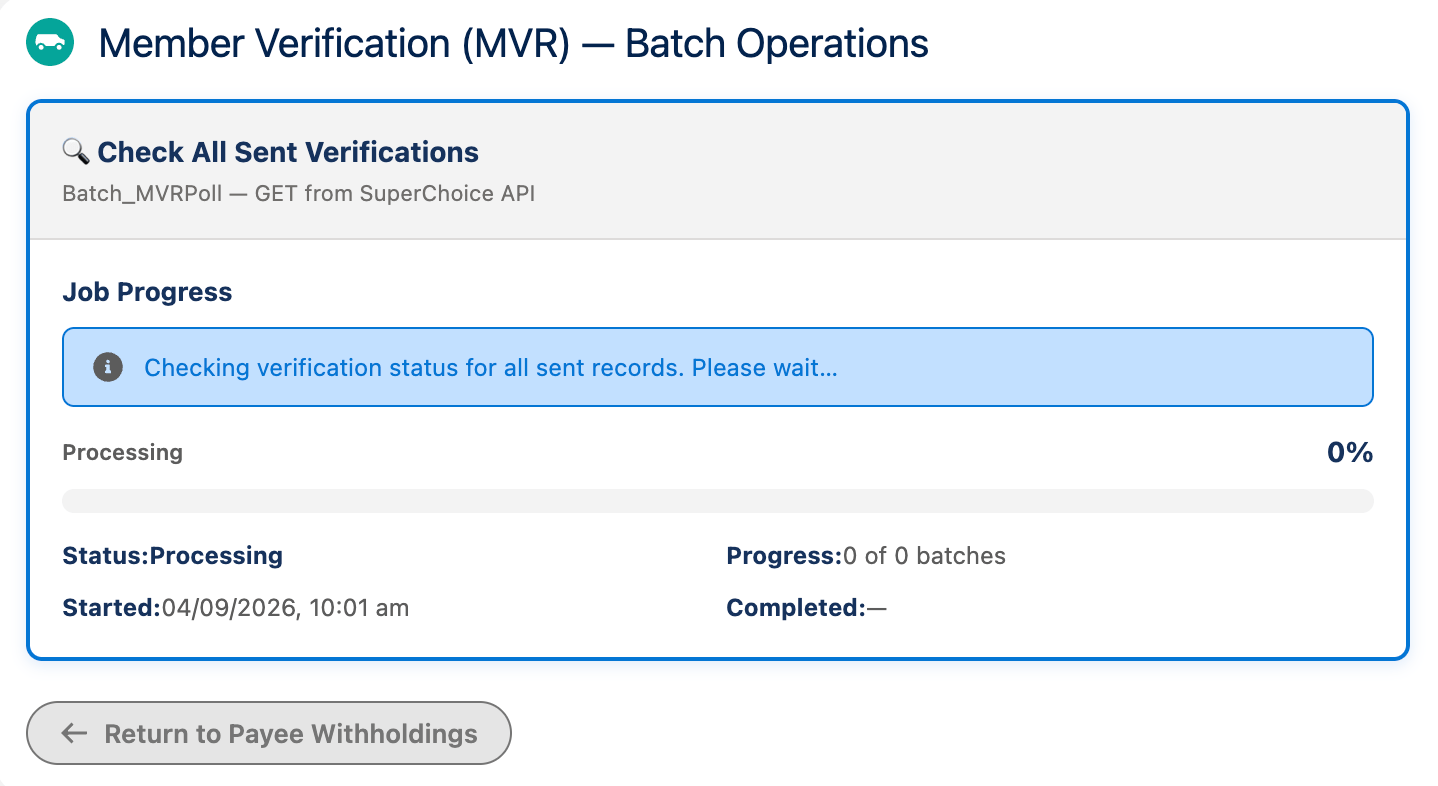
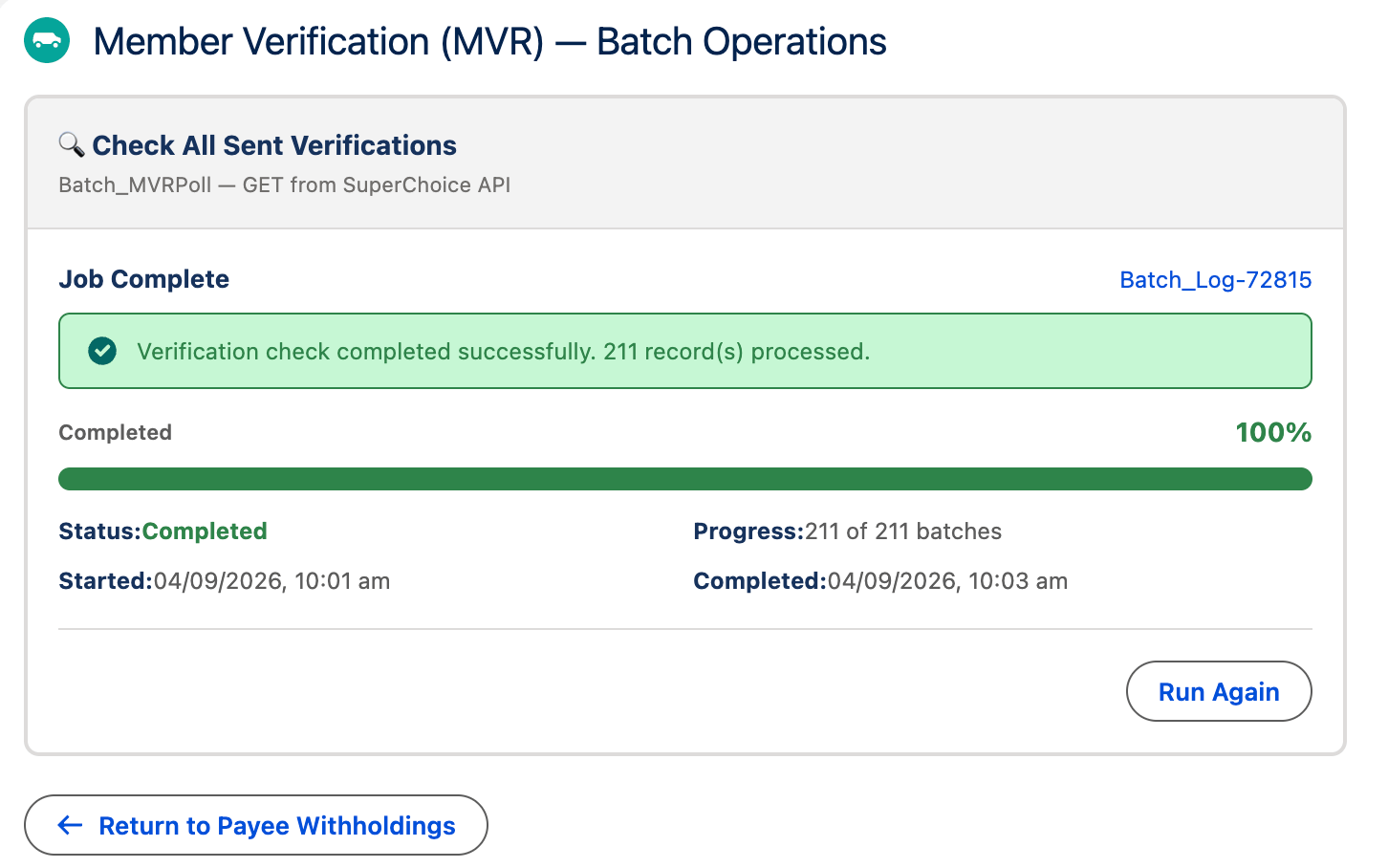
- A job progress pop-up appears while the system processes the request. Wait until it completes (see Figure 26).
Important Notes (MVR List Views)The package includes a set of List Views on the Payee Withholding object that filter records by MVR status. Use them to keep track of your MVR requests.
- When the request finishes successfully, the status changes to Completed (see Figure 27).
Field Descriptions
Further Information
- First Published: 31 March, 2022
- Last Published: 30 September, 2026