

Purpose
The purpose of this quick reference guide is to step through the process of creating Break Loading & Minimum Rest Rules within the Interpretation Rule Builder page. The intended audience for this document are System Administrators / Standard Payroll Users.Steps
Populate Break Loading & Minimum Rest Rules
Interpretation Rules are used to convert Timesheet Entries into Pay Transactions for payment of wages to Payees, taking into account different calculations for the amount of time worked. Interpretation Rules are created using the Interpretation Rule Builder, which consists of a series of dynamic fields that differ based on the record type selected. These fields are broken into several sections, some of which are optional, to allow for various interpretation types. See below for an ordered list of the QRGs related to each section of the Interpretation Rule Builder page for Hourly Rate, Shift End Time or Shift Start Time record types:- Populate Hourly Rate Interpretation Rules OR Shift Time Interpretation Rules
- Populate Break Loading and Minimum Rest Rules (optional)
- Populate Split/Broken Shift and Sleepover Rules (optional)
- Populate Allowance, Leave & Allowance Junction Rule Breakpoints (optional)
- Create Breakpoints and Pay Code Caps
Break Loading Interpretation
To enable Break Loading Interpretation, identify the Break Loading and Minimum Rest Rules section of the Interpretation Rule Builder and follow the below steps.-
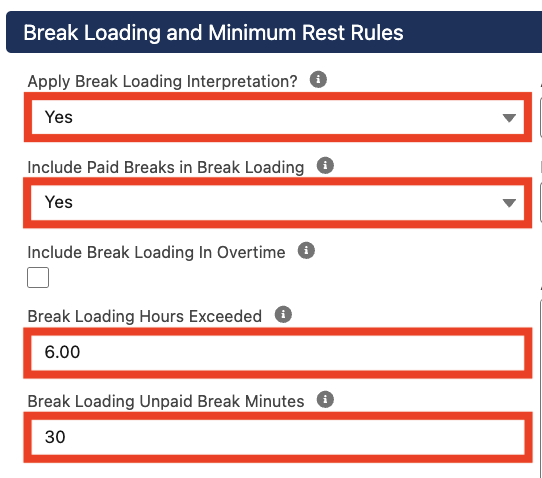
Populate the following fields (see Figure 1):
- To apply Break Loading Interpretation so that Penalty or Overtime is payable when breaks do not occur as defined, select Yes from the available picklist options in the Apply Break Loading Interpretation? field.
- If Paid Breaks should be included when calculating Break Loading, select Yes from the available picklist options in the Include Paid Breaks in Break Loading field.
- If Break Loading Pay Transactions should be created using Overtime Pay Codes (rather than defined Pay Codes), select the checkbox in the Include Break Loading in Overtime field.
- Define the maximum length of time worked without a break before Break Loading Overtime Breakpoints apply by populating the Break Loading Hours Exceeded field.
- Define the minimum length of time an unpaid break must last to ensure that Break Loading is not applied populating the Break Loading Unpaid Break Minutes field.
-
If Include Break Loading In Overtime was not selected, follow this step to populate Break Loading Breakpoints (see Figure 2):
- From the Break Loading Breakpoints tab, click on the + Add Breakpoints button.
- To define the Pay Code for Break Loading Pay Transactions during ordinary time, select from the available picklist options in the Paycode field.
-
To define the remaining Pay Codes for Break Loading Pay Transactions, select from the available picklist options in each of the following fields:
- Public Holiday Paycode
- Sunday Paycode
- Casual Loading Pay Code (if Penalty Loading is enabled)
- Penalty Loading Pay Code (if Casual Loading is enabled)
- Overtime Paycode

Minimum Rest Interpretation
To enable Minimum Rest Interpretation, identify the Break Loading and Minimum Rest section of the Interpretation Rule Builder and follow the below steps.-
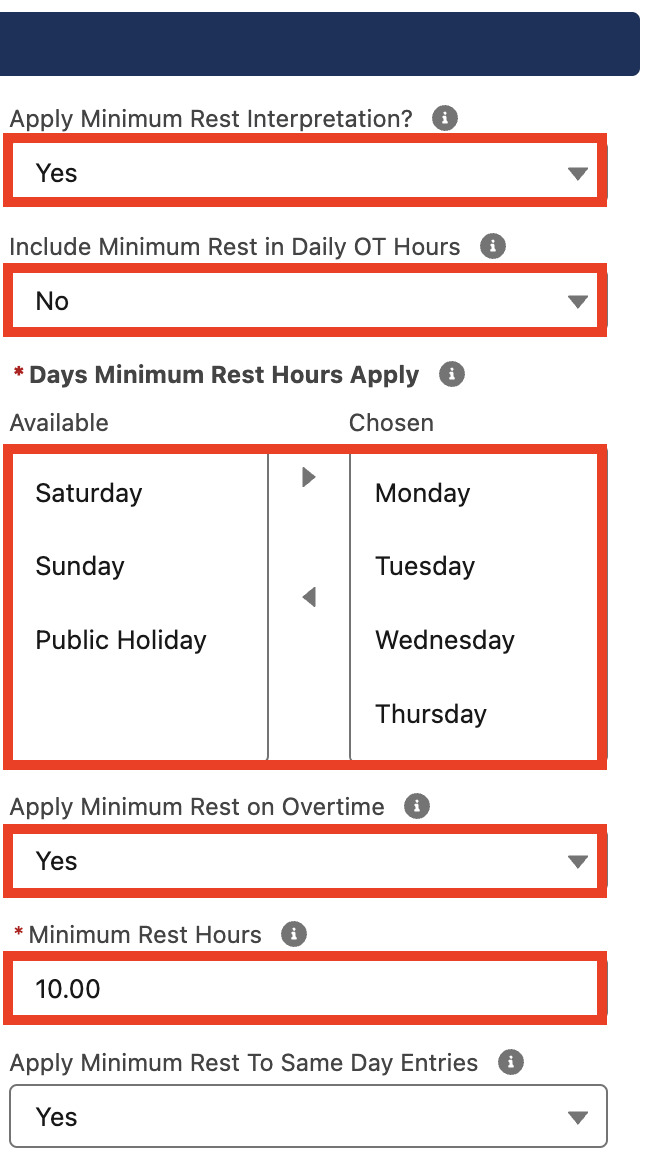
Populate the following fields (see Figure 3):
- To apply Minimum Rest Interpretation so that Penalty or Overtime is payable when adequate rest periods have not elapsed between consecutive shifts, select Yes from the available picklist options in the Apply Minimum Rest Interpretation field.
-
Determine whether Minimum Rest Pay Transactions, over the standard hours, should be created using Overtime Pay Codes (rather than defined Pay Codes) by selecting Yes from the available picklist options in the Include Minimum Rest in Daily OT Hours? field.
- If No, Minimum Rest Hours will not be interpreted as Overtime, and will instead be considered as ordinary hours.
- Define the days Minimum Rest conditions apply by using the arrow buttons to move days from the Available to the Chosen column in the Days Minimum Rest Hours Apply field.
- If Minimum Rest should apply for Timesheet Entries where the last Timesheet Entry for the previous day ended in Overtime, select Yes from the picklist options available in the Apply Minimum Rest on Overtime field.
- Define the minimum hours between the end of one Timesheet Entry and the beginning of the next Timesheet Entry to ensure that Minimum Rest Interpretation is not applied by populating the Minimum Rest Hours field
-
To determine whether Minimum Rest Timesheet Entries are interpreted for the whole day, regardless of the length of break between Timesheet Entries, select from the available picklist options in the Apply Minimum Rest to Same Day Entries field:
- If Yes, then all Timesheet Entries within that day will have Minimum Rest applied.
- If No or blank, only Timesheet Entries that continue to break the Minimum Rest Hours will have Minimum Rest applied.
-
Follow this step to populate Minimum Rest Breakpoints (see Figure 4):
- From the Minimum Rest Breakpoints tab, click on the + Add Breakpoints button
- To define the Pay Code for Minimum Rest Pay Transactions during ordinary time, select from the available picklist options in the Paycode field.
-
To define the remaining Pay Codes for Minimum Rest Pay Transactions, select from the available picklist options in each of the following fields:
- Public Holiday Paycode
- Sunday Paycode
- Casual Loading Pay Code (if Casual Loading is enabled)
- Penalty Pay Code (if Penalty Loading is enabled)
- Overtime Pay Code

- To complete the remaining required fields for this Interpretation Rule, follow the instructions provided in the Populate Hourly Rate Interpretation Rules or Populate Shift Time Interpretation Rules QRG.
The Interpretation Rule cannot be saved or finalised until all required fields and Breakpoints have been populated, and Breakpoint & Pay Code Cap creation has been completed.