

Purpose
The purpose of this quick reference guide is to step through the process of creating a custom Variation for an Interpretation Rule. The intended audience for this document are system administrators / standard users.Steps
Populate a new Custom Interpretation Variation Rule
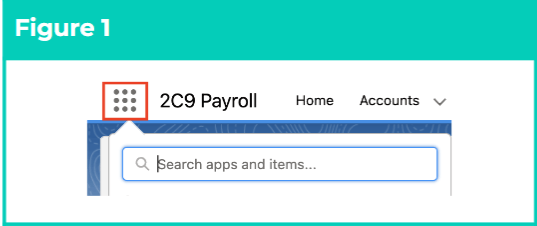
The custom Variation allows new Breakpoints to be created in order to define the conditions that should be applied when a particular Timesheet Activity is populated within a Timesheet Entry during Interpretation. This enables Timesheet Interpretation to occur according to the conditions defined in the Variation, instead of the Interpretation Rule. When creating a custom Variation, most of the fields presented in the Interpretation Rule Builder will be the same as those in an Hourly, Shift Start or Shift End Interpretation Rule. However, only certain fields need to be populated in order to finalise the Variation. Weekday Rules, Weekend Rules, Public Holiday Rules, Frequency Hours Rules (for Frequency Standard Hours) and Pay Code Caps must all be completed before the Variation can be finalised. However, the data populated within Frequency Hours Breakpoints will be defaulted according to the data in the base Interpretation Rule, and is only required so that the Builder page is populated with the minimum data requirements necessary to create Breakpoints. There are other fields throughout the record which may be populated to override the values defined in the base Interpretation Rule, but which only need to be completed if they relate to the changed work conditions captured by the Variation. Create a custom Variation by following the below steps:- Click on the App Launcher icon (see Figure 1).
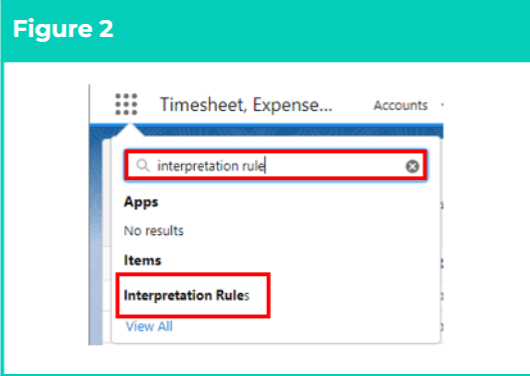
- Go to the Interpretation Rule object by using the Search function (see Figure 2).
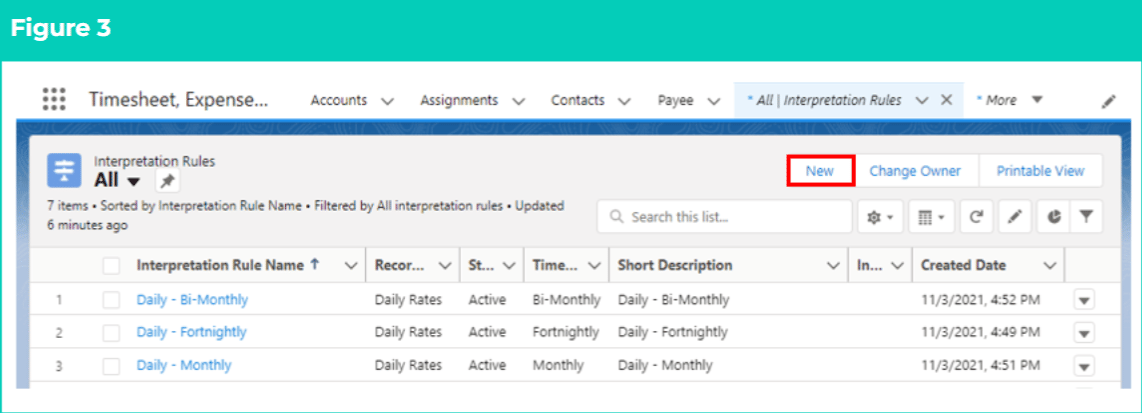
- Click on the New button (see Figure 3).
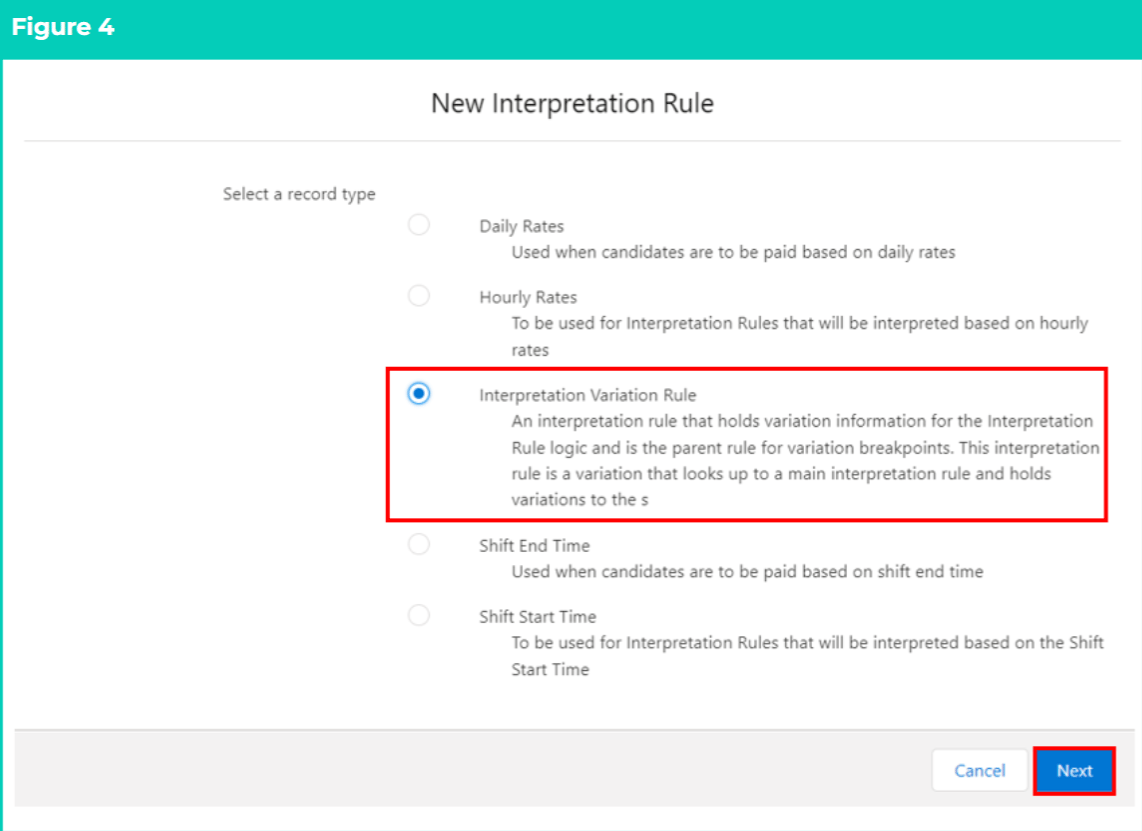
- Select Interpretation Variation Rule from the available Interpretation Rules and click on the Next button (see Figure 4).
-
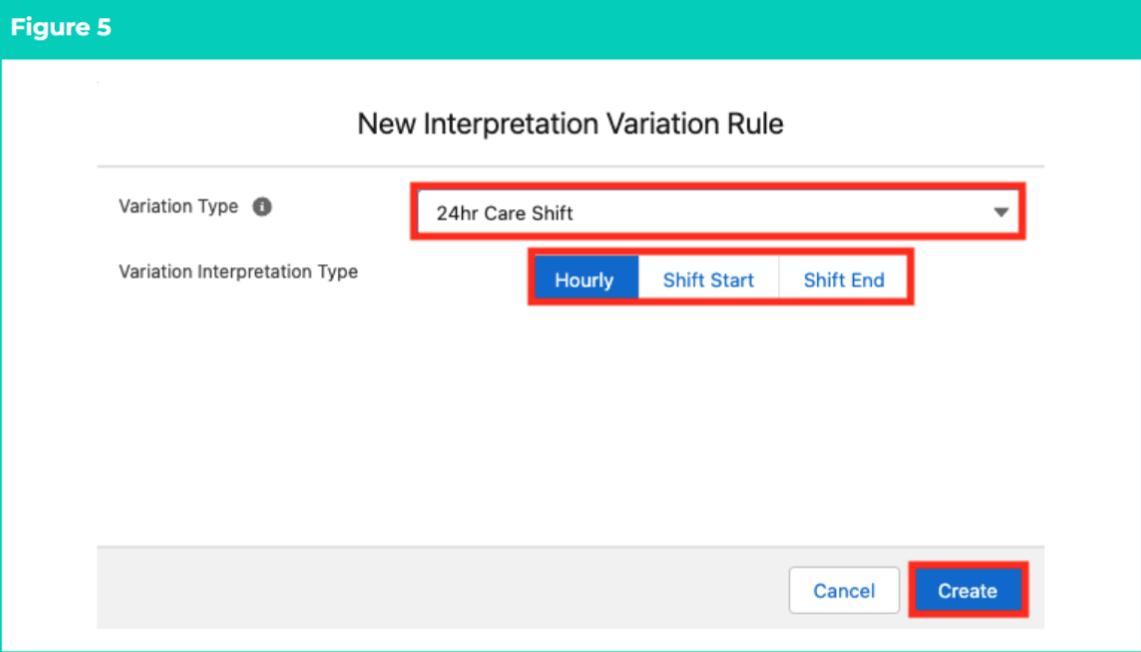
Follow this step in the sequence given (see Figure 5):
- To determine the Variation type, select one of the custom Variation options from the available picklist values in the Variation Type field.
-
To align the Variation with the Interpretation record type that it relates to, select from the options in the Variation Interpretation Type field.
- Hourly
- Shift Start
- Shift End
- Click on the Create button.
The Variation Interpretation Type MUST match the record type of the base Interpretation Rule.
Variations are only applied when the associated Timesheet Activity is populated on Timesheets. For more information on how to create a Timesheet Activity Project Code, follow the instructions provided in the Create Project Codes - Timesheet Activity (Assignment Level) QRG.
-
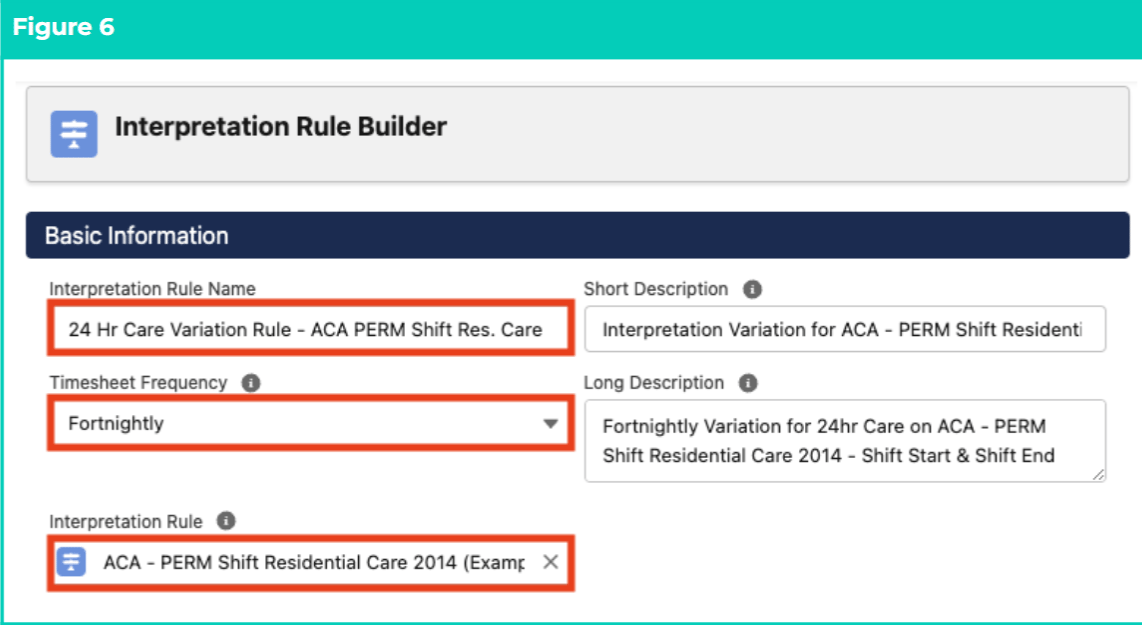
Follow this step in the sequence given (see Figure 6):
-
Populate the following required fields to provide the base details of the Variation:
- Interpretation Rule Name
- Timesheet Frequency
- To identify the Interpretation Rule that the Variation will be related to, populate the Interpretation Rule field using the lookup options available.
-
Populate the following optional fields as needed:
- To provide a description to identify the Variation, populate the Short Description field.
- To provide a description to identify the configuration of the Variation, populate the Long Description field.
-
Populate the following required fields to provide the base details of the Variation:
The Timesheet Frequency populated for the Variation MUST match the Timesheet Frequency populated for the related Interpretation Rule.
General Rule Settings
Although this section of the Interpretation Rule Builder presents all the same fields as an Hourly, Shift Start or Shift End Interpretation Rule, only some of the fields may be used to override the values populated on the base Interpretation Rule. These fields are outlined below.-
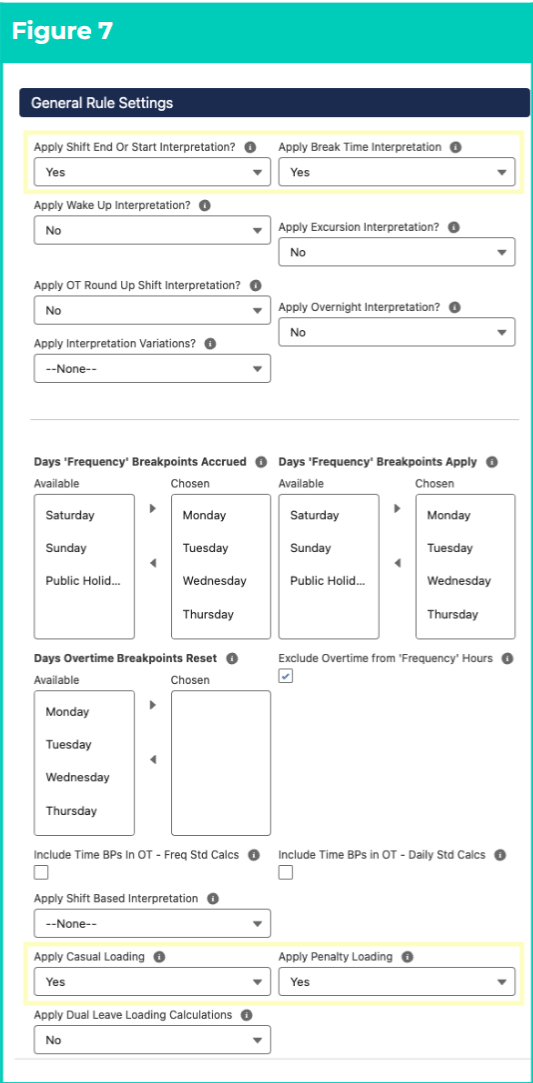
Populate the following fields as needed for the conditions of the Variation (see Figure 7):
- If Shift Start or Shift End was selected as the Variation Interpretation Type, the Apply Shift End or Shift Start Interpretation field may be populated, to cater to conditions such as paying night shift for all shifts ending before 8am or starting before 6am.
- To ensure Break Time Interpretation is applied to all relevant Breakpoint types for this Variation, select Yes from the available picklist options for the Apply Break Time Interpretation field.
- If separate Pay Transactions should be created when Casual Loading Pay Codes apply to this Variation, select Yes from the available picklist options in the Apply Casual Loading field.
- If Pay Transactions should be created when Penalty Loading Pay Codes apply to this Variation, select Yes from the available picklist options in the Apply Penalty Loading field.
Variations are not designed to be used to update existing Interpretation Rules. They exist only to facilitate circumstances where a Timesheet Activity Project Code indicates a different set of work conditions apply for Timesheet Interpretation. If changes to base Interpretation Rules are required, a new Interpretation Rule must be created to facilitate this.
- Break Loading and Minimum Rest Rules should not be populated for Variations, as values will be derived from the base Interpretation Rule.
- Split/Broken Shift and Sleepover Rules should not be populated for Variations, as values will be derived from the base Interpretation Rule.
Weekday (Monday to Friday) Rules
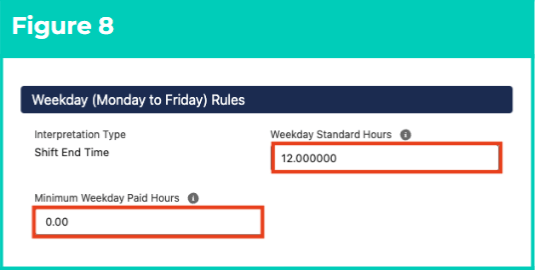
All fields must be populated here to define the Weekday conditions and associated Breakpoints for the Variation. Available fields and Breakpoints will vary, depending on the Variation Interpretation Type selected, and also depending on whether Apply Shift End or Shift Start Interpretation is enabled.- For Shift Start and Shift End Variations, populate the following required fields (see Figure 8):
- To define the maximum Ordinary hours that may be paid within a single day before Overtime Pay Codes from the related Interpretation Rule will be applied, populate the Weekday Standard Hours field.
- To define the minimum amount of hours that are payable each Weekday, regardless of the actual hours entered within Timesheet Entries, populate the Minimum Weekday Paid Hours field.
- For Hourly Variations, populate the following required fields (see Figure 9):
- To determine whether Interpretation reviews Timesheet Entries according to the amount of time entered within a 24 hour period, or the time of day entered, select from the available picklist options in the Interpretation Type field:
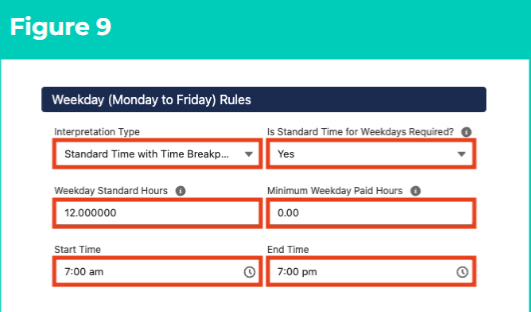
- Standard Time with Time Breakpoints - Breakpoints allow Pay Codes to be defined according to the amount of hours entered over a 24 hour period.
- Standard Time with Time of Day Breakpoints - Breakpoints allow Pay Codes to be defined according to the time of day entries occur over a 24 hour period.
- If Ordinary hours occur on Weekdays, select Yes from the available picklist options in the Is Standard Time for Weekdays Required? field.
- If No , Overtime will be applied to any Timesheet Entries completed for Weekdays.
- To define the maximum hours payable for ordinary time Pay Codes in a single shift (if Shift Logic is applied) or day (if Daily Logic is applied) before Overtime Pay Codes will be applied, populate the Weekday Standard Hours field.
- To define the minimum hours payable each Weekday, regardless of actual hours populated for Timesheet Entries, populate the Minimum Weekday Paid Hours field.
- If Standard Time with Time Breakpoints was selected as the Interpretation Type, populate the Start Time and End Time fields to define when Pay Codes associated with ordinary time should apply for Weekdays.
Saturday Rules
- Follow the instructions in Weekday (Monday to Friday) Rules to complete Saturday Rules.
Sunday Rules
- Follow the instructions in Weekday (Monday to Friday) Rules to complete Sunday Rules.
Public Holiday Rules
- Follow the instructions in Weekday (Monday to Friday) Rules to complete Public Holiday Rules.
Required fields MUST be populated for Weekday, Saturday, Sunday and Public Holiday Rules, regardless of whether Variations are associated with these days.
Shift Start or Shift End Breakpoints
For Variations using Shift Start or Shift End Variation Interpretation Type, 24 hours of EITHER Shift Start or Shift End Breakpoints are mandatory for Weekday Rules, unless Apply Shift End or Start Interpretation is enabled from General Rule Settings. The same applies for Saturday, Sunday and Public Holiday Rules, unless a different kind of Breakpoint is selected from the Interpretation Type field.- Follow this step to populate End Time or Start Time Breakpoints (see Figure 10):
- Click on the Start Time or End Time Breakpoints tab.
- As the Start field defaults to 12:00 am, and does not need to be populated, define the first Variation Breakpoint that occurs during Weekdays from 12:00 am by populating the End field.
- Define the Pay Code for the first Variation Breakpoint by populating the Pay Code field using the lookup options available.
- If Casual Loading applies to the Variation, populate the Casual Loading Pay Code field using the lookup options available.
- If Penalty Loading applies to the Variation, populate the Penalty Loading Pay Code field using the lookup options available.
-
To add the next Variation Breakpoint, click on the + Add Breakpoint button.
- A new Breakpoint line will be added beneath the first, with the Start field defaulting to the value from the previous End field.
- Populate the End and Pay Code fields within the new Breakpoint to define the next Weekday Shift End Time Breakpoint.
- To remove a Breakpoint, click on the Trash Can icon next to the corresponding line.
- Repeat Step 15. until 24 hours of Start Time or End Time Breakpoints have been populated.
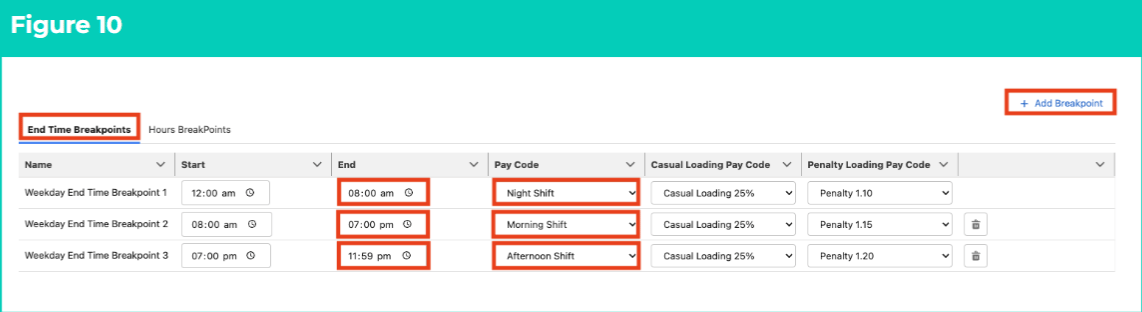
The Breakpoints populated for Variations MUST account for a full 24 hours, including Overtime hours, before the record can be saved. Variation Breakpoints will override Breakpoints defined in the related Interpretation Rule.
Shift End and Shift Start Breakpoints
For Start Time and End Time Variations with Apply Shift End or Start Interpretation enabled in General Rule Settings,, the required Breakpoints for Weekday Rules may be populated using either Shift End Breakpoints, Shift Start Breakpoints, or a combination of both. The same applies for Saturday, Sunday and Public Holiday Rules, unless a different kind of Breakpoint is selected from the Interpretation Type field.- Follow this step to populate End Time and Start Time Breakpoints (see Figure 11):
-
Click on the End Time Breakpoints tab.
- If End Time is being used as the primary Breakpoint type for Variation Weekday Rules, populate the first End Time Breakpoint that occurs during Weekdays from 12:00 am by populating the End field.
- If End Time is being used as the secondary Breakpoint type for Variation Weekday Rules, define the first Breakpoint for End Time Interpretation by populating the Start and End field using 24 hour format.
- To define the Pay Code for the first Shift End Time Breakpoint, populate the Pay Code field using the lookup options available.
- If Casual Loading applies to the Variation, populate the Casual Loading Pay Code field using the lookup options available.
- If Penalty Loading applies to the Variation, populate the Penalty Loading Pay Code field using the lookup options available.
-
To add the next End Time Breakpoint, click on the + Add Breakpoint button.
- A new Breakpoint line will be added beneath the first, with the Start field defaulting to the value from the previous End field.
- Populate the End and Pay Code fields within the new Breakpoint to define the next Weekday Shift End Time Breakpoint.
- To remove a Breakpoint, click on the Trash Can icon next to the corresponding line.
- Repeat Step 17. until all necessary End Time Breakpoints have been populated.
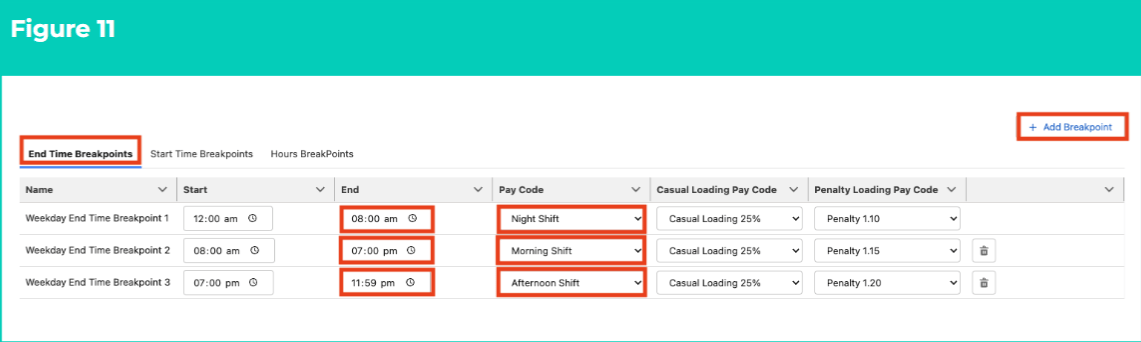
The Breakpoints populated for Variations MUST account for a full 24 hours, including Overtime hours, before the record can be saved. Variation Breakpoints will override Breakpoints defined in the related Interpretation Rule.
- To define the Start Time Breakpoints, populate the following required fields (see Figure 12):
-
Click on the Start Time Breakpoints tab.
- If Start Time is being used as the primary Breakpoint type for Variation Weekday Rules, populate the first Start Time Breakpoint that occurs during Weekdays from 12:00 am by populating the End field.
- If Start Time is being used as the secondary Breakpoint type for Variation Weekday Rules, define the first Breakpoint for Start Time Interpretation by populating the Start and End field using 24 hour format.
- To define the Pay Code for the first Shift Start Time Breakpoint, populate the Pay Code field using the lookup options available.
- If Casual Loading applies to the Variation, populate the Casual Loading Pay Code field using the lookup options available.
- If Penalty Loading applies to the Variation, populate the Penalty Loading Pay Code field using the lookup options available.
-
To add the next Start Time Breakpoint, click on the + Add Breakpoint button.
- A new Breakpoint line will be added beneath the first, with the Start field defaulting to the value from the previous End field.
- Populate the End and Pay Code fields within the new Breakpoint to define the next Weekday Shift Start Time Breakpoint.
- To remove a Breakpoint, click on the Trash Can icon next to the corresponding line.
- Repeat Step 19. until all necessary End Time Breakpoints have been populated.
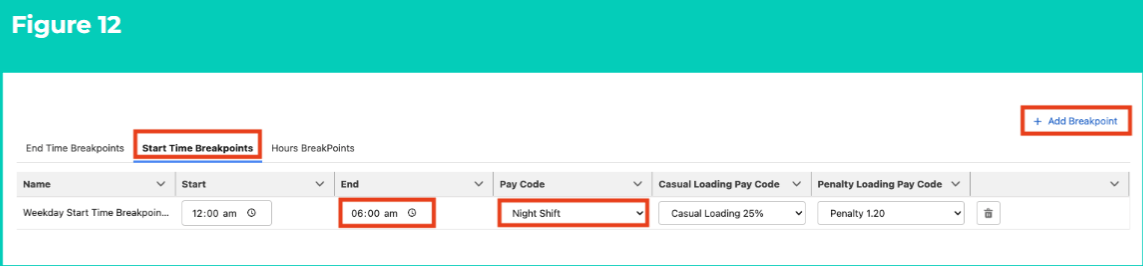
The Breakpoints populated for Variations MUST account for a full 24 hours, including Overtime hours, before the record can be saved. Variation Breakpoints will override Breakpoints defined in the related Interpretation Rule.
Time Breakpoints
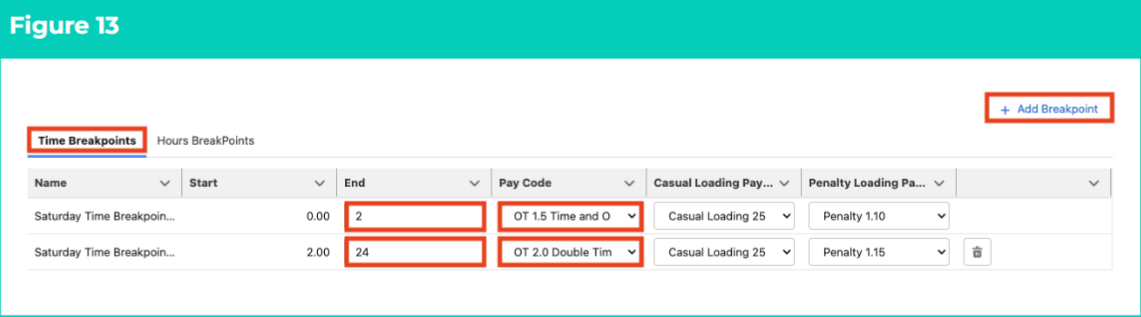
For Hourly Variations, these Breakpoints are required when Standard Time with Time Breakpoints is selected as the Interpretation Type for Weekday, Saturday, Sunday or Public Holiday Rules. For Start Time or End Time Variations, Standard Time with Time Breakpoints may only be selected as the Interpretation Type for Saturday, Sunday and Public Holiday Rules (i.e. NOT for Weekdays, where Shift Start and/or Shift End Breakpoints are mandatory).- Follow this step to populate Time Breakpoints (see Figure 13):
- Click on the Time Breakpoints tab.
-
As the Start field defaults to 0, and does not need to be populated, define the first Standard Time with Time Breakpoint that occurs for the Variation outside of Weekday ordinary time by populating the End field.
- Weekday ordinary hours for Standard Time with Time Breakpoints are determined by the values in the Start Time and End Time fields for Weekday Rules.
- To define the Pay Code for the first Time Breakpoint, populate the Pay Code field.
- If Casual Loading applies to the Variation, populate the Casual Loading Pay Code field using the lookup options available.
- If Penalty Loading applies to the Variation, populate the Penalty Loading Pay Code field using the lookup options available.
-
To add the next Time Breakpoint, click on the + Add Breakpoint button.
- A new Breakpoint line will be added beneath the first, with the Start field defaulting to the value from the previous End field.
- Populate the End and Pay Code fields within the new Breakpoint to define the next Weekday Time Breakpoint.
- To remove a Breakpoint, click on the Trash Can icon next to the corresponding line.
- Repeat Step 21. until 24 hours of Time Breakpoints have been accounted for.
The Breakpoints populated for Variations MUST account for a full 24 hours, including Overtime hours, before the record can be saved. Variation Breakpoints will override Breakpoints defined in the related Interpretation Rule.
Time of Day Breakpoints
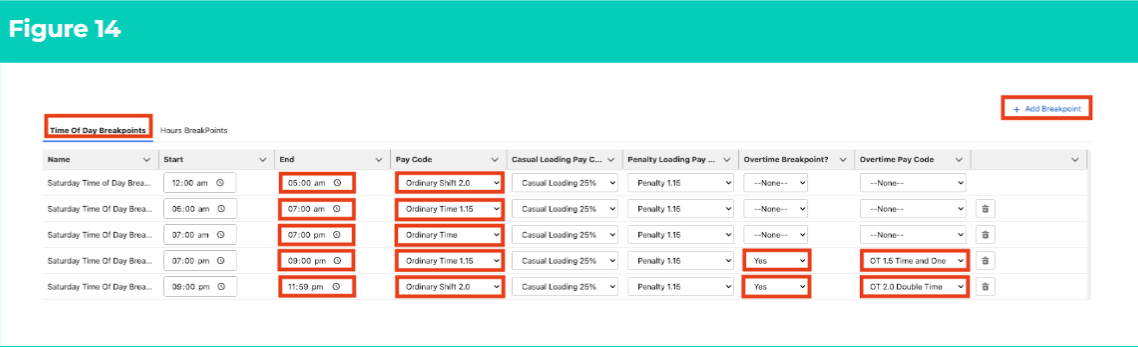
For Hourly Variations, these Breakpoints are required when Standard Time with Time of Day Breakpoints is selected as the Interpretation Type for Weekday, Saturday, Sunday or Public Holiday Rules. For Start Time or End Time Variations, Standard Time with Time of Day Breakpoints may only be selected as the Interpretation Type for Saturday, Sunday and Public Holiday Rules (i.e. NOT for Weekdays, where Shift Start and/or Shift End Breakpoints are mandatory).- Follow this step to populate Time of Day Breakpoints (see Figure 14):
- Click on the Time of Day Breakpoints tab.
- As the Start field defaults to 12:00 am, and does not need to be populated, define the first Time of Day Breakpoint that occurs for the Variation during Weekdays from 12:00 am by populating the End field.
-
To define the Pay Code for the first Time of Day Breakpoint, populate the Pay Code field using the lookup options available.
- If the Breakpoint relates to Overtime, select Yes in the Overtime Breakpoint field and populate the Overtime Pay Code field instead of the Pay Code field.
- If Casual Loading applies to the Variation, populate the Casual Loading Pay Code field using the lookup options available.
- If Penalty Loading applies to the Variation, populate the Penalty Loading Pay Code field using the lookup options available.
-
To add the next Time of Day Breakpoint, click on the + Add Breakpoint button.
- A new Breakpoint line will be added beneath the first, with the Start field defaulting to the value from the previous End field.
- Populate the End and Pay Code / Overtime Pay Code fields within the new Breakpoint to define the next Weekday Time of Day Breakpoint.
- To remove a Breakpoint, click on the Trash Can icon next to the corresponding line.
- Repeat Step 23. until 24 hours of Time of Day Breakpoints have been accounted for.
The Breakpoints populated for Variations MUST account for a full 24 hours, including Overtime hours, before the record can be saved. Variation Breakpoints will override Breakpoints defined in the related Interpretation Rule.
Hours Breakpoints
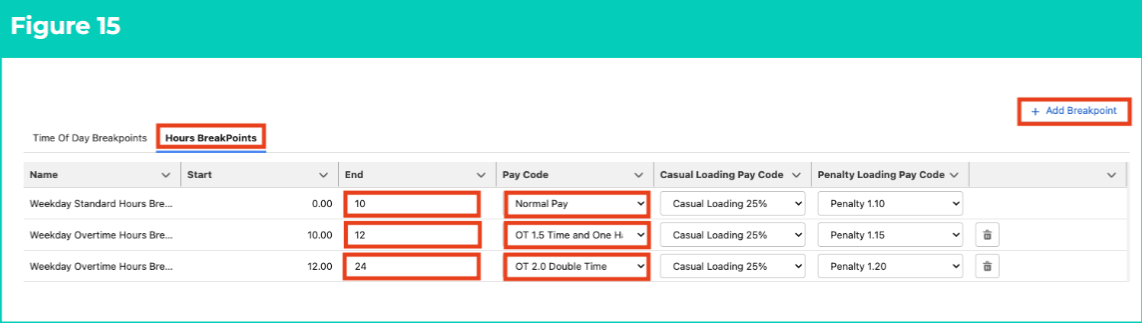
These Breakpoints are mandatory for all Hourly, Shift Start and Shift End Variations. A full 24 hours of Hours Breakpoints must be populated in Weekday, Saturday, Sunday and Public Holiday Rules, and every Breakpoint after the first will represent Overtime.- Follow this step to populate Hours Breakpoints (see Figure 15):
- Click on the Hours Breakpoints tab.
-
As the Start field defaults to 0, and does not need to be populated, define the hours associated with ordinary time Pay Codes for the Variation by populating the End field.
- Users must remember that Hours Breakpoints will be overridden by Time Breakpoints, so this amount is the defined maximum payable with ordinary time Pay Codes.
- To define the Pay Code for the ordinary time Breakpoint, populate the Pay Code field using the lookup options available.
- If Casual Loading applies to the Variation, populate the Casual Loading Pay Code field using the lookup options available.
- If Penalty Loading applies to the Variation, populate the Penalty Loading Pay Code field using the lookup options available.
-
To add the first Overtime Hours Breakpoint, click on the + Add Breakpoint button.
- A new Breakpoint line will be added beneath the first, with the Start field defaulting to the value from the previous End field.
- Populate the End and Pay Code fields within the new Breakpoint to define the first Overtime Hours Breakpoint.
- To remove a Breakpoint, click on the Trash Can icon next to the corresponding line.
- Repeat Step 25. until a full 24 hours of Hours Breakpoints have been accounted for.
- Complete Breakpoints for Saturday, Sunday and Public Holiday Rules according to the instructions for the applicable Breakpoints.
Weekdays, Saturdays, Sundays and Public Holidays must be ALL populated to cover 24 hours (i.e. 12:00 AM - 11:59 PM) of either Start Time, End Time or Time Breakpoints, as well as Hours Breakpoints. Without these details, Interpretation will not be able to determine the appropriate Pay Codes for Timesheet Entries related to the Variation.
Frequency Hours Rules
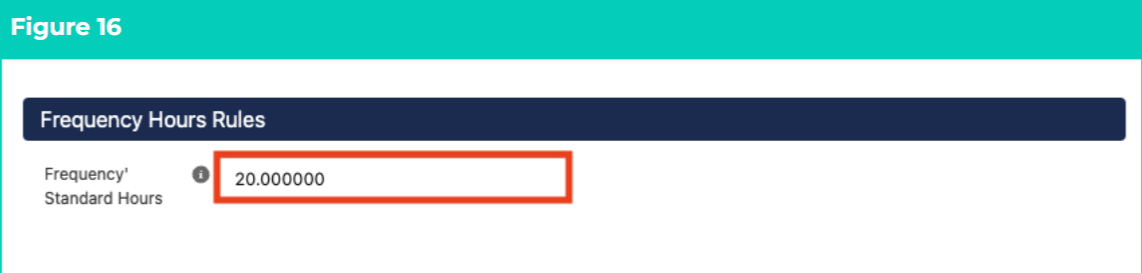
- Follow this step to populate Frequency Hours Rules for the Variation (see Figure 16):
- To define the maximum amount of Ordinary Hours payable within the Timesheet Period before overtime must be paid, populate the Frequency’ Standard Hours field.
- Allowance Rules should not be populated for Variations, as Breakpoints from the base Interpretation Rule will be applied for Allowances.
- Allowance Junction Rules should not be populated for Variations, as Breakpoints from the base Interpretation Rule will be applied for Allowance Junctions.
- If the Interpretation needs to consider an Allowance/Timesheet Activity Junction Breakpoint in relation to a Variation, follow the instructions provided in the Populate Allowance, Leave & Allowance Junction Rule Breakpoints QRG when setting up the base Interpretation Rule.
- If the conditions of the Variation require altered Leave Rule Interpretation for associated Timesheet Entries, Leave Breakpoints may be populated to override the base Interpretation Rule.
- Follow the instructions provided in the Populate Allowance, Leave & Allowance Junction Rule Breakpoints QRG to complete this section of the Variation.
- To complete Frequency Breakpoints and finalise Variation creation, follow the instructions provided in the Create Breakpoints & Pay Code Caps QRG.
The Interpretation Rule cannot be saved or finalised until Breakpoint & Pay Code Cap creation has been completed.
Frequency Standard Hours (including Overtime Hours) must be created for the Variation before the record may be Finalised. However, the data populated within these sections will be overridden by the base Interpretation Rule. If changes to these fields are required, a new Interpretation Rule should be created to facilitate them.