

Purpose
The purpose of this quick reference guide is to step through the process of completing the Final Setup of the Rate Calculator Template. The intended audience for this document is System Administrators / Standard Users. The final setup of a Rate Calculator Template consists of the following tasks:- Add or Exclude Project Codes
- Add Mark Up / Margin Record
- Add Pay Rates
- Add Pay Rate Loadings
- Calculate and Manage Rate Calculator Lines
- Location
- Employment Cost
- Interpretation Rule(s) and related Pay Code(s)
- Mark Up / Margin
- Pay Rate
Steps
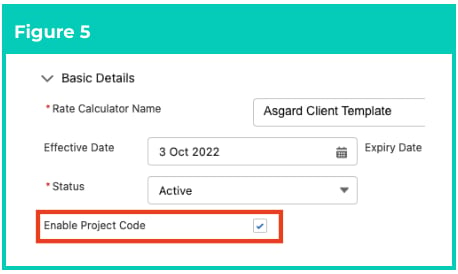
Prerequisites You must complete the initial setup of a Rate Template before using this QRG. For more information, please refer to the QRG Rate Calculator Template - Initial Setup. Add or Exclude Project Codes To add or exclude Project Codes to a Rate Calculator Template, follow the steps below:- Ensure the checkbox Enable Project Code is selected (see Figure 5).
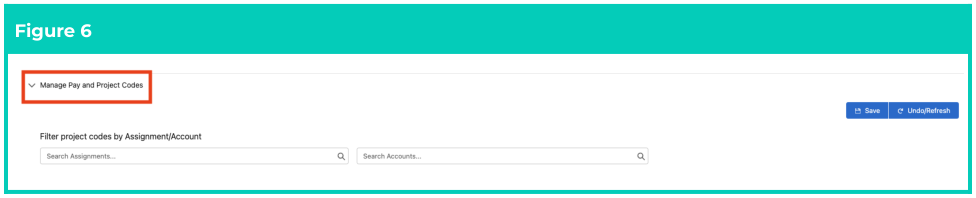
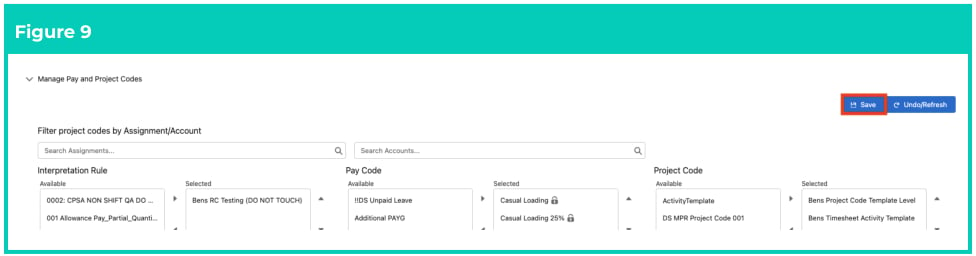
- Navigate to the Manage Pay and Project Codes section of the Manager page (see Figure 6).
- To filter available Project Codes for selection, populate an Assignment or Account from the Search Assignments and Search Accounts lookup fields (see Figure 6).
Important Notes
(Figure 6)Although Project Code filtering is available in all Rate Calculator record types, it may only be applied to Employee Specific Rate Calculators.
(Figure 6)Although Project Code filtering is available in all Rate Calculator record types, it may only be applied to Employee Specific Rate Calculators.
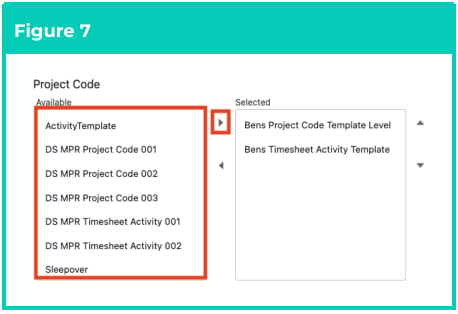
- Highlight the Project Codes to apply and use the arrow buttons to move from the Available to the Selected column in the Project Code field (see Figure 7).
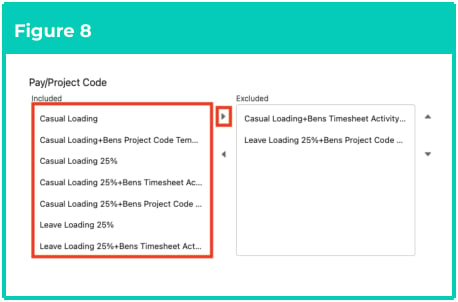
- To exclude Pay/Project Code combinations from being applied, highlight the Pay Code + Project Code combinations and use the arrow buttons to move from the Included to the Excluded column in the Pay/Project Code field (see Figure 8).
Important Notes
(Figure 8)For Rate Calculator Templates, only Template Level and Timesheet Activity - Template Level Project Codes may be applied. For Employee Specific Rate Calculators, only Project Codes related to the Assignment or the related Client record may be applied.When a Pay Code/Project Code combination is excluded, the Mark Up / Margin Rates and Pay Rates related to the excluded Pay Code/Project Code are no longer required to calculate Rate Calculator Lines.
(Figure 8)For Rate Calculator Templates, only Template Level and Timesheet Activity - Template Level Project Codes may be applied. For Employee Specific Rate Calculators, only Project Codes related to the Assignment or the related Client record may be applied.When a Pay Code/Project Code combination is excluded, the Mark Up / Margin Rates and Pay Rates related to the excluded Pay Code/Project Code are no longer required to calculate Rate Calculator Lines.
- To save the changes made to Project Codes, click on the Save button (see Figure 9). The Rate Calculator will be updated with Project Codes Available or Excluded.
add a Mark Up / Margin
To add a Mark Up / Margin Rate to a Rate Calculator Template, follow the steps below:- To add a Mark Up / Margin that will apply to all Pay Codes related to this Rate Calculator Template:
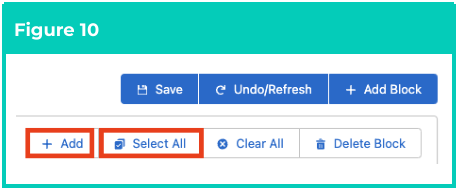
- Navigate to the Markup/Margin Rates section and click on the Select All button (see Figure 10).
- Alternatively, you can select only the required Pay Codes that the new Mark Up / Margin Rate will be applied to. Click on the + Add button (see Figure 10).
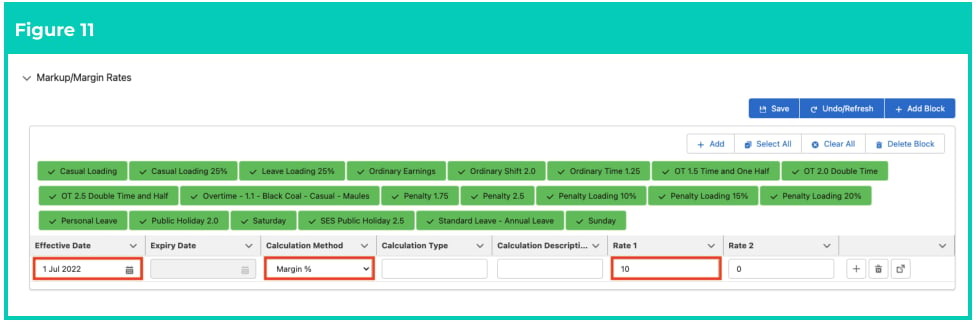
- In the new line that appears, populate the following required fields to define the Rate Type and
amount (see Figure 11):
- To define when this applies from, populate the Effective Date field.
- To define the Calculation Method, select from the available picklist options in the Calculation Method field.
- To define the rate or amount for the Mark Up / Margin Rate, populate the Rate 1 field.
- Populate the following optional fields as required (see Figure 11):
- Calculation Type
- Calculation Description
- To calculate a second Invoice Rate, populate the Rate 2 field.
Important Notes
(Figures 10 and 11)At least one Mark Up / Margin Rate is required for Rate Calculator Lines to be generated. If no Mark Up / Margin Rate applies, enter a value of 0.The picklist options available in the Calculation Method field will be dependent on the active Calculation Methods.When a Rate Calculator has both Rate 1 and Rate 2 fields populated on the Mark Up / Margin Rate, both Amount fields will be calculated on the Rate Calculator Line and added together when determining the Total Mark Up or Total Margin amounts.
(Figures 10 and 11)At least one Mark Up / Margin Rate is required for Rate Calculator Lines to be generated. If no Mark Up / Margin Rate applies, enter a value of 0.The picklist options available in the Calculation Method field will be dependent on the active Calculation Methods.When a Rate Calculator has both Rate 1 and Rate 2 fields populated on the Mark Up / Margin Rate, both Amount fields will be calculated on the Rate Calculator Line and added together when determining the Total Mark Up or Total Margin amounts.
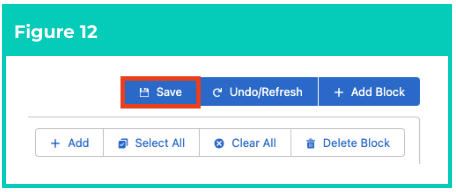
- Click on the Save button (see Figure 12).
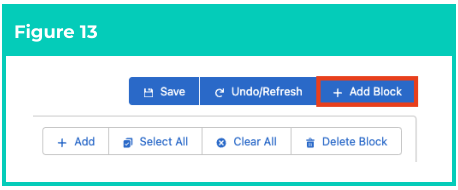
- Click on the + Add Block button to create a new Mark Up / Margin Rates block populated with the remaining Pay Codes (see Figure 13).
- Repeat steps 1 - 4 until Mark Up / Margin Rates have been added for all Pay Codes requiring different methods of calculation.
- Once all required Mark Up / Margin Rates have been added, click on the Save All button to update the Rate Calculator (see Figure 14).

Add Pay Rates
To add a Pay Rate to a Rate Calculator, follow the steps below:-
To add a single Pay Rate that will apply to all Pay Codes defined in this Rate Calculator:
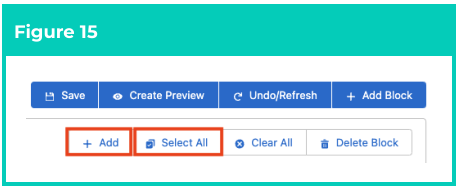
- Navigate to the Pay Rates section and click the Select All button, then click on the + Add button (see Figure 15).
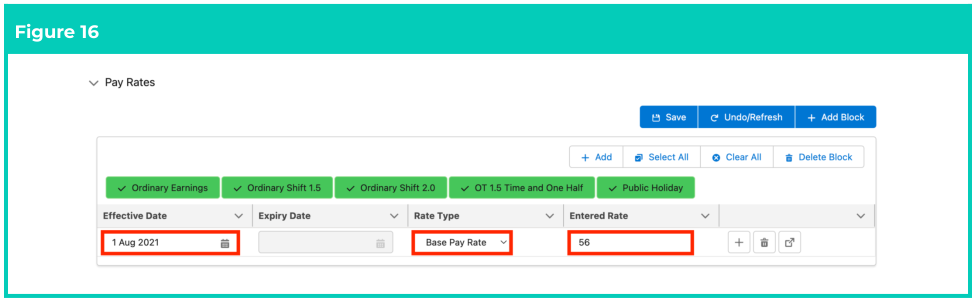
- In the new line that appears, populate the following required fields to define the Rate Type and
the Rate amount (see Figure 16):
- Effective Date
- Rate Type
- Base Pay Rate
- Pay Rate
- Total Pay Rate
- Charge Rate
- Populate the Pay Rate in the Entered Rate field.
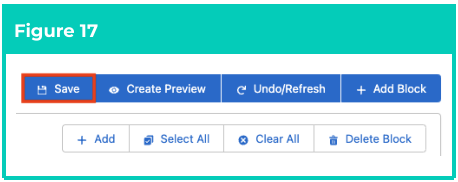
- Click on the Save button (see Figure 17).
-
Alternatively, to add a Pay Rate and apply it to Pay Codes individually:
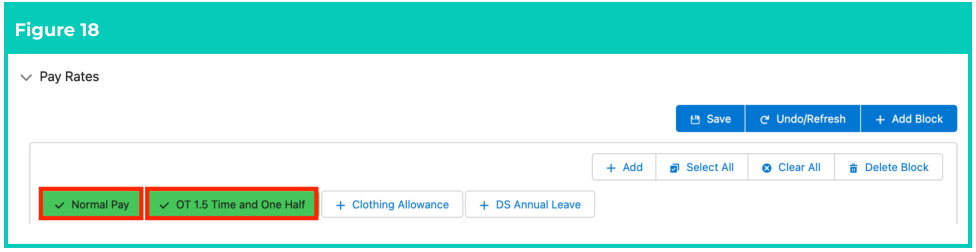
- Navigate to the Pay Rates section and select the Pay Codes the new Pay Rate will be applied to (see Figure 18).
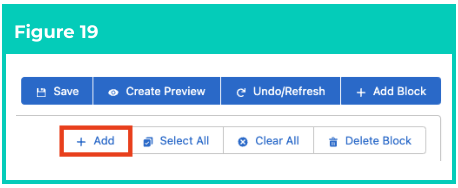
- Click on the + Add button (see Figure 19).
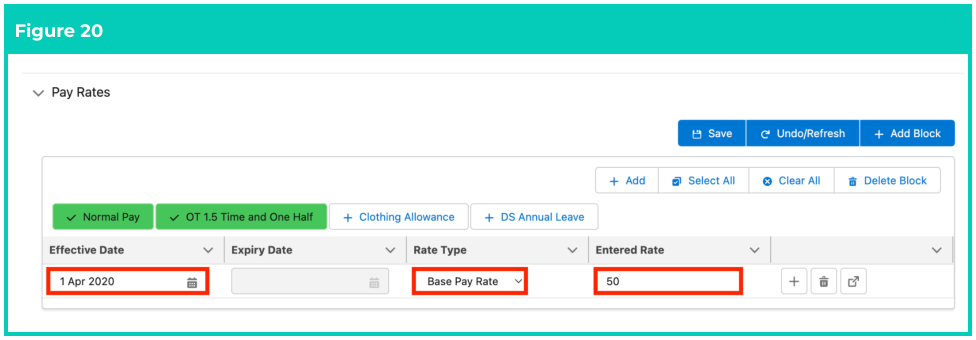
- In the new line which appears, populate the following fields to define the Rate Type and the
Rate amount (see Figure 20):
- Effective Date
- Rate Type
- Base Pay Rate
- Pay Rate
- Total Pay Rate
- Charge Rate
- Populate the Pay Rate in the Entered Rate field.
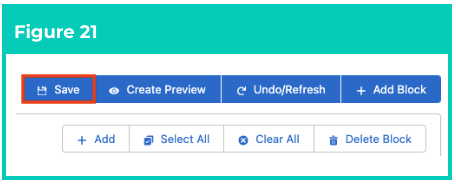
- Click on the Save button (see Figure 21).
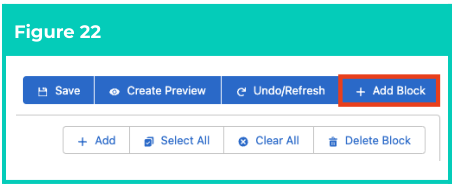
- Click the + Add Block button to create a new Pay Rates block populated with the remaining Pay Codes (see Figure 22).
- Repeat steps 2a - 2d until Pay Rates have been added for all Pay Codes.
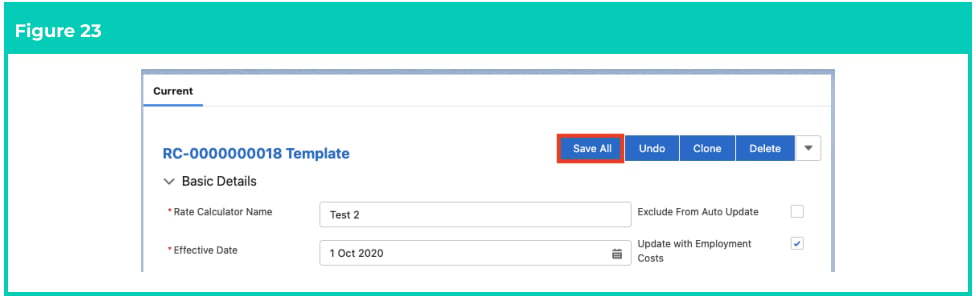
- Once all required Pay Rates have been added, click on the Save All button to update the Rate Calculator (see Figure 23).
Important Notes
(Figure 23)Rate Calculator Lines cannot be generated unless Pay Rates and Mark Up/Margin Rates have been defined for EVERY Pay Code associated with the Rate Calculator.
(Figure 23)Rate Calculator Lines cannot be generated unless Pay Rates and Mark Up/Margin Rates have been defined for EVERY Pay Code associated with the Rate Calculator.
Add Pay Rate Loadings
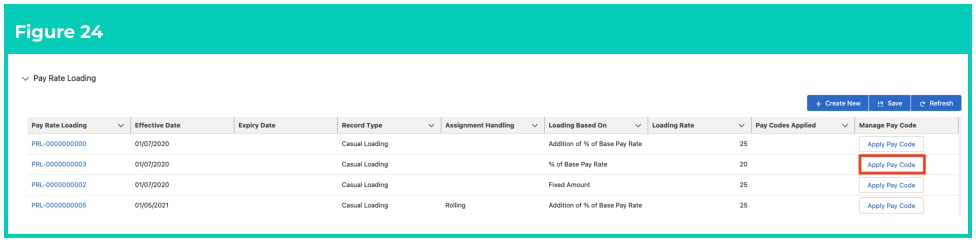
To add a Pay Rate Loading to a Pay Code, follow the steps below:- Navigate to the Pay Rate Loading section and click the Apply Pay Code button (see Figure 24).
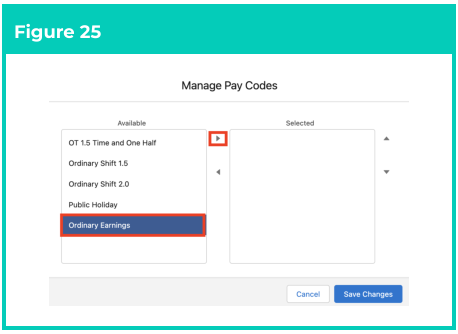
- Select Pay Codes from the Available column, then click on the arrow button to move the selected Pay Code into the Selected column (see Figure 25). If the required Pay Codes are not listed as Available, they must be manually added to the Rate Calculator. Once saved with the related Pay Codes, they will be available to be added to Pay Rate Loadings.
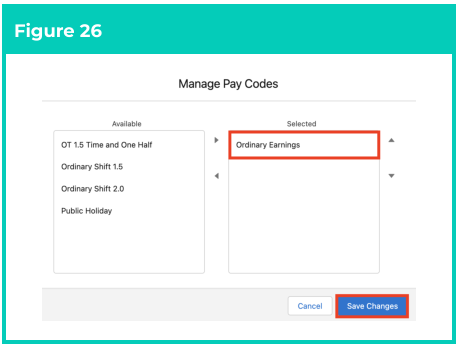
- Click the Save Changes button (see Figure 26).
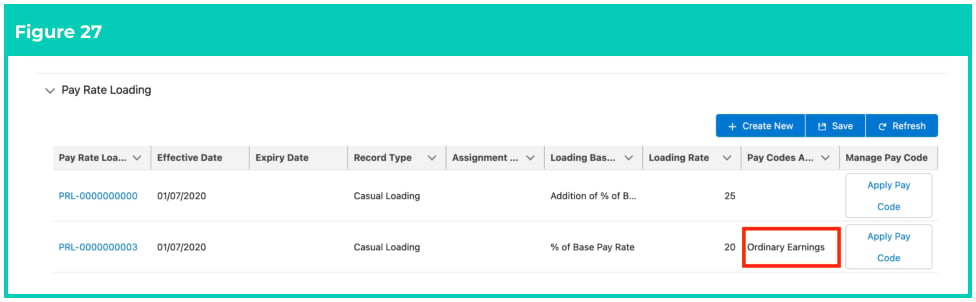
- The Pay Codes Applied field will now be updated with the selected Pay Codes (see Figure 27).
- Repeat steps 1-4 for all required Pay Rate Loadings.
Important Notes
(Figure 27)Changes to Pay Rate Loadings will be saved automatically as soon as Pay Codes have been successfully applied to Pay Rate Loading records.
(Figure 27)Changes to Pay Rate Loadings will be saved automatically as soon as Pay Codes have been successfully applied to Pay Rate Loading records.
Calculate and Manage Rate Calculator Lines
Calculate Lines for Rate Calculators
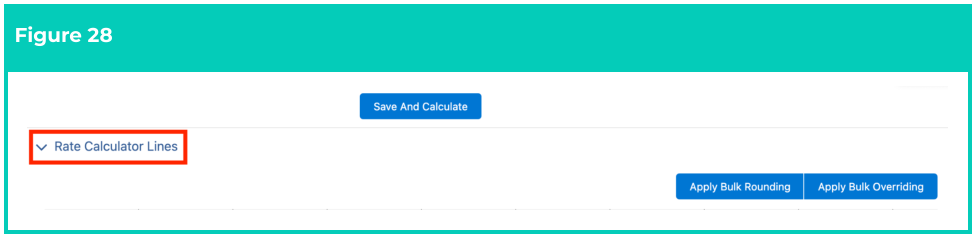
To calculate Rate Calculator Lines, follow the steps below:- Identify the Rate Calculator Lines section within the Rate Calculator Builder (see Figure 28).
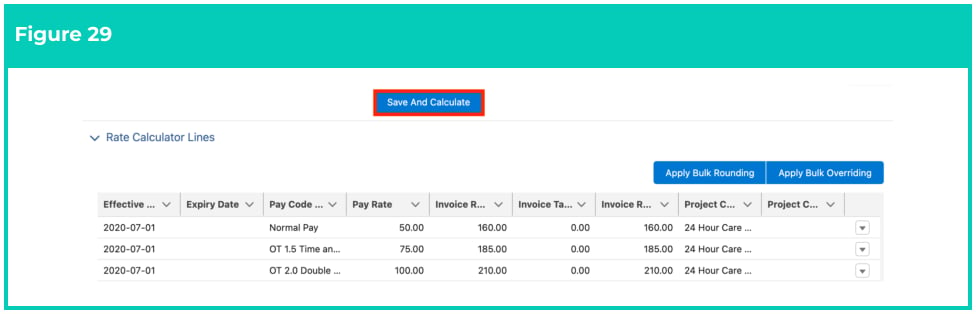
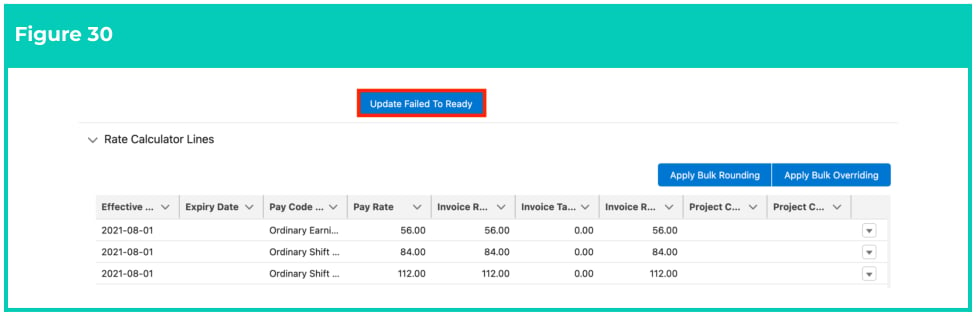
- If no existing Rate Calculator Line are displayed, or to update existing Rate Calculator Lines, click on the Save and Calculate button. (see Figure 29). OR If existing Rate Calculator Lines have failed calculation, click on the Update Failed to Ready button and click Save and Calculate (see Figure 30).
-
Click the drop-down next to a Rate Calculator Line and select Apply Rounding (see Figure 31).
OR
Select the Apply Bulk Rounding button to display and apply rounding to all Rate Calculator Lines (see Figure 31).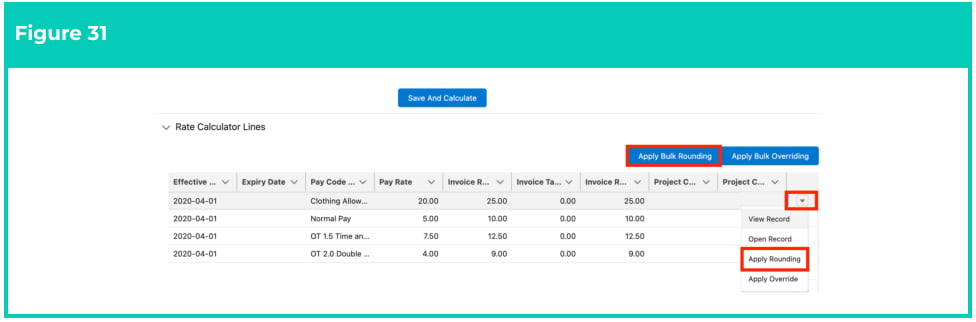
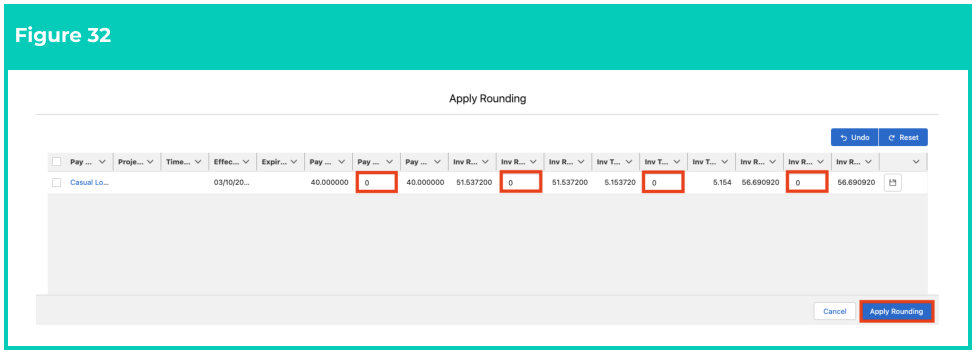
- To round up the Pay Rate, enter the rounding value in the Pay Rate Rounding fields. To round down, enter the rounding value with a minus - symbol in front of it (see Figure 32).
- To round up the Invoice Rate, enter the rounding value in the Invoice Rate Rounding fields. To round down, enter the rounding value with a minus - symbol in front of it (see Figure 32).
- To remove any unsaved changes made to values on Pay Rate and Invoice Rate Rounding fields, click on the Undo button. To remove any saved changes made to values on Pay Rate and Invoice Rate Rounding fields, click on the Reset button (see Figure 32).
- To apply the rounding changes to Pay Rates and/or Invoice Rates, click on the Apply Rounding button (see Figure 32). In the event of a change to a Rate Calculator Line, any applied rounding will remain on the Rate Calculator Line. If rounding is no longer required, it must be removed by applying rounding again using a value that negates the previous rounding applied.
Important Notes
(Figure 32)Mark Up / Margin and Rate Calculator Rate records that are added, updated or deleted via the parent Rate Calculator will also be updated for the child Rate Calculators. HOWEVER, Rounding changes made to Rate Calculator Lines via parent Rate Calculator Template won’t be reflected in any related child Rate Calculators.
(Figure 32)Mark Up / Margin and Rate Calculator Rate records that are added, updated or deleted via the parent Rate Calculator will also be updated for the child Rate Calculators. HOWEVER, Rounding changes made to Rate Calculator Lines via parent Rate Calculator Template won’t be reflected in any related child Rate Calculators.
-
Click the drop-down next to a Rate Calculator Line and select Apply Override (see Figure 33).
OR
Select the Apply Bulk Overriding button to display and apply overrides to all Rate Calculator Lines (see Figure 33).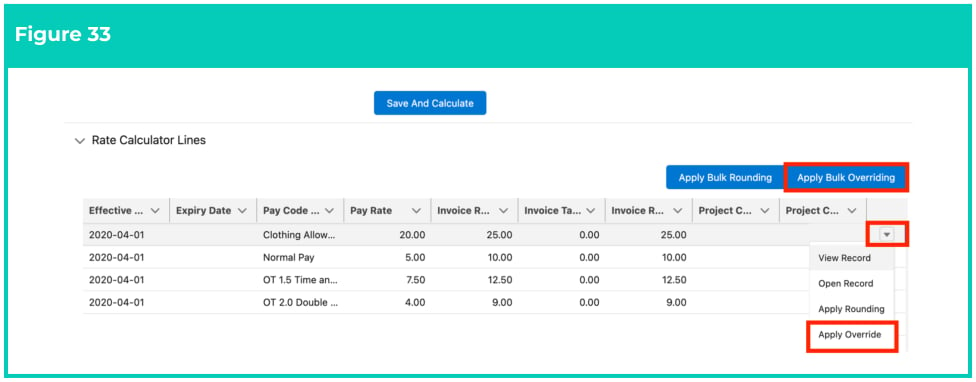
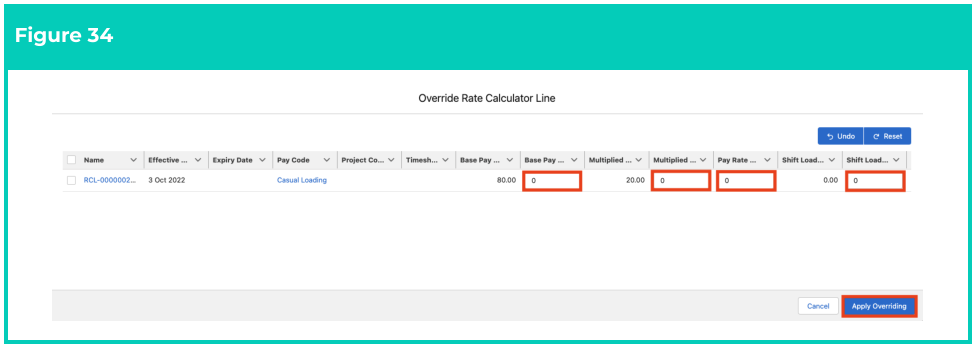
- In the window that appears, enter the override value(s) in the applicable Override Rate fields (see Figure 34).
- To apply the updated values to Rate fields, click the Apply Overriding button (see Figure 34). To remove any unsaved changes made on Override Rate fields, click on the Undo or Reset button as required.
Important Notes
(Figures 33 and 34)If any features are currently not available, please contact your System Administrator for assistance on making them available to use.Mark Up / Margin and Rate Calculator Rate records that are added, updated or deleted via the parent Rate Calculator will also be updated for the child Rate Calculators. HOWEVER, Override changes made to Rate Calculator Lines via parent Rate Calculator Template won’t be reflected in any related child Rate Calculators.
(Figures 33 and 34)If any features are currently not available, please contact your System Administrator for assistance on making them available to use.Mark Up / Margin and Rate Calculator Rate records that are added, updated or deleted via the parent Rate Calculator will also be updated for the child Rate Calculators. HOWEVER, Override changes made to Rate Calculator Lines via parent Rate Calculator Template won’t be reflected in any related child Rate Calculators.
- The Rate Calculator Lines will now be updated with the overridden Rates.