Purpose
The purpose of this user guide is to step through creating Conditional Pay Rules in Conditional Rule Setup, as part of the Utility Extension. The intended audience for this document is System Administrators. A Conditional Pay Rule sets the premium paid when break capture records a missed, short or late meal or rest break. Each rule prices one Condition Type and one Condition Outcome under one Interpretation Rule. When a Timesheet reaches Processed, a premium Pay Transaction is created on the rule’s Pay Code. Conditional Pay prices the outcome that break capture recorded and never changes it.Important Notes (Before you start)
- Break capture must be set up on the Interpretation Rule, and workers must be completing the break attestation. Only Timesheet Entries with a Break Attestation Status of Complete are priced.
- Each premium needs its own dedicated Pay Code, and each Assignment needs an active Timesheet Assignment Rate for that Pay Code. Without the Assignment Rate, no premium is created.
- The 2cloudnine Conditional Pay Config permission set is needed to configure rules. Every user who moves a Timesheet to Processed needs 2cloudnine Conditional Pay Runtime.
- There is no enable switch. An Active rule turns the feature on for that Interpretation Rule.
Steps
Open Conditional Rule Setup
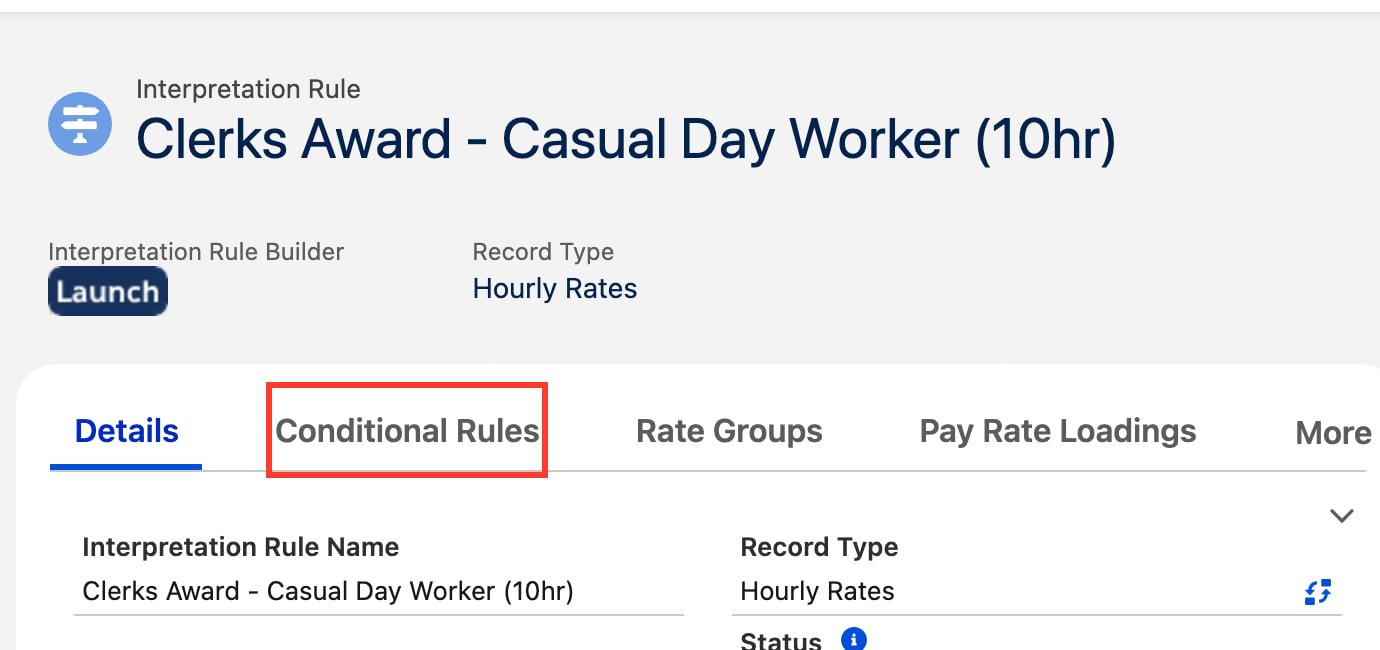
- Within the Interpretation Rule for the jurisdiction being configured, click on the Conditional Rules tab (see Figure 1). The Interpretation Rule is taken from the record, so there is nothing to select.
- Alternatively, click on the App Launcher icon and go to Conditional Rule Setup by using the Search function. When using this option, populate the Interpretation Rule field with the Interpretation Rule for the jurisdiction being configured.
Add a Conditional Pay Rule
- Click the Add Rule button. A new row appears.
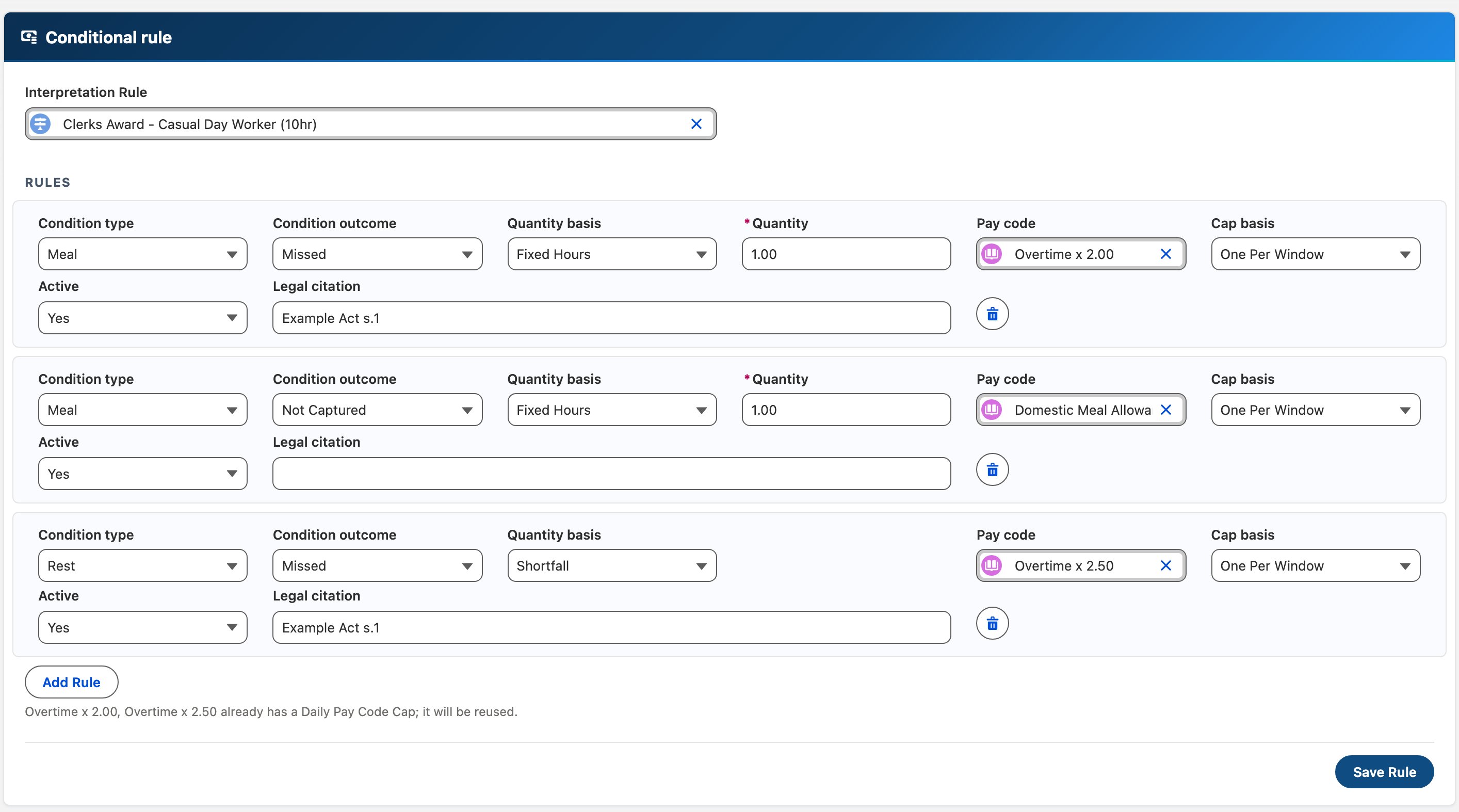
- Populate the following required fields (see Figure 2):
- Condition type: Meal or Rest.
- Condition outcome: Missed, Short, Late or Not Captured.
- Quantity basis: Fixed Hours or Shortfall.
- Pay code: the dedicated premium Pay Code.
- Cap basis: One Per Window or None.
- Active: Yes or No.
- Where Quantity basis is Fixed Hours, populate the Quantity field with the additional hours owed, not the statutory total. The field is hidden when Shortfall is selected.
- To record the statute or case the rule is based on, populate the Legal citation field.
- Repeat steps 1 to 4 for each further Condition Type and Condition Outcome to be priced.

Important Notes
- Only one Active rule is allowed per Interpretation Rule, Condition Type and Condition Outcome.
- Rest cannot be paired with Late or Not Captured. Break capture never records those outcomes for rest.
- Use Fixed Hours for Rest with Short, and for Meal with Late. Shortfall cannot price either, so no premium is created and a Debug Log entry records why.
Save the Rules
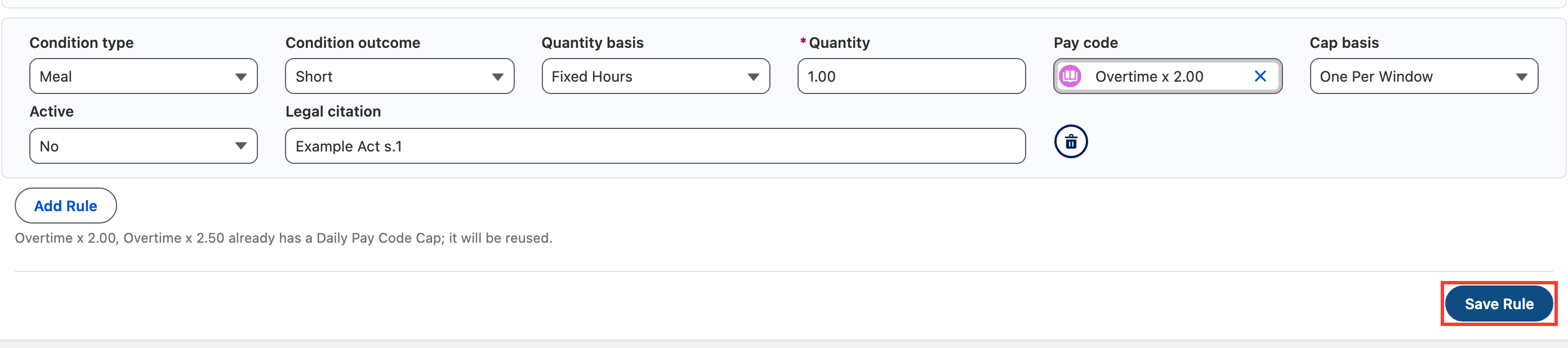
- Click the Save Rule button (see Figure 3).
- Review any messages shown above the rows:
- Errors stop the save, and nothing is written. Correct the rows listed and save again.
- Warnings do not stop the save. Review each one, as a warning usually means a rule that can never pay.
Switch the Rules On
- When the jurisdiction is ready to pay, set Active to Yes on each rule (see Figure 4).
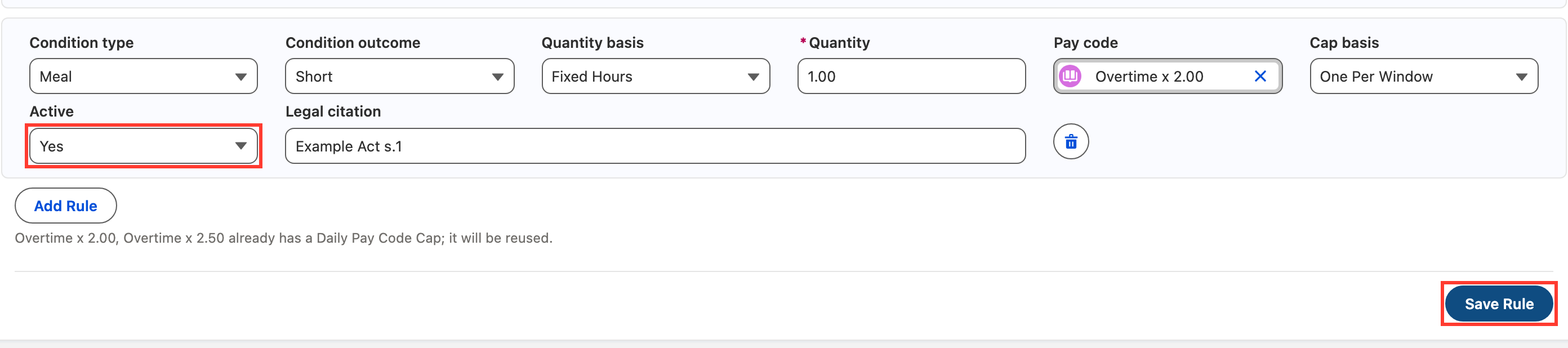
- Click the Save Rule button. The saved rules are shown for the Interpretation Rule (see Figure 5).
- A premium is created on the rule’s Pay Code when a Timesheet with a matching break outcome reaches Processed.