

Purpose
The purpose of this quick reference guide is to step through the process of Validating, Publishing and Unpublishing Work Schedules using the Work Schedule Manager. The intended audience for this document are Standard Users.Steps
Validate a Work Schedule Record
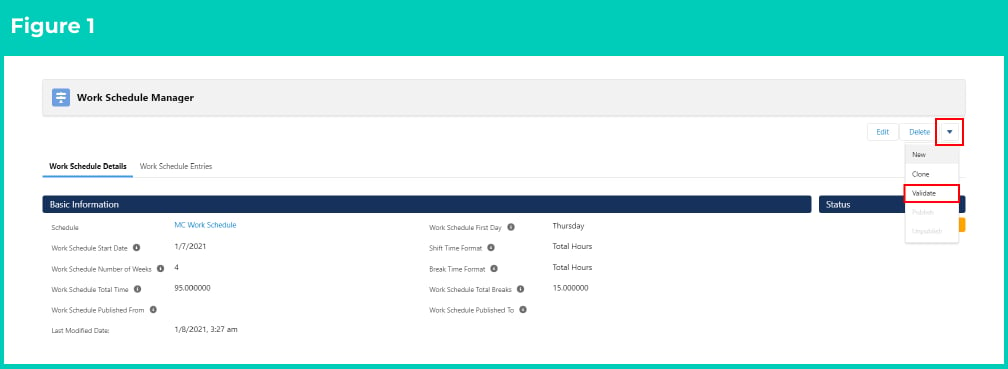
Once the Work Schedule has had the required Shift Allocations, the information held within the various records associated with the Work Schedule needs to be validated to ensure that it is correct. To Validate a Work Schedule, the following steps should be completed:- While the Work Schedule is not in Edit Mode, click the action button (see Figure 1) in the header of the Work Schedule Manager (see Figure 1).
- Select the Validate option.
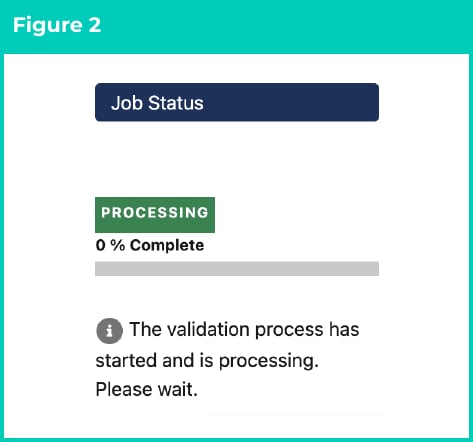
- Upon selecting the Validate option, the Validation Process will commence and its progress will be displayed within the Work Schedule Manager (see Figure 2).
-
When the Validation Process has completed, the Status of the Work Schedule will be updated:
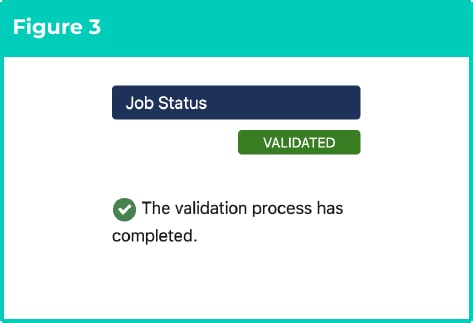
- If the Validation Process is completed successfully, the Status of the Work Schedule will be updated to Validated (see Figure 3). Please note that at this stage, users can continue to make changes to the Work Schedule or Shift Allocations and then go through the validation process again. The Work Schedule can now be Published.
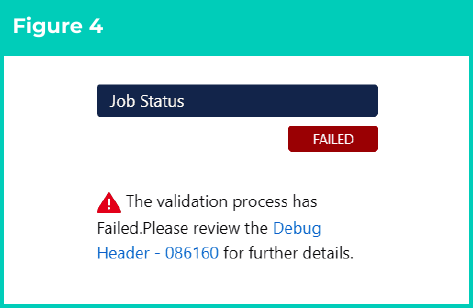
- If the Validation Process fails, the Status of the Work Schedule will be updated to Failed. The reason for the failure must be addressed before the Work Schedule can be Validated. Generally, a failed validation means that an error has been found with one or more of the records associated with the Work Schedule. If this occurs, a Debug Log will be created to provide the details of the error. This will be linked within the Work Schedule Manager (see Figure 4).
Publish a Work Schedule record
Once the Work Schedule has been Validated, it can be Published, which then enables it to be used in Assignment Schedules. To Publish a Validated Work Schedule, the following steps should be completed:- While the Work Schedule is not in Edit Mode, click the action button in the header of the Work Schedule Manager. Select the Publish option (see Figure 5).
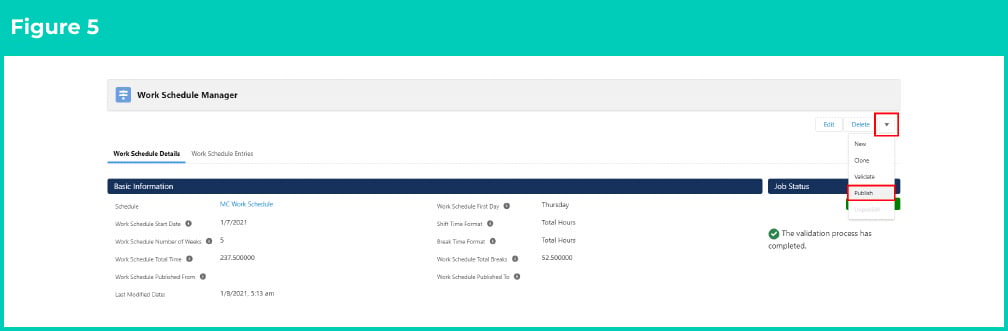
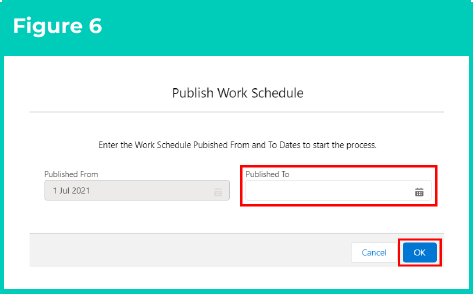
- Upon selecting the Publish option, a Publish Work Schedule popup will open (see Figure 6).
- Populate the Published To field with the date the Work Schedule Entries should be created to. This date cannot be earlier than the Work Schedule Start Date.
- Click the OK button. When clicked, the Publish Process will commence and its progress will be displayed within the Work Schedule Manager.
The Published From date will automatically populate based on either the Work Schedule Start Date or the previous Published To date + 1, depending on if the Work Schedule has already been Published or not.
- When the Publish Process has completed, the Status of the Work Schedule will be updated:
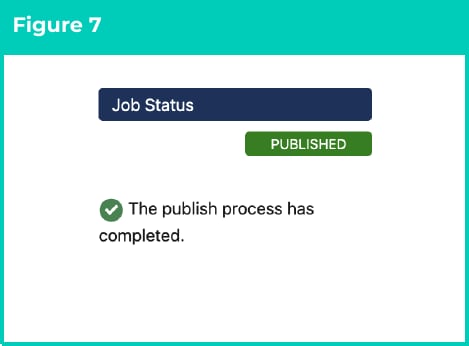
- If the Publish Process is completed successfully, the Status of the Work Schedule will be updated to Published. The Work Schedule can now be used to create Assignment Schedules (see Figure 7).
- If the Publish Process fails, the Status of the Work Schedule will be updated to Failed. The reason for the failure must be addressed before the Work Schedule can be Published and used to create Assignment Schedules. If this occurs, a Debug Log will be created to provide the details of the error. This will be linked within the Work Schedule Manager.
Unpublish a Work Schedule record
A Published Work Schedule cannot be changed. If a modification is required, it must first be Unpublished. Further, only the Work Schedules that do not have any related Assignment Schedules can be Unpublished and modified. To Unpublish a Published Work Schedule, the following steps should be completed:- While the Work Schedule is not in Edit Mode, click the action button in the header of the Work Schedule Manager. Select the Unpublish option (see Figure 8).
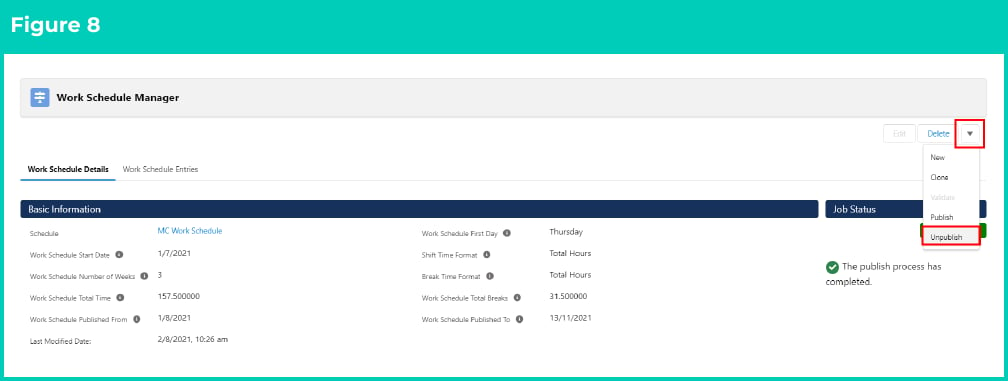
- Upon selecting the Unpublish option, the Unpublish Process will commence and its progress will be displayed within the Work Schedule Manager. When the Unpublish Process has completed, the Status of the Work Schedule will be updated:
- If the Unpublish Process is completed successfully, the Status of the Work Schedule will be updated back to New. The Work Schedule can now be modified as required. When this is complete, the Validation and Publish processes will need to be undertaken again before the Work Schedule can be used to create an Assignment Schedule.
- If the Unpublish Process fails, the Status of the Work Schedule will be updated to Failed. The reason for the failure must be addressed before the Work Schedule can be Unpublished. If this occurs, a Debug Log will be created to provide the details of the error. This will be linked within the Work Schedule Manager.