

Purpose
The purpose of this quick reference guide is to step through the process of creating an Assignment Level Timesheet Activity Project Code. The intended audience for this document are system administrators / standard users.Steps
Create an Assignment Level Timesheet Activity Project Code
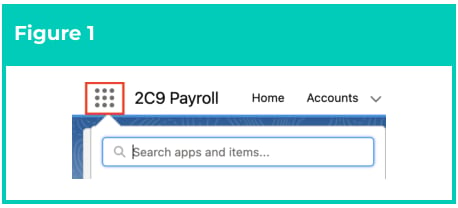
Timesheet Activity Project Codes are used during Interpretation to identify Timesheet Entries associated with certain activities requiring different Interpretation Types to be applied. This allows for different Pay Codes or conditions of work to be associated with the times entered. Assignment Level Timesheet Activity Project Codes are related to Timesheets at the Assignment Level. Create an Assignment Level Timesheet Activity Project Code by following the below steps:- Click on the App Launcher icon (see Figure 1).
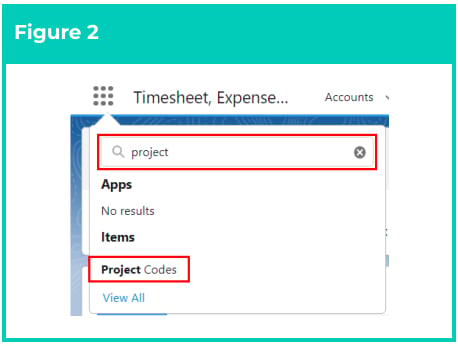
- Go to the Project Codes object by using the Search function (see Figure 2).
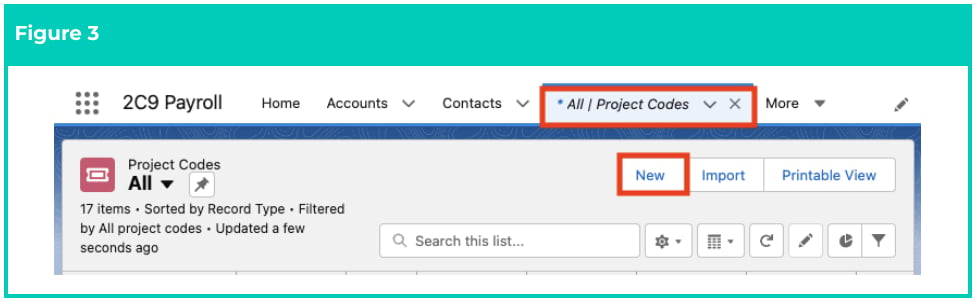
- Click on the New button (see Figure 3).
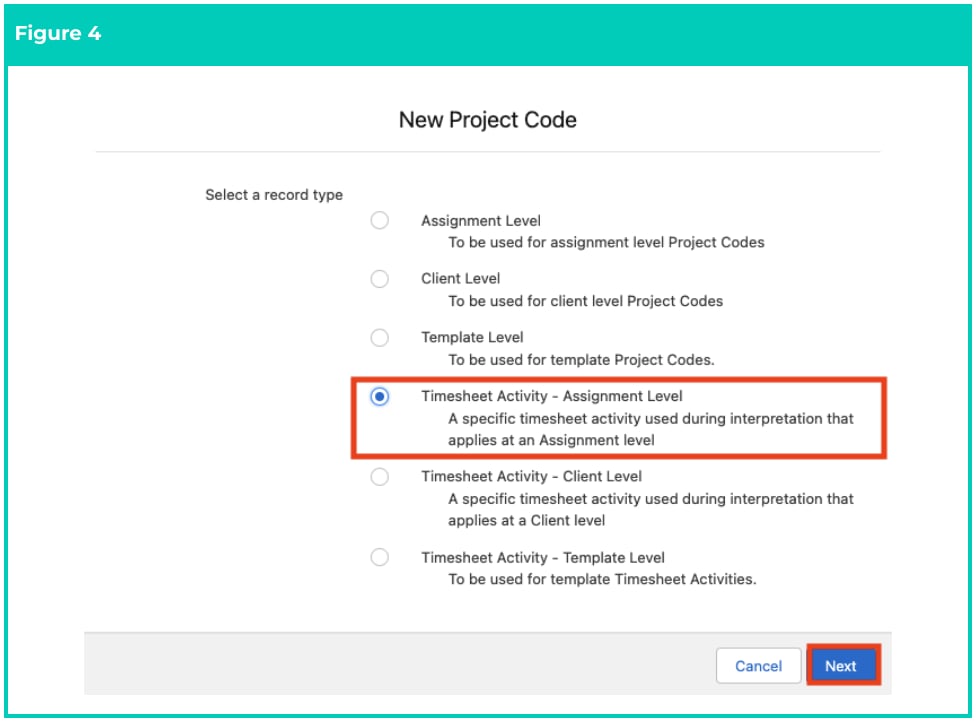
- Select Timesheet Activity - Assignment Level from the available record types, and click on the Next button (see Figure 4).
- Populate the following required fields to provide the base details of the Project Code (see Figure
5):
- To create a unique identifier for the Project Code, populate the Project Code Name field.
- To define the Client record that the Timesheet Activity Project Code should be related to, populate the Client field using the lookup options available.
- To define the Assignment record that the Timesheet Activity Project Code should be related to, populate the Assignment field using the lookup options available.
- Select from the available picklist options in the Status field.
- If the Timesheet Activity Project Code is related to an Interpretation Type, define the
Interpretation Type that should be applied to related Timesheet Entries by selecting from the
following picklist values in the Interpretation Breakpoint Type field (see Figure 5):
- Overtime Round Up Shift
- Split/Broken Shift
- Wake Up
- Excursion
- Sleepover
- If the Timesheet Activity Project Code is related with an Interpretation Variation, populate the
following fields (see Figure 5):
- Select Yes from the available picklist options in the Is an Interpretation Variation? field.
- Select the type of Interpretation Variation that should be applied to related Timesheet Entries by selecting from the available picklist options in the Variation Type field.
- If the Timesheet Activity Project Code is associated with an Allowance Breakpoint, select from the available picklist values in the Allowance Type field (see Figure 5).
- Click on the Save button (see Figure 5).

- A new Assignment Level Timesheet Activity Project Code has been created (see Figure 6).

The ‘Client Level’ and ‘Template Level’ Timesheet Activity Project Code record types are
used for the purposes of automation. For assistance with the creation of either of these
record types, contact your system administrator.
Project Codes CAN NOT be deleted if they are used in other records. Deleting records is
not recommended unless absolutely essential.
A Project Code record can only be edited if it has not already been referenced within
Pay Transactions that are processed in a Pay Batch, or have been Invoiced.
- To modify an existing Assignment Level Timesheet Activity Project Code record, open the required record and select the Edit button available on the top right side of the page. You can also double click in any of the fields that need editing or just click on the pencil icon that appears within fields when you move your cursor over the field.
- When complete, click on the Save button.