

Purpose
The purpose of this quick reference guide is to step through the process of creating an Assignment Variation for an Interpretation Rule. The intended audience for this document are system administrators / standard users.Steps
Create a new Assignment Interpretation Variation Rule
The Interpretation Variation record type allows for variations to be applied to an Interpretation Rule with only minimal information input, and without the need to create a completely new Interpretation Rule. The Assignment Variation is used for part-time Employees who have differing frequency standard hours from those outlined in the Interpretation Rule associated with the Payee’s Assignment record. The Assignment Variation record allows input of select information in the following sections of the Interpretation Rule Builder to override data captured in the base Interpretation Rule:- Basic Information
- Frequency Hours Rules (not including Frequency Overtime Breakpoints)
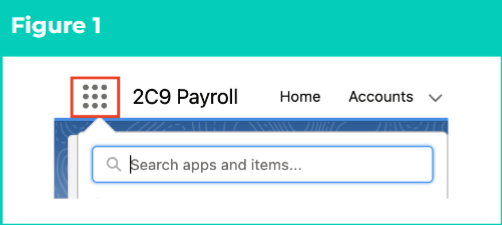
- Click on the App Launcher icon (see Figure 1).
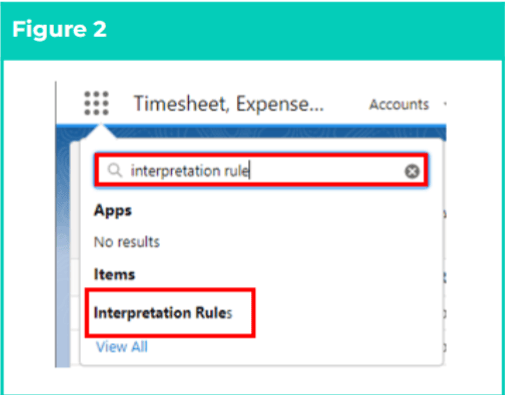
- Go to the Interpretation Rule object by using the Search function (see Figure 2).
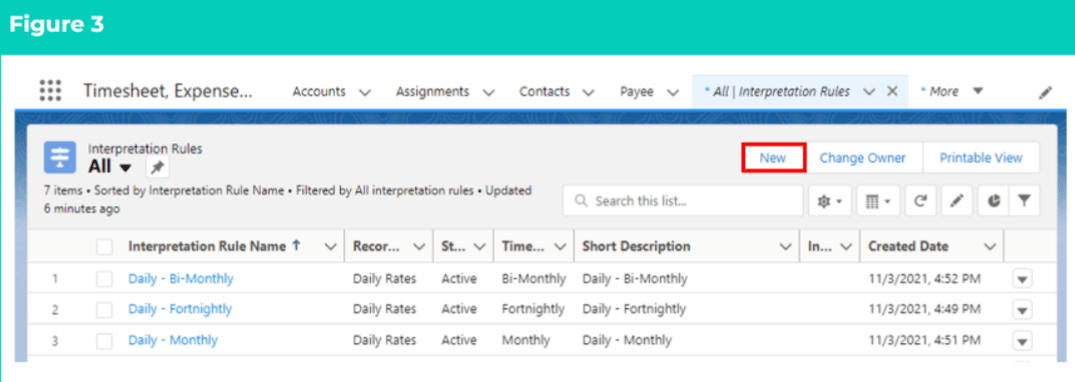
- Click on the New button (see Figure 3).
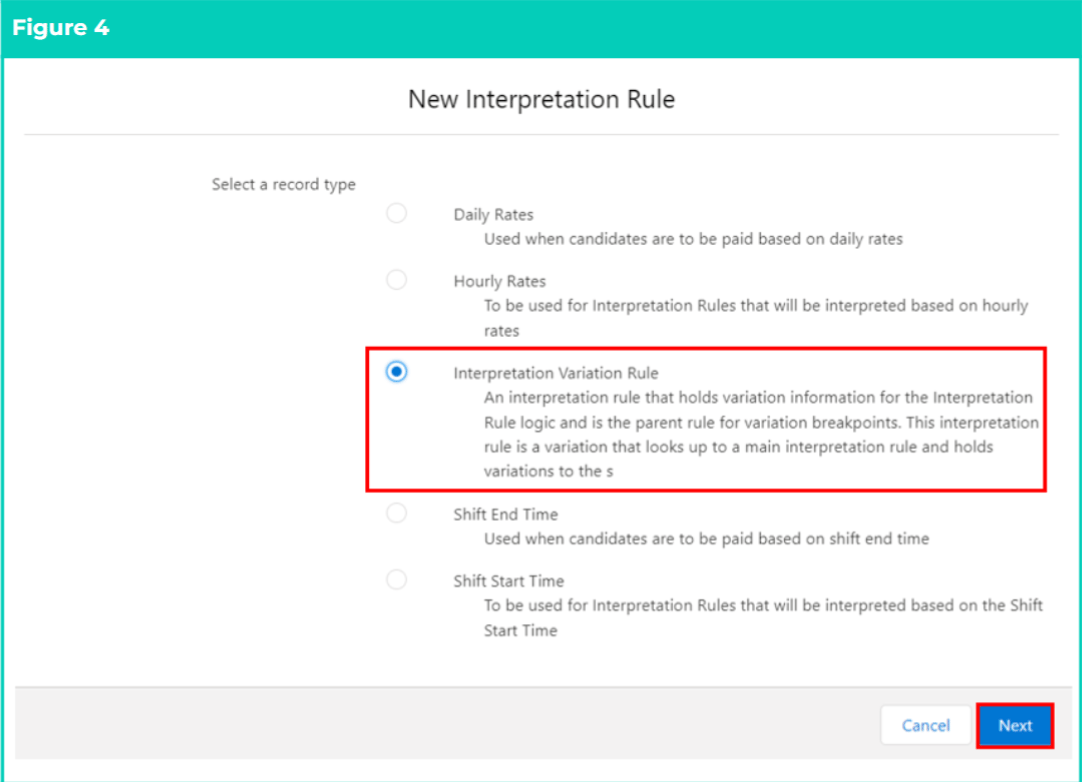
- Select Interpretation Variation Rule from the available Record types and click on the Next button (see Figure 4).
-
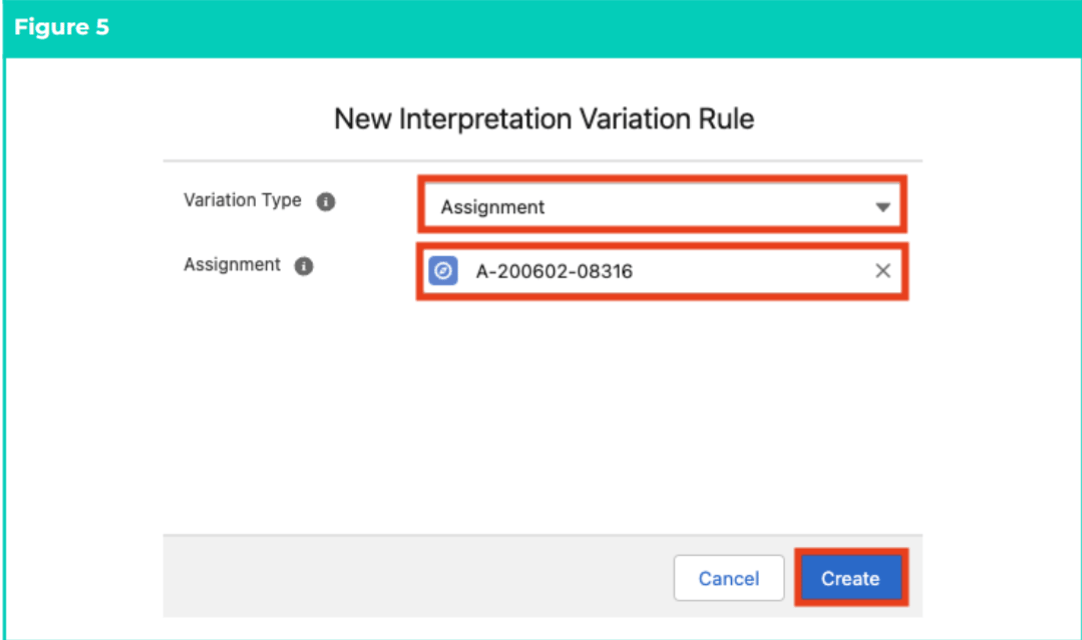
Follow this step in the sequence given (see Figure 5):
- To determine the Variation type, select Assignment from the available picklist values in the Variation Type field.
- To relate the Variation with the specific Assignment, populate the Assignment field using the lookup options available.
- Click on the Create button.
Variations are only applied when the associated Timesheet Activity is populated on a Timesheet. For more information on how to create a Timesheet Activity Project Code, follow the instructions provided in the Create Project Codes - Timesheet Activity (Assignment Level) QRG.
-
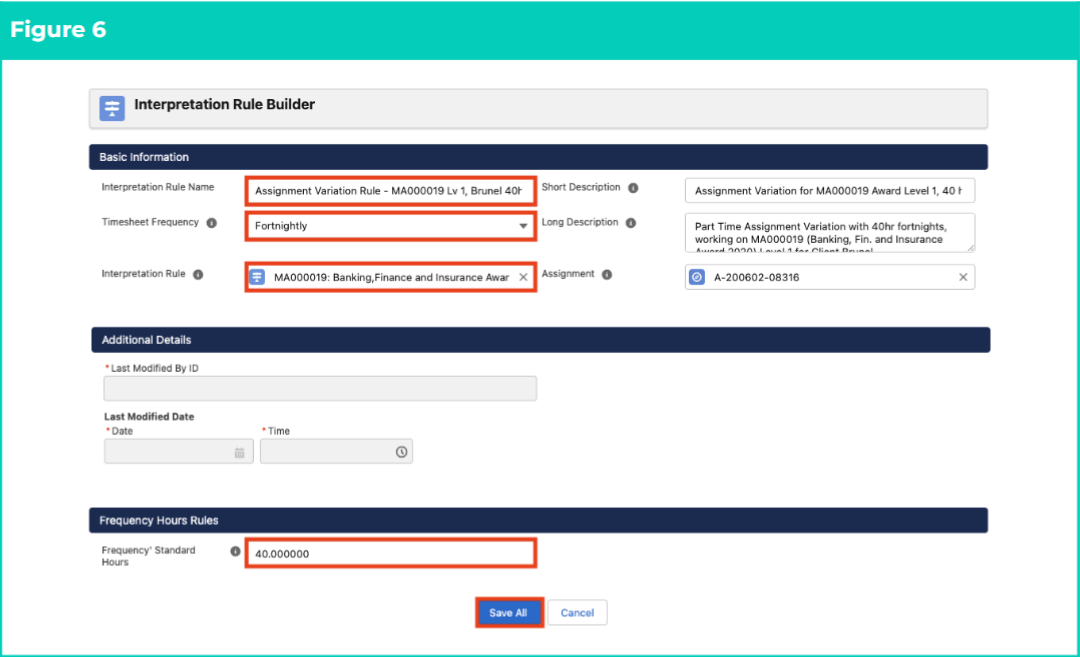
Follow this step in the sequence given (see Figure 6):
-
Populate the following required fields to provide the base details of the Variation:
- Interpretation Rule Name
- Timesheet Frequency
- To identify the Interpretation Rule that the Variation will be related to, populate the Interpretation Rule field using the lookup options available.
- To define the maximum amount of Ordinary Hours payable within the Timesheet Period before Overtime must be paid, populate the Frequency’ Standard Hours field.
-
Populate the following optional fields as needed:
- To provide a description to identify the Interpretation Rule, populate the Short Description field.
- To provide a description to identify the configuration of the Interpretation Rule, populate the Long Description field.
- If the Assignment record selected in Step 5b. is incorrect, the Assignment field can be updated using the lookup options available to select the correct Assignment.
-
Populate the following required fields to provide the base details of the Variation:
- Click on the Save All button (see Figure 6).
The Timesheet Frequency populated for the Variation MUST match the Timesheet Frequency populated for the related Assignment.
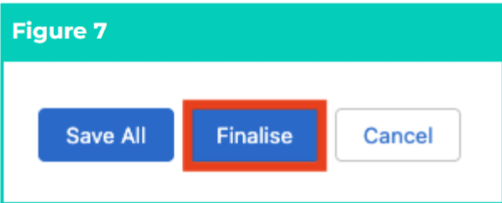
- Review and confirm the details of the Variation, then click on the Finalise button to complete record creation (see Figure 7).
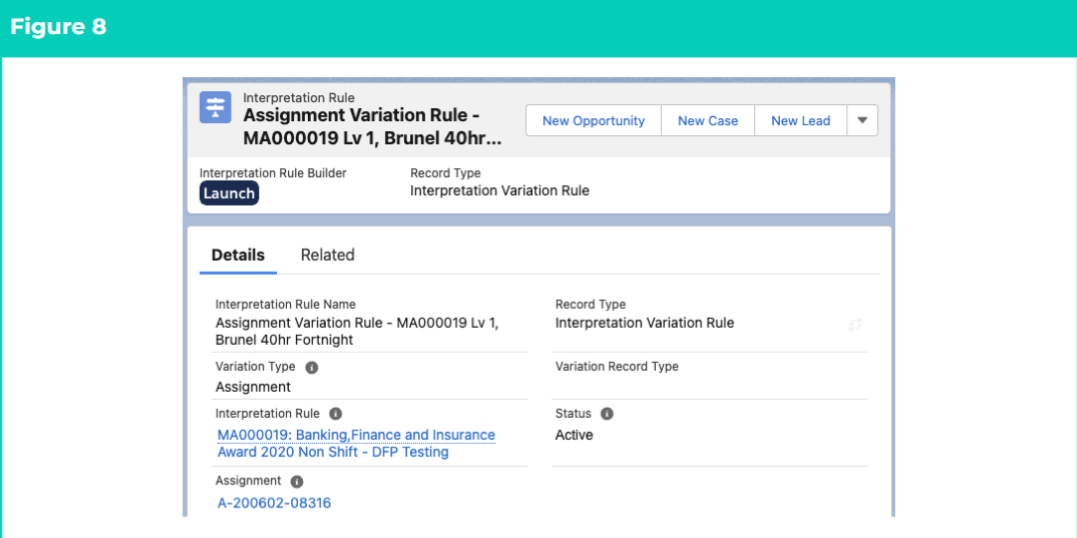
- A new Assignment Variation is now created (see Figure 8).
Once a Variation has been Finalised, it is not recommended to modify further, but instead to facilitate any changes required by creating a new Variation.
Variations CANNOT be deleted if they have been used to process Timesheet Entries to create Pay Transactions. Deleting records is not recommended unless absolutely essential.
- To modify an existing Variation, open the required record and select the Launch button to open the Builder page, then select the Unfinalise button available at the bottom of the record.
- When complete, click on the Finalise button.