

Overview
Important Information
Only your authorised Salesforce System Administrator or Partner should be actioning any installation, configuration items and tasks. All packages within the release must be installed. There may be compulsory and optional configuration items and tasks that need to be completed pre and post the installation of the packages. These will be highlighted in the below checklists, with further details given within this document. The installer will be responsible for ensuring all these configuration items and tasks are completed within a reasonable timeframe of the packages being installed. Please ensure you have familiarised yourself with all of the requirements PRIOR to installing the packages and ensure you have sufficient time and resources available. Failing to do so can negatively impact the User experience and stability of 2cloudnine Payroll. This guide should always be opened and used via your web browser. This will ensure you are viewing the most recent version of the document. Further, downloading the document and opening it with desktop programs, such as Adobe, has been found to cause errors when copying and using the scripts provided for data updates. These errors do not occur when viewed through a browser.Pre-Installation Checklist
The following items are highly recommended to be completed prior to commencing the installation and configuration of packages within this release.Installation and Configuration Checklist
The following items must be completed in the listed order to install and configure the packages within this release.Installation Links
The installation of the following packages must be completed as part of the Bottlebrush ‘21 release upgrade.Pre-Installation Items
New Component Review Update
The Bottlebrush ’21 release contains a number of new components including Objects, Fields and Buttons. A review of the list of components introduced should be conducted to check for Salesforce limits and duplicates of existing custom components. Please note for the Bottlebrush release, there have been new lookup fields introduced on multiple objects. Full details for the lookup fields included can be found in Appendix 1, however, the below table provides a per object summary.
Upon review of the lookups that already exist on this object in your organisation, if you find that you are
going to exceed Salesforce limits, we suggest logging a case with Salesforce to have your organisation’s
limit increased.
In some instances, where duplicates exist, the installation / upgrade of the package will not be permitted.
In these instances, the duplicates must be removed prior to attempting to install it. This could be
completed through either deleting the custom component or, where possible, renaming the Name / API
Name of the component.
In other instances, the package installation / upgrade will be permitted, however, the duplicates could
cause user confusion and/or custom automation clashes within the org. In these instances, although it is
optional, it is highly recommended to delete / rename the component.
When deleting a component, Salesforce does not permanently delete them for 15 days so although they
are deleted for the user, they do still exist within the organisation. To remove the component completely,
from the Object > Fields & Relationships screen, click the Deleted Fields button. The fields that have been
deleted but not permanently removed will be detailed. From there they can be permanently removed by
clicking on the Erase link next to the relevant field name.
A list of all the new components that should be reviewed are outlined in Appendix 1
Configuration Items
Abide by the new 2022/2023 Pay As You Go Tax Tables EOFY New
The update which allows users to pay PAYG employees based on the 2022/2023 tax rates is compulsory and all of the below configuration steps must be completed. Configuration steps:- Complete the Setup Payroll Process (Compulsory)
Complete the Setup Payroll Process (Compulsory)
This configuration also completes the configuration for the Updates to the 2022/2023 Lump Sum D and ETP Rates, Adhere to the 2022/2023 Superannuation Changes and 2023 Public Holiday Available Via Bulk Data Creation sections below.
- if the Setup Payroll Process has already been run in the Org, you’ll be taken directly to the appropriate page for performing the update required.
- If the Setup Payroll Process has not previously been run in the org, it will start the whole process and the new updates will be included along with the other records created.
- Select the Setup Payroll item. Based on whether the Setup Payroll Process has been completed previously, it will walk you through what needs to be done. ○ if the Setup Payroll Process has already been run in the Org, you’ll be taken directly to the appropriate page for performing the update required. ○ If the Setup Payroll Process has not previously been run in the org, it will start the whole process and the new updates will be included along with the other records created.
- Follow the online instructions to complete the Setup Payroll Process.
- Once this is done, the process is complete and provides you with a summary of the changes made.
Updates to the 2022/2023 Lump Sum D and ETP Rates EOFY New
The update which allows users to access the 2022/2023 Lump Sum D and ETP rates is compulsory, however, the configuration steps that need to be completed are grouped together with the configuration steps for Abide by the new 2022/2023 Pay As You Go Tax Tables. After you have completed the configuration outlined in the above section, this item is also complete.Adhere to the 2022/2023 Superannuation Changes EOFY New
The update which allows users to adhere to the 2022/2023 Superannuation changes to the SGC rate and threshold amounts is compulsory however, the configuration steps that need to be completed are grouped together with the configuration steps for Abide by the new 2022/2023 Pay As You Go Tax Tables. After you have completed the configuration outlined in the above section, this item is also complete.2023 Public Holiday Available Via Bulk Data Creation EOFY New
The update which allows users to install the 2023 Public Holidays is compulsory, however, the configuration steps that need to be completed are grouped together with the configuration steps for Abide by the new 2022/2023 Pay As You Go Tax Tables. After you have completed the configuration outlined in the above section, this item is also complete.Timesheet Interpretation and the Ability to Define Sleepovers New
The update which allows users to define Sleepover rules directly in the Interpretation Rule instead of using Variations is compulsory and all the below configuration steps marked as compulsory must be completed. The configuration steps marked as optional only need to be completed if the option to use the functionality is taken. Configuration steps:- Update profile / permission sets (Compulsory)
- Create a new picklist value for field(s) (Compulsory)
- Update page layouts for new field(s) (Optional)
- Update new field(s) on existing records (Optional)
Update Profile / Permission Sets (Compulsory)
The fields associated with this item have had read / edit access added to the following permission sets provided with the package. Where these are in use, the permissions required will be automatically provisioned.- 2cloudnine Payroll Admin
- 2cloudnine Time2Pay All Access
Create a New Picklist Value for Field(s) (Compulsory)
This requirement only needs to be completed if the option to use the functionality is taken. If not, this item can be skipped.- Go to Setup > Objects and Fields > Picklist Value Sets
- Select Interpretation Breakpoint Type (tc9_et.Interpretation_Breakpoint_Type)
- Click the New button in the Values section
-
On the displayed page, add the new values
- Sleepover
- Allowance/Leave Junction *
- Allowance/Timesheet Activity Junction *
- Broken Shift Standard Hours *
- Ensure the “Add new picklist value sets to all record types that use this global value set” checkbox is NOT checked
- Click Save
- Go to Setup > Object Manager
- Select Interpretation Breakpoint (tc9_et__Interpretation_Breakpoint__c) > Record Types
- Click on the Sleepover Record Type
- In the Picklist Available for Editing section, locate the Breakpoint Type picklist and select edit
- Move the Sleepover value onto the Selected Values list
- Click Save
- Return to the Interpretation Breakpoint (tc9_et__Interpretation_Breakpoint__c) > Record Types
- Click on the Interpretation Breakpoint Junction Record Type
- In the Picklist Available for Editing section, locate the Breakpoint Type picklist and select edit
- Move the Allowance/Leave Junction and Allowance/Timesheet Activity Junction values onto the Selected Values list
- Click Save
- Return to the Interpretation Breakpoint (tc9_et__Interpretation_Breakpoint__c) > Record Types
- Click on the Split/Broken Shift Record Type
- In the Picklist Available for Editing section, locate the Breakpoint Type picklist and select edit
- Move the Broken Shift Standard Hours value onto the Selected Values list
- Click Save
- Return to the Object Manager
- Select Project Code (tc9_pr_Project_Code __c) > Record Types
- Click on the Timesheet Activity - Assignment Level Record Type
- In the Picklist Available for Editing section, locate the Interpretation Breakpoint Type picklist and select edit
- Move the Sleepover value onto the Selected Values list
- Click Save
- Return to the Project Code (tc9_pr_Project_Code __c) > Record Types
- Click on the Timesheet Activity - Client Level Record Type
- In the Picklist Available for Editing section, locate the Interpretation Breakpoint Type picklist and select edit
- Move the Sleepover value onto the Selected Values list
- Click Save
- Return to the Project Code (tc9_pr_Project_Code __c) > Record Types
- Click on the Timesheet Activity - Template Level Record Type
- In the Picklist Available for Editing section, locate the Interpretation Breakpoint Type picklist and select edit
- Move the Sleepover value onto the Selected Values list
- Click Save
- To save configuration time, the Interpretation Breakpoint Type global picklist has been set for all items requiring a change.
Update Page Layouts for New Field(s) (Optional)
This requirement only needs to be completed if the option to use the functionality is taken. If not, this item can be skipped.- Go to Setup > Object Manager
- Select Interpretation Rule (tc9_et__Interpretation_Rule__c) > Page Layouts
- Select any page layout that is used for the Interpretation Rule object excluding those used for the Daily Rates and Interpretation Variation Rules record types*
-
Add the following field(s) to the layout
- Apply Sleepover Interpretation? (tc9_et__Apply_Sleepover_Interpretation__c)
- Sleepover Breakpoint Application (tc9_et__Sleepover_Breakpoint_Application__c)
- Sleepover Minimum Rest Hours (tc9_et__Sleepover_Minimum_Rest_Hours__c)
- Click Save
- Repeat steps 3 to 5 for all page layouts that are used for the Interpretation Rule object excluding those used for the Daily Rates and Interpretation Variation Rules record types
- Page layouts used by external users, such as those used for Employee Experience (Communities) and Approver (Communities) do not need to be included in the above update. If a change to one of these layouts is required, it will be listed as a separate configuration item.
Update New Field(s) on Existing Records (Optional)
To utilise the update which allows users to define Sleepover rules directly in the Interpretation Rule instead of using Variations for existing Interpretation Rules, they will need to be updated, via the Interpretation Builder, to provide the Sleepovers setting.Introduction of Interpretation Rules Frequency Pay Code Caps New
The update for users to set Frequency Pay Code Caps through the Interpretation Rules is optional. This requirement only needs to be completed if the option to use the functionality is taken. If not, these items can be skipped. Configuration steps:- Update new field(s) on existing records (Optional)
Update New Field(s) on Existing Records (Optional)
To utilise the update for users to set Frequency Pay Code Caps through the existing Interpretation Rules, they will need to be updated, via the Interpretation Builder, to provide the Frequency Pay Code Caps information.The Ability to Define Interpretation Allowances For Payment During Leave New
The update to allow users the ability to define Interpretation Allowances for payment during Leave is compulsory and all the below configuration steps marked as compulsory must be completed. The configuration steps marked as optional only need to be completed if the option to use the functionality is taken. Configuration steps:- Update profile / permission sets (Compulsory)
- Update new field(s) on existing records (Optional)
The configuration of the Interpretation Breakpoint Type global picklist, which is also required for this
item, has been outlined on the Timesheet Interpretation and the Ability to Define Sleepovers item - Create
a New Picklist Value for Field(s) task. This task must also be completed.
Update Profile / Permission Sets (Compulsory)
The fields associated with this item have had read / edit access added to the following permission sets provided with the package. Where these are in use, the permissions required will be automatically provisioned.- 2cloudnine Payroll Admin
- 2cloudnine Time2Pay All Access
Update New Field(s) on Existing Records (Optional)
To utilise the update to allow users the ability to define Interpretation Allowances for payment during Leave for existing Interpretation Rules, they will need to be updated, via the Interpretation Builder, to provide the Allowance Rules and the Leave Breakpoints (if they haven’t already been defined). Then use the Allowance Junction Rules Allowance/Leave Junction tab to form a connection between the Allowance and the Leave Breakpoint.Define Interpretation Allowances For Payment Using Timesheet Activities New
The update which allows users to define Interpretation Allowances for payment using Timesheet Activities is compulsory and all the below configuration steps marked as compulsory must be completed. The configuration steps marked as optional only need to be completed if the option to use the functionality is taken. Configuration steps:- Update profile / permission sets (Compulsory)
- Update new field(s) on existing records (Optional)
The configuration of the Interpretation Breakpoint Type global picklist which is also required for this
item, has been outlined on the Timesheet Interpretation and the Ability to Define Sleepovers item - Create
a New Picklist Value for Field(s) task. This task must also be completed.
Update Profile / Permission Sets (Compulsory)
The fields associated with this item have had read / edit access added to the following permission sets provided with the package. Where these are in use, the permissions required will be automatically provisioned.- 2cloudnine Payroll Admin
- 2cloudnine Time2Pay All Access
Update New Field(s) on Existing Records (Optional)
To utilise the update which allows users to define Interpretation Allowances for payment using Timesheet Activities for existing Interpretation Rules, they will need to be updated, via the Interpretation Builder, to provide the Allowance Rules (if they haven’t already been defined). Then use the Allowance Junction Rules Allowance/Timesheet Activity Junction tab to form a connection between the Allowance and the Timesheet Activity Types.Update to the Minimum Paid Hours When Variations Apply New
The update to Time Interpretation functionality so that when a Variation applies, it will always use the Minimum Paid Hours value on the Variation instead of the Interpretation Rule will apply on installation of the latest Bottlebrush packages. This requirement only needs to be completed if the option to use the functionality is taken. If not, these items can be skipped. Configuration steps:- Check existing records (Optional)
Check Existing Records (Optional)
It is recommended that any existing Variations are checked to make sure the Minimum Paid Hours defined is correct to prevent there being an issue when Timesheet Interpretation occurs.Enhancement to When Minimum Rest is Applied New
The update to provide improvements to the Minimum Rest logic in the Time Interpretation functionality is compulsory and all the below configuration steps marked as compulsory must be completed. The configuration steps marked as optional only need to be completed if the option to use the functionality is taken. Configuration steps:- Update profile / permission sets (Compulsory)
- Update page layouts for new field(s) (Optional)
- Update new field(s) on existing records (Optional)
Update Profile / Permission Sets (Compulsory)
The fields associated with this item have had read / edit access added to the following permission sets provided with the package. Where these are in use, the permissions required will be automatically provisioned.- 2cloudnine Payroll Admin
- 2cloudnine Time2Pay All Access
Update Page Layouts for New Field(s) (Optional)
This requirement only needs to be completed if the option to use the functionality is taken. If not, this item can be skipped.- Go to Setup > Object Manager
- Select Interpretation Rule (tc9_et__Interpretation_Rule__c) > Page Layouts
- Select any page layout that is used for the Interpretation Rule object excluding those used for the Daily Rates and Interpretation Variation Rules record types*
-
Add the following field(s) to the layout
- Apply Minimum Rest on Overtime (tc9_et__tc9_et__Apply_Minimum_Rest_on_Overtime__c)
- Click Save
- Repeat steps 3 to 5 for all page layouts that are used for the Interpretation Rule object excluding those used for the Daily Rates and Interpretation Variation Rules record types
Update New Field(s) on Existing Records (Optional)
To utilise the update to provide improvements to the Minimum Rest logic for existing Interpretation Rules, they will need to be updated, via the Interpretation Builder, to provide the Apply Minimum Rest on Overtime setting.Enhancements to the Split / Broken Shifts Logic New
The update to provide improved Timesheet Interpretation logic is compulsory and all the below configuration steps marked as compulsory must be completed. The configuration steps marked as optional only need to be completed if the option to use the functionality is taken. Configuration steps:- Update profile / permission sets (Compulsory)
- Update page layouts for new field(s) (Optional)
- Update new field(s) on existing records (Compulsory)
The configuration of the Interpretation Breakpoint Type global picklist which is also required for this
item, has been outlined on the Timesheet Interpretation and the Ability to Define Sleepovers item - Create
a New Picklist Value for Field(s) task. This task must also be completed.
Update Profile / Permission Sets (Compulsory)
The fields associated with this item have had read / edit access added to the following permission sets provided with the package. Where these are in use, the permissions required will be automatically provisioned.- 2cloudnine Payroll Admin
- 2cloudnine Time2Pay All Access
Update Page Layouts for New Field(s) (Optional)
This requirement only needs to be completed if the option to use the functionality is taken. If not, this item can be skipped.- Go to Setup > Object Manager
- Select Interpretation Rule (tc9_et__Interpretation_Rule__c) > Page Layouts
- Select any page layout that is used for the Interpretation Rule object excluding those used for the Daily Rates and Interpretation Variation Rules record types*
-
Add the following field(s) to the layout:
- Broken Shift Breakpoint Application (tc9_et__Broken_Shift_Breakpoint_Application__c)
- Click Save
- Repeat steps 3 to 5 for all page layouts that are used for the Interpretation Rule object excluding those used for the Daily Rates and Interpretation Variation Rules record types
Update New Field(s) on Existing Records (Compulsory)
It is essential to the continued use of existing Interpretation Rules that the Broken Shift Breakpoint Application field is populated. It is recommended that you run the below script to populate the picklist field with the Standard Interpretation value. This will ensure the current logic continues to apply when performing Time Interpretation. Once the script has completed running, any Interpretation Rules that require a different value of the Broken Shift Breakpoint Application field than the Standard Interpretation, will need to be updated via the Interpretation Builders. Alternatively, you can choose not to run the script and instead, update the field on an individual basis through the Interpretation Builder. To update the field, the following steps should be followed:- Run Script 1 defined below through the Developer Console Execute Anonymous Window to automatically update the Broken Shift Breakpoint Application field on the Interpretation Rule to be set the Standard Interpretation
Script 1
Control When Broken Shift Logic Will Apply New
The update to provide user control when Split / Broken Shift logic will apply through Timesheet Activities is compulsory and all the below configuration steps marked as compulsory must be completed. The configuration steps marked as optional only need to be completed if the option to use the functionality is taken. Configuration steps:- Update profile / permission sets (Compulsory)
- Update page layouts for new field(s) (Optional)
- Update new field(s) on existing records (Optional)
Update Profile / Permission Sets (Compulsory)
The fields associated with this item have had read / edit access added to the following permission sets provided with the package. Where these are in use, the permissions required will be automatically provisioned.- 2cloudnine Payroll Admin
- 2cloudnine Time2Pay All Access
Update Page Layouts for New Field(s) (Optional)
This requirement only needs to be completed if the option to use the functionality is taken. If not, this item can be skipped.- Go to Setup > Object Manager
- Select Interpretation Rule (tc9_et__Interpretation_Rule__c) > Page Layouts
- Select any page layout that is used for the Interpretation Rule object excluding those used for the Daily Rates and Interpretation Variation Rules record types*
-
Add the following field(s) to the layout
- Broken Shift Timesheet Activity Required (tc9_et__Broken_Shift_Timesheet_Activity_Required__c)
- Click Save
- Repeat steps 3 to 5 for all page layouts that are used for the Interpretation Rule object excluding those used for the Daily Rates and Interpretation Variation Rules record types
Update New Field(s) on Existing Records (Optional)
To utilise the update to provide user control when Split / Broken Shift logic will apply through Timesheet Activities for existing Interpretation Rules, they will need to be updated, via the Interpretation Builder, to provide the Broken Shift Timesheet Activity Required setting.Save Time with the Update Rate Manager
The below configuration steps should be completed if the functionality is required:- Update page layouts for new action(s) (Optional)
- Update list views for new button(s) (Optional)
- Update the Time2Pay Update Rates Settings custom setting (Optional)
Update Page Layouts for New Action(s) (Optional)
This requirement only needs to be completed if the option to use the functionality is taken. If not, this item can be skipped.- Go to Setup > Object Manager
- Select Minimum Pay Rate (tc9_et__Minimum_Pay_Rate__c) > Page Layouts
- Select any page layout that is used for the Minimum Pay Rate object*
-
Add the following Action (under the Mobile & Lightning Action options) to the layout
- Update Rates (tc9_et.Update_Rates)
- Click Save
- Repeat steps 3 to 5 for all page layouts that are used for the Assignment Rate or Payee Timesheet Allowance record types
- Return to the Object Manager
- Select Template Group (tc9_pr__Template_Group__c) > Page Layouts
- Select any page layout that is used for the Assignment Rate or Payee Timesheet Allowance record types*
-
Add the following Action (under the Mobile & Lightning Action options) to the layout
- Update Rates (tc9_et.Update_Rates)
- Click Save
- Repeat steps 9 to 11 for all page layouts that are used for the Assignment Rate or Payee Timesheet Allowance record types *Page layouts used by external users, such as those used for Employee Experience (Communities) and Approver (Communities) do not need to be included in the above update. If a change to one of these layouts is required, it will be listed as a separate configuration item.
Update List Views for New Button(s) (Optional)
This requirement only needs to be completed if the option to use the functionality is taken. If not, this item can be skipped.- Go to Setup > Object Manager
- Select Minimum Pay Rate (tc9_et__Minimum_Pay_Rate__c) > Search Layouts
- Select the Edit option next to the Default Layout value
- In the Custom Buttons section, move the Update Rates button to the Selected Buttons list
- Click Save
- Select Minimum Pay Rate (tc9_et__Minimum_Pay_Rate__c) > Search Layouts for Salesforce Classic
- Select the Edit option next to the List View layout
- In the Custom Buttons section, move the Update Rates button to the Selected Buttons list
- Click Save
- Return to the Object Manager
- Select Template Group (tc9_pr__Template_Group__c) > Search Layouts
- Select the Edit option next to the Default Layout value
- In the Custom Buttons section, move the Update Rates button to the Selected Buttons list
- Click Save
- Select Template Group (tc9_pr__Template_Group__c) > Search Layouts for Salesforce Classic
- Select the Edit option next to the List View layout
- In the Custom Buttons section, move the Update Rates button to the Selected Buttons list
- Click Save
Update the Time2Pay Update Rates Settings Custom Setting (Optional)
This requirement only needs to be completed if the option to lock and disable the Invoice Rates fields so users cannot edit them via the Update Rates functionality is taken. If not, this item can be skipped.- Go to Setup > Custom Setting
- Locate the Time2Pay Update Rates Settings custom setting (tc9_et__Time2Pay_Update_Rates_Setting__c) and click on the Manage link alongside it
- Click the Edit button
- Check (tick) the Disable Invoice Rates (tc9_et__Disable_Invoice_Rates__c) checkbox
- Click Save
Provide Enhancements to Rate Calculator (Beta*)
The Rate Calculator functionality is optional and is a beta version. Further updates and improvements will be included in future releases. These configuration requirements only need to be completed if the option to use the beta functionality is taken. If not, these items can be skipped. An updated version of these configuration steps will be included in the next release for those who wish to wait for the non-beta version. The below configuration steps should be completed if opting to trial the beta version:- Update profile / permission sets (Optional)
- Update page layouts for new field(s) and action(s) (Optional)
- Update the Time2Pay Rate Calculator Configurator custom setting (Optional)
Update Profile / Permission Sets (Optional)
The fields associated with this item have had read / edit access added to the following permission sets provided with the package. Where these are in use, the permissions required will be automatically provisioned.- 2cloudnine Payroll Admin
- 2cloudnine Time2Pay All Access
Update Page Layouts for New Field(s) and Action(s) (Optional)
This requirement only needs to be completed if the option to use the functionality is taken. If not, this item can be skipped.- Go to Setup > Object Manager
- Select Rate Calculator (tc9_et__Rate_Calculator__c) > Page Layouts
- Select any page layout that is used for the Employee Specific or No Employee record types*
-
Add the following field(s) to the layout
- Account (tc9_et__Account__c)
- Assignments Require Industry? (tc9_et__Assignments_Require_Industry__c)
- Assignments Require Location? (tc9_et__Assignments_Require_Location__c)
- Assignments Require Risk Classification? (tc9_et__Assignments_Require_Risk_Classification__c)
- Award Classification (tc9_et__Award_Classification__c)
- Award Level (tc9_et__Award_Level__c)
- Previous Assignment Award Classification (tc9_et__Previous_Assignment_Award_Classification__c)
- Previous Assignment Award Level (tc9_et__Previous_Assignment_Award_Level__c)
- Previous Assignment Industry (tc9_et__Previous_Assignment_Industry__c)
- Previous Assignment Location (tc9_et__Previous_Assignment_Location__c)
- Previous Assignment Rate Calculator ID (tc9_et__Previous_Assignment_RC_Id__c)
- Previous Assignment Risk Classification (tc9_et__Previous_Assignment_Risk_Classification__c)
- Click Save
- Repeat steps 3 to 5 for all page layouts that are used for the Employee Specific or No Employee record types.
- Go to Setup > Object Manager
- Select Rate Calculator Rate (tc9_et__Rate_Calculator_Rate__c) > Page Layouts
- Select any page layout that is used for the Employee Specific or No Employee record types*
-
Add the following field(s) to the layout
- Minimum Pay Rate ID (tc9_et__Minimum_Pay_Rate_ID__c)
- Primary Rate Calculator Rate (tc9_et__Primary_Rate_Calculator_Rate__c)
- Click Save
- Repeat steps 9 to 11 for all page layouts that are used for the Employee Specific or No Employee record types
- Return to the Object Manager
- Select Mark Up / Margin Rate Record (tc9_et__Mark_Up_Margin_Rate_Record__c) > Page Layouts
- Select any page layout that is used for the Employee Specific or No Employee record types*
-
Add the following field(s) to the layout
- Primary Margin/Markup Rate (tc9_et__Primary_Margin_Markup_Rate__c)
- Click Save
- Repeat steps 15 to 17 for all page layouts that are used for the Employee Specific or No Employee record types
- Return to the Object Manager
- Select Assignment (tc9_pr__Assignment__c) > Page Layouts
- Select any page layout that is used for the Temp record type*
-
Add the following Action (under the Mobile & Lightning Action options) to the layout
- Apply New Rate Calculator (tc9_et.Apply_New_Rate_Calculator)
- Click Save
- Repeat steps 21 to 23 for all page layouts that are used for the Temp record type
- Return to the Object Manager
- Select Account (Account) > Page Layouts
- Select any page layout that is used for the Client record type*
-
Add the following field(s) to the layout
- Exclude Global Rate Calc Templates? (tc9_et__Exclude_Global_Rate_Calc_Templates__c)
- Click Save
- Repeat steps 27 to 29 for all page layouts that are used for the Client record type
Update the Time2Pay Rate Calculator Configurator Custom Setting (Optional)
This requirement only needs to be completed if the option to incorporate Award Classification and Award Level information into the Rate Calculator is taken. If not, this item can be skipped.- Go to Setup > Custom Setting
- Locate the Time2Pay Rate Calculator Configurator custom setting (tc9_et__Rate_Calculator_Configurator__c) and click on the Manage link alongside it
- Click the Edit button
- Check (tick) the Enable Award Classification and Levels (tc9_et__Enable_Award_Classification_and_Levels__c) checkbox
- Click Save
Automation of Template Group Population on Assignments
The functionality to automatically assess and, where appropriate, populate the Assignment Rate and/or Payee Timesheet Allowance Template Group fields on the Assignment is optional. This requirement only needs to be completed if the option to use the functionality is taken. If not, these items can be skipped. The below configuration steps should be completed if the functionality is required:- Update the Time2Pay Ext Main Settings custom setting (Optional)
- Update existing records (Optional)
Update the Time2Pay Ext Main Settings Custom Setting (Optional)
This requirement only needs to be completed if the option to use the functionality is taken. If not, this item can be skipped.- Go to Setup > Custom Setting
- Locate the Time2Pay Ext Main Settings custom setting (tc9_et__T2Pext_mainSettings__c) and click on the Manage link alongside it
- Click the Edit button
- Check (tick) the Default Template Groups MPR (tc9_et__Default_Template_Groups_MPR__c) checkbox
- Click Save
Update Existing Records (Optional)
When in use, this functionality will determine the Assignment Rate and/or Payee Timesheet Allowance Template Group records that need to be populated onto the Assignment based on them having exactly the same name as the Interpretation Rule that is also allocated to the Assignment. For example, if the Interpretation Rule allocated to the Assignment is ‘Rule ABC’, the system will determine if there are any Assignment Rate or Payee Timesheet Allowance Template Group which also have the name ‘Rule ABC’. If there are, these records will be populated into the relevant lookup fields on the Assignment. To ensure this functionality will be able to match records, the names of existing Interpretation Rules, Assignment Rate and Payee Timesheet Allowance Template Group will need to be updated so their names align.Define Overtime Pay Codes for Minimum Rest and Break Loading
The functionality to allow improved interpretation logic for minimum rest and break loading overtime is optional. This requirement only needs to be completed if the option to use the functionality is taken. If not, these items can be skipped. The below configuration steps should be completed if the functionality is required:- Update profile / permission sets (Optional)
- Update page layouts for new field(s) (Optional)
- Update new field(s) on existing records (Optional)
Update Profile / Permission Sets (Optional)
The fields associated with this item have had read / edit access added to the following permission sets provided with the package. Where these are in use, the permissions required will be automatically provisioned.- 2cloudnine Payroll Admin
- 2cloudnine Time2Pay All Access
Update Page Layouts for New Field(s) (Optional)
This requirement only needs to be completed if the option to use the functionality is taken. If not, this item can be skipped.- Go to Setup > Object Manager
- Select Interpretation Breakpoint (tc9_et__Interpretation_Breakpoint__c) > Page Layouts
- Select any page layout that is used for the Interpretation Breakpoint object excluding those used for the Allowance Breakpoint and Pay Code Cap record types*
-
Add the following field(s) to the layout
- Overtime Pay Code (tc9_et__Overtime_Pay_Code__c)
- Click Save
- Repeat steps 3 to 5 for all page layouts that are used for the Interpretation Breakpoint object excluding those used for the Allowance Breakpoint and Pay Code Cap record types
Update New Field(s) on Existing Records (Optional)
To utilise the improved timesheet interpretation functionality for minimum rest and break loading overtime, any existing Interpretation Rules that the new improvements will apply to will need to be updated, via the Interpretation Builder, to provide the necessary overtime breakpoint information.Improved Timesheet Interpretation for Allowances
The functionality to allow improved interpretation logic for Interpretation Rule defined Allowances is optional. This requirement only needs to be completed if the option to use the functionality is taken. If not, these items can be skipped. The below configuration steps should be completed if the functionality is required:- Update profile / permission sets (Optional)
- Update page layouts for new field(s) (Optional)
- Create a new picklist value for field(s) (Optional)
- Update new field(s) on existing records (Optional)
Update Profile / Permission Sets (Optional)
The fields associated with this item have had read / edit access added to the following permission sets provided with the package. Where these are in use, the permissions required will be automatically provisioned.- 2cloudnine Payroll Admin
- 2cloudnine Time2Pay All Access
Update Page Layouts for New Field(s) (Optional)
This requirement only needs to be completed if the option to use the functionality is taken. If not, this item can be skipped.- Go to Setup > Object Manager
- Select Timesheet Entry (tc9_et__Timesheet_Entry) > Page Layouts
- Select any page layout that is used for the Timesheet Entry object*
-
Add the following field(s) to the layout
- Weekly Number (tc9_et__Weekly_Number__c)
- Click Save
- Repeat steps 3 to 5 for all page layouts that are used for the Timesheet Entry object
Create a New Picklist Value for Field(s) (Optional)
This requirement only needs to be completed if the option to use the functionality is taken. If not, this item can be skipped.- Go to Setup > Objects and Fields > Picklist Value Sets
- Select Interpretation Breakpoint Type (tc9_et.Interpretation_Breakpoint_Type)
- Click the New button in the Values section
- On the displayed page, add the new value ‘Weekly Allowance’
- Ensure the “Add new picklist value sets to all record types that use this global value set” checkbox is NOT checked
- Click Save
- Go to Setup > Object Manager
- Select Interpretation Breakpoint (tc9_et__Interpretation_Breakpoint__c) > Record Types
- Click on the Allowance Breakpoint Record Type
- In the Picklist Available for Editing section, locate the Breakpoint Type picklist and select edit
- Move the Weekly Allowance value onto the Selected Values list
- Click Save
Update New Field(s) on Existing Records (Optional)
To utilise the new weekly allowance functionality for existing Interpretation Rules, they will need to be updated, via the Interpretation Builder, to provide the required weekly allowance breakpoint information.Define Penalty Time Bands in Hourly Rates Timesheet Interpretation
The functionality to define penalty time bands in hourly rate timesheet interpretation is optional. This requirement only needs to be completed if the option to use the functionality is taken. If not, these items can be skipped. The below configuration steps should be completed if the functionality is required:- Update profile / permission sets (Optional)
- Update page layouts for new field(s) (Optional)
- Create a new picklist value for field(s) (Compulsory)
- Update new field(s) on existing records (Optional)
Update Profile / Permission Sets (Optional)
The fields associated with this item have had read / edit access added to the following permission sets provided with the package. Where these are in use, the permissions required will be automatically provisioned.- 2cloudnine Payroll Admin
- 2cloudnine Time2Pay All Access
Update Page Layouts for New Field(s) (Optional)
This requirement only needs to be completed if the option to use the functionality is taken. If not, this item can be skipped.- Go to Setup > Object Manager
- Select Interpretation Breakpoint (tc9_et__Interpretation_Breakpoint__c) > Page Layouts
- Select any page layout that is used for the Interpretation Breakpoint object excluding those used for the Allowance Breakpoint and Pay Code Cap record types*
-
Add the following field(s) to the layout
- Overtime Breakpoint (tc9_et__Overtime_Breakpoint__c)
- Click Save
- Repeat steps 3 to 5 for all page layouts that are used for the Interpretation Breakpoint object excluding those used for the Allowance Breakpoint and Pay Code Cap record types
Create a New Picklist Value for Field(s) (Compulsory)
This requirement only needs to be completed if the option to use the functionality is taken. If not, this item can be skipped.- Go to Setup > Objects and Fields > Picklist Value Sets
- Select Interpretation Type Picklists (tc9_et.Interpretation_Type_Picklists)
- Click the New button in the Values section
- On the displayed page, add the new value ‘Standard Time with Time of Day Breakpoints’
- Ensure the “Add new picklist value sets to all record types that use this global value set” checkbox is NOT checked
- Click Save
- Go to Setup > Object Manager
- Select Interpretation Rule (tc9_et__Interpretation_Rule__c) > Record Types
- Click on the Hourly Rate (tc9_et.Hourly_Rates) Record Type
- In the Picklist Available for Editing section, locate the Friday Interpretation Type picklist and select edit
- Move the Standard Time with Time of Day Breakpoints value onto the Selected Values list
- Click Save
-
Repeat steps 11 - 12 for the following picklists
- Monday Interpretation Type
- Public Holiday Interpretation Type
- Saturday Interpretation Type
- Sunday Interpretation Type
- Thursday Interpretation Type
- Tuesday Interpretation Type
- Wednesday Interpretation Type
- Weekday Interpretation Type
Update Field(s) on Existing Records (Optional)
To utilise the functionality to define penalty time bands for existing Interpretation Rules, they will need to be updated, via the Interpretation Builder, to provide the required time band information.Improved Superannuation Deduction Capability
The functionality to allow employees the option to direct their deduction to a different fund other than where their employer contributions are made is optional. This requirement only needs to be completed if the option to use the functionality is taken. If not, these items can be skipped. The below configuration steps should be completed if the functionality is required:- Create a new picklist value for field(s) (Optional)
Create a New Picklist Value for Field(s) (Optional)
This requirement only needs to be completed if the option to use the functionality is taken. If not, this item can be skipped.- Go to Setup > Objects and Fields > Picklist Value Sets
- Select Superannuation Types (tc9_eau.Superannuation_Types)
- Click the New button in the Values section
- On the displayed page, add the new value ‘Alternative Fund’
- Ensure the “Add new picklist value sets to all record types that use this global value set” checkbox is checked
- Click Save
Override Superannuation Minimum Age Requirements
The functionality to allow users to override the minimum age requirements for when calculating Superannuation is optional. This requirement only needs to be completed if the option to use the functionality is taken. If not, these items can be skipped. The below configuration steps should be completed if the functionality is required:- Update profile / permission sets (Optional)
- Update page layouts for new field(s) (Optional)
- Update new field(s) on existing records (Optional)
Update Profile / Permission Sets (Optional)
The fields associated with this item have had read / edit access added to the following permission sets provided with the package. Where these are in use, the permissions required will be automatically provisioned.- 2cloudnine Payroll Admin
- 2cloudnine Time2Pay All Access
Update Page Layouts for New Field(s) (Optional)
This requirement only needs to be completed if the option to use the functionality is taken. If not, this item can be skipped.- Go to Setup > Object Manager
- Select Payee Withholding (tc9_pr__Payee_Withholding__c) > Page Layouts
- Select any page layout that is used for the AU SUPER record type*
-
Add the following field(s) to the layout
- Override Minimum Age Requirement (tc9_pr__Override_Minimum_Age_Requirement__c)
- Click Save
- Repeat steps 3 to 5 for all page layouts that are used for the AU SUPER record type
Update New Field(s) on Existing Records (Optional)
If there are any Payees that need to be included in the superannuation calculation that are under 18 years of age, their AU Super Payee Withholding record should be updated to have the Override Minimum Age Requirement field set to Yes. The minimum monthly earnings requirement of $450 (unless this is also overridden) will still apply.Customise What is Displayed on Pay Advice Documents
The functionality to hide blank sections and selected pay codes on a Pay Advice document is optional. This requirement only needs to be completed if the option to use the functionality is taken. If not, these items can be skipped. The below configuration steps should be completed if the functionality is required:- Update profile / permission sets (Optional)
- Update page layouts for new field(s) (Optional)
- Update new field(s) on existing records (Optional)
Update Profile / Permission Sets (Optional)
The fields associated with this item have had read / edit access added to the following permission sets provided with the package. Where these are in use, the permissions required will be automatically provisioned.- 2cloudnine Payroll Admin
- 2cloudnine Time2Pay All Access
Update Page Layouts for New Field(s) (Optional)
This requirement only needs to be completed if the option to use the functionality is taken. If not, this item can be skipped.- Go to Setup > Object Manager
- Select Pay Advice Template (tc9_pr__Pay_Advice_Template__c) > Page Layouts
- Select any page layout that is used for the Pay Advice Template object*
-
Add the following field(s) to the layout
- Hide Blank Detail Sections (tc9_pr__Hide_Blank_Detail_Sections__c)
- Click Save
- Repeat steps 3 to 5 for all page layouts that are used for the Pay Advice Template object
- Return to the Object Manager
- Select Pay Code (tc9_pr__Pay_Code__c) > Page Layouts
- Select any page layout that is used for the Pay Code object*
-
Add the following field(s) to the layout
- Exclude From Pay Advice (tc9_pr__Exclude_From_Pay_Advice__c)
- Click Save
- Repeat steps 9 to 11 for all page layouts that are used for the Pay Code object
- Return to the Object Manager
- Select Pay Advice Line (tc9_pr__Pay_Advice_Line__c) > Page Layouts
- Select any page layout that is used for the Pay Advice Line object*
-
Add the following field(s) to the layout
- Display Pay Code (tc9_pr__Display_Pay_Code__c)
- Click Save
- Repeat steps 15 to 17 for all page layouts that are used for the Pay Advice Line object
Update New Field(s) on Existing Records (Optional)
If the option to hide blank sections is required for an existing Pay Advice Template, the relevant Pay Advice Template should be updated to have the Hide Blank Detail Sections field set as Yes. Likewise, if there are any existing Pay Codes that should be hidden on Pay Advice documents, the relevant Pay Code record should be updated to have the Exclude From Pay Advice field set as Yes. Note that historic Pay Advice records and their associate documents will not be updated. Changes will only apply to newly created Pay Advice records/documents.Validating Leave Availability When Creating Payee Leave
The functionality to validate the leave balance of employees is optional. This requirement only needs to be completed if the option to use the functionality is taken. If not, these items can be skipped. The below configuration steps should be completed if the functionality is required:- Update profile / permission sets (Optional)
- Update page layouts for new field(s) (Optional)
- Update new field(s) on existing records (Optional)
Update Profile / Permission Sets (Optional)
The fields associated with this item have had read / edit access added to the following permission sets provided with the package. Where these are in use, the permissions required will be automatically provisioned.- 2cloudnine Payroll Admin
- 2cloudnine Time2Pay All Access
Update Page Layouts for New Field(s) (Optional)
This requirement only needs to be completed if the option to use the functionality is taken. If not, this item can be skipped.- Go to Setup > Object Manager
- Select Leave Rule (tc9_pr__Leave_Rule__c) > Page Layouts
- Select any page layout that is used for the Leave Rule object*
-
Add the following field(s) to the layout
- Validate Balance on Leave Takes (tc9_pr__Validate_Balance_on_Leave_Takes__c)
- Click Save
- Repeat steps 3 to 5 for all page layouts that are used for the Leave Rule object
- Return to the Object Manager
- Select Payee Leave Event (tc9_pr__Payee_Leave_Event__c) > Page Layouts
- Select any page layout that is used for the Leave Take record type*
-
Add the following field(s) to the layout
- Override Leave Balance Validation (tc9_pr__Override_Leave_Balance_Validation__c)
- Click Save
- Repeat steps 9 to 11 for all page layouts that are used for the Leave Take record type
Update New Field(s) on Existing Records (Optional)
If the option to validate leave balances on leave take creation/update is required for an existing Leave Rule, the relevant Leave Rule should be updated to have the Validate Balance on Leave Takes field set as Yes. Likewise, if the validation is turned on for a Leave Rule and any of the existing related Payee Leave Events (Leave Take) need to be excluded from the validation, the relevant Payee Leave Event record should be updated to have the Override Leave Balance Validation field set to Yes.Where no configuration is applied, the product will continue to operate as it currently does and the
leave balance of the applicable Payee Leave Rule will not be validated when a related Payee Leave Event is
created.
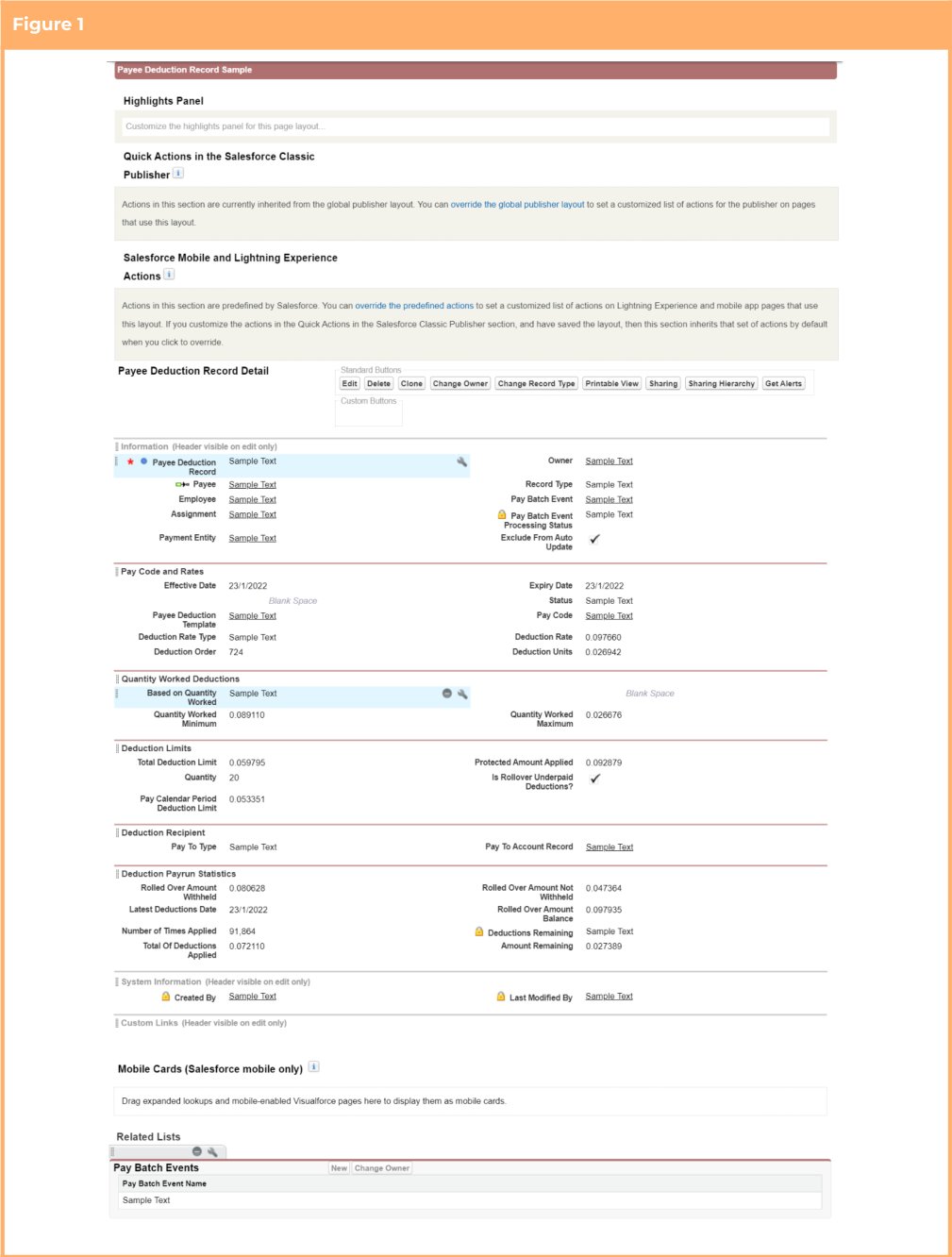
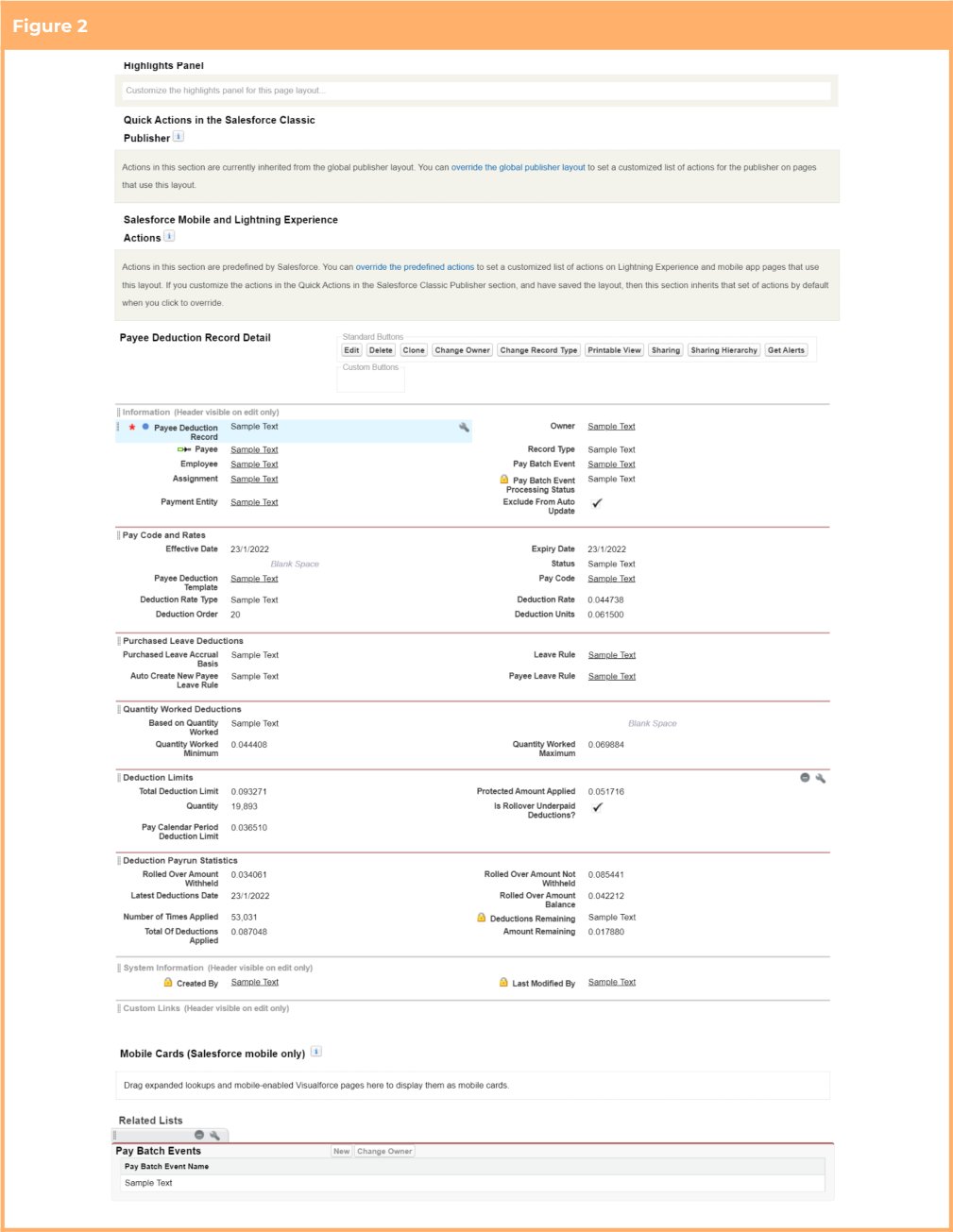
New Deduction Record Page Layouts
The use of the new record type based page layouts for Payee Deduction records is optional. This requirement only needs to be completed if the option to use the layouts is taken. If not, these items can be skipped. The below configuration steps should be completed if the functionality is required:- Assign page layouts to relevant record types (Optional)
- Update picklist value available based on record types (Optional)
Assign Page Layouts To Relevant Record Types (Optional)
This requirement only needs to be completed if the option to use the record type based layouts is taken. If not, this item can be skipped.- Go to Setup > Object Manager
- Select Payee Deduction Record (tc9_pr__Payee_Deduction_Record__c) > Record Types
- Click on the Page Layout Assignment button
- Click the Edit Assignment button
-
Assign the layouts as follows*
-
Layout: TC9PR General Deduction Record Layout
Record Type:
- Master
- General Deductions Page Layout
-
Layout: TC9PR Purchased Leave Deduction Record Layout
Record Type:
- Purchased Leave Deductions
-
Layout: TC9PR Withholding Deduction Record Layout
Record Type:
- PAYG Deductions
- Superannuation Deductions
-
Layout: TC9PR General Deduction Record Layout
Record Type:
- Click Save
- Figure 1 - TC9PR General Deduction Record Layout
- Figure 2 - TC9PR Purchased Leave Deduction Record Layout
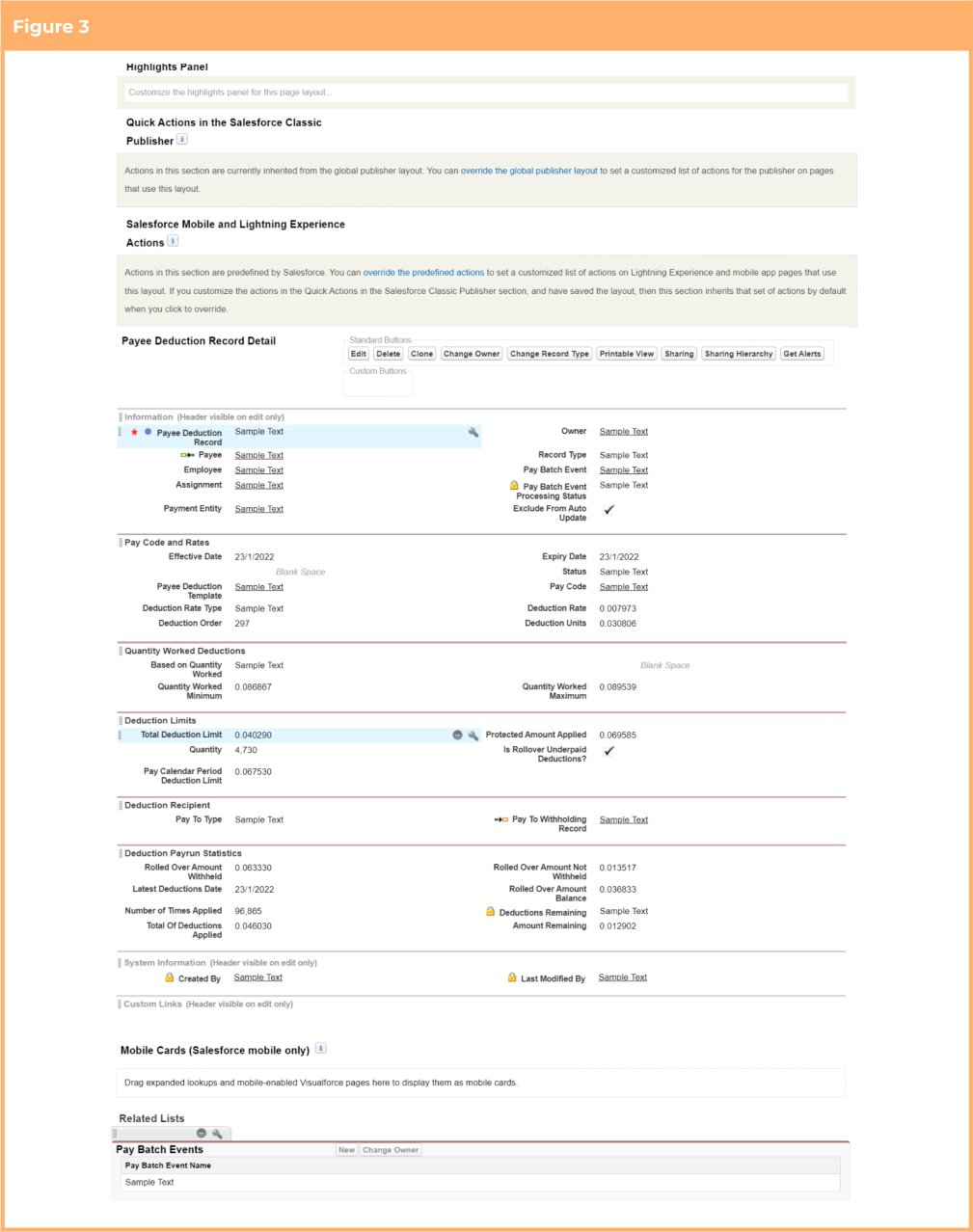
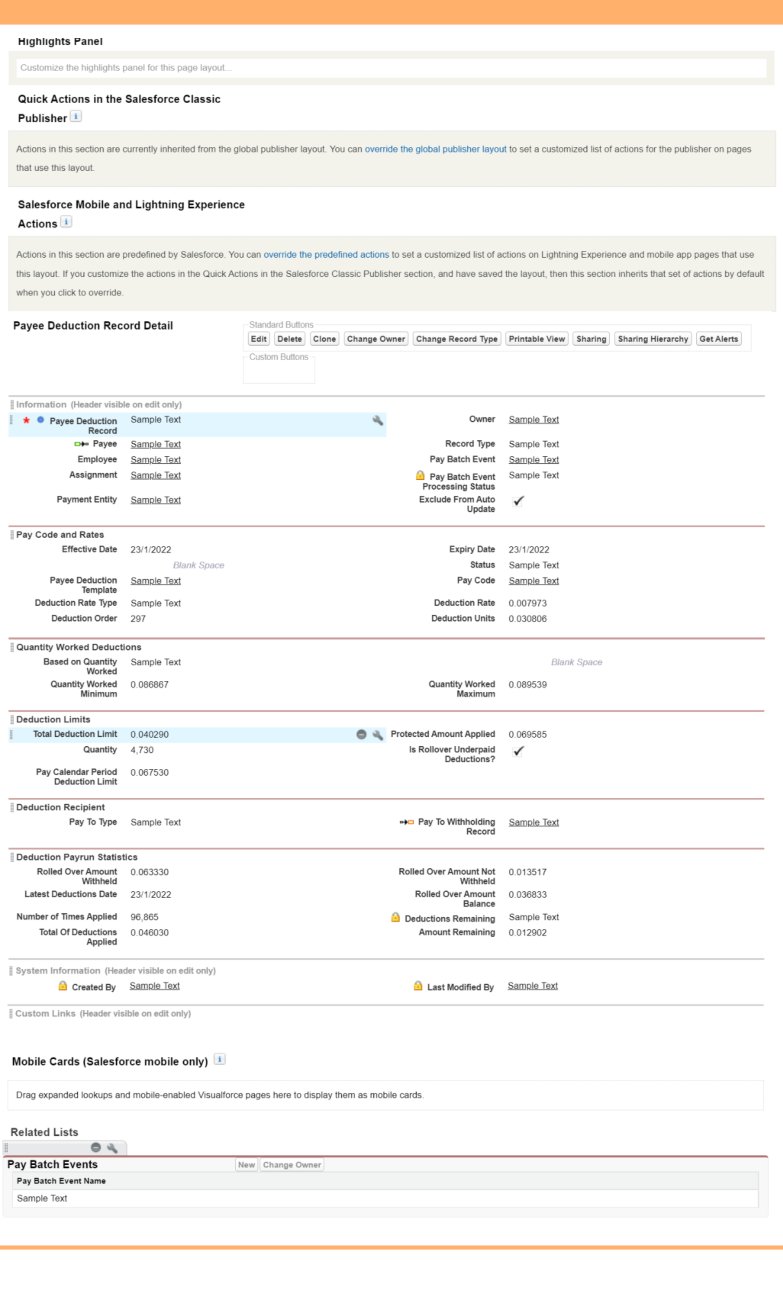
- Figure 3 - TC9PR Withholding Deduction Record Layout
Update Picklist Value Available Based On Record Types (Optional)
This requirement only needs to be completed if the option to use the record type based layouts is taken. If not, this item can be skipped.- Go to Setup > Object Manager
- Select Payee Deduction Record (tc9_pr__Payee_Deduction_Record__c) > Record Types
- Click on the General Deductions (tc9_et.General_Deductions) Record Type
- In the Picklist Available for Editing section, locate the Pay To Type picklist and select Edit
- Ensure that only the Account value is listed in the Selected Values list
- Ensure that there are no Default values assigned
- Click Save
- Return to the Record Types page
- Click on the Purchased Leave Deductions (tc9_et.Purchased_Leave_Deductions) Record Type
- In the Picklist Available for Editing section, locate the Pay To Type picklist and select Edit
- Ensure that only the Account value is listed in the Selected Values list
- Ensure that there are no Default values assigned
- Click Save
- Return to the Record Types page
- Click on the PAYG Deductions (tc9_et.PAYG_Deductions) Record Type
- In the Picklist Available for Editing section, locate the Pay To Type picklist and select Edit
- Ensure that only the Payee Withholding value is listed in the Selected Values list
- Ensure that the Payee Withholding value is set as the Default
- Click Save
- Return to the Record Types page
- Click on the Superannuation Deductions (tc9_et.Superannuation_Deductions) Record Type
- In the Picklist Available for Editing section, locate the Pay To Type picklist and select Edit
- Ensure that only the Payee Withholding value is listed in the Selected Values list
- Ensure that the Payee Withholding value is set as the Default
- Click Save
Automated Back Pay (Pilot Program*)
Configuration instructions for the Automated Back Pay functionality will be released upon an organisations agreement to participate in the pilot program. If you would like your organisation to take part in the pilot program, and have resources available that can be dedicated to testing and providing feedback, please contact your Project Manager.Appendix 1
Below is a list of new components included within the Bottlebrush ‘21 Release Object Record Types
Object Fields
Custom Setting
Custom Setting Fields
Action
Buttons and Links
Appendix 2
The below table defines the access that must be granted to Internal Users for new components introduced for the update which allows users to define Sleepover rules directly in the Interpretation Rule instead of using Variations Users Key
Minimum Access Key
Appendix 3
The below table defines the access that must be granted to Internal Users for new components introduced for the update to allow the users the ability to define Timesheet Allowances for payment during Leave. Users Key
Minimum Access Key
Appendix 4
The below table defines the access that must be granted to internal users for the new components introduced that allows them to define Interpretation Allowances for payment using Timesheet Activities: Users Key
Minimum Access Key
Appendix 5
The below table defines the access that must be granted to Internal Users for new components introduced for the update to provide improvements to the Minimum Rest logic in the Time Interpretation functionality Users Key
Minimum Access Key
Appendix 6
The below table defines the access that must be granted to Internal Users for new components introduced for the update to provide improved Timesheet Interpretation logic. Users Key
Minimum Access Key
Appendix 7
The below table defines the access that must be granted to Internal Users for new components introduced for the update to provide user control when Split / Broken Shift logic will apply through Timesheet Activities. Users Key
Minimum Access Key
Appendix 8
The below table defines the access that must be granted to Internal Users for new components introduced for the beta Rate Calculator functionality. Users Key
Minimum Access Key
Appendix 9
The below table defines the access that must be granted to Internal Users for new components introduced to improve the minimum rest and break loading overtime interpretation processing capabilities. Users Key
Minimum Access Key
Appendix 10
The below table defines the access that must be granted to Internal Users for new components introduced to improve the allowance interpretation processing capabilities. Users Key
Minimum Access Key
Appendix 11
The below table defines the access that must be granted to internal users for new components introduced to allow the definition of penalty time bands to be used during interpretation processing capabilities. Users Key
Minimum Access Key
Appendix 12
The below table defines the access that must be granted to internal users for new components introduced to allow the minimum age requirements for when calculating Superannuation to be overridden. Users Key
Minimum Access Key
Appendix 13
The below table defines the access that must be granted to internal users for new components introduced to allow users to hide blank sections and selected pay codes on Pay Advice documents. Users Key
Minimum Access Key
Appendix 14
The below table defines the access that must be granted to internal users for new components introduced to validate Employee leave. Users Key
Minimum Access Key