

Purpose
The purpose of this Administrator Guide is to provide information about packaged Utilities ATO Kilometre Adjustments. The content in this guide is optional, and may be utilised during implementation, or after a Project has gone live. The intended audience for this document is System Administrators.Overview
Payroll Users can utilise the ATO Kilometre Adjustments to automate the processing of Kilometre Allowance Pay Transactions in-line with the current ATO thresholds. To kick off the processing of ATO Kilometre Adjustments, navigate to the Screen Flow and follow the prompts. The following provides information related to the functionality within the ATO Kilometre Adjustments process.Activate and Insert Screen Flow
The ATO Kilometre Adjustments method currently utilises a Screen Flow with the Pay Batch ID to process. Whilst it may be possible to automate the process using a record-triggered Flow, we recommend using the Screen Flow to ensure no interruption occurs during the Pay Batch Creation stage. Activate Flow Firstly, the ATO Kilometre Adjustments Screen Flow must be enabled. To enable the flow: Go to Setup - Flows - 2c9 Utilities - ATO Kilometre Adjustments- Select Activate .
- Select Lightning Record Pages .
- If the only Lightning Page available is the ‘TC9PR Pay Batch Record Page’, you will need to select this and then select the Clone button. Otherwise, select any existing non-Packaged Lightning Page currently in use.
- Select Edit to open the Lighting Page Editor
- Add a new Tab into the existing tab section and give it a name (e.g. Process ATO Kilometre Adjustments).
- Select the Flow Component and drag into the new tab.
- Select the 2c9 Utilities - ATO Kilometre Adjustments Flow. Ensure you select the option Pass record ID into this variable .
- Select Save and Activate .
Screenflow Batch Size Controls
To prevent Users from hitting Salesforce governor limits when running this ATO Kilometre Adjustments process, Users can adjust the batch size in the 2c9 Utilities - ATO Kilometre Adjustments Screen Flow. The default batch size is 100, or the number of Payee Pay Batches, up to a maximum of 100. When the ATO Kilometre Adjustments function is processed, the Flow uses this batch size to determine how many records to pass to the Apex Class (see Figure 1).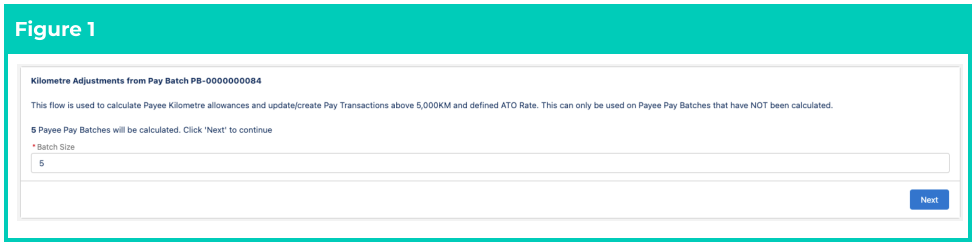
Create Custom Settings
The ATO Kilometre Adjustments process utilises a Custom Setting for determining the ATO Kilometre Pay Rate plus the Taxable and Non-Taxable Pay Codes. To populate the Custom Settings: Go to Setup - Custom Settings - ATO Kilometre Settings - Manage- Select the New button.
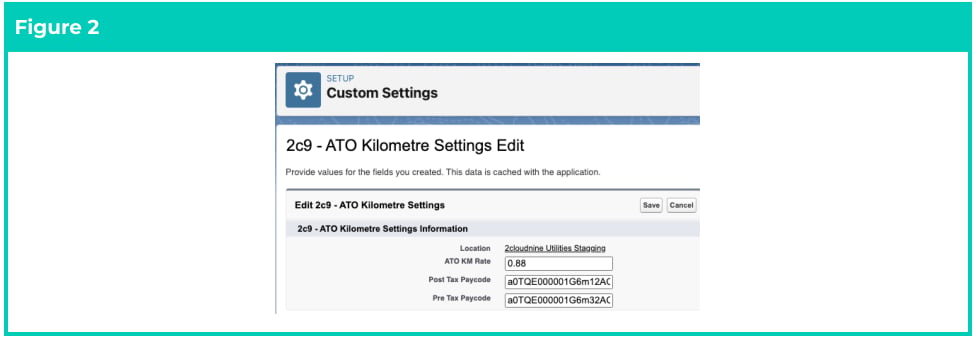
- Populate the following Custom Setting Fields (see Figure 2):
- ATO KM Rate - The ATO cents per kilometre Pay Rate for the current financial year. This rate must be entered as a decimal, for example, 0.88 for 88 cents.
- Post Tax Paycode - The record ID of the Non-Taxable Pay Code used for Kilometre Allowances.
- Pre Tax Paycode - The record ID of the Taxable Pay Code used for Kilometre Allowances.
- Select Save .
Important Notes(ATO KM Pay Rate)The ATO KM Pay Rate must be manually updated each Financial Year in line with any changes
declared by the ATO. Any adjustments to Kilometre Pay Transactions for the previous Financial Year
will be processed under the Pay Rate defined in this field. If this is not the expected outcome, youmust manually adjust and process the prior Financial Year’s Pay Transactions.
Assignment Rate and Payee Allowances Pay Codes
When using the ATO Kilometre Adjustments process, Administrators must ensure they only create Assignment Rates and Payee Allowances with the Non-Taxable Allowance Pay Code (as defined in Create Custom Settings above). Creating Assignment Rates and Payee Allowances for both the Taxable and Non-Taxable Pay Codes will get unexpected results when the process is run due to the Product triggers overriding the Pay Rates and Invoice Rates. In addition, having only a single Non-Taxable Assignment Rate and related Payee Allowance simplifies configuration and removes confusion for Employees when selecting Allowances.Important Notes(Assignment Rates & Payee Allowances)This Administrator Guide does not cover the creation of Assignment Rates and Timesheet Allowances
as each customer may have a unique process for the creation of these records. For details, please
refer to the relevant 2cloudnine Quick Reference Guides (QRGs).
- Post Tax Paycode = KM Allowance - Non Taxable
- Pre Tax Paycode = KM Allowance - Taxable
Important Notes(Kilometres Not as Expenses)All Customers currently using Expenses for processing Kilometres MUST be advised of the ATO
Guidelines for the payment of this to Employees and reporting through STP via Allowances, not
Expenses.
Processing Payee Pay Batches
It is essential to understand that whilst the ATO Kilometre Adjustments process is initiated from a Pay Batch, it is specifically designed to process individual Payee Pay Batches that have a Status of Uncalculated. IMPORTANT: This means the process must be run after the Pay Batch is created, but before the Calculation of the Pay Batch. If the process is run post-Calculation, no records will be processed, and the Flow will not process any records. If a Pay Batch has been Calculated and a new Payee is added to the Pay Batch, the process can be run before the re-Calculation of that individual Payee. Where a Pay Batch has been Calculated and the ATO Kilometre Adjustments process was not run prior, the process requires the User to revert the Pay Batch all the way back to Uncalculated. If the Pay Batch has a Status of Payment File Released, then Kilometres will need to be manually adjusted for the next Pay Batch. Please note that in this scenario, the next time the process is run it will still correctly calculate the YTD Payee Aggregates.Important Notes(Process can only be run once per Pay Transaction)When the ATO Kilometre Adjustments process is run, each applicable Pay Transaction is updated
with the Payee Pay Batch ID in the Custom Field ‘LatestPPB’. If a User runs the process multiple times,
this field is checked, and if it contains the same PPB.ID, then it is skipped. This ensures a User cannot
process the same Pay Transactions multiple times.
Processing 5,000 km Threshold
The first role of the ATO Kilometre Adjustments process is the calculation of a Payee’s YTD aggregate for determining if they have reached the threshold of 5,000 Non-Taxable kilometres. When the ATO Kilometre Adjustments process is run, it attains the latest Payee Aggregate record where the related Pay Batch Finalise Year End Date is equal to the current Pay Batch Finalise Year End Date, and the Pay Code equals the Non-Taxable Pay Code defined in the ATO Kilometre Settings Custom Setting. For example, if the current Pay Batch Finalise Calendar Period end date is 2026, the process will look for the latest Payee Aggregate with the Non-Taxable Pay Code, and if found, it will store the YTD value. In the event a Payee Aggregate cannot be found, as per the start of a new financial year, the process will calculate the Payees YTD from 0. When processing the 5,000 km threshold, the ATO Kilometre Adjustments process will determine the current YTD Payee Aggregate and then calculate the new YTD Payee Aggregate based upon the total Allowance Quantity being processed. The ATO Kilometre Adjustments process will then perform the following actions:
Crossing the 5,000 km Non-Taxable Threshold
When the quantity of a Pay Transaction crosses the 5,000KM threshold, the system will automatically
split the Pay Transaction into the correct quantities of Taxable and Non-Taxable Pay Codes.
This is done by determining the Payee’s current YTD Payee Aggregate and calculating the quantity of the
Pay Transaction that crosses the threshold. When this occurs, the original Pay Transaction quantity is
updated to meet the 5,000km threshold. A new Pay Transaction is created with the same values of the
original Pay Transaction, with the exception of the quantity, which is the remaining quantity of the
original Pay Transaction that was split.
Example ScenarioJane Doe has a current YTD Non-Taxable Kilometre Pay Code Payee Aggregate of quantity
4,848.
In the current Payee Pay Batch, Jane has a Non-Taxable Kilometre Pay Transaction with a
quantity of 400.When the process is run, the original Pay Transaction is updated to have a new quantity of 152
(5,000 - 4,848), and if applicable, the Pay Code is updated to Non-Taxable.
A new Pay Transaction is also created with a quantity of 248 (400 - 152) with a Taxable Pay Code.For all future Pay Batches, Jane’s Payee Aggregate is identified as above a quantity of 5,000,
requiring all Kilometre Pay Transactions to convert to Taxable Pay Codes. Once the new financial
year commences, this will reset to 0.
Processing Above ATO Rate
The second part of the ATO Kilometre Adjustments process is the calculation and allocation of Pay Transactions between Taxable and Non-Taxable above the defined ATO Rate. During the processing of the Payee Pay Batch, the ‘ATO Rate’ defined in the Custom Setting (see page 1) determines the threshold for the ‘Pay Rate’ field on the related Pay Transactions. Where the Pay Transaction Pay Rate is at or below the ATO Rate, no action occurs. Where the Pay Transaction Pay Rate is above the ATO Rate, the process will automatically split the Pay Transaction to create two Pay Transactions against the Taxable and Non-taxable Pay Codes. When splitting Pay Transactions the system uses the original Pay Transaction Pay Rate and reduces the amount to the defined ATO Rate. If the ATO Rate is $0.78, then regardless of the original Pay Transaction Pay Rate, it would be updated to 78. Once the original Pay Transaction Pay Rate has been reduced, it is cloned with the new Pay Transaction Pay Rate set to the value of the original Pay Transaction minus the ATO Rate, and the Pay Code updated to the Taxable Pay Code. The field ‘Above ATO Rate’ is also checked on the Pay Transaction to identify Pay Transactions that were created from this process. The Invoice Rate of the cloned Pay Transaction is also set to $0, and the To Be Invoiced? field updated to FALSE. This ensures only the original Pay Transaction containing the correct Invoice Rate and quantity is invoiced to the Client. It is important to note that during this process, the Quantity of the original Pay Transaction and the new cloned Pay Transaction remain the same.Example ScenarioThe ATO Rate defined in the Custom Setting has been set to $0.88 as per the ATO 2025/26
guidelines.Jane Doh has a Non-Taxable Kilometre Assignment Rate with a Pay Rate of $0.95. Her timesheet
is processed with a quantity of 500 units for Kilometre Allowance.When the process is run, the original Pay Transaction is updated to have a new Pay Rate of
$0.88, and if applicable, updates the Pay Code to a Non-Taxable Pay Code.
A new Pay Transaction is then created with a Pay Rate of $0.07 (95 - 88) with a Taxable Pay Code.The quantity on both Pay Transactions remains at 500, but the cloned Taxable Pay Transaction is
not invoiced to the Client.
Important Notes(Cloned Pay Transactions)The Invoice Rate on the cloned Taxable Pay Transaction will be set to $0 and update the field To Be
Invoiced? as Not Required. This ensures Clients are not billed twice, and the Quantity on both Pay
Transactions match. The only thing to consider is the ‘Invoice Name’ on the Kilometre Pay Codes that
should be updated to remove any reference to Taxable and Non-Taxable, as this is not applicable to
the Client.
Deleting a Payee Pay Batch
When a Payee Pay Batch is deleted, any Pay Transactions that were processed will remain in their current adjusted state. This means any Pay Transactions that were split during the initial process will remain split between the Taxable and Non-Taxable Pay Codes. If the Payee is added back into the Pay Batch or a subsequent Pay Batch within the same financial year, this will have no impact as the end result will be unchanged due to the order in which each Pay Transaction is processed. In addition, when a Taxable Pay Transaction is created for the above ATO Rate, this is flagged accordingly to ensure if processed again, it remains as a Pay Code. There is a current known problem when deleting a Payee Pay Batch after the ATO Kilometre Adjustments process has been run if the adjusted Pay Transactions fall into a new financial year. This is because the 5,000km threshold will have been reset, but in the previous process, they were split when crossing the threshold. This is a very rare scenario, but if this was required, the recommendation is to revert the related Timesheet to New to delete all Kilometre Allowance Pay Transactions and reprocess the Timesheet again. This would create a single Non-Taxable Pay Code, and when processed in the new financial year would remain under the 5,000km threshold.Adjustments to previously processed ATO Kilometres
Where an adjustment is required for Kilometres, these should ideally be made by reverting the Timesheet to New, and reprocessing it with the correct Quantity and Pay Rate before the finalisation of the Pay Batch.Important Notes(Finalised Pay Batch)In the event a Pay Batch has already been Finalised and the Payment File Released, you will need to
manually create the required Adjustment Pay Transactions, including manually calculating the 5,000
km threshold if the adjustment is for additional Quantity.