

Purpose
The purpose of this Administrator Guide is to provide information about Additional Details using Field Sets. The content in this guide is optional, and may be utilised during implementation, or even after a project has gone live. The intended audience for this document is System Administrators.Additional Details using Field Sets
Overview Field Sets provide a mechanism to group and manage a collection of fields, often for dynamic rendering or data input. System Administrators can add, remove, or reorder fields in a Field Set to modify them on a Visualforce Page without modifying code. Within limited objects, 2cloudnine Payroll has the ability to assist System Administrators with providing extra fields to display, or additional fields to act as extra filters during some processes, without the need for Custom Pages to be built. By utilising Field Sets, System Administrators are able to easily add fields to assist with these needs. 2cloudnine has the following Field Sets available:- Rate Calculator Field Sets
- Invoice Generation Manager Field Sets
- Variation Report Field Sets
- Interpretation Rule Builder Field Sets
- Select Field Sets .
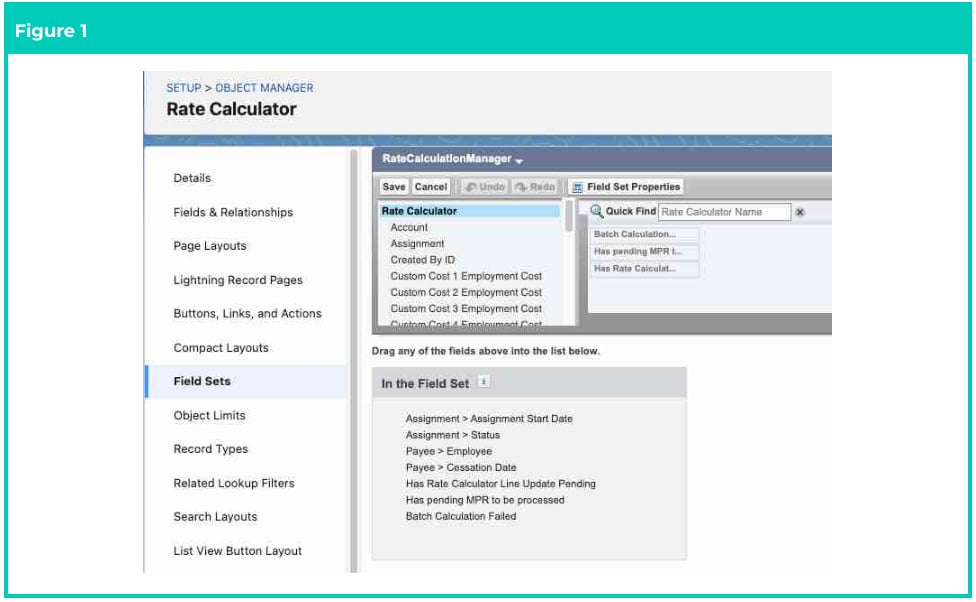
- At RateCalculationManager, select the down arrow in the far right and select Edit .
- Select the required Object listed in the Field Set tree menu, which will then display available fields within that Object.
- Select the field you want included and drop it into the box below, labelled In the Field Set.
- Repeat for all additional fields required to be added to the RateCalculationManager Field Set.
- When finished, click Save .
- Select Field Sets .
- At Employee Details select the down arrow in the far right and select Edit .
- Select the required Object listed in the Field Set tree menu, which will then display available fields within that Object.
- Select the field you want included and drop it into the box below, labelled In the Field Set.
- Repeat for all additional fields required to be added to the Employee Details Field Set.
- When finished, click Save .
- Select Field Sets .
- At ProcessInvoice, select the down arrow in the far right and select Edit .
- Select the required Object listed in the Field Set tree menu, which will then display available fields within that Object.
- Select the field you want included and drop it into the box below, labelled In the Field Set.
- Repeat for all additional fields required to be added to the ProcessInvoice Field Set.
- When finished, click Save .
- Select Field Sets .
- At Variation Report Display, select the down arrow in the far right and select Edit .
- Select the required Object listed in the Field Set tree menu, which will then display available fields within that Object.
- Select the field you want included and drop it into the box below, labelled In the Field Set.
- Repeat for all additional fields to be added to the Variation Report Display Field Set.
- When finished, click Save .
- Select Field Sets .
- At Interpretation Rule Config Pg Custom, select the down arrow in the far right and select Edit .
- Select the required Object listed in the Field Set tree menu, which will then display available fields within that Object.
- Select the field you want included and drop it into the box below, labelled In the Field Set.
- Repeat for all additional fields to be added to the Interpretation Rule Builder Field Set.
- When finished, click Save .
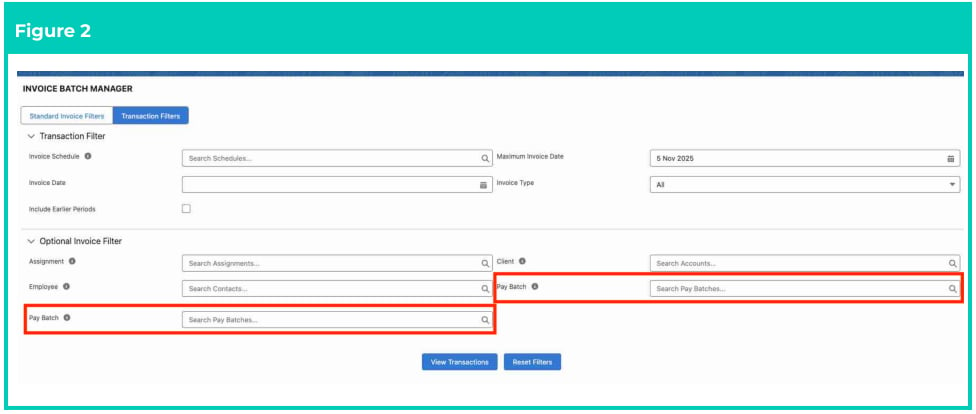
Important Notes(Figure 2)Users must ensure no fields are added to a Field Set that are already displayed by default on the
page or within the UI. If the same field appears on the page twice, and the Standard page field is
populated but the Field Set field is blank, the blank field will override the Standard field.