

Purpose
The purpose of this Administrator Guide is to provide information about Validation Overrides. The intended audience for this document is System Administrators.Validation Overrides
Overview There are various standard validations within 2cloudnine Payroll to ensure adherence to data integrity, especially relevant when data is integrated with other third parties such as Superannuation Funds, the Australian Taxation Office (ATO), and online banking software. There are, however, times when Users of 2cloudnine Payroll need customisations or some integrations. There may be a need to deactivate validations to enable data to be created and for processes to be completed as normal. To facilitate this, we have a Custom Setting within 2cloudnine Payroll to utilise when required. Override TC9P Validation There are several checkboxes in this Custom Setting that provide additional control over in-code validations performed on the related objects. By setting checkboxes to TRUE in this Custom Setting, you are turning off the in-code validation for that particular object. Any auto-populate triggers on that object will still fire, but the data validation will not. It is recommended that you ensure the checkboxes in this Custom Setting are set to FALSE unless you need to turn off validation for some historic data to be entered, or other custom process requiring the validation to be disabled momentarily, with the understanding of reinstating the validations as determined by the Product Team. To locate the Validation Override Custom Settings: Go to Setup > Custom Settings > select Manage next to Override TC9P Validation- Select Edit at the top of the main window (see Figure 1).
- Select the various checkboxes of the Object that requires the current Product Validations to be momentarily deactivated.
- Select the Save button.
- Users should immediately proceed with the process, which requires this validation to be turned off.
- Once the process is complete, Users must return to Setup > Custom Settings > select Manage next to Override TC9P Validation.
- Select Edit at the top of the main window.
- Deselect all the checkboxes to ensure the Product Validations are turned back on.
- Select the Save button.
Important Notes(Figure 1)You must NEVER share this information with Clients. If they are aware of this, they can potentially
activate this without our knowledge, therefore will have issues later with software not processing as
required due to the overrides being active, as well as not complying with other legislative agencies
and integrations.
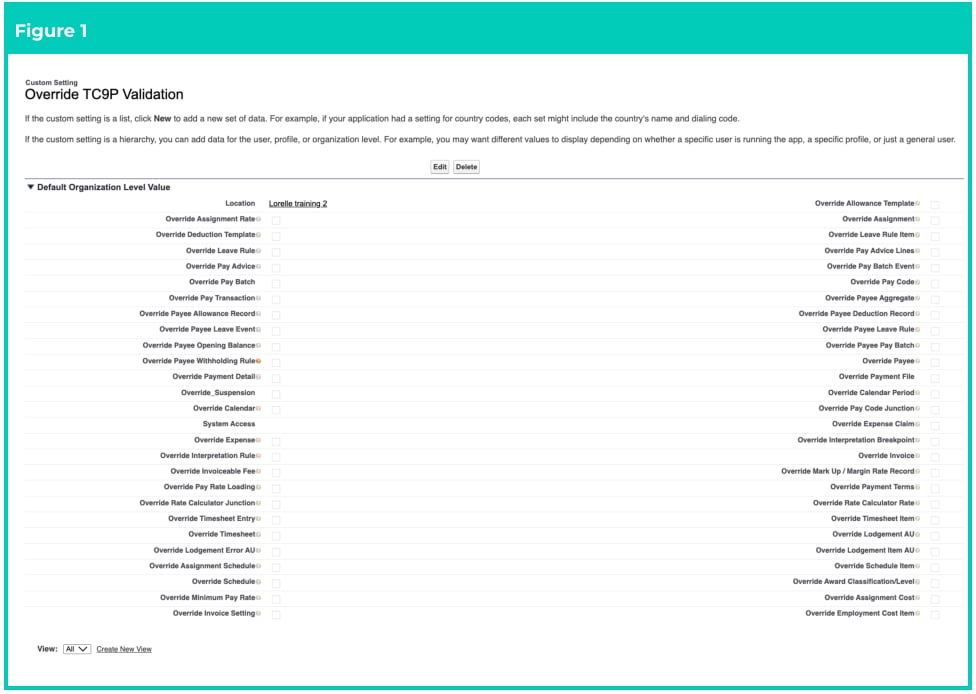
Important Notes(Figure 1)If an Org has the Scheduled Job ‘Automatic Status Update’ running each night, this job will also
perform the additional task of reviewing any of these checkboxes that are ticked in Figure 1 for
Validation Overrides, and will uncheck them so all validations will resume to launch as per the
standard Product design.