

Purpose
The purpose of this Administrator Guide is to provide information about Utilities packaged Timesheet Email Approvals. The intended audience for this document is System Administrators.Overview
Once the configuration steps are complete, Approvers will be able to directly view and approve Timesheets from their email notifications, without the need to log in to the relevant Community and identify Timesheets for approval. Required Guest Approver Site The ‘Timesheet Email Approvals’ functionality only works with a Guest User Approver Site. To utilise this functionality, you must first configure the Guest User Approver Community as per the 2c9 - Guest User Approval Guide.Sending Submitted Timesheets for Approval
As noted in the configuration, there are two available options for Timesheet Email Approvals - Single and Consolidated. The sending of Submitted Timesheets for Approval differs based on the method used. Single Sending The single sending will automatically send all Timesheets to the related ‘Timesheet > Assignment > Timesheet Approver’ that meet the criteria defined in the Custom Setting Email Approval Field, at the scheduled interval defined. If no Email Approval Field api name is defined, the Product will default to the packaged formula field EmailApproval, which will simply send all Timesheets with a status of ‘Submitted’ that have not yet been sent.ScenarioA group of customers has requested to receive a single email for each submitted Timesheet. Another
group has requested a single consolidated email for all submitted Timesheets, sent once a week. To
accommodate this, the System Administrator creates a new field on the Account object called ‘Email
Approval Type’, with the options ‘Single’ and ‘Consolidated’.The System Administrator then creates a custom boolean formula field on the Timesheet object. This
formula field returns TRUE only if the related Account’s Email Approval Type is set to ‘Single’ and the
Timesheet’s Status is ‘Approved’. Afterward, the System Administrator updates the ‘Email Approval
Field’ Custom Setting to reference the API name of this formula field.This confirmation ensures that Timesheets linked to customers who have selected ‘Single’ in the Email
Approval Type field are automatically sent for approval immediately upon Timesheets being Submitted
and Approved, via a Scheduled job. Conversely, customers who have chosen ‘Consolidated’ will not
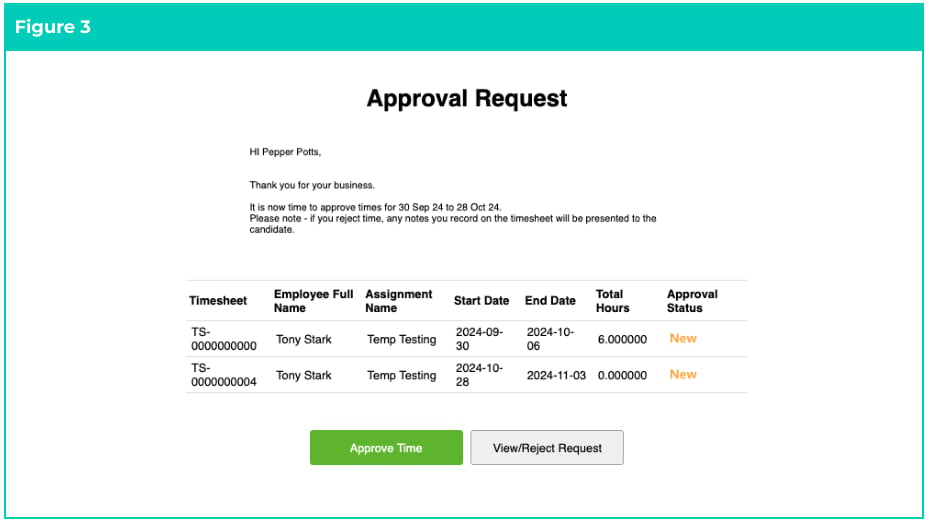
receive individual Timesheet emails. Instead, they will receive a single, consolidated email
summarising all Submitted Timesheets on a weekly basis.
- approverId: the Contact ID of the Approver to send the consolidated email.
- timesheetIds: a list of Timesheet Record IDs to include in the consolidated email
Important Notes(Single vs Consolidated Sending Methods)Single and Consolidated Sending Methods can be used in combination. An Org might use Single
sending via a Scheduled Job for regular Timesheet submissions, while leveraging Consolidated
sending for Reminders or Summary emails.
Approving Timesheets from Email
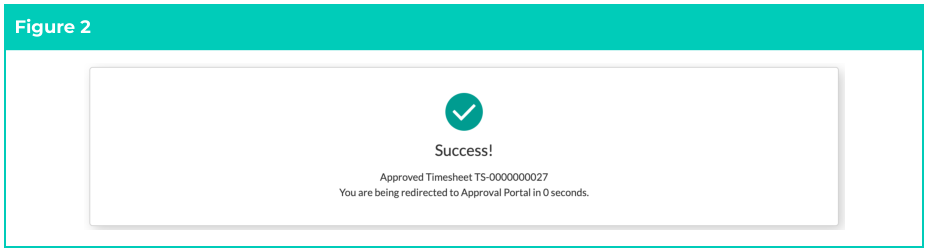
Single Approval On submission of a Timesheet, the Timesheet Approver will be emailed the Employee Timesheet, inclusive of the day and time worked, Break Times, and Total Hours (see Figure 1). The Approver can view the requested Timesheet by clicking on the View/Reject Request button, which will direct them to the Guest Approver Community. Alternatively, they can select Approve Time, which will instantly Approve the Timesheet (via the Guest Approver Community).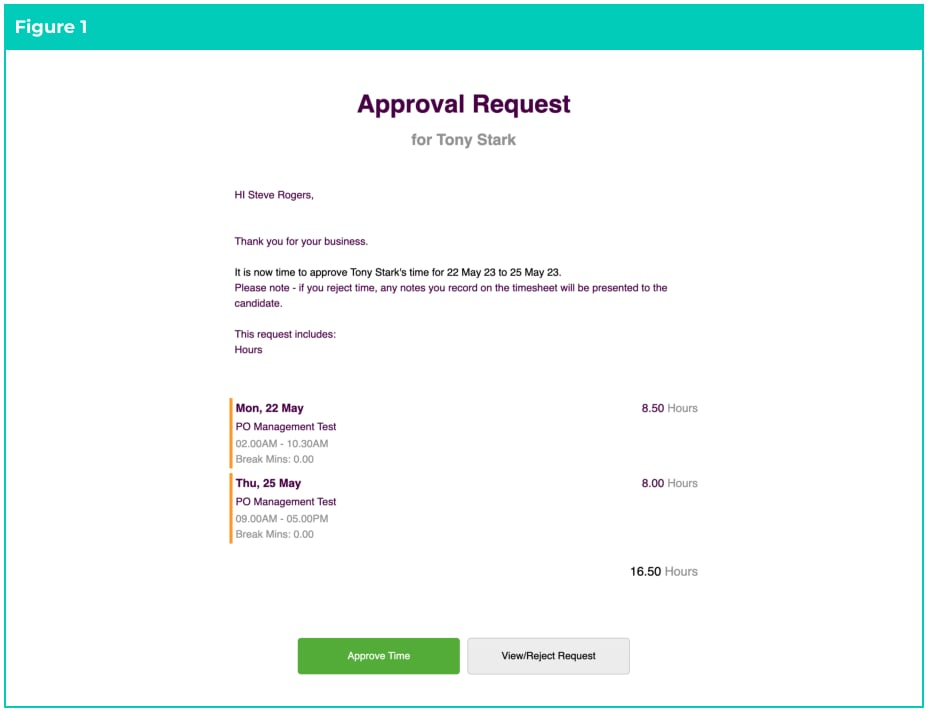
Update Custom Settings
The Timesheet Email Approval process uses Custom Settings to define details across both the Single and Consolidated Approver Email options. The configuration differs based upon the Email Approval Type, but it is highly recommended both are configured. To configure the Custom Settings: Go to Setup - Custom Settings - Manage (next to 2c9 - Approver Portal)- Click Edit in the Header and update the required Custom Settings as per the table below.
- Click Save .
| Custom Setting | Status | Type | Details |
|---|---|---|---|
| Org Wide Sender Name | Required | Both | The org wide email address > Display Name you want the emails to be sent from. Go toSetup > Organization-Wide Addresses and copy the ‘Display Name’ from the email and paste into this field. |
| Email Approval Field | Optional | Single | Defines a Custom Boolean Field on the Timesheet object to control Approval Email sending. If blank, defaults totc9_util__EmailApproval__c, which auto-sends to submitted Timesheets. |
| Approve Timesheet Path | Required | Single | If using the recommended naming, this would be /approve-timesheets as per step 2. |
| Consolidated Approve Timesheet Path | Required | Consolidated | If using the recommended naming, this would be /approve-consolidated-timesheets as per step 2. |
| Consolidated Timesheet Column Fieldset | Optional | Consolidated | API name of the fieldset on the Timesheets object used to control the columns in the Approval List. You can use tc9_util__Consolidated_Email_Timesheet_Colum ns which is an existing Field Set provided in the Package. |
| Consolidated Timesheet Email Header | Optional | Consolidated | Can be used to change the header in the consolidated Timesheet email. If left BLANK, this will default to ‘Approval Request’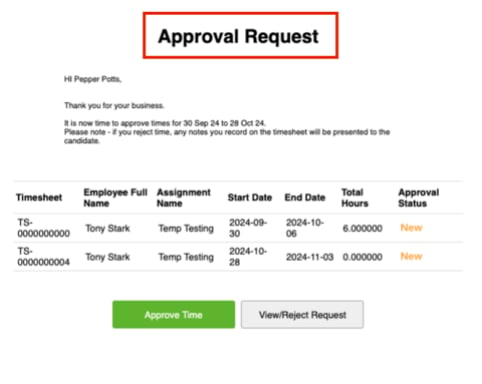 |
| Consolidated Timesheet Email Body | Optional | Consolidated | Can be used to change the body in the Email Body consolidated email. By default, the system will use the custom label Consolidated_Timesheet_Email_Approval_Messa ge . A new custom label can be created and the API entered into this field. 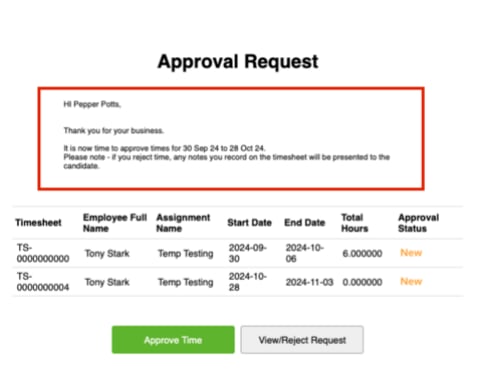 |
Scheduled Job (Optional)
This configuration is only required if you are using the Single Timesheet Approval Email. If using the Consolidated Timesheet Approval option for all Customers, this step can be skipped. This schedules the Timesheet Email Approval process to run every 5 minutes and to send any recently Submitted Timesheets to nominated Approvers for approval. Scheduled Batch Job To run the script:- Copy the block of script to be run.
- Select Setup > Developer Console .
- Debug > Open Execute Anonymous Window .
- Delete or comment out any code that is in the window.
- Paste in the copied script from below.
- Click the Execute button.
Important Notes(Single Method)The script below can be amended to run less frequently to reduce the number of Scheduled jobs
running in your Customer Org.
Script