Purpose
The purpose of this Administrator Guide is to provide information about the Payment File Approval Process. The content in this guide is optional, and may be utilised during implementation, or even after a project has gone live. The intended audience for this document is System Administrators.Overview
Some Payment Entities have the need for Payment Files not to be created until they have been approved by someone external to Payroll, such as a CFO or other Finance approval. To provide this extra level of approval, we have detailed below how the Standard Salesforce Approval process can be configured to facilitate this requirement for Payment Files within the Pay Batch Manager. If the Payment File requires an Approval Process, System Admins are recommended to consider the following items before proceeding:- Email Template as part of the notifications requesting approval.
- Fields to be updated that are used in the approval process.
- Number of approvers required - approval steps.
- Whether recall is permitted.
Payment File Approval Process to Release
The recommended process to set up the Payment File Approval Process is as follows: Go to Setup - Approval Processes .- In the Manage Approval Processes For picklist, select Payment File .
- Click on Create New Approval Process button under the Payment File.
- Select the option to Use Standard Setup Wizard .
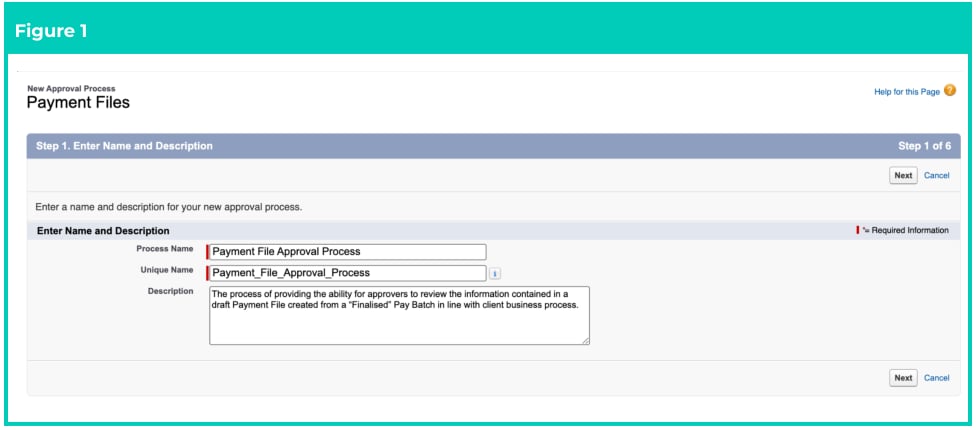
- Complete the steps as instructed through the wizard, similar to the below (see Figure 1):
- Name : Payment File Approval Process.
- Description : The process of providing the ability for approvers to review the information contained in a draft Payment File created from a “Finalised” Pay Batch in line with client business process.
- Click Next .
- Use this approval process if the following : formula evaluates to true.
- ISPICKVAL( tc9_pr__Status__c, “Draft”)
- Click on Check Syntax to confirm there are no issues, and then click Next .
- Configure approval routing based on your client requirements, though if only one
approver is required leave settings as the following:
- Next Automated Approver Determined By = None.
- Record Editability Properties = Administrators OR the currently assigned approver can edit records during the approval process.
- Click Next .
- Select the email template by selecting the lookup icon, then the folder Payment File Templates > Payment File Approval Email Template, or you can select your own specific email template if you created it earlier, which includes the approval link.
- Click Next.
- The Approval Page Layout should have the following in addition to the default fields of
Payment File ID and Owner :
- Approval Status
- Account Name
- Payment Entity
- Payment Date
- Total Number of Payments
- Total Amount of Payments
- Display approval history information in addition to the fields selected above = TRUE .
- Select: Allow approvers to access the approval page only from within the Salesforce application. (Recommended)
- Click Next .
- Ensure ‘Payment File Owner’ is listed within the Allowed Submitters column.
- Where there is the need to recall approval requests, action the checkbox under Submission Settings as appropriate, then Save .
- Under Approval Steps, select Yes, I’d like to create a new approval action for this step now, and select Field Update in the picklist options..
- Click the Go button.
- The following field updates will be required :
- Initial Submission Actions : create new field update for Mark as Submitted.
- Field to Update = Payment File: Approval Status with a specific value = Submitted
- Click Save .
- Final Approval Actions: new field update for Mark as Approved.
- Field to Update = Payment File: Approval Status with a specific value = Approved
- Click Save .
- Final Rejection Actions: new field update for Mark as Rejected.
- Field to Update = Payment File: Approval Status with a specific value = Rejected
- Click Save .
- (Optional) Recall Actions: new field update for Mark as Recalled.
- Field to Update = Payment File: Approval Status with a specific value = New.
- Click Save.
- Activate the Approval Process when ready for testing or as required.