

Purpose
The purpose of this quick reference guide is to step through the process of cloning Public Holiday Calendars & Calendar Periods. The intended audience for this document is System Administrators. This process makes it easier to clone existing Public Holiday Calendars as a basis for regional Public Holidays, saving time without the need to manually create or data load them.Steps
Clone an existing Public Holiday Calendar
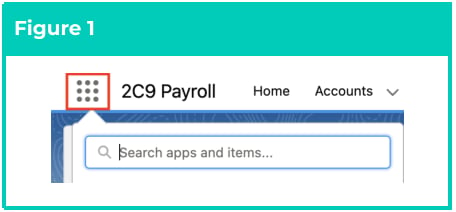
To clone an existing Public Holiday Calendar record, follow the steps below:- Click on the App Launcher icon (see Figure 1).
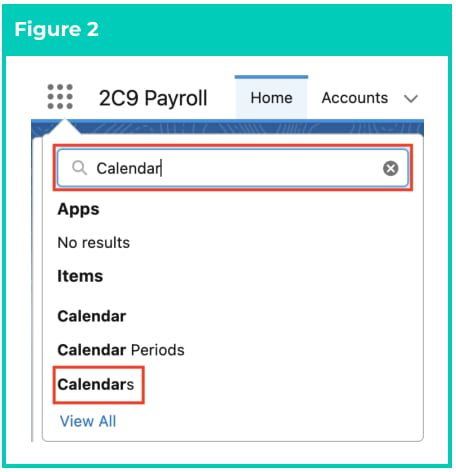
- Go to the Calendars object by using the Search function (see Figure 2).
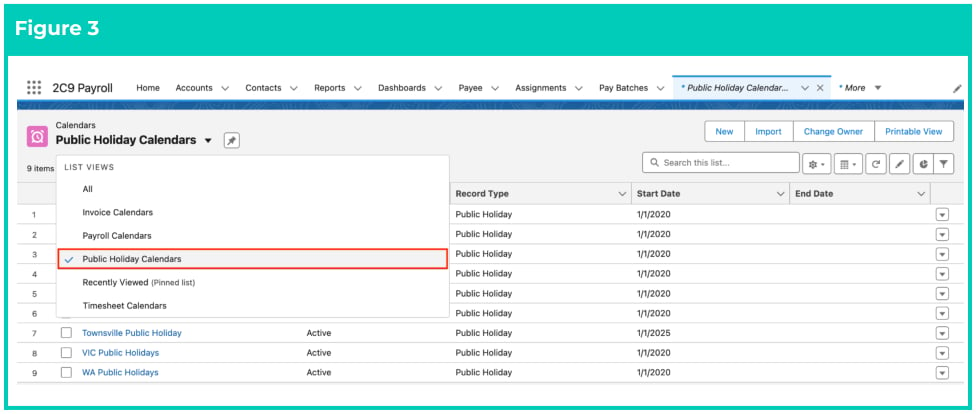
- To view the available Public Holiday Calendars, select the Public Holiday Calendars List View (see Figure 3).
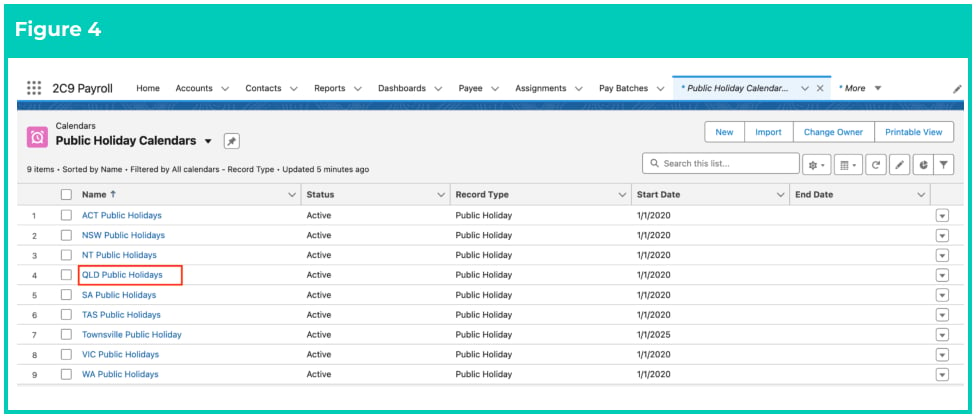
- Open the Public Holiday Calendar that you would like to clone (see Figure 4).
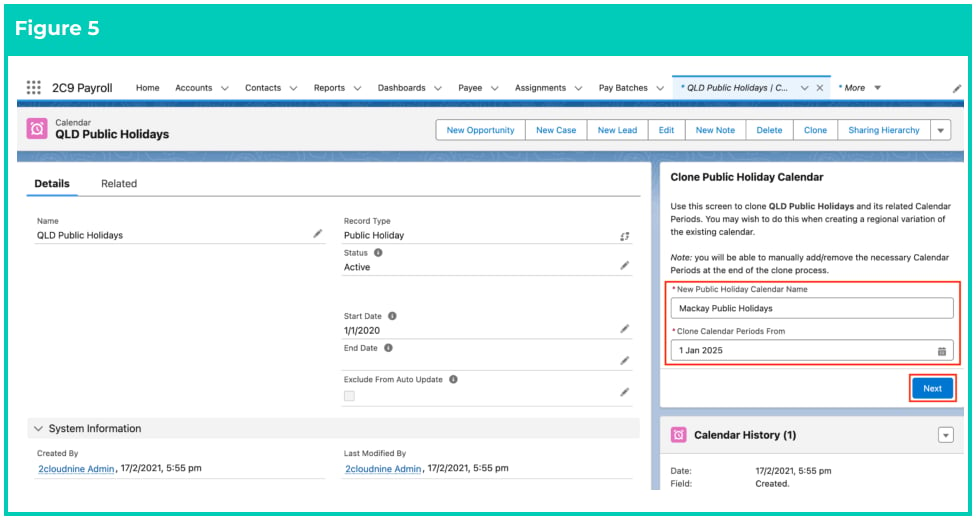
- Populate the following required fields to provide the base details of the Public Holiday Calendar
record (see Figure 5):
- New Public Holiday Calendar Name
- Clone Calendar Periods From
- Click on the Next button.
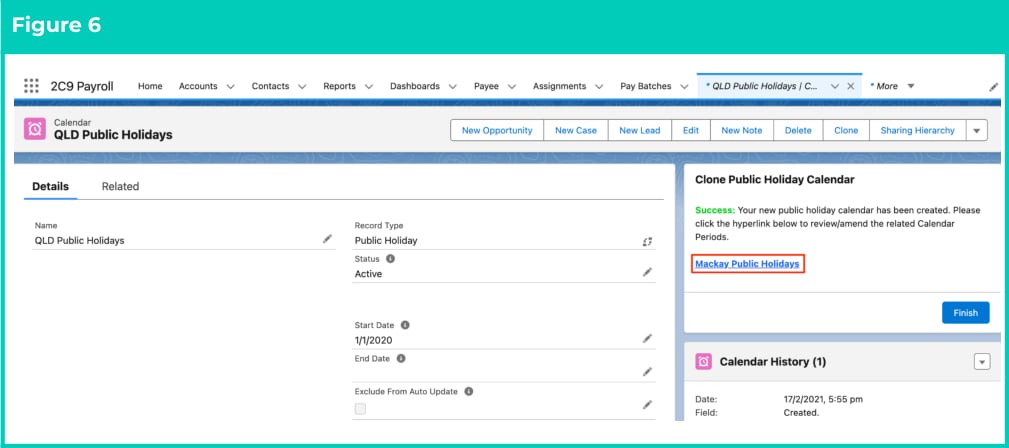
- A new Public Holiday Calendar record has been created. Click on the new Public Holiday Calendar’s name as shown in the screenshot below (see Figure 6):
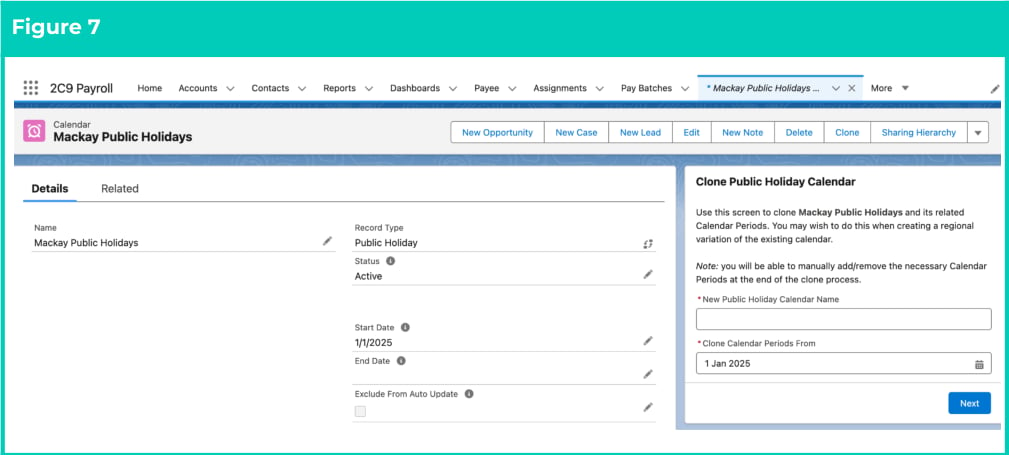
- The new Public Holiday Calendar will open in a new tab. Scroll down to the Periods section to view the Calendar Periods (see Figure 7).
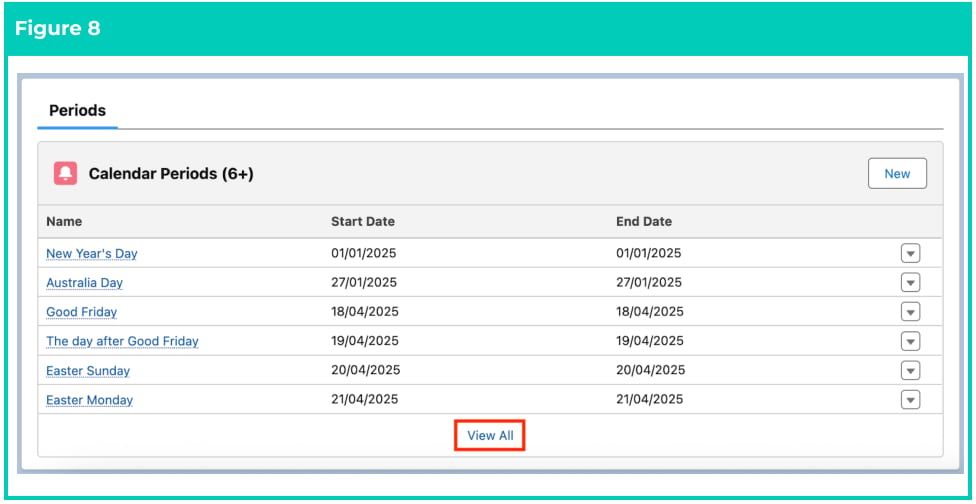
- Click the View All button at the bottom of the page (see Figure 8).
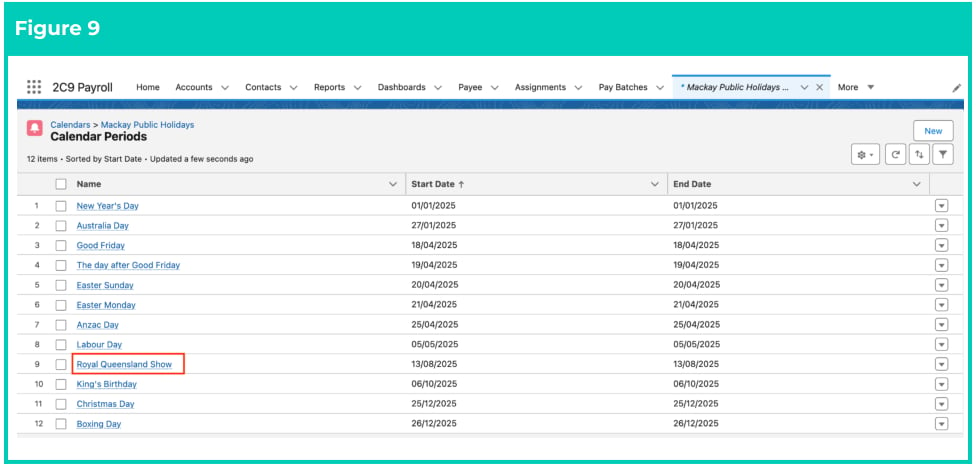
- Open the Calendar Period that you would like to edit (see Figure 9).
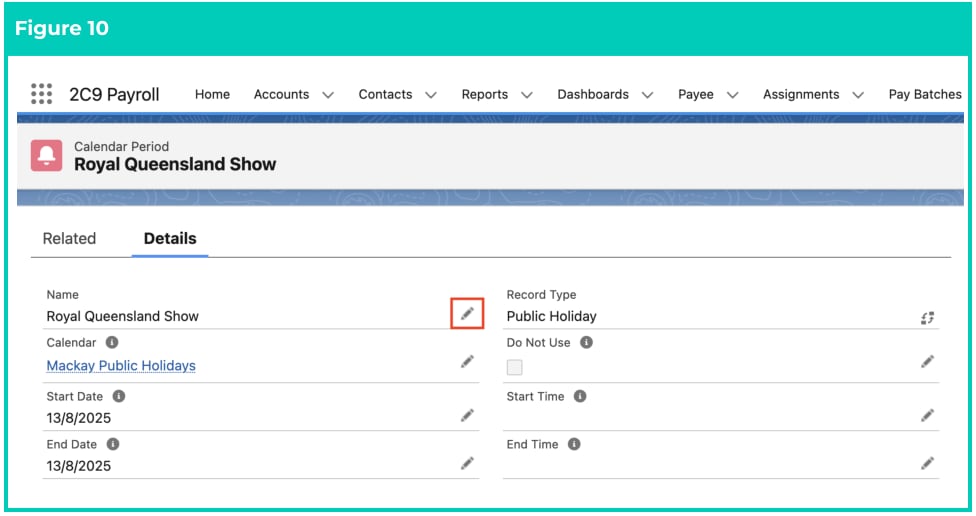
- Click on the edit pencil icon (see Figure 10).
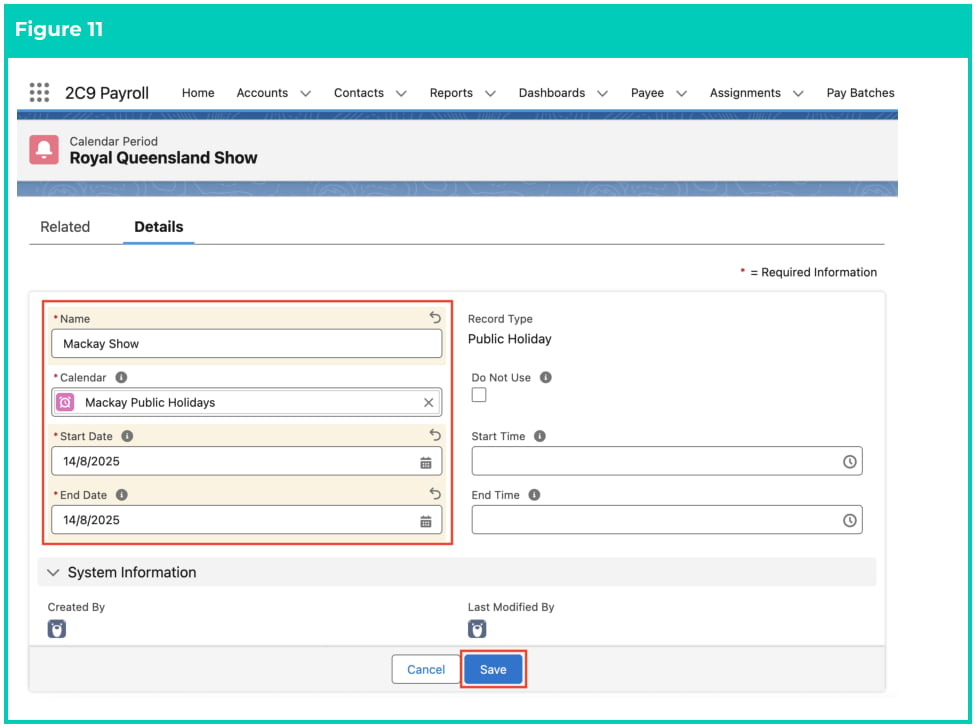
- On the Calendar Period page, update the field values as required (see Figure 11).
- Click on the Save button.
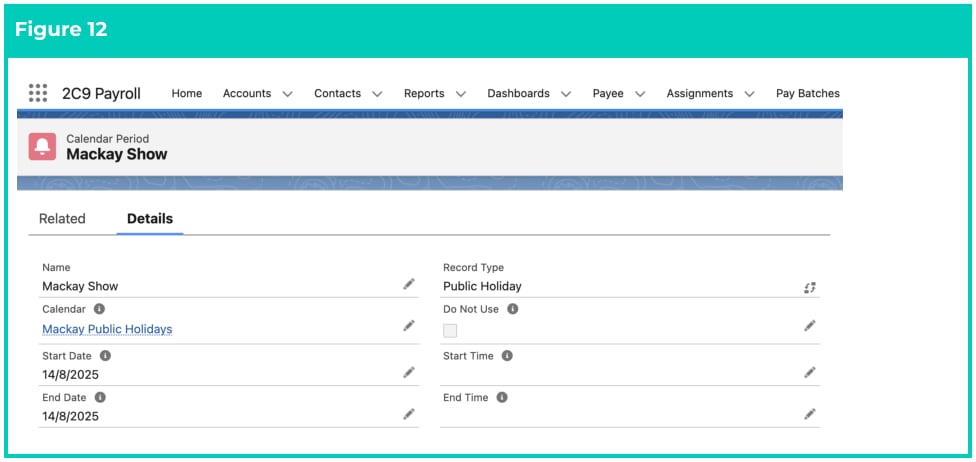
- The existing Public Holiday Calendar Period record has been updated (see Figure 12).
- To modify an existing Public Holiday Calendar record, open the required record and select the
- When complete, click on the Save button.
Public Holiday Calendar records CANNOT be deleted if they have related records or are
used in other records. Deleting records is not recommended unless absolutely
essential.