

Purpose
The purpose of this quick reference guide is to step through the process of creating a Timesheet Calendar. The intended audience for this document are system administrators / standard users.Steps
Create a New Timesheet Calendar
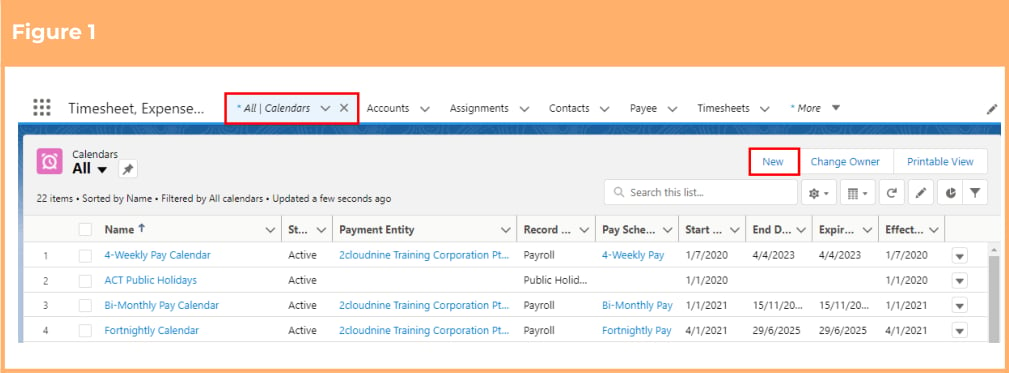
The Timesheet Calendar holds Timesheet Settings information, and is used to determine the Timesheet and Timesheet Entries to be created for Payees. Create a Timesheet Calendar by following the below steps:- Go to the Calendars object.
- Click New (see Figure 1).
- Select Timesheet from the available Record Types (See Figure 2).
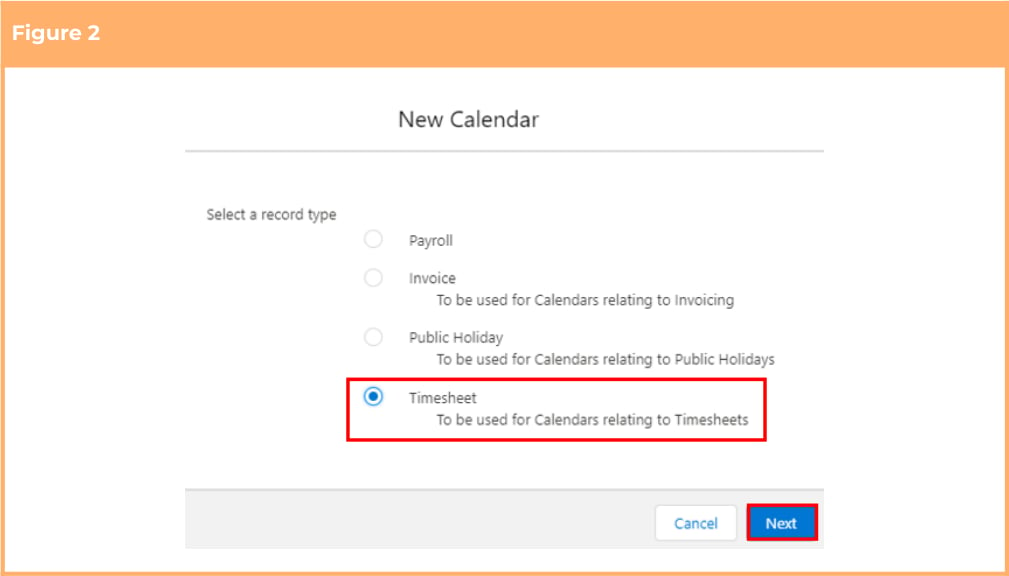
- Click Next.
- Populate the following required fields to provide the base details of the Timesheet Calendar (see
Figure 3):
- Name
- Status
- Timesheet Frequency
- If the Timesheet Frequency is set to Weekly, select from the picklist options for the Weekly Start Day to define the day that will start the Calendar week.
- If the Timesheet Frequency is set to Fortnightly, select the Calendar date from the Fortnightly Start Date field to define this.
- Timesheet Entry Format
- Break Entry Format
- Populate the following optional fields as needed:
- To define whether Employee Breaks will be paid, select from the picklist options in the Enable Paid Breaks field.
- To determine whether Timesheets should be split across month ending, select the checkbox for the Split Timesheets Over Months field.
- To define the calendar days that will be automatically created in the Timesheet Calendar, select from the checkboxes available for the following fields:
- Monday
- Tuesday
- Wednesday
- Thursday
- Friday
- Saturday
- Sunday
- To set Public Holidays to be automatically created in the Timesheet Calendar, select the checkbox for the Include Public Holidays? field.
- To determine how many future days Timesheets will be displayed in the Community Experience for users, populate the No. Days Future Timesheets Visible field.
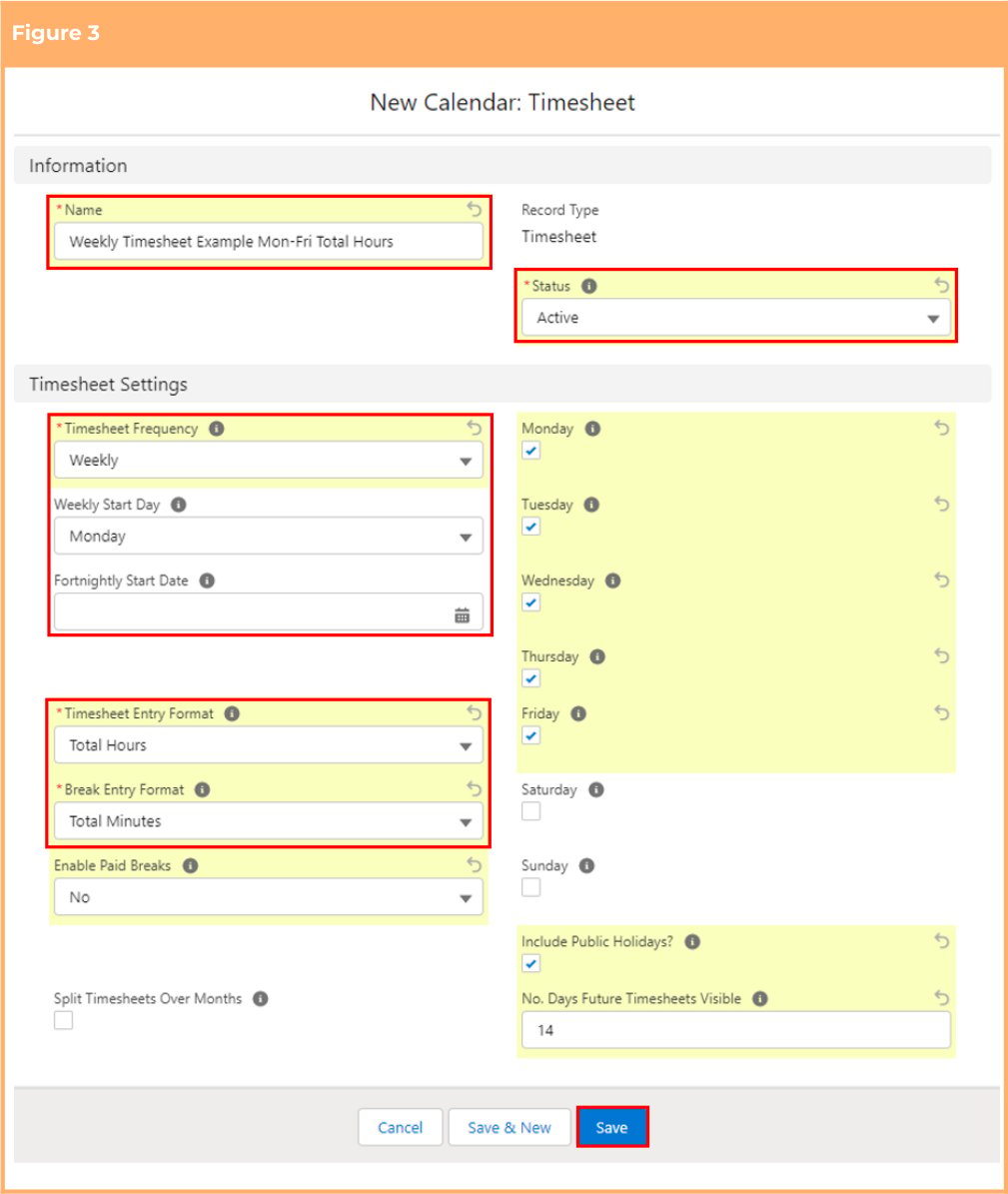
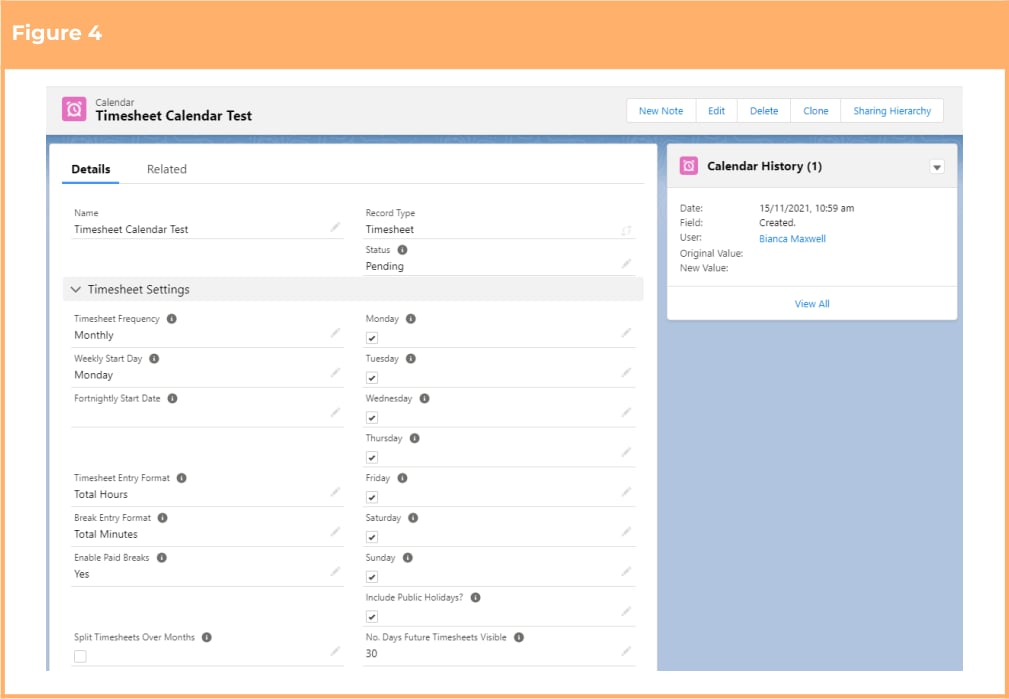
- Click on the Save button. A new Timesheet Calendar record is now created (see Figure 4).
Timesheet Calendars cannot be updated or deleted once they have been related to an
Assignment record. If changes are needed once the Calendar is related to an
Assignment, it is best to create a new Timesheet Calendar record. Deleting records is
not recommended unless absolutely essential.
- To modify an existing Timesheet Calendar record, open the required record and select the Edit button available on the top right side of the page. You can also double click within fields that need editing or just click on the pencil icon that appears within fields when hovering with your cursor.
- When complete, click on the Save button.
Field Descriptions
Break Entry Format indicates if the breaks on Timesheets will be entered as Start/End Times or Total Minutes. Enable Paid Breaks when set to ‘Yes’ the Timesheets generated using this Timesheet Calendar will allow the Paid Breaks? field to be displayed in the Timesheet Entries. Fortnightly Start Date is required if the Timesheet Frequency equals “Fortnightly”. This field indicates the start date of the first full fortnightly Timesheet under the Timesheet Calendar. This helps to determine if the first Timesheet generated is for 1 week or 2 weeks. Include Public Holidays indicates if the Timesheet will include Timesheet Entries for Public Holidays on creation. When False, any Timesheet Entries for Public Holidays must be added manually to the Timesheet if needed. Monday - Sunday these checkboxes indicate whether the Timesheet will include Timesheet Entries for these days on creation. When not checked (False), the Timesheet Entries for these days must be added to the Timesheet manually as required.- Monday if checked, Mondays will be automatically created on Timesheet Calendars for Timesheet Entries.
- Tuesday if checked, Tuesdays will be automatically created on Timesheet Calendars for Timesheet Entries.
- Wednesday if checked, Wednesdays will be automatically created on Timesheet Calendars for Timesheet Entries.
- Thursday if checked, Thursdays will be automatically created on Timesheet Calendars for Timesheet Entries.
- Friday if checked, Fridays will be automatically created on Timesheet Calendars for Timesheet Entries.
- Saturday if checked, Saturdays will be automatically created on Timesheet Calendars for Timesheet Entries.
- Sunday if checked, Sundays will be automatically created on Timesheet Calendars for Timesheet Entries.