

Purpose
The purpose of this quick reference guide is to step through the process of creating a Payee Allowance of Record Type Payroll. The intended audience for this document is System Administrators / Standard Users.Steps
Create a new Payroll Allowance record
The Payroll Payee Allowance record is used to define Allowances that are paid to an Employee within Pay Batch processing. The record holds general Assignment information, Pay Codes & Rates. Create a Payroll Payee Allowance by following the steps below:- Navigate to the Payee record.
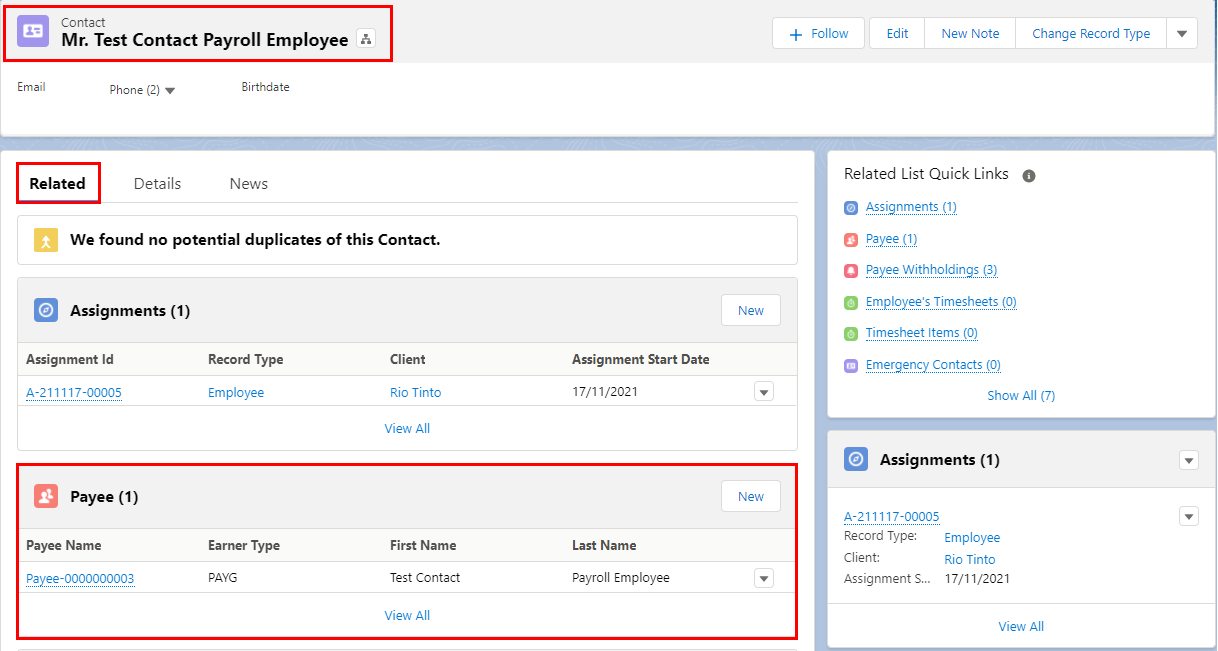
- To identify a Payee record from an Employee record, enter the Employee name into the Global Search (see Figure 1).
- Select the Employee record from the suggestions provided.
- Open the Related tab (see Figure 2).
- Identify the Payee related list.
- Select the Payee record.

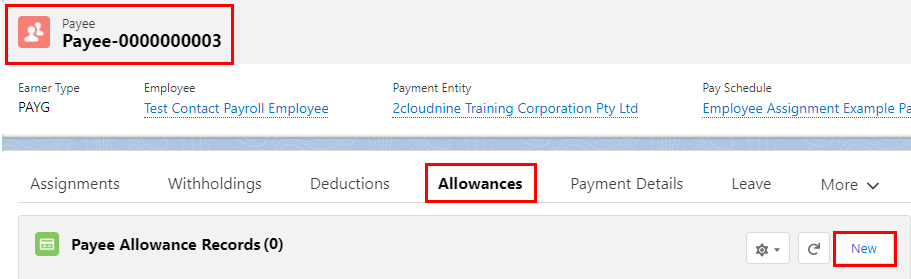
- Click Allowances from the tab options (see Figure 3).
- Click on the New button.
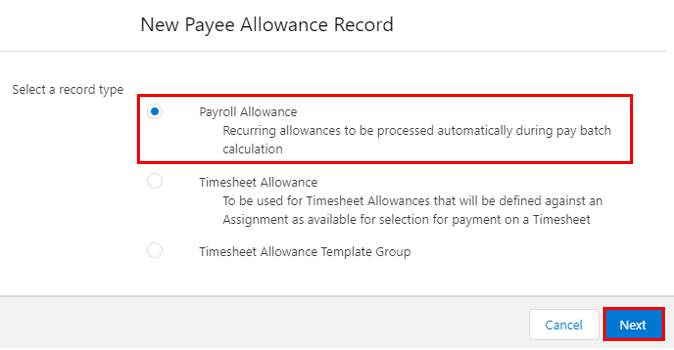
- Select Payroll Allowance from the available Record Types and click on the Next button (see Figure 4).
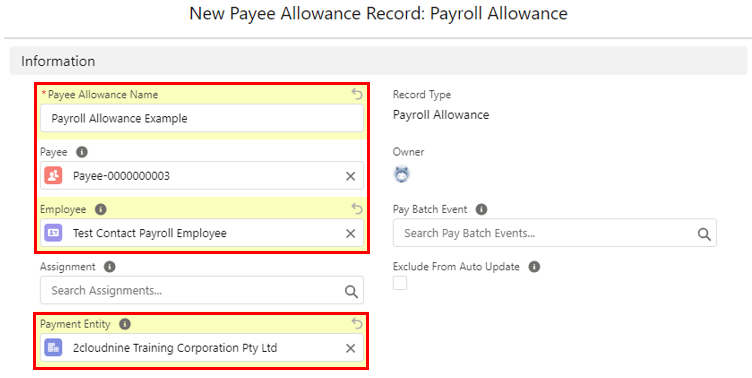
- Populate the following required fields, regardless of whether you are using Payee Deduction
Templates or not (see Figure 5):
- Payee Allowance Name
- Payee
- Employee
- Payment Entity
- Populate the following optional fields as required:
- To directly relate the Payee Allowance to a specific role, populate the Assignment field. If the Allowance applies to all Assignments relating to the Payee, the Assignment field should be left blank.
- To prevent the Status of the Payee Allowance from being automatically updated by the Automatic Status Update Scheduled Job, check the Exclude From Auto Update checkbox.
The Pay Batch Event field will be automatically populated upon saving the record, and
should not be manually entered.
The Allowance Statistics fields provide data on the usage of the Allowance record
based on processed Payroll data. Allowance Statistics should never be manually
entered or overridden.
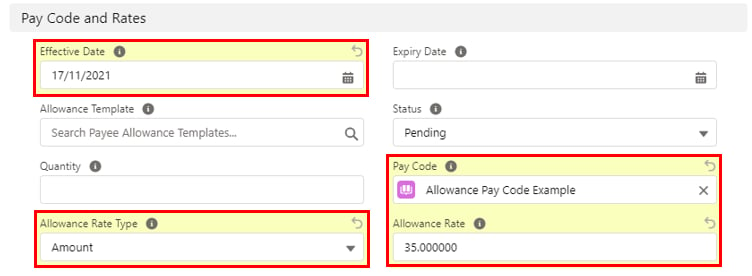
- Populate the following required fields, regardless of whether you are using Payee Deduction Templates or not (see Figure 6):
- Effective Date
- Status
- If using the Payee Allowance Template, the Allowance Template field becomes a required field (see Figure 6).
- If the Payee Allowance Template is NOT being used, the following additional fields become required (see Figure 6):
- Allowance Rate Type
- Pay Code
- Allowance Rate
- To define any required rules and limits that will be used in assessing and determining Allowances payable, populate the following optional fields as required. If left blank, the rule / limit will not apply (see Figure 6):
- Quantity
- Expiry Date
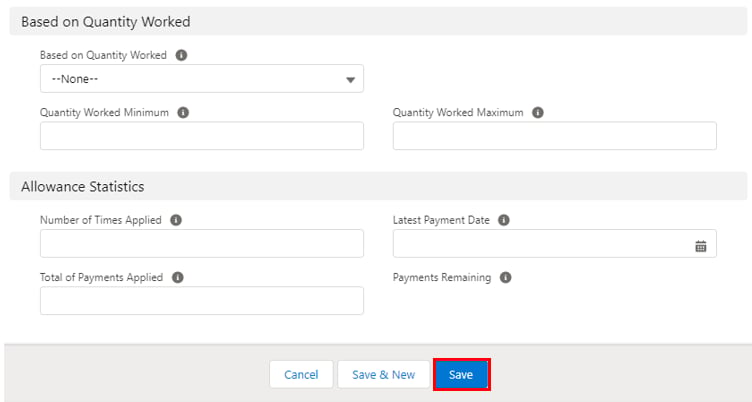
- To define any required rules and limits that will be used in assessing and determining Allowances payable, populate the following optional fields as required. If left blank, the rule/limit will not apply (see Figure 7):
- Based on Quantity Worked
- Quantity Worked Minimum
- Quantity Worked Maximum
- Click Save.
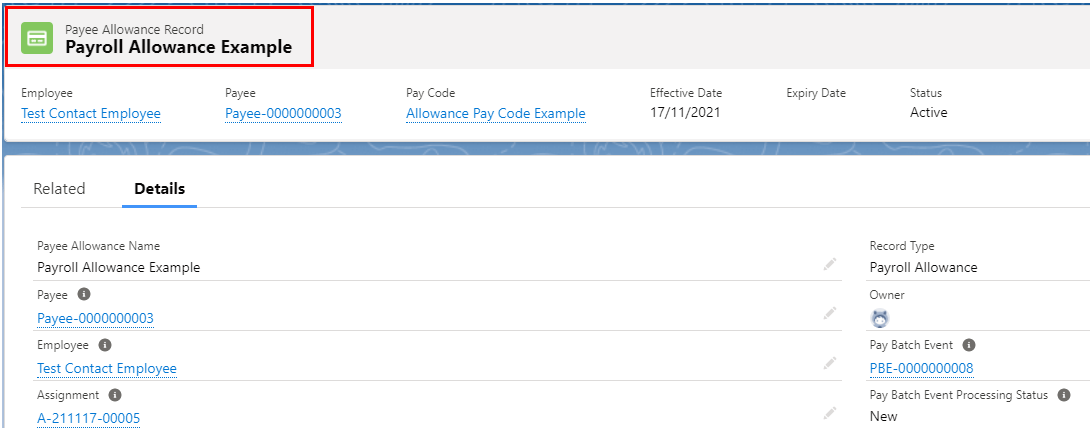
- To modify an existing Payee Allowance record, open the required record and select the Edit button available on the top right side of the page. You can also double-click within fields that need editing, or just click on the pencil icon that appears within fields when hovering with your cursor.
- When complete, click on the Save button.
Field Descriptions
Further Information
- First Published: 27th April 2022
- Last Published: 1st July 2026