Purpose

The purpose of this quick reference guide is to step through the process of creating an AU GST Payee Withholding. The intended audience for this document are system administrators / standard users.

Steps

Create a New AU GST Payee Withholding record

The AU GST Payee Withholding record holds the General Information and Business Details for a Payee. Create an AU GST Payee Withholding by following the below steps:
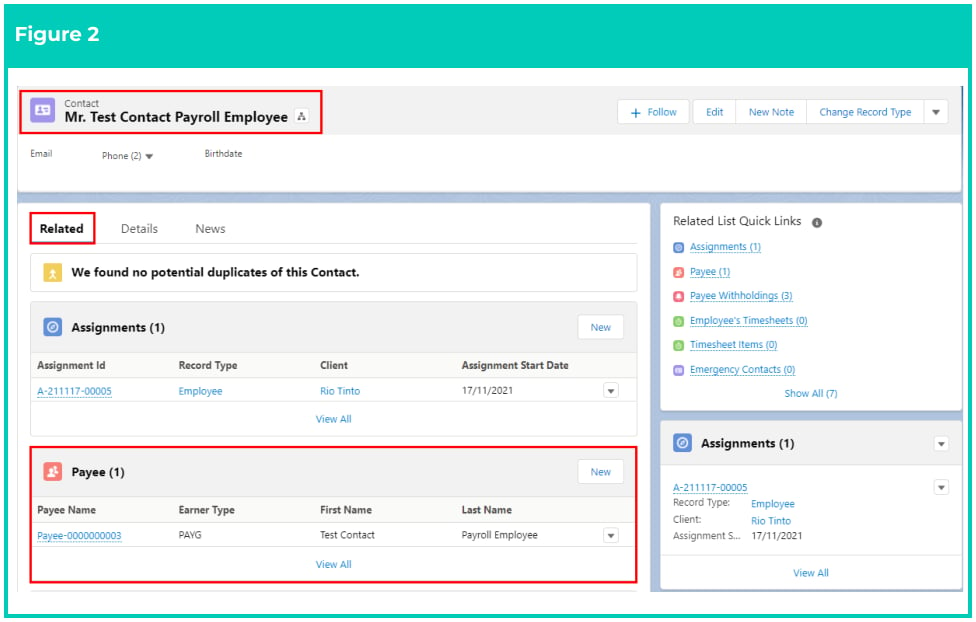
  1. Navigate to the Payee record.
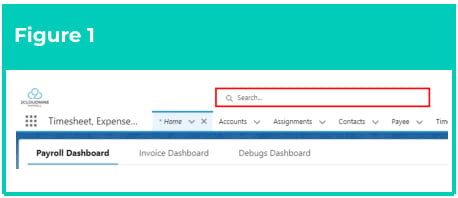
    1. To identify a Payee record from an Employee record, enter the Employee name into the Global Search (see Figure 1).
    2. Select the Employee record from the suggestions provided.
    3. Open the Related tab.
    4. Identify the Payee related list.
    5. Select the Payee record (see Figure 2).
Screenshot from QRG Create Payee Withholdings - AU GST
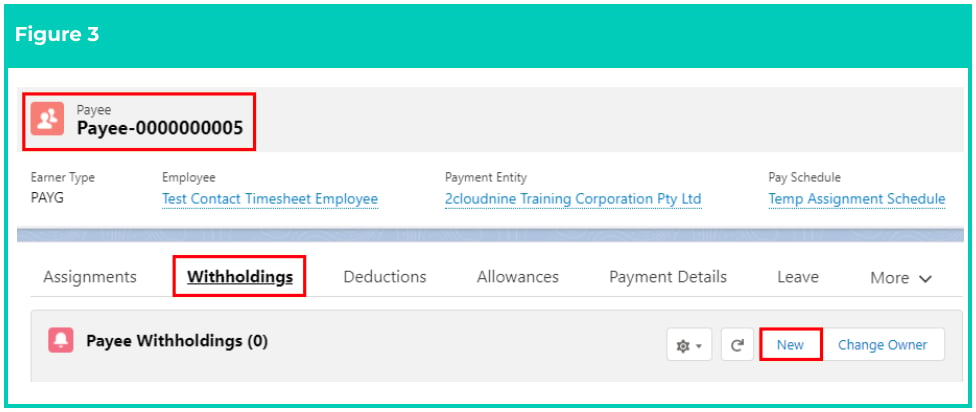
  1. Click Withholdings from the tab options.
  2. Click New (see Figure 3)
Screenshot from QRG Create Payee Withholdings - AU GST
  1. Select AU GST from the available record types (see Figure 4).
Screenshot from QRG Create Payee Withholdings - AU GST
  1. Click Next .
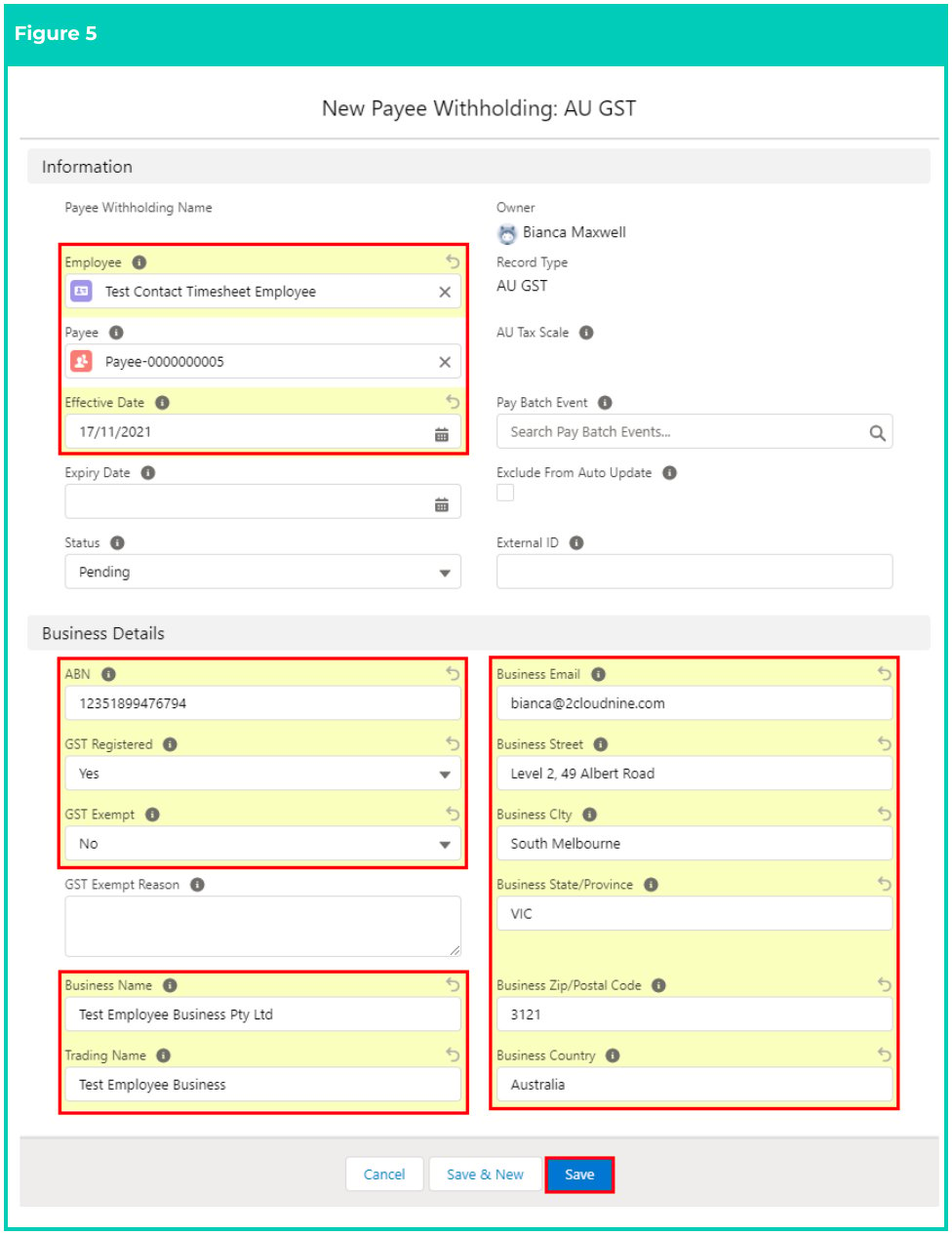
  2. Populate the following required fields to provide the base details of the Payee Withholding (see Figure 5):
    1. Employee
    2. Effective Date
    3. Payee
  3. Populate the following fields to provide details for the contract Payee’s registered business: (see Figure 5):
    1. ABN
    2. Business Name
    3. Trading Name
    4. Business Email
    5. Business Street
    6. Business Email
    7. Business Street
    8. Business City
    9. Business State/Province
    10. Business ZIP/Postal Code
    11. Business Country
    12. GST Registered
    13. GST Exempt
      1. GST Exempt Reason
  4. Populate the following optional fields as needed:
    1. To set a fixed-term for the Payee Withholding record, populate the Expiry Date field. If left blank, no expiry date will apply.
    2. To prevent the Status of the Payee Withholding from being automatically updated by the automatic status update scheduled job, check the Exclude From Auto Update checkbox
  5. Click Save .
Once the record is saved, the ABN Lookup field will be updated, which can be selected to open the Australian Business Register ABN lookup site in a new tab, detailing the actual details of the ABN entered as per that website.
Screenshot from QRG Create Payee Withholdings - AU GST
The Pay Batch Event field will be automatically populated upon saving the record, and should not be manually entered.
The Status of the Payee Withholding record will be automatically updated upon saving the record, based on the Start Date and End Date (see Figure 4)
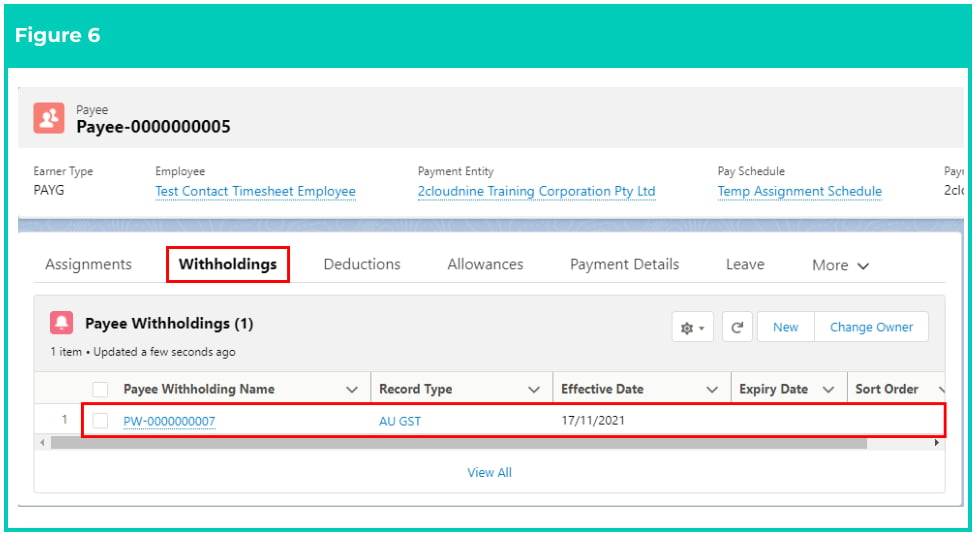
A new AU GST Payee Withholding record is now created (see Figure 6).
Screenshot from QRG Create Payee Withholdings - AU GST
Payees set up with an AU GST Payee Withholding do not need to be configured with either the AU PAYG or the AU SUPER Payee Withholdings. They may still require an AU Payroll Tax Payee Withholding, depending on your organisation.
Payee Withholding records CANNOT be deleted if they have related records or are used in other records. Deleting records is not recommended unless absolutely essential.
  1. To modify an existing Payee Withholding record, open the required record and select the Edit button available on the top right side of the page. You can also double click within fields that need editing or just click on the pencil icon that appears within fields when hovering with your cursor.
  2. When complete, click on the Save button.

Field Descriptions

ABN Australian Business Number of the contractor company. ABN Lookup is used to confirm the entered ABN in the Australian Business Register ABN lookup site matches the correct company name. Business City is the business city. Business Country is the business country. Business Email is the business email address. Business Name is the registered Business Name of the contractor company. Business Street is the business street address. Business State/Province is the business state/province. Business Zip/Postal Code is the business zip/post code. Effective Date is the date the Withholding will become effective. Withholdings will not be calculated before this date. Employee is the Employee record this Payee Withholding record relates to. This must match the Employee of the Payee. Exclude From Auto Update when this box is checked the record will be skipped by the Automatic Status Update scheduled job. Expiry Date is the date the Withholding expires. Payments will not be made after this date. If blank, no expiry date applies. External ID defines the ID of the corresponding record in an external system that has been used to create/update the record. GST Exempt indicates that the contractor is GST exempt. GST Exempt Reason is the GST exempt reason. GST Registered indicates that the contractor is GST registered. Payee is the Payee record this Payee Withholding Record relates to. Trading Name is the Trading Name of the contractor company.

Further Information