

Purpose
The purpose of this quick reference guide is to step through the process of creating a Pay Advice Template. The intended audience for this document is System Administrators/Standard Users.Steps
Create a Pay Advice Template
A Pay Advice Template record forms a combination of the email templates to be used based on the delivery type, and the Visualforce page to be used for rendering the Pay Advice PDF. You can control this by specifying the template setup per Record Type on the Pay Advice object. If you have used the data creation package to create Default Pay Advice Templates, these will be applied based on the record type of the Pay Advice, PAYG or RCTI, and not cater for variances between Payment Entities and Pay Schedules. You can either customise the default templates or create new ones using this QRG. To create a Pay Advice Template, follow the steps below:- Click on the App Launcher icon (see Figure 1).
- Go to the Pay Advice Templates object by using the Search function (see Figure 2).

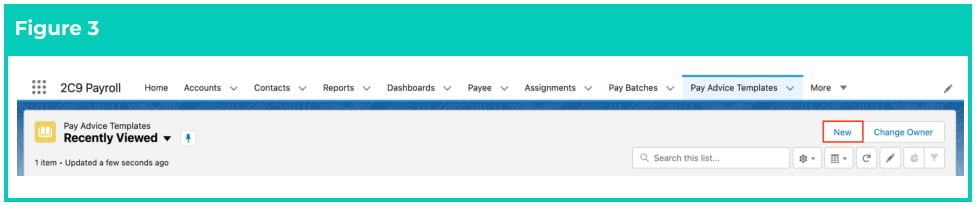
- Click on the New button (see Figure 3).
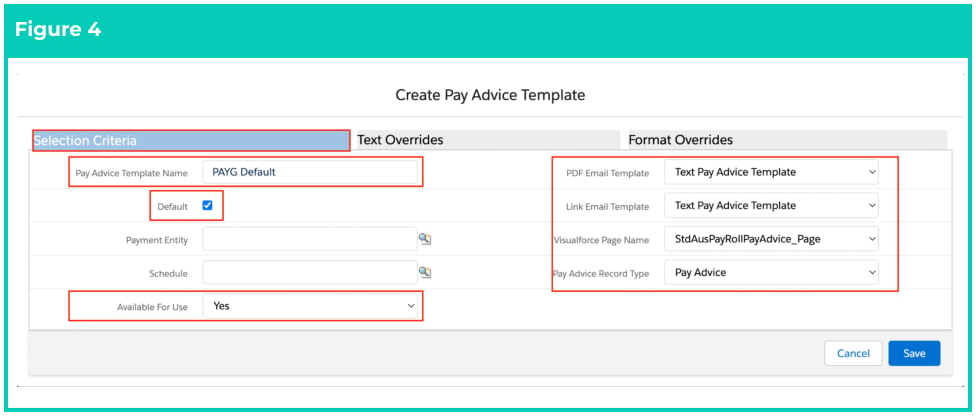
- Populate the following required fields under the Selection Criteria tab to provide the base details
of the Pay Advice Template (see Figure 4):
- Pay Advice Template Name
- Default (checklist)
- Availability For Use
- PDF Email Template
- Link Email Template
- Pay Advice Record Type
- Populate one of the following values in the required field VisualForce Page Name:
- StdAusPayRollPayAdvice_Page
- SummaryPayRollPayAdvice_Page
- Populate the following optional fields as needed (see Figure 4):
- To allocate this Pay Advice Template to a specific Payment Entity, populate the Payment Entity field.
- To allocate this Pay Advice Template to a specific Schedule, populate the Schedule field.
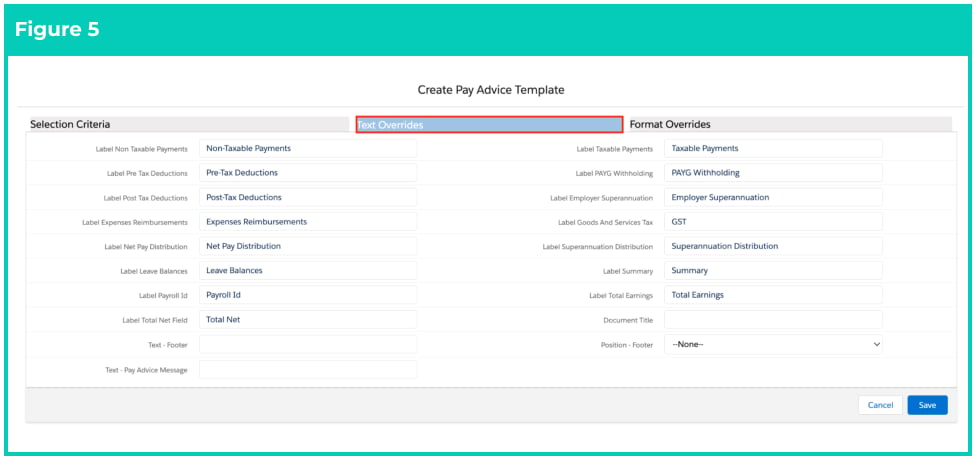
- Populate the following optional fields under the Text Overrides tab as needed (see Figure 5):
- To add customisable text to be displayed in the Pay Advice PDF footer, populate the Text - Footer field.
- To add a customisable message which will appear on all Pay Advice PDFs using this pay advice template record, populate the Text - Pay Advice Message field.
- To add customisable text that will be displayed as centred text at the top of the Pay Advice PDF, populate the Document Title field.
- To indicate where your custom footer text will be displayed on the pay advice PDF, populate a value in the Position - Footer picklist.
- The following fields under the Text Overrides tab do not need to be populated for this record as
they are auto-populated, but can be overridden if required (see Figure 5):
- Label Employer Superannuation
- Label Expenses Reimbursements
- Label Goods And Services Tax
- Label Leave Balances
- Label Net Pay Distribution
- Label Non Taxable Payments
- Label PAYG Withholding
- Label Payroll Id
- Label Post Tax Deductions
- Label Pre Tax Deductions
- Label Summary
- Label Superannuation Distribution
- Label Taxable Payments
- Label Total Earnings
- Label Total Net Field
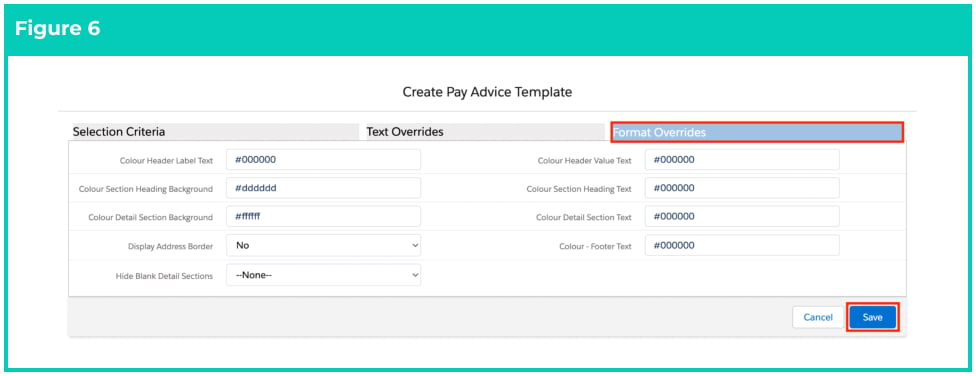
- The following fields under the Format Overrides tab can be optionally updated as it’s preferred to
amend the defaults that would be used (see Figure 6):
- Colour - Footer Text
- Colour Detail Section Background
- Colour Detail Section Text
- Colour Header Label Text
- Colour Header Value Text
- Colour Section Heading Background
- Colour Section Heading Text
- Display Address Border
- Hide Blank Detail Sections
- Click on the Save button.
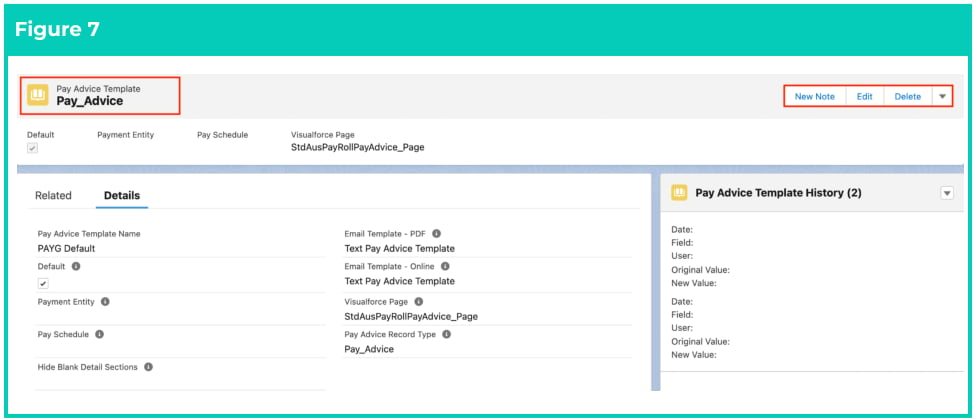
- A new Pay Advice Template record has been created (see Figure 7).
Pay Advice Template records CAN NOT be deleted if they have related records or are
used in other records. Deleting records is not recommended unless absolutely
essential.
Payment Entity Logo
If you require a Payment Entity to have a default logo to display on Pay Advices (if no logo is associated specifically on the Pay Advice Template), you can upload it to the Files tab under the Related List of the Payment Entity record. If the logo is uploaded directly to the Pay Advice Template record, it will override the logo that has been uploaded to the Payment Entity record. The logo can be uploaded to a Pay Advice Template record via the Pay Advice Template object, using the same steps below. The logo file must have the following specifications:- Must be uploaded to the Files tab.
- The logo needs to be:
- Smaller than 20 kb.
- File format must be gif, png, or jpg
- File name must contain the word ‘logo’ (i.e. it could be either logo.jpg or Companylogo.gif or PayAdvicelogo.png) or else it will not be displayed as the logo.
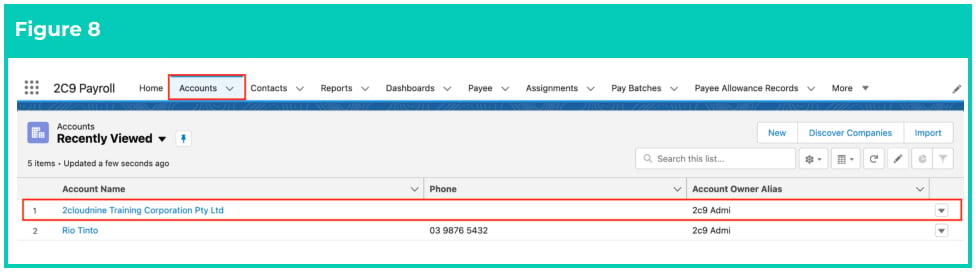
- Go to the Accounts object and open the Payment Entity record (see Figure 8).
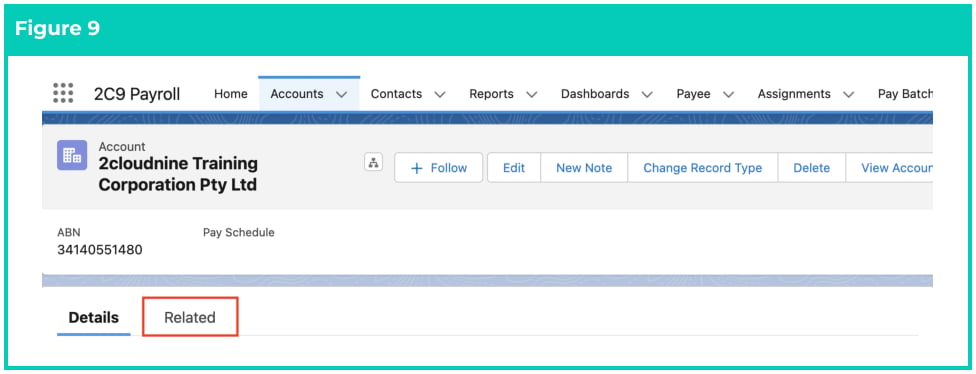
- Click on the Related tab (see Figure 9).
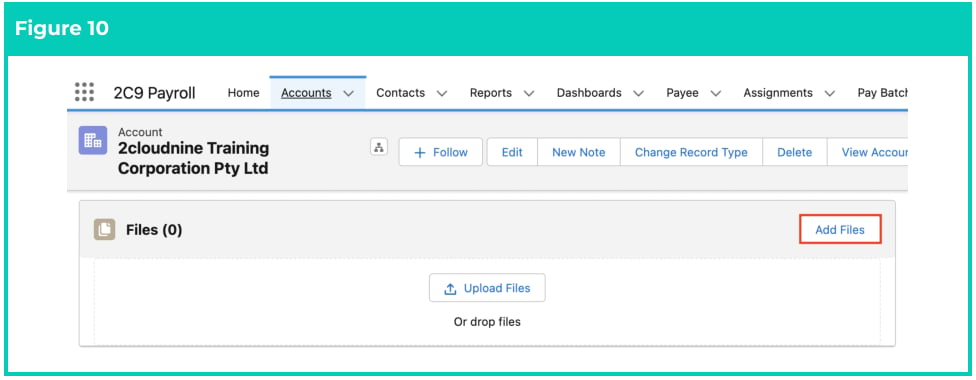
- Click on the Add Files button (see Figure 10).
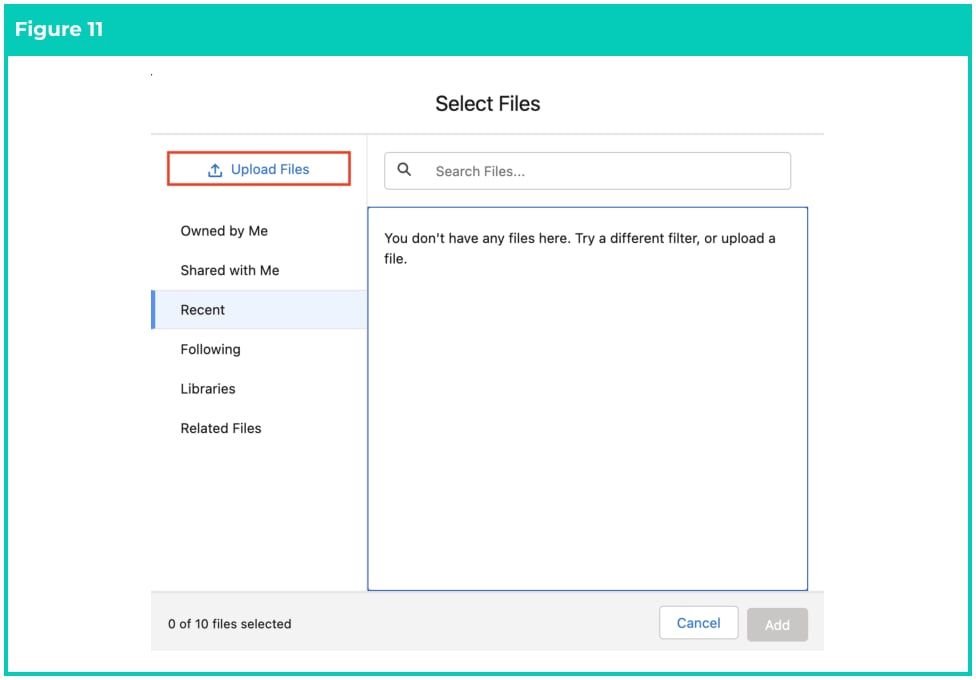
- Click on the Upload Files button (see Figure 11).
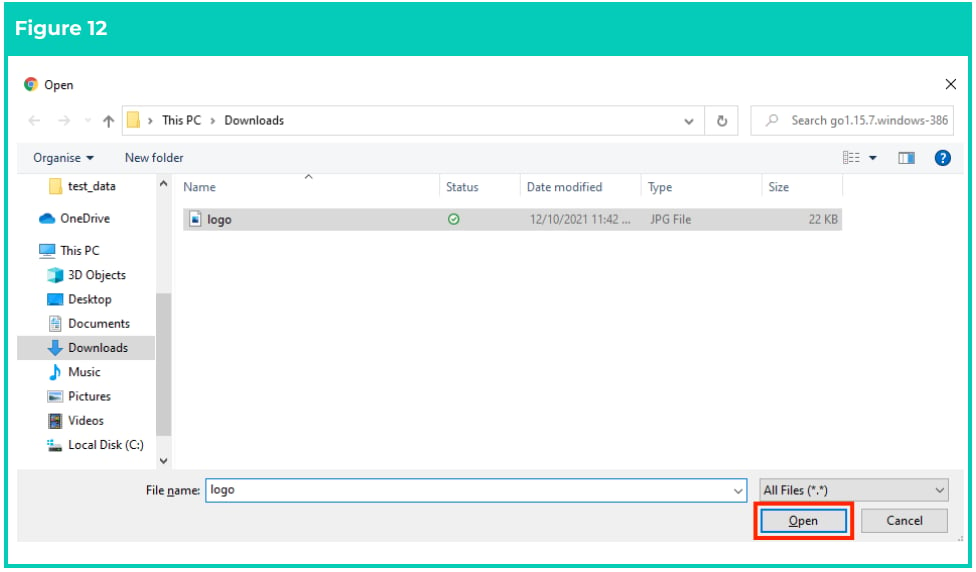
- Select the required logo file and click on the Open button (see Figure 12).
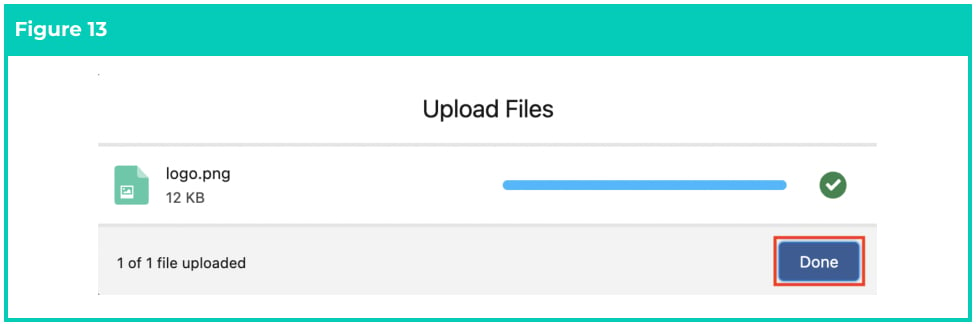
- Click on the Done button (See Figure 13).
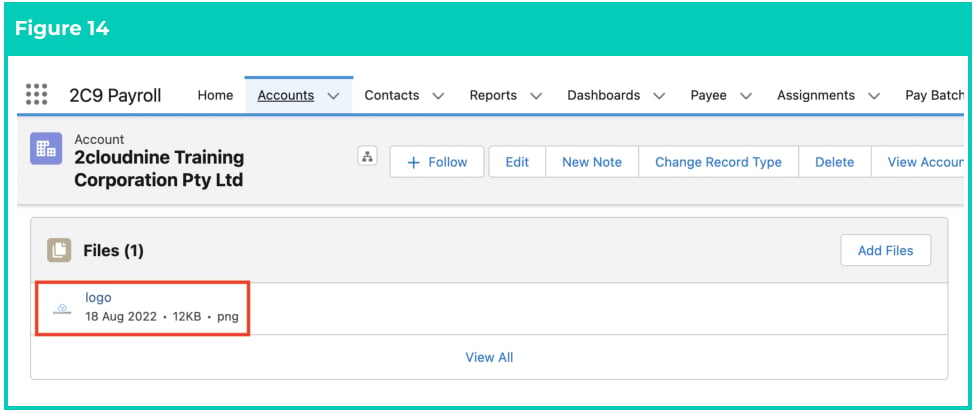
- The logo has been uploaded under the Files tab (see Figure 14).
Field Descriptions
Availability For Use Indicates whether this Pay Advice Template will be considered during the Pay Advice creation process. Existing Pay Advice records using a template which is no longer available for use can still be rendered as they previously were, however, a Pay Advice Template with Available for Use = No, will not be selected when new Pay Advice records are created. Colour - Footer Text Hex colour code to be used for the footer text - default value is #000000. Colour Detail Section Background Hex colour code to be used for the background shading of each detail section in the Pay Advice body - default value is #ffffff. Colour Detail Section Text Hex colour code to be used for the text colour of each detail section in the Pay Advice body - default value is #000000. Colour Header Label Text Hex colour code to be used for the text colour of field labels in the document header - default value is #000000. Colour Header Value Text Hex colour code to be used for the text colour of field values in the document header - default value is #000000. Colour Section Heading Background Hex colour code to be used for the background shading of each section heading - default value is #dddddd. Colour Section Heading Text Hex colour code to be used for the text colour of each section heading in the Pay Advice - default value is #000000. Default (checklist) This identifies the Pay Advice Template record to be used where a Payment Entity, Schedule and/or Client specific template has not been defined. Display Address Border Select whether to display a border around the Payee Mailing Address. Document Title Customisable text that will be displayed as centred text at the top of the Pay Advice PDF. Hide Blank Detail Sections Select Yes to hide Pay Advice sections where there are no current period, prior period, Year to Date or Leave Balance values to display. Label Employer Superannuation Customisable label for the Employer Superannuation header of the Pay Advice PDF. Label Expenses Reimbursements Customisable label for the Expenses Reimbursements header of the Pay Advice PDF. Label Goods And Services Tax Customisable label for the Goods and Services Tax header of the Pay Advice PDF. Label Leave Balances Customisable label for the Leave Balances header of the Pay Advice PDF. Label Net Pay Distribution Customisable label for the Net Pay Distribution header of the Pay Advice PDF. Label Non Taxable Payments Customisable label for the Non Taxable Payments header of the Pay Advice PDF. Label PAYG Withholding Customisable label for the PAYG Withholding header of the Pay Advice PDF. Label Payroll Id Customisable label for the Payroll Id header of the Pay Advice PDF. Label Post Tax Deductions Customisable label for the Post-Tax Deductions header of the Pay Advice PDF. Label Pre Tax Deductions Customisable label for the Pre-Tax Deductions header of the Pay Advice PDF. Label Summary Customisable label for the Summary header of the Pay Advice PDF. Label Superannuation Distribution Customisable label for the Superannuation Distribution header of the Pay Advice PDF. Label Taxable Payments Customisable label for the Taxable Payments header on the Pay Advice PDF. Label Total Earnings Customisable label for the Total Earnings header on the Pay Advice PDF. Label Total Net Field Customisable label for the Total Net Field header on the Pay Advice PDF. Pay Advice Record Type The Pay Advice Record Type this configuration will be applied to. Pay Advice Template Name is the name given to this Pay Advice Template record that is being created. Payment Entity Populate this field to define a Pay Advice template that is specific to a Payment Entity. PDF Email Template Select the email template you wish to use when adding the Pay Advice document as an attachment. Position - Footer Indicates where your custom footer text will be displayed on the Pay Advice PDF. Schedule Defines the Pay Schedule that applies to the Pay Advice Template. Text - Footer Customizable text to be displayed in the Pay Advice PDF footer. To insert a line break use the <br /> HTML element. Text - Pay Advice Message Customisable message which will appear on all Pay Advice PDFs using this Pay Advice template record. The message on the PDF populates from the Pay Advice Message field on the following records:- Payment Entity
- Pay Advice Template
- Payee
- Pay Advice Creation
- StdAusPayRollPayAdvice_Page includes all Pay Codes processed throughout the financial year to display their individual YTD at a Pay Code level, and does not include a field for Gross Pay.
- SummaryPayRollPayAdvice_Page only displays Pay Codes in the main section relating to the current related Pay Batch(es), and includes a summary at the bottom for Gross, Pre-Tax Deduction, Taxable Gross, Post Tax Deduction, PAYG, Net & Super for this Pay and Year To Date.