

Purpose
The purpose of this quick reference guide is to step through the process of populating CSV Templates for Standard Timesheet Allowances with the necessary information to enable data to be imported using the Integrated Import Tool. The intended audience for this document are System Administrators / Standard Users.Steps
Populate CSV Templates The CSV Templates provided for the Integrated Import Tool detail the necessary fields and formatting for imported data to be aligned with to ensure successful validation and import. Once data has been formatted in line with the CSV Template, it may be uploaded directly to the Imported Records object in readiness for validation and import. The Standard Allowance Timesheet Item CSV Template includes the ability to reference the Timesheet External ID, whereas the Enhanced Timesheet Entry CSV Template has been customised to exclude this data from being imported. A sample of the formatting used for this template can be viewed below (see Figure 1):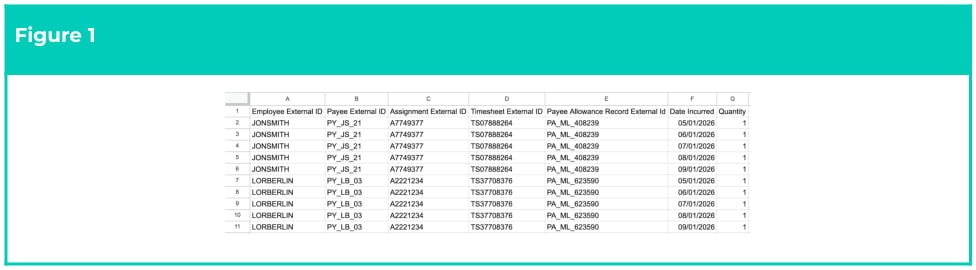
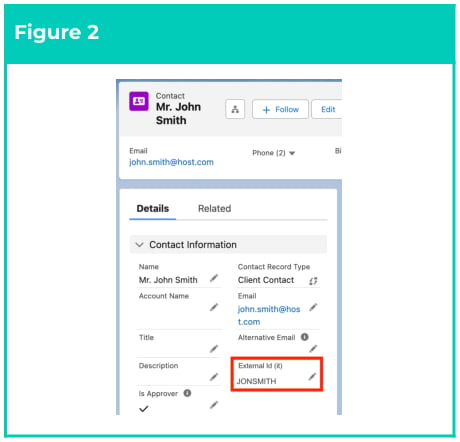
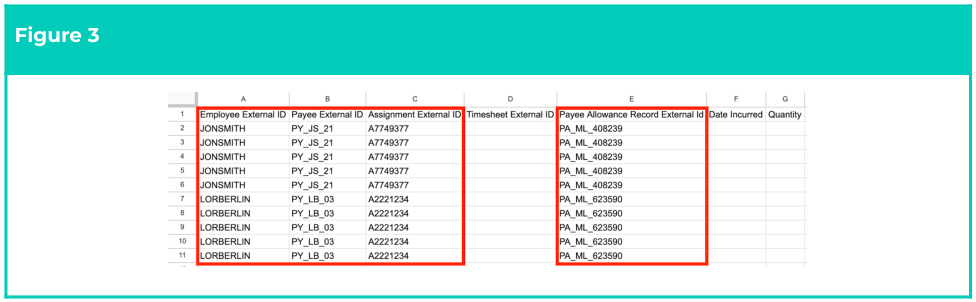
- Identify each 2cloudnine record to be related with Allowance Timesheet Entries by using the value found in the External Id (it) field (Figure 2) to populate the cells displayed on the following page (Figure 3):
- Populate Column A with the External Id (it) of the related Employee Contact.
- Populate Column B with the External Id (it) of the related Payee.
- Populate Column C with the External Id (it) of the related Assignment.
- Populate Column D with the External Id (it) of the related Payee Allowance.
Important Notes
(Required Formats and leading zeros)Allowance Timesheet Item data MUST be imported before the related Timesheet Entry data has been created or imported. If this does not occur, Allowance Timesheet Items will not be interpreted.The External Id field used by the Integrated Import Tool must not be confused with other External ID fields. The correct External ID field can be identified by its API name: External_Id_it__c External Id (it).If this field is not displayed on the Page Layout by default, please contact your Salesforce Administrator for assistance.Please be aware of any auto-formatting that removes leading zeros from the entered data, as import will fail if the data entered does not exactly match the data as it exists in 2cloudnine Payroll.
(Required Formats and leading zeros)Allowance Timesheet Item data MUST be imported before the related Timesheet Entry data has been created or imported. If this does not occur, Allowance Timesheet Items will not be interpreted.The External Id field used by the Integrated Import Tool must not be confused with other External ID fields. The correct External ID field can be identified by its API name: External_Id_it__c External Id (it).If this field is not displayed on the Page Layout by default, please contact your Salesforce Administrator for assistance.Please be aware of any auto-formatting that removes leading zeros from the entered data, as import will fail if the data entered does not exactly match the data as it exists in 2cloudnine Payroll.
- Populate the remaining data as follows (see Figure 4):
- If the Allowance Timesheet Item is related to an existing 2cloudnine Timesheet record, populate Column D with the External Id (it) of the related Timesheet.
- Enter the date of each Allowance Timesheet Item by populating the Date Incurred field.
- Enter the amount of the Allowance Timesheet Items to be processed by populating the Quantity field with an amount (up to six decimal places).

Important Notes
(Date Formats)When entering Dates, the format dd/mm/yyyy must be used.
(Date Formats)When entering Dates, the format dd/mm/yyyy must be used.