

Purpose
The purpose of this quick reference guide is to step through the process of creating Purchase Orders as part of the Utilities Package. The intended audience for this document is System Administrators / Standard Users. Purchase Orders serve as the primary record to capture essential details pertaining to a customer’s Purchase Order. These records must be initially created and linked to an Assignment using a Purchase Order Junction record.Assignment Requires Purchase Order
To enable Purchase Order Management for an Assignment, you must select the checkbox Requires Purchase Order on the Assignment. Once an Assignment has been set to require a Purchase Order and the related Assignment Rates have been created, Purchase Order records can be created.Steps
Create a Purchase Order
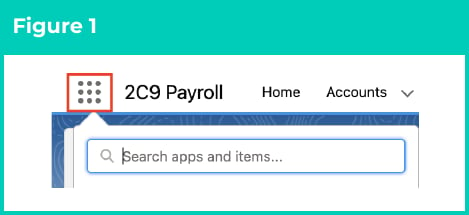
To create a Purchase Order, follow the steps below:- Click on the App Launcher icon (see Figure 1).
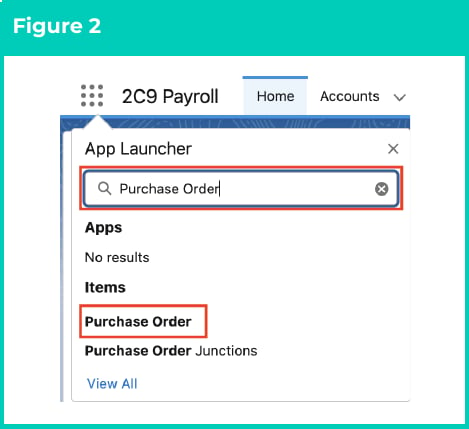
- Go to the Purchase Order object by using the Search function (see Figure 2).
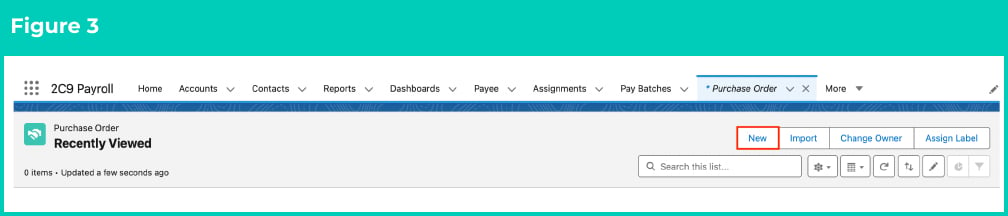
- Click the New button (see Figure 3).
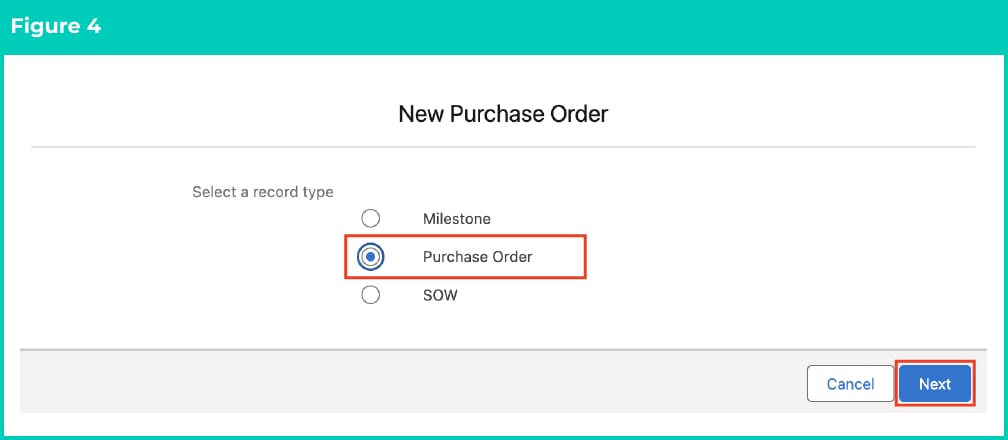
- Select the Purchase Order Record Type (see Figure 4).
Important Notes
(Milestone & SOW Record Types)The ‘Milestone’ Record Type is for custom Purchase Order Management requirements only. It is not currently used within the 2c9 Utilities Purchase Order Management solution.Please refer to the ‘SOW (Purchase Order)’ field in the Field Descriptions below for details relating to the ‘SOW’ Record Type.
(Milestone & SOW Record Types)The ‘Milestone’ Record Type is for custom Purchase Order Management requirements only. It is not currently used within the 2c9 Utilities Purchase Order Management solution.Please refer to the ‘SOW (Purchase Order)’ field in the Field Descriptions below for details relating to the ‘SOW’ Record Type.
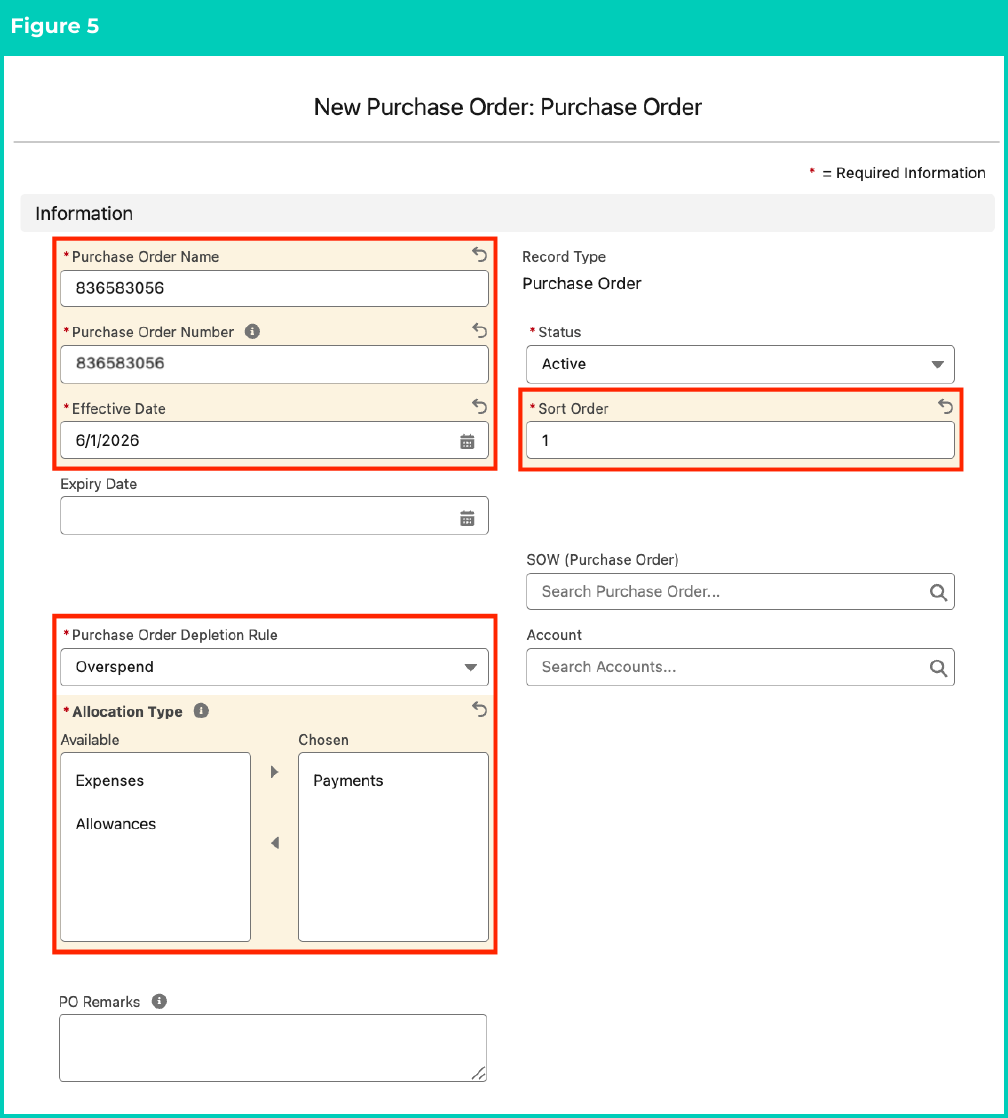
- Populate the following required fields to provide the base details of the Purchase Order record (see Figure 5):
- Purchase Order Name
- Purchase Order Number
- Effective Date
- Status
- Sort Number
- Purchase Order Depletion Rule
- Allocation Type
- Populate the following optional fields as needed (see Figure 5):
- To set a fixed term for the Purchase Order record, populate the Expiry Date field. If left blank, no Expiry Date will apply.
- To provide a method to group Purchase Orders into a parent Statement of Work (SOW) already created, populate the SOW (Purchase Order) field.
- To relate this Purchase Order to a specific Account, populate the Account field.
- To enter any notes related to the Purchase Order, use the PO Remarks field.
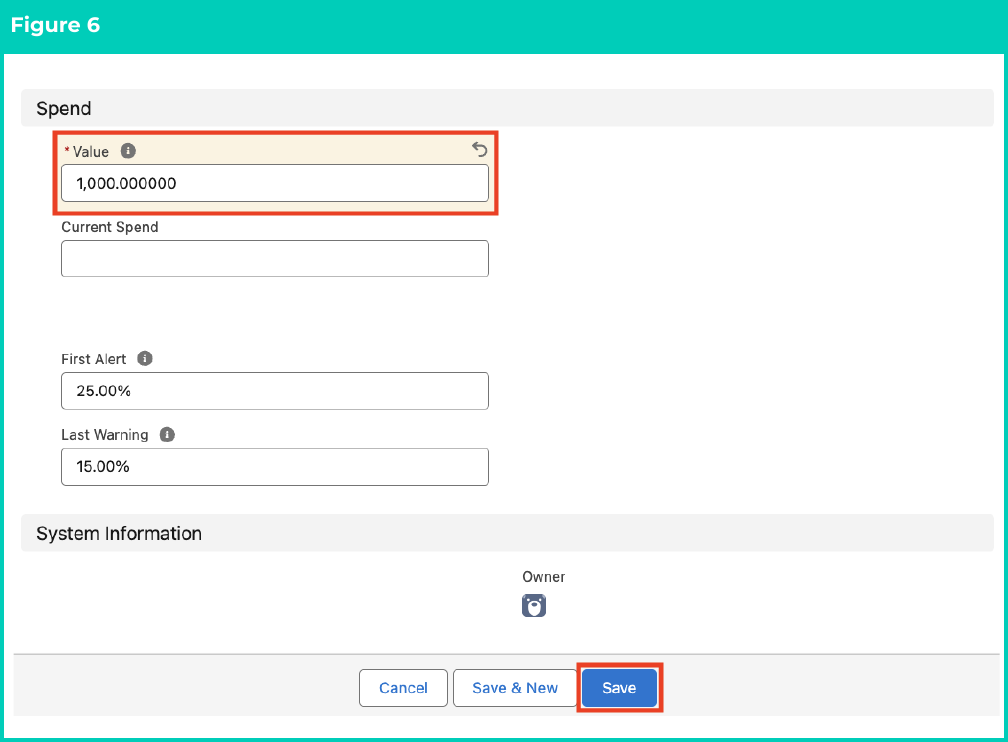
- Populate the following required fields to provide the base details of the Purchase Order record (see Figure 6):
- Value
- Populate the following optional fields as needed (see Figure 6):
- To send the first alert to a User when the Purchase Order reaches a defined threshold, populate the First Alert field.
- To send the last alert to a User when the Purchase Order reaches a defined threshold, populate the Last Warning field.
- Click the Save button.
Important Notes
(Current Spend field)The Current Spend field is automatically calculated during the PO Management process using the ‘Invoice Total ex Tax’ of each related Pay Transaction.
(Current Spend field)The Current Spend field is automatically calculated during the PO Management process using the ‘Invoice Total ex Tax’ of each related Pay Transaction.
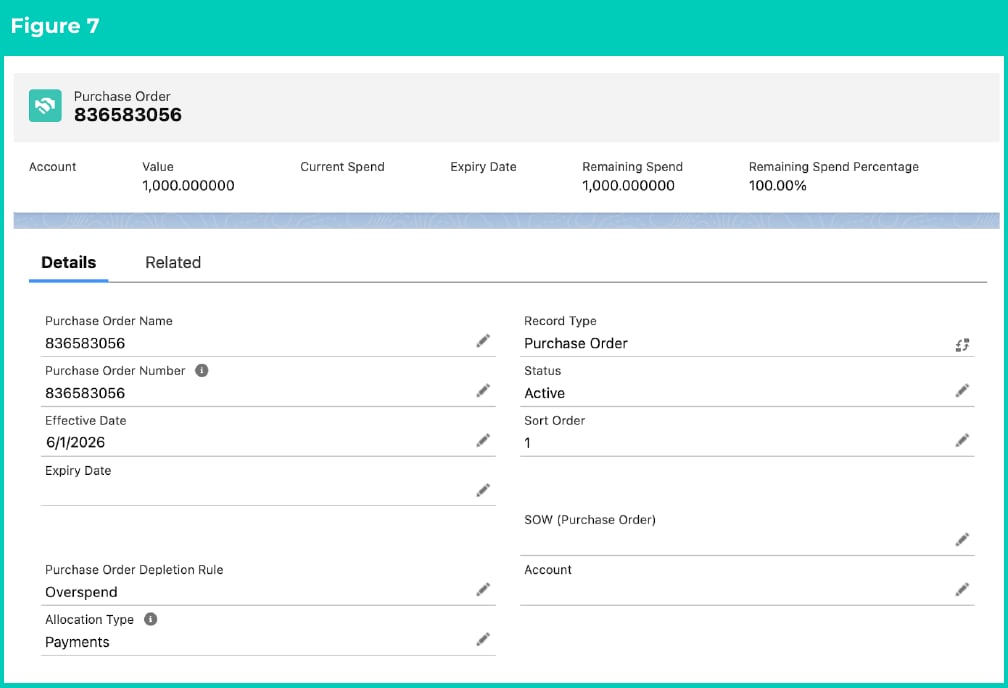
- A new Purchase Order record has been created (see Figure 7).
- Now that the Purchase Order record has been created, please refer to QRG Create Purchase Order Junctions and QRG Allocate Purchase Orders to learn more about the next steps for Purchase Orders.