Prerequisites
Before the creation of a Pay Batch:
- The data for all the records within the 2cloudnine Payroll setup objects must be accurate as Pay Batch calculations are processed based on the data entered within these records.
- There must be active Payroll ‘Calendar Period’ records for the filters to work.
- The Payment Entity must have active Payment Details.
Pay Batch Manager Appearance and Usability
- The Pay Batch Manager is Lightning Enabled and must only be used when the Salesforce Lightning Experience is active.
- All dates and times are displayed within the Pay Batch Manager as per the location of the User logged in.
- Currency is calculated at 6 decimal places but displayed with two decimal places.
- The recommended browser for using Pay Batch Manager is Chrome as per Salesforce standard.
- The default display resolution supported for the Pay Batch Manager is 1920 x 1080 (1080p) scaled at 100%. The minimum display resolution supported is 1024 x 768 as per the Salesforce standard.
- The Pay Batch Manager will automatically resize in width and height so that the components are stretched appropriately depending on the resolution.
- If the fields/tabs within the Pay Batch Manager are unclear or overlap, zoom out (or zoom in) through the web browser as needed.
Definitions
Pay Batch Types Defined
The Pay Batch Type determines the behavior of the Pay Batch during the creation and processing of the Pay Batch.
- Standard
The Payee Aggregates created during the Finalise Process of the Pay Batch will be accumulated based on the current financial year’s Calendar Periods. When this Pay Batch Type is used, the Payment Date cannot be earlier than the current date.
- Adjustment
When this Pay Batch Type is used, the Payment Date can be set at an earlier date than the current date, however, this would normally only be used when the payment by aba file has already been completed. For Adjustment Pay Batches, the Payee Aggregates created during the Finalise Process can be accumulated based on a previous month, quarter, or even the previous financial year’s Calendar Periods based on the Payment Date.
Payee Record Selection Type
The Payee Record Selection Type is used to determine which Payee records will be included in the Pay Batch based on the following:
- Default
The value defined in the Payee Selection field on the Pay Schedule will determine the Payees that are selected into the Pay Batch.
- Transaction Only
This will only include the Payees who meet the Pay Batch filter criteria and have unprocessed Pay Transactions, i.e. Timesheets or Expense Claims.
- All
This will include Payees who have unprocessed Pay Transactions e.g. Timesheets, as well as those with recurring payments such as Remuneration, Payee Leave Rules, etc.
Pay Schedule’s Split Option
The Split Option specified on the Pay Schedule is used during Pay Batch Creation to determine how the required Pay Batch(es) should be created. The only option available for Australian Payroll is:
- Per Calendar
All payments relating to previous Calendar Periods will be split out into separate Payee Pay Batch records based on their Calendar Periods. Any Calculations relating to PAYG and Superannuation will be on a per Payee Pay Batch / Calendar Period basis.
Payee Pay Batch Records Status / Pay Batch Status
Unless indicated otherwise, the same meaning is applied to the Status field on both Payee Pay Batch Records and Pay Batch Records. The Status records and their meanings below in the sequence of how they occur during the Pay Batch process:
- Creating
Indicates that the Pay Batch Creation Process is underway.
- Deleting, Delete Failed
Related to the Pay Batch Deletion Process. Deleting indicates the process is underway, whereas Delete Failed means there was an error while deleting the Pay Batch.
- Uncalculated
For Payee Pay Batch records, it indicates that they are Uncalculated. For Pay Batch, it indicates that the Pay Batch is newly created and the Calculate process has not been started.
- Calculate Failed and Calculated with Errors
Calculate Failed means there was an error while processing the individual Payee Pay Batch. Calculated with Errors indicates that at least one, but not all of the related Payee Pay Batch(s) have a Status of Calculate Failed. Calculate Failed means that all the related Payee Pay Batch records have a Status of Calculate Failed.
- Part Calculated
Part Calculated indicates that the Status of the related Payee Pay Batch records is a mix of Uncalculated and Calculated.
- Calculating and Calculated
Related to the Calculation Process. On both Payee Pay Batch and Pay Batch, Calculating is used when the process is underway whereas Calculated means the process has been successfully completed.
- Calculate Failed and Calculated with Errors
Calculate Failed means there was an error while processing the individual Payee Pay Batch. Calculated with Errors indicates that at least one, but not all of the related Payee Pay Batch(s) have a Status of Calculate Failed. Calculate Failed means that all the related Payee Pay Batch records have a Status of Calculate Failed.
- Finalising, Finalised, Finalise Failed
Related to the Finalise Process. Finalising is used when the process is underway, whereas Finalised means the process has been successfully completed. Finalise Failed means there was an error while processing.
- Unfinalising, Unfinalise Failed
Related to the Unfinalise Process. Unfinalising indicates that the process is underway, whereas Unfinalise Failed means there was an error while processing.
- Pay Advice Creating, Pay Advice Created, Pay Advice Failed
Related to the Pay Advice Creation Process. Pay Advice Creating indicates the process is underway, whereas Pay Advice Created means the process has been successfully completed. Pay Advice Failed means there was an error while creating Pay Advices.
- Pay Advice Deleting, Pay Advice Delete Failed
Related to the Pay Advice Deletion Process. Pay Advice Deleting means the process is underway, whereas Pay Advice Deletion Failed means there was an error while deleting Pay Advices.
- Payment File Creating, Payment File Created, Payment File Failed
Related to the Payment File Creation Process. Payment File Creating indicates the process is underway, whereas Payment File Created means the process has been successfully completed.
Payment File Creation Failed means there was an error while creating the Payment File records.
- Payment File Released
Indicates that all Payment Files associated with the Pay Batch have been released.
- Payment File Deleting, Payment File Delete Failed
Related to the Payment File Deletion Process. Payment File Deleting indicates the process is underway, whereas Payment File Deletion Failed means there was an error while deleting the Payment File.
Quick Introduction to Pay Batch UI
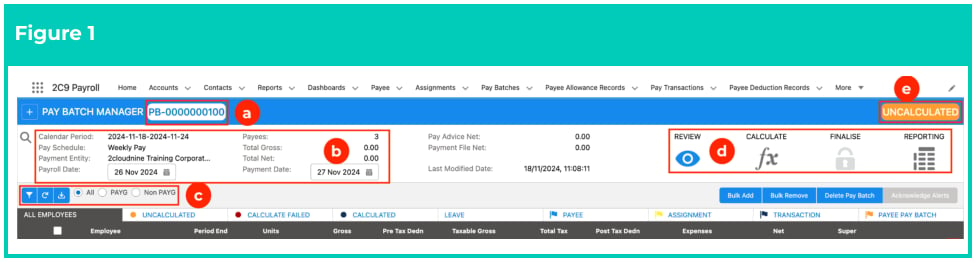
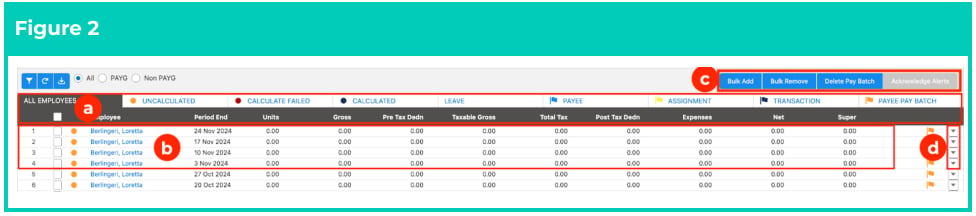
The following screenshots provide a quick introduction to the Pay Batch UI. Further details are available within the individual QRG documents. Some of the main features are highlighted below:
- Pay Batch UI (see Figure 1):
- Pay Batch Identifier - is a unique identifier allocated to each Pay Batch.
- Pay Batch data - contains summary information relevant to this Pay Batch.
- Filters - Filter button to open Select Filters panel to determine custom Filters. The All, PAYG, or Non-PAYG radio buttons will filter the data displayed in the table based on the related Payee’s Earner Type.
- Navigation Icons - Review, Calculate, Finalise, and Reporting buttons.
- Pay Batch Status - includes colour coding to match the status.
- Payee Pay Batches (see Figure 2):
- All Employee, Uncalculated, Calculate Failed, Calculated, Leave, Payee, Assignment Transaction and Payee Pay Batch tabs
- Payee Pay Batches in list or table format
- Buttons - Bulk Add, Bulk Remove, Delete Pay Batch, and Acknowledge Alerts. These are available dynamically and enabled based on the screen and the ability for them to be selected based on the data available.
- Action dropdown buttons (for individual Payee Pay Batches).
General Overviews
Pay Batch Manager Functionality
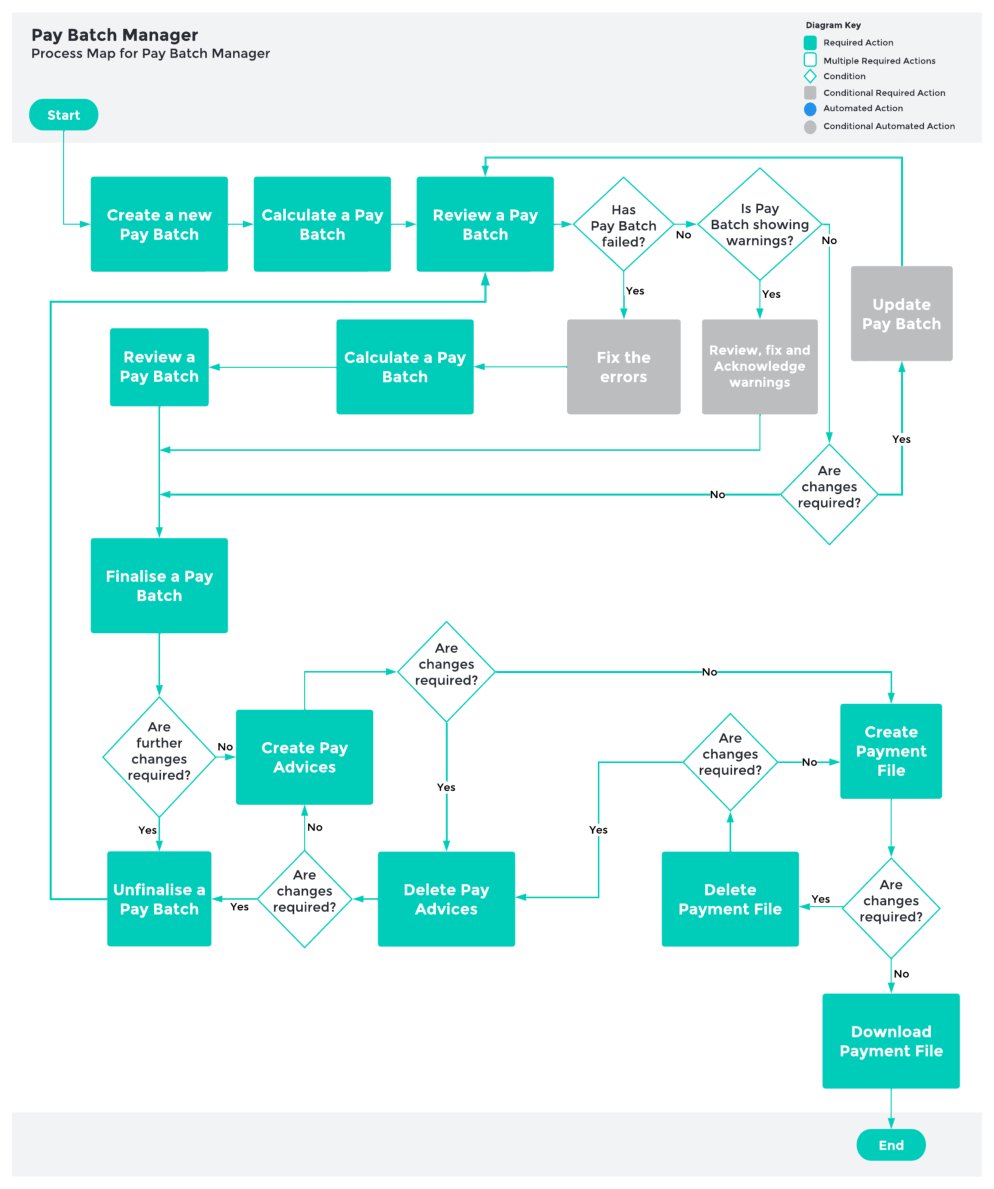
System Process Outlines
Pay Batch Manager
Last modified on August 21, 2026