The purpose of this quick reference guide is to step through the process of reviewing the Reconciliation results, which is the next step after the creation of a Reconciliation record. The intended audience for this document are System Administrators and Payroll Users.The review of Reconciliation History is performed to view Successful and Failed results of a Reconciliation and to manually investigate the Results Status and the Variances within them via the Reconciliation Item.
To review Reconciliation History (Results), the following steps should be completed:
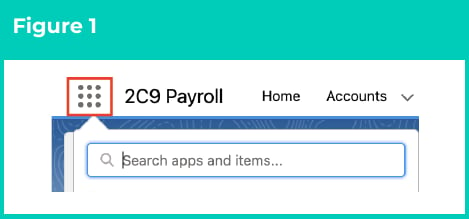
Click on the App Launcher icon. (See Figure 1)
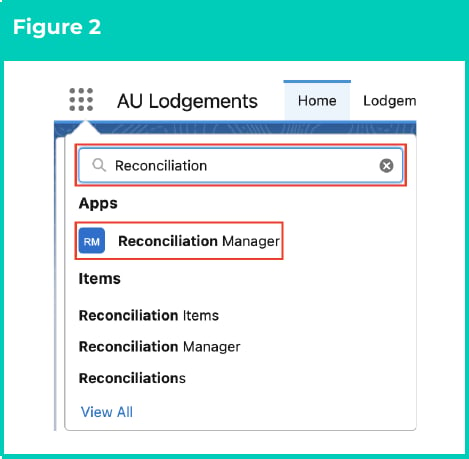
Go to the Reconciliation Manager App by using the Search function. (See Figure 2)
In the Reconciliation Manager App, ensure the Reconciliation History sub-tab is selected to view Reconciliation Results. (See Figure 3)
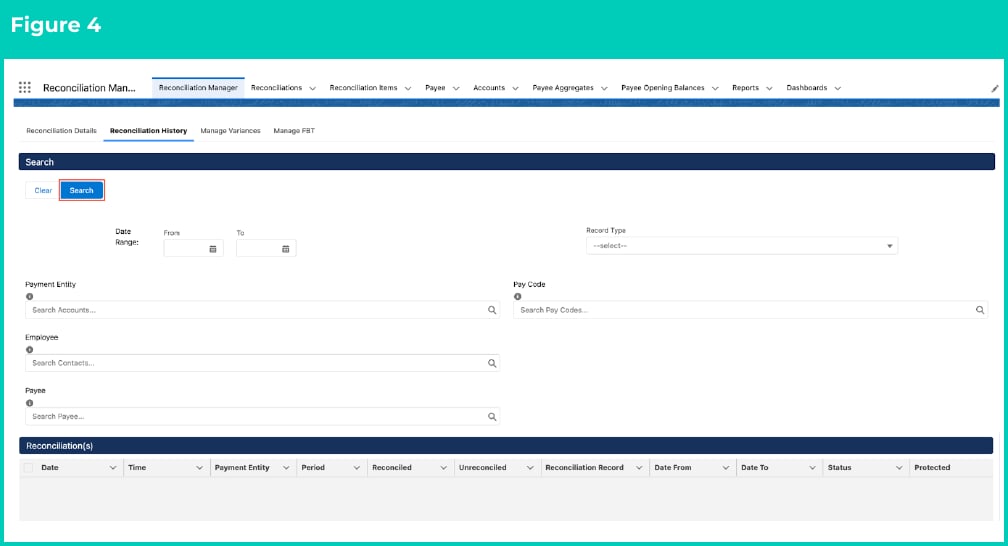
To filter the Reconciliation Processes that will display, populate from the available fields of Date Range From and To, Record Type, Payment Entity, Pay Code, Employee and Payee as required. To search for all the Reconciliation Processes, you can leave the fields blank and skip to step 5.
Click on the Search button. (See Figure 4)
All of the filters above allow only one value in each field. Therefore, you can either search one item at a time or you can search all (if you skip the filter fields).
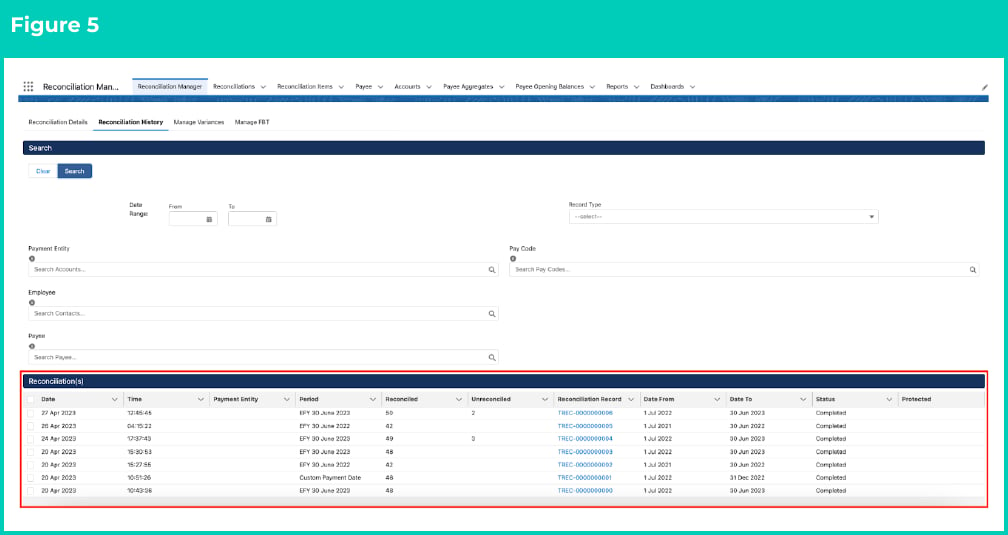
A list of Reconciliations matching any filters used will appear in order of most recent at the top. (See Figure 5)
If you wish to adjust the width of columns in the listed Reconciliations to display the full headings and results data, you can move the columns to display a wider or narrower width as required.
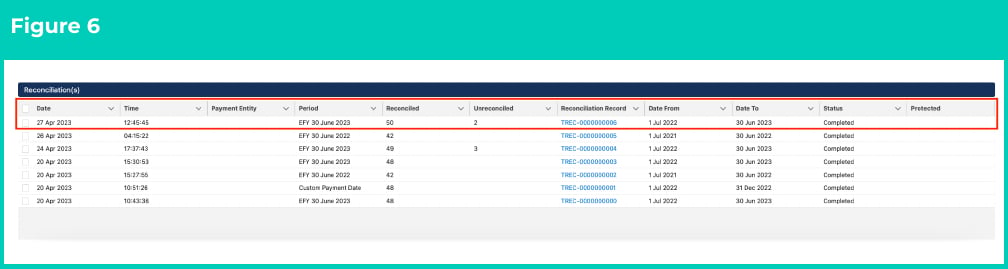
To review in further detail the breakdown of a Reconciliation record, click on the Reconciliation Record number starting with TREC-xxxxxxxxxx in blue colour. (See Figure 6)
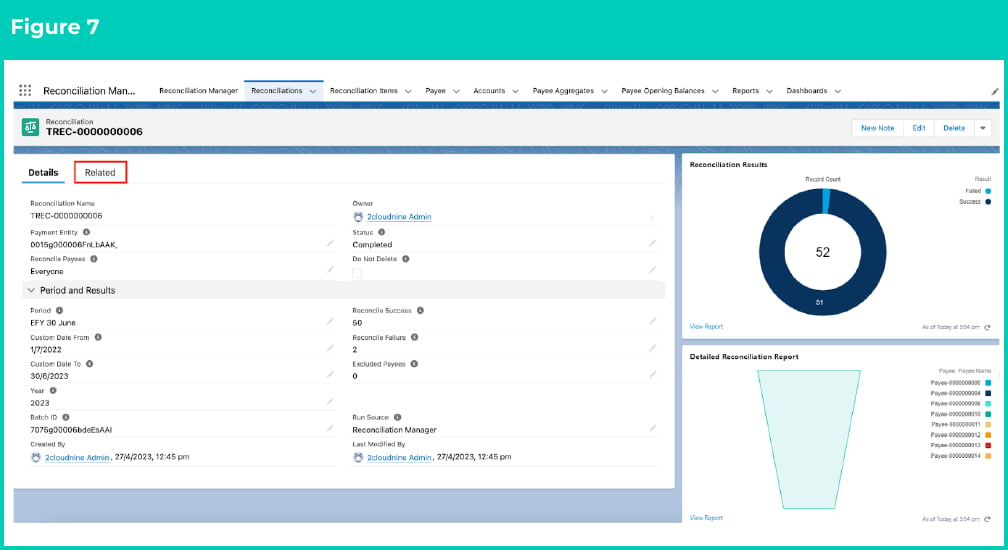
On the Reconciliation Record, users can view the number of Reconciliation Items that reconciled successfully, the number that failed, and any excluded payees. There is also a report on the right to visually identify the mix across successful and failed Reconciliation Items.
To review the individual Reconciliation Items in more detail, click on the Related list. (See Figure 7)
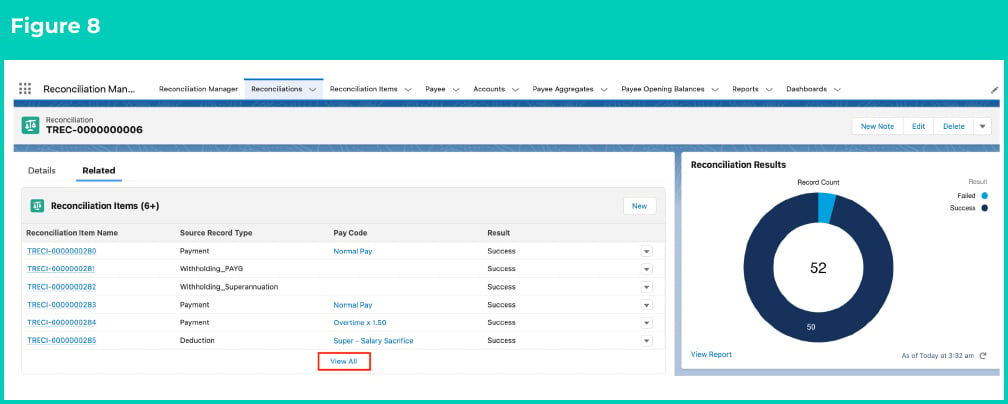
Within the Reconciliation Items related list, click the View All button on the bottom of that section. (See Figure 8)
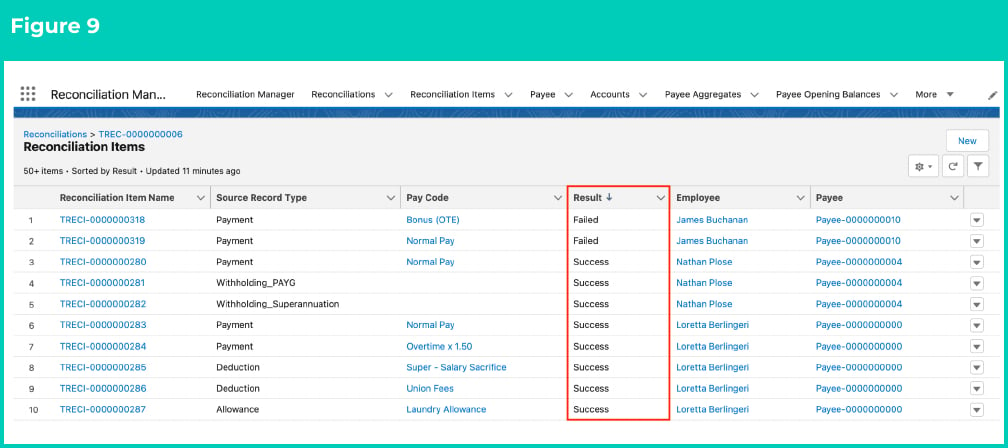
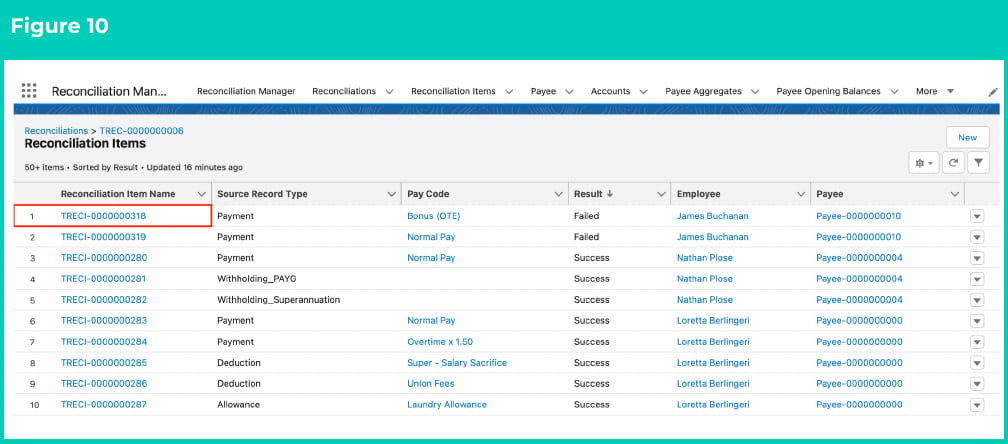
On the Reconciliation Items Related List View, users can arrange the results in ascending order to view the failed results on top.
If the Reconciliation contains only success results, there is no need to proceed to the steps contained in the QRG Resolving Failed Reconciliation Results. The Manage Variance tab is only required to be accessed if there is a need to resolve failed Reconciliation Items.A separate Reconciliation Item record is created for each unique Record Type and Pay Code combination.
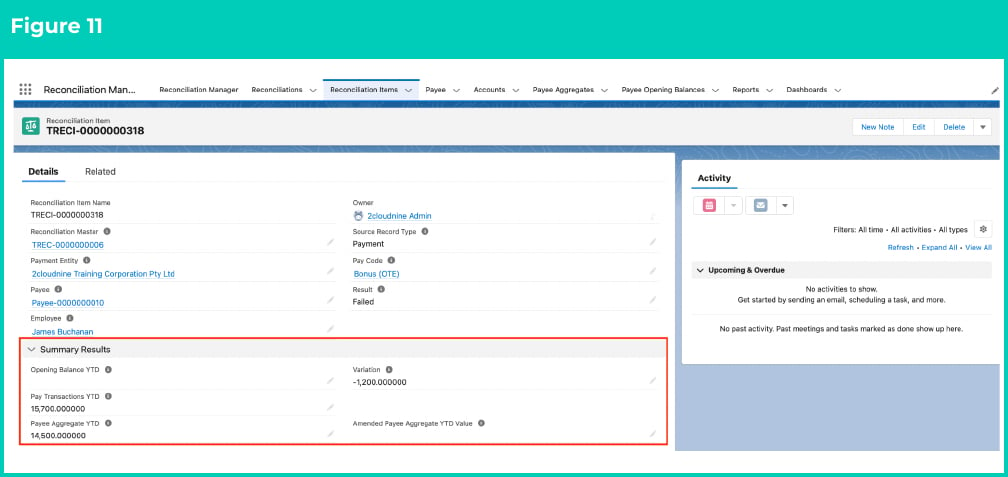
Click the Reconciliation Item Name TRECI-xxxxxxxxxx to view in further detail the Reconciliation Item. (See Figure 10)
A failed result occurs when the Opening Balance YTD plus the Pay Transactions YTD does not balance the amount in the Payee Aggregates YTD. The result of this equation will populate in the Variance field, so any value other than $0.00 will be failed and require investigation before proceeding with year end processing.
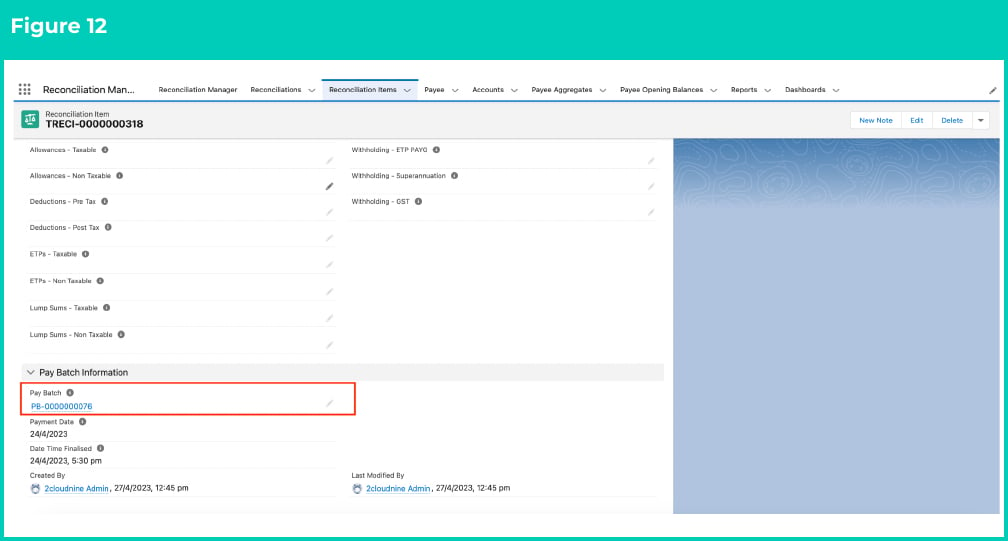
To investigate any issues within the original Pay Batch processed, scroll down to the Pay Batch Information section and click on the Pay Batch name. (See Figure 12)
To protect a Reconciliation record and the associated Reconciliation Items from being deleted, the following steps should be followed:
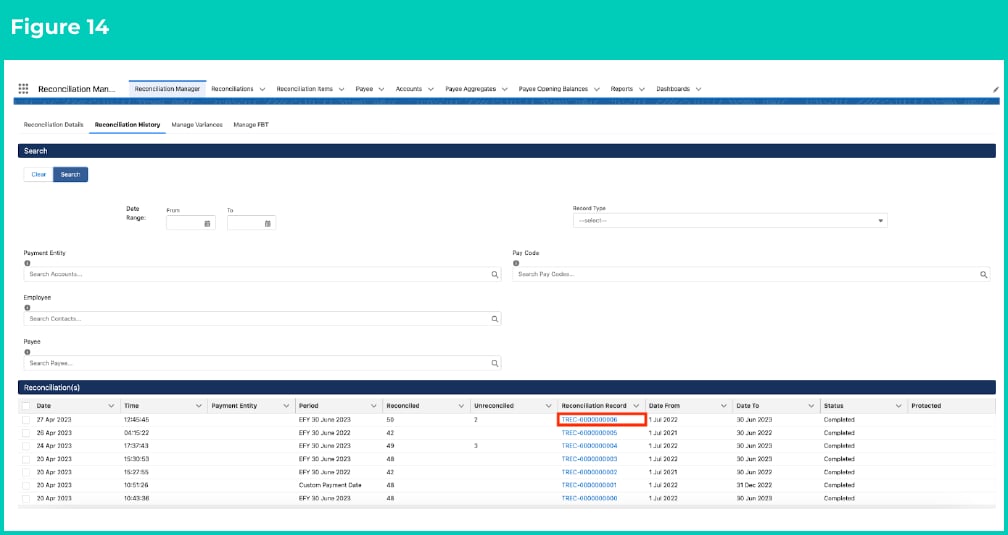
Go to the list of Reconciliations within the Reconciliation History page and open the record that you would like to protect from getting deleted. (See Figure 14)
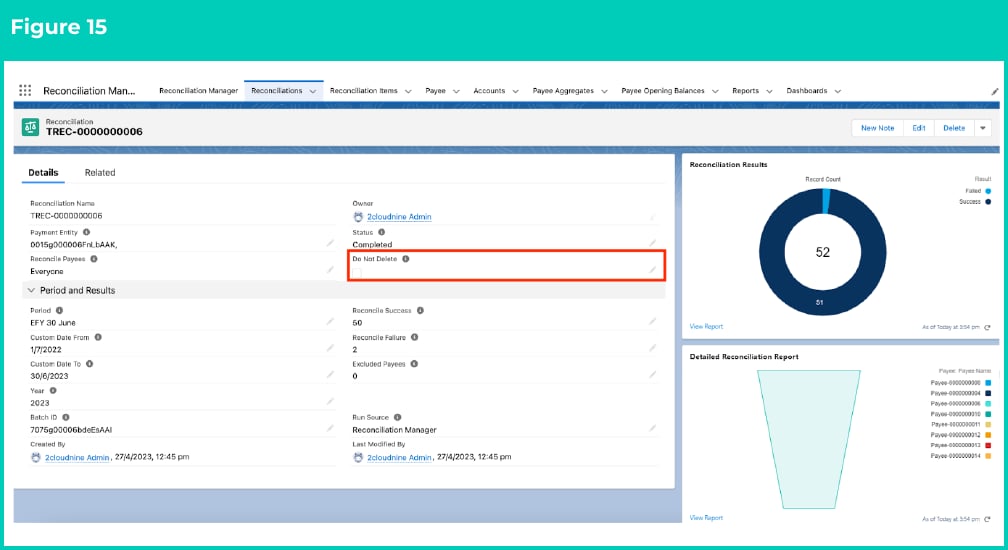
On the Page Layout, click the Edit icon that’s located on the right hand side of the Do Not Delete field. (See Figure 15)
Tick the Do Not Delete checkbox and click the Save button. (See Figure 16)
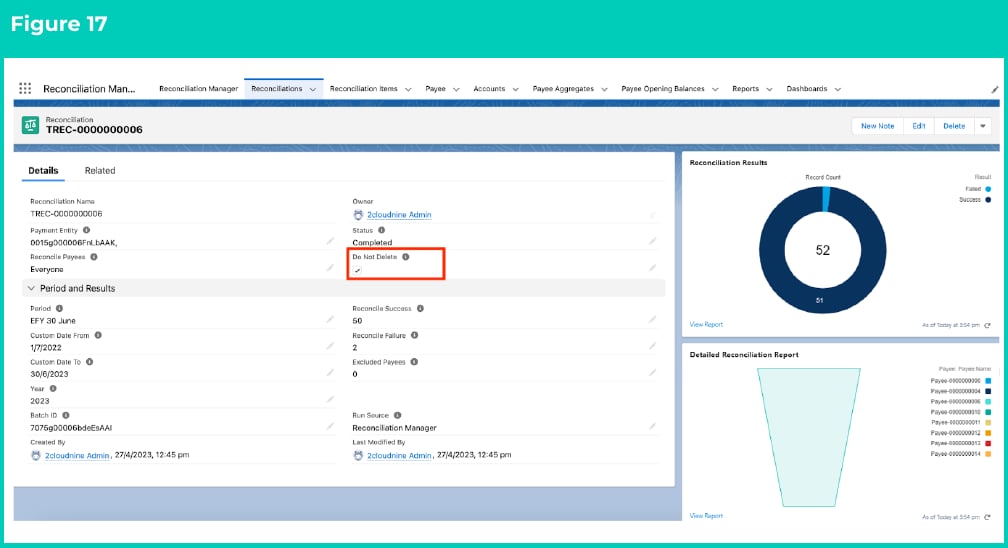
The Do Not Delete field will display the checkbox ticked. (See Figure 17)
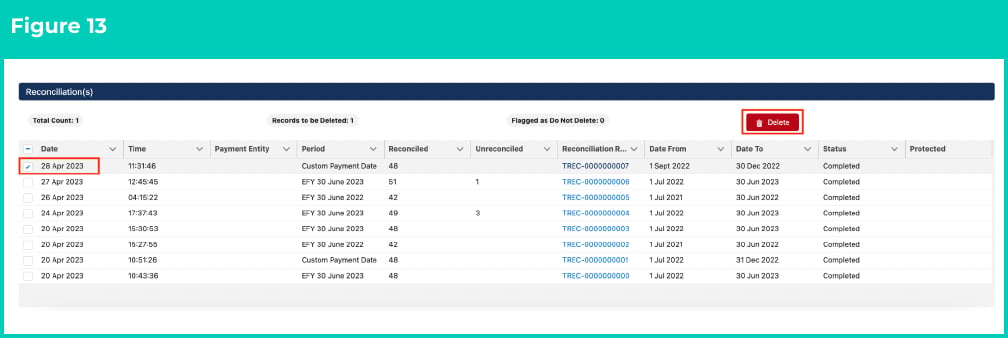
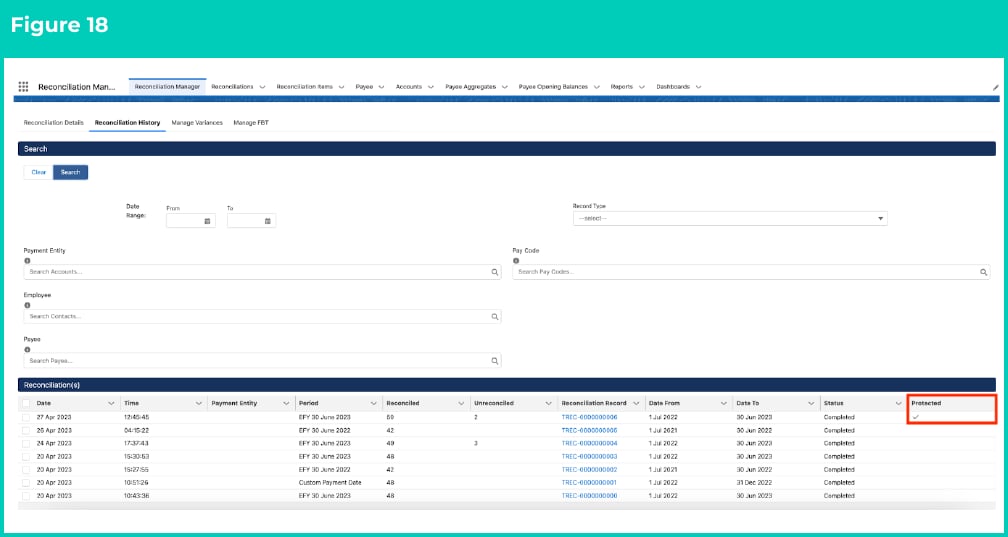
All Reconciliations marked as Do Not Delete will display a tick in the Protected column within the Review Reconciliation Manager, and will not be deleted using the Manager whilst the checkbox remains checked. (See Figure 18)
If you try to delete the protected Reconciliation record, you will notice that the Delete button does not appear upon selecting the record.
Outlines useful information relevant to the Reconciliation functionality. The document includes definitions, prerequisites, and other non-instructional information.
Last modified on July 20, 2026
Was this page helpful?
Assistant
Responses are generated using AI and may contain mistakes.