The purpose of this quick reference guide is to step through the process of creating Purchase Orders as part of the Utilities Package. The intended audience for this document is System Administrators / Standard Users.Purchase Order Junctions are used to relate Purchase Orders to Assignments, and can be either one-to-one or many-to-many relationships.
If no changes are required to the Purchase Order Junction fields from the entered Purchase Order fields, you can leave the Effective Date, Expiry Date, Purchase Order Depletion Rule, and Allocation Type fields blank and have these default from the related Purchase Order.Despite making them populate automatically from the related Purchase Order, these can be changed in this Purchase Order Junction to provide greater flexibility when managing Purchase Orders.
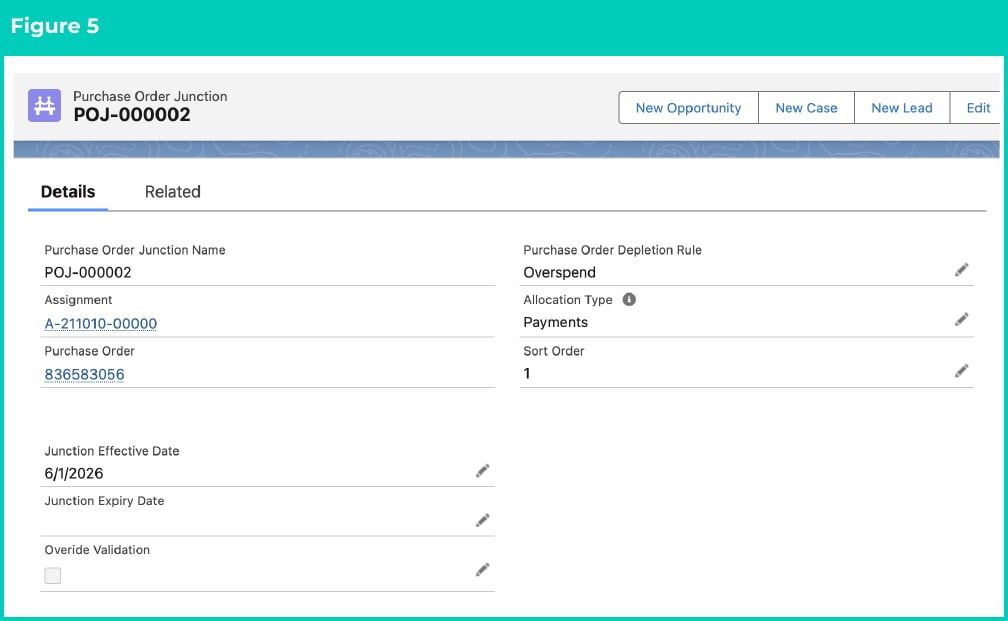
A new Purchase Order Junction record has been created (see Figure 5).
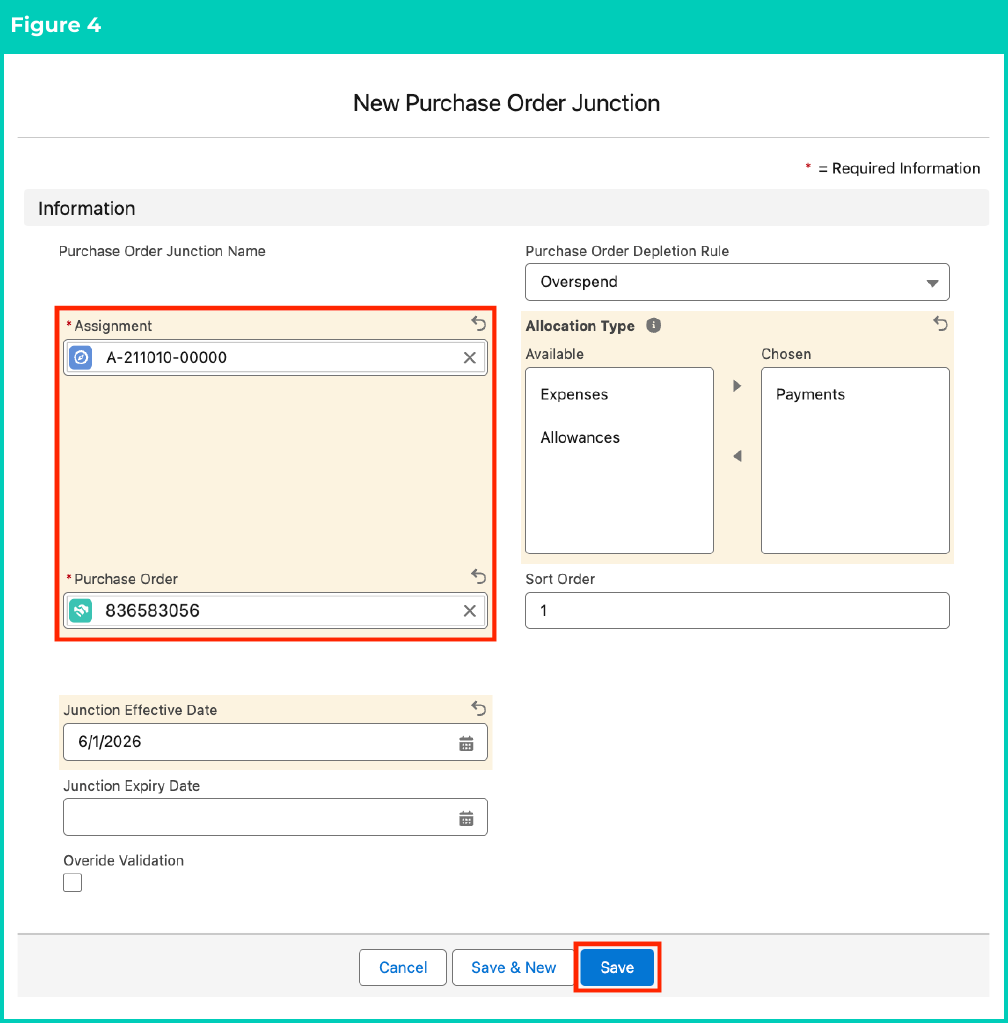
Controls the Transaction Types to be allocated to this Purchase Order. i.e. Separating Expense from Payment Pay Transactions.
Assignment
Defines the Assignment linked to the Junction record.
Junction Effective Date
Provides the User with the ability to define a Junction level Effective Date, inside the date ranges of the related Purchase Order Effective/Expiry Dates. i.e. Related Purchase Order is Effective 1 Jan 2026, however the User can define the Junction Effective Date to be 1 Mar 2026.
Junction Expiry Date
Provides the User with the ability to define a Junction level Expiry Date, inside the date ranges of the related Purchase Order Effective/Expiry Dates. i.e. Related Purchase Order is Effective 1 Jan 2026, however the user can define the Junction Effective Date to be 1 Mar 2026.
Override Validation
If selected, the user can specify junction effective/expiry dates outside of the dates on the related PO.
Purchase Order
Lookup to the related (Parent) Purchase Order. Note - This is a master-detail relationship, meaning you cannot have a Junction without a Parent Purchase Order.
Purchase Order Depletion Rule
The Purchase Order Depletion Rule field on the Purchase Order and related Purchase Order Junction is used to determine how to handle the allocation of Pay Transactions when the Remaining Spend of the Purchase Order is nearing zero. There are four options available, which function as follows:
• Overspend: Pay Transactions will continue to be allocated to the Purchase Order regardless of the Remaining Spend. This will mean Purchase Orders with Overspend can go into negative spend.
• Split Transaction: Where the processing Pay Transaction Invoice Total Ex Tax is greater than the Remaining Spend, the Pay Transaction will be split to fully deplete the current Purchase Order to $0. The second Pay Transaction will then be allocated to the next available Purchase Order (assuming one is available). Example - A Pay Transaction has an Invoice Total Ex Tax of $2,000. The remaining spend of the Purchase Order is $1,000. The Pay Transaction is split into 2 x $1,000 Pay Transactions, with the first allocated to the Purchase Order, reducing it to $0, and the second split Pay Transaction allocated to the next Purchase Order.
• Hold Off: Pay Transactions where the Invoice Total Ex Tax is greater than the Remaining Spend will not be processed. Only Pay Transactions where the Invoice Total Ex Tax is less than or equal to the Remaining Spend will be allocated. Unlike the ‘Split Transaction’ option, this will keep the Purchase Order open for its Effective Period until a Pay Transaction that ‘fits’ is available. When this option is selected, another Purchase Order within the same Effective Period with a sort order of 2 should be available.
• Invoice without PO: This option will allow Pay Transactions to be released for Invoicing (To Be Invoiced = TRUE) without applying the ‘Purchase Order’. This option is typically only used where Pay Transactions have to be Invoiced however, the relevant Purchase Order may be incomplete, or a new one is pending with the Client.
Sort Order
When more than 1 Purchase Order has been created for the same date range, the Sort Order is used to determine which one to apply first, with the lowest number given highest priority.