

Purpose
The purpose of this quick reference guide is to step through the process of Leave Rule Items setup. The intended audience for this document are Standard Users.Steps
Create Related Leave Rule Items
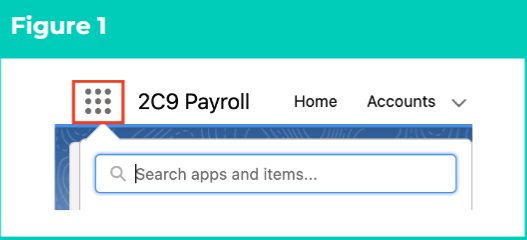
Having defined the governing Leave Rule, the Leave Rule Item object is used to define the desired accrual characteristics. If a Leave Rule requires accruals, they must have at least one related Leave Rule Item record. To create a Leave Rule Item record, follow the steps below:- Click on the App Launcher icon. (See Figure 1)
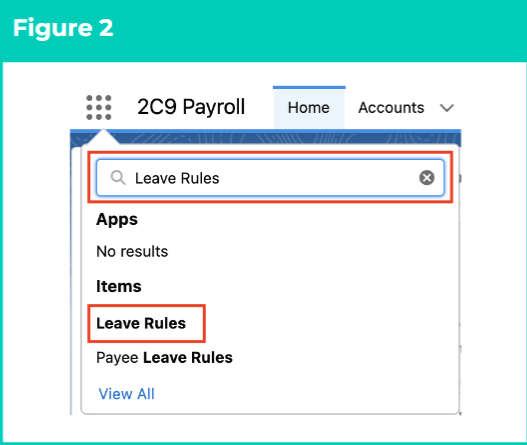
- Go to the Leave Rules object by using the Search function. (See Figure 2)
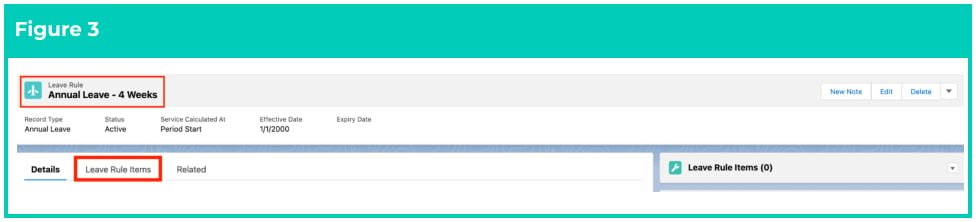
- Open the required Leave Rule record. (See Figure 3)
- Within the Leave Rule record, click on the Leave Rule Items tab.
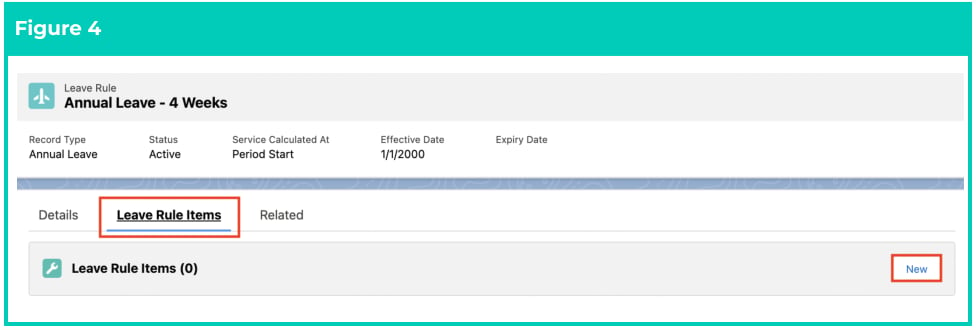
- On the Leave Rule Items panel, click on the New button. (See Figure 4)
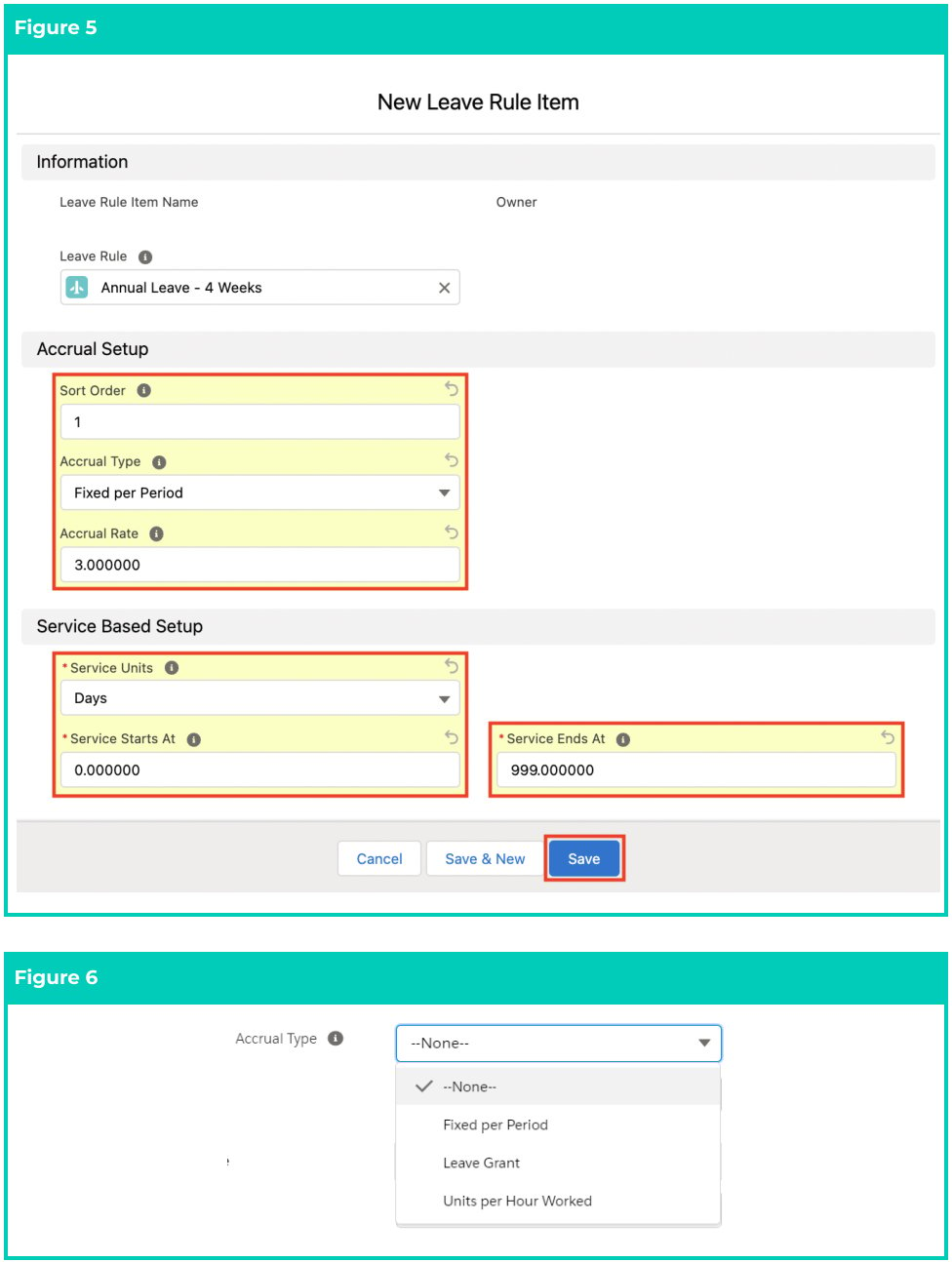
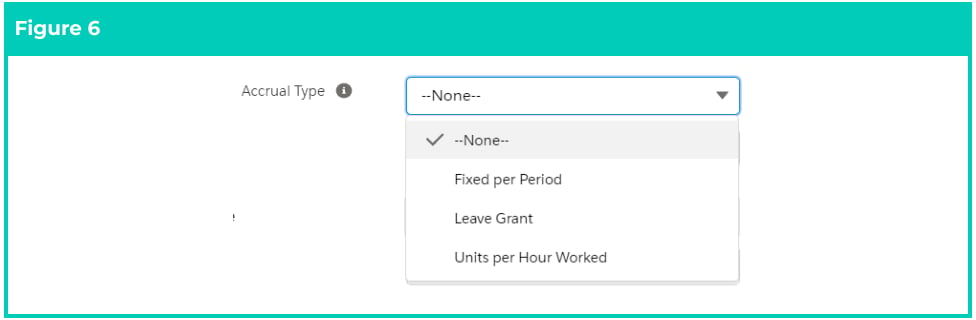
- Populate the following required fields to provide the base details of the Leave Rule Item record: (See Figures 5 and 6)
- Leave Rule (should be pre-populated)
- Sort Order
- Accrual Type (Fixed Per Period, Leave Grant, Units per Hour Worked)
- Accrual Rate (based on the type selected)
- When there is only one accrual rate for the entirety of the Leave Rule, populate the following fields as per below: (See Figures 5 and 6)
- Service Units = Years
- Service Starts At = 0
- Service Ends At = 999
- Service Units = Years
- Service Starts At = 0
- Service Ends At = x Where x = number of units after which the Accrual Rate changes
- Service Units = Years
- Service Starts At = x+1
- Service Ends At = y Where y = number of units after which Accrual Rate again changes, or ceases (in that case would be 999)
- Click on the Save button.
- The Leave rule Item is now created, and is visible under the Leave Rule Item panel. To create another Leave Rule Item if there is a change to the accrual(s), select the New button and repeat steps 5-7.
- To review the details of the record, click on the name of the Leave Rule Item record. (See Figure 7)
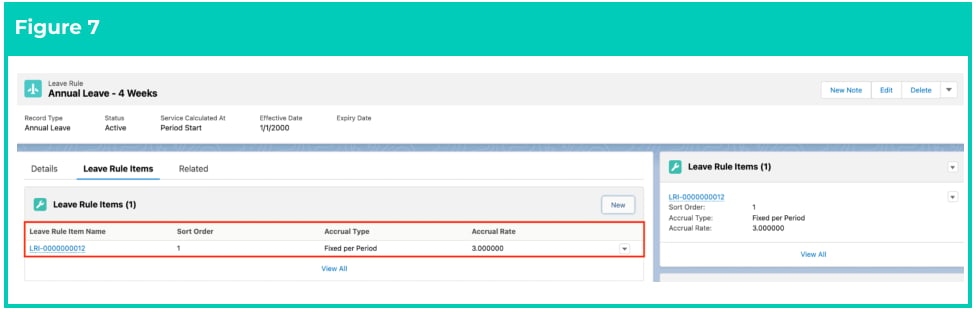
- To view the details of the Leave Rule Item or to make any edits, please do so from here. (See Figure
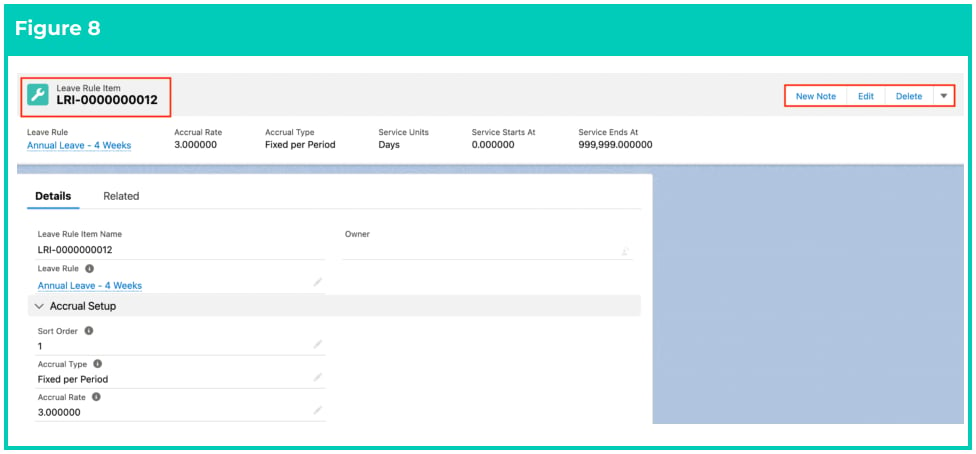
Leave Rule Item records CAN NOT be deleted if they have related records or are used in
other records. Deleting records is not recommended unless absolutely essential.
- To modify an existing Leave Rule Item record, open the required record and select the Edit button available on the top right side of the page. You can also double click in any of the fields that need editing or just click on the pencil icon that appears within fields when you move your cursor over the field.
- When complete, click on the Save button.