

Purpose
The purpose of this quick reference guide is to step through the process of creating an Accounting Default Account record for Leave Rules. The Accounting Default Accounts are used to automatically assign the default Natural Account for the specified Leave Rule. It is used to set Leave Rule overrides from the default Natural Account number. The intended audience for this document is System Administrators / Standard Users.Steps
Create an Accounting Default Account record
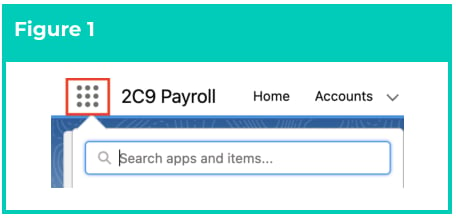
To create an Accounting Default Account record, the following steps should be completed:- Click on the App Launcher icon. (See Figure 1)
- Go to the Accounting Default Accounts object by using the Search function. (See Figure 2)

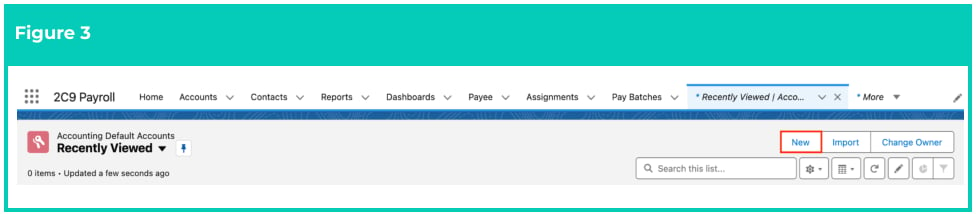
- Click on the New button. (See Figure 3)
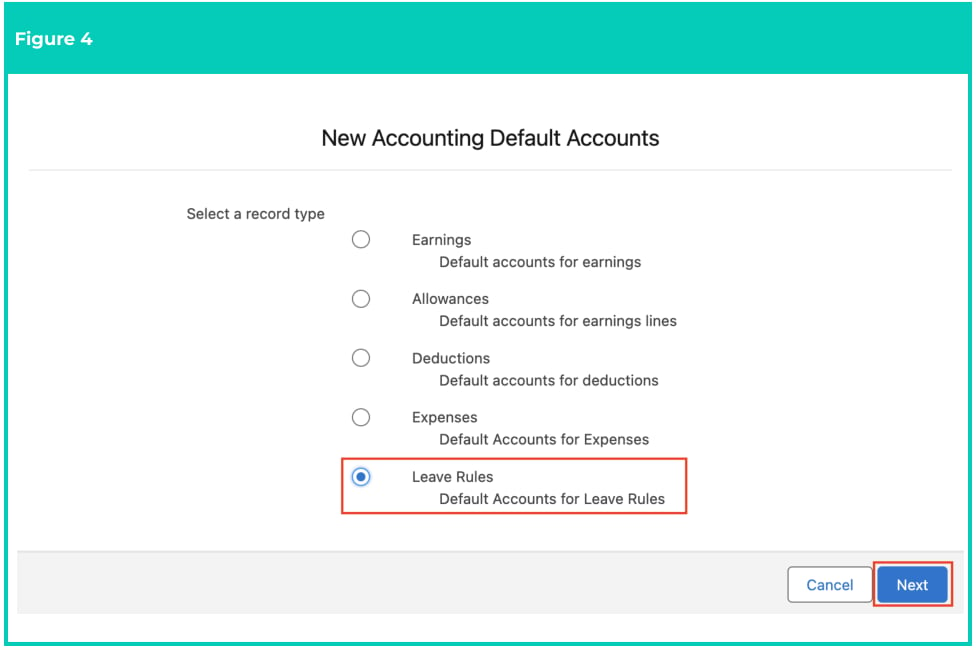
- Select Leave Rules from the available record types, and click on the Next button (see Figure 4).
-
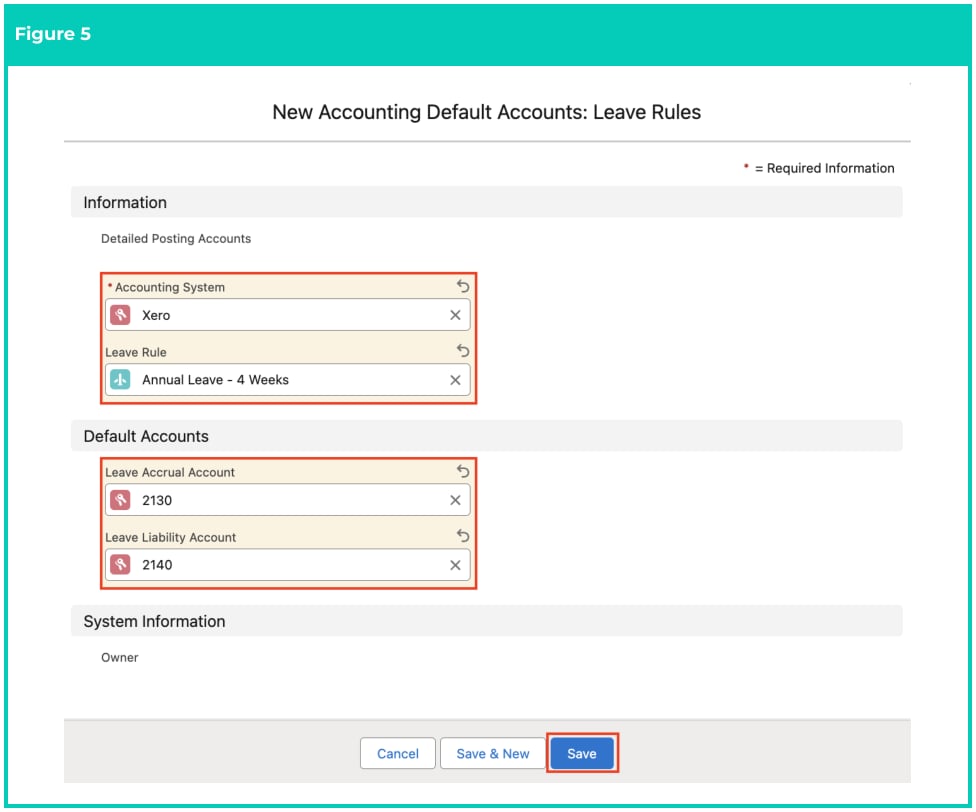
Populate the following required fields to provide the base details of the Accounting Default
Account record (see Figure 5):
- Accounting System
- Leave Rule
-
Populate ONE, or BOTH, of the following required fields depending on the requirements of the
Org (see Figure 5):
- To record a different Natural Account for this Leave Rules’ Accruals, populate the required field Leave Accrual Account . If left blank, the accruals will automatically be allocated to the Default Account on the Accounting System Setup. OR
- To record a different Natural Account for this Leave Rule’s Liabilities, populate the required field Leave Liability Account . If left blank, the liabilities will automatically be allocated to the Default Account specified on the Accounting System Setup.
- Click on the Save button (see Figure 5).
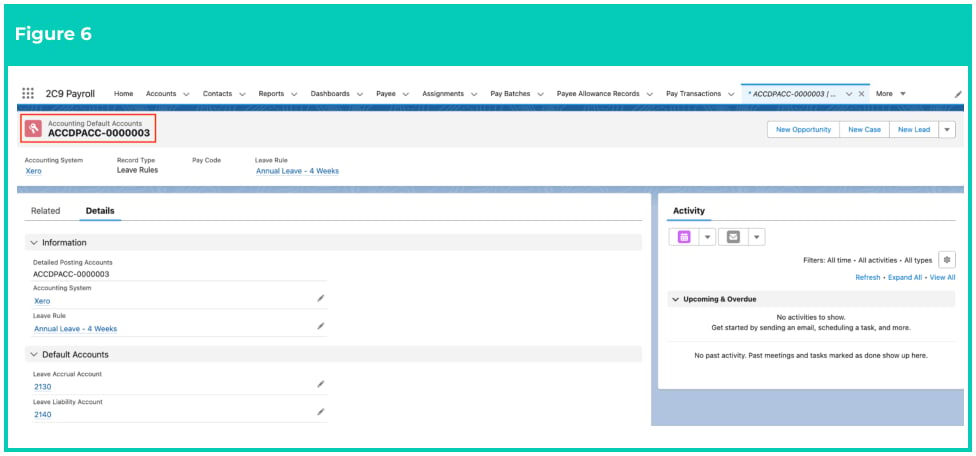
- A new Accounting Default Account record is now created (see Figure 6).
Accounting Default Accounts records CAN NOT be deleted if they have related records
or are used in other records. Deleting records is not recommended unless absolutely
essential.
- To modify an existing Accounting Default Accounts record, select the required record and select the Edit button available on the top right side of the page. You can also double click within fields that need editing or just click on the pencil icon that appears within fields when hovering with your cursor.
- When complete, click on the Save button.