

Purpose
The purpose of this quick reference guide is to step through the process of creating a Locations record. The intended audience for this document is System Administrators / Standard Users. The Locations record holds the location information that is used to filter and relate Employment Cost Item records.Steps
Create a Locations record
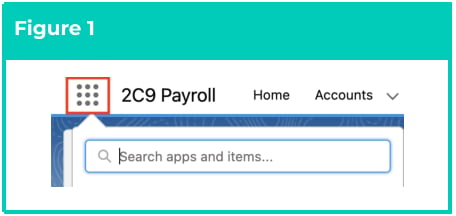
To create a Locations record, the following steps should be completed:- Click on the App Launcher icon (see Figure 1).
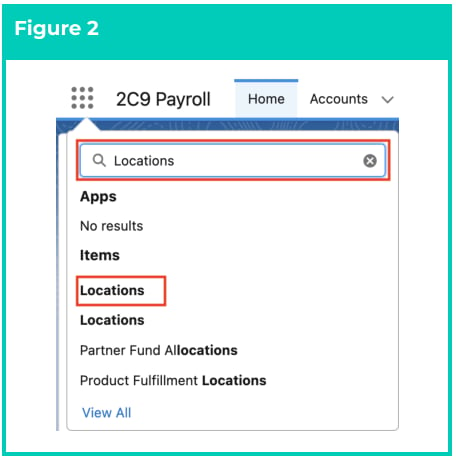
- Go to the Locations object by using the Search function (see Figure 2).
Important Notes
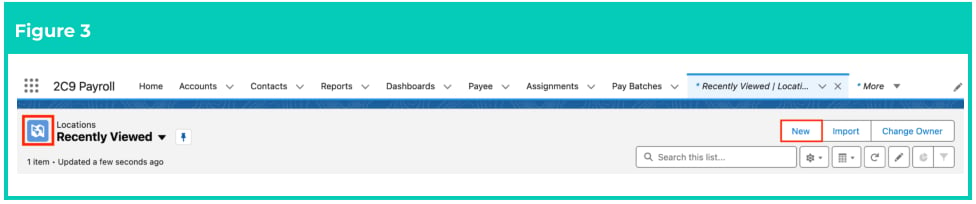
(Figure 2)As there are currently two objects with the name ‘Locations’, please select the ‘Locations’ object represented with a blue map icon (see Figure 3). The other ‘Locations’ object is represented with a green map icon, and is a standard Salesforce object with no relation to Employment Costs or any other 2c9 Payroll functionality.
(Figure 2)As there are currently two objects with the name ‘Locations’, please select the ‘Locations’ object represented with a blue map icon (see Figure 3). The other ‘Locations’ object is represented with a green map icon, and is a standard Salesforce object with no relation to Employment Costs or any other 2c9 Payroll functionality.
- Click on the New button (see Figure 3).
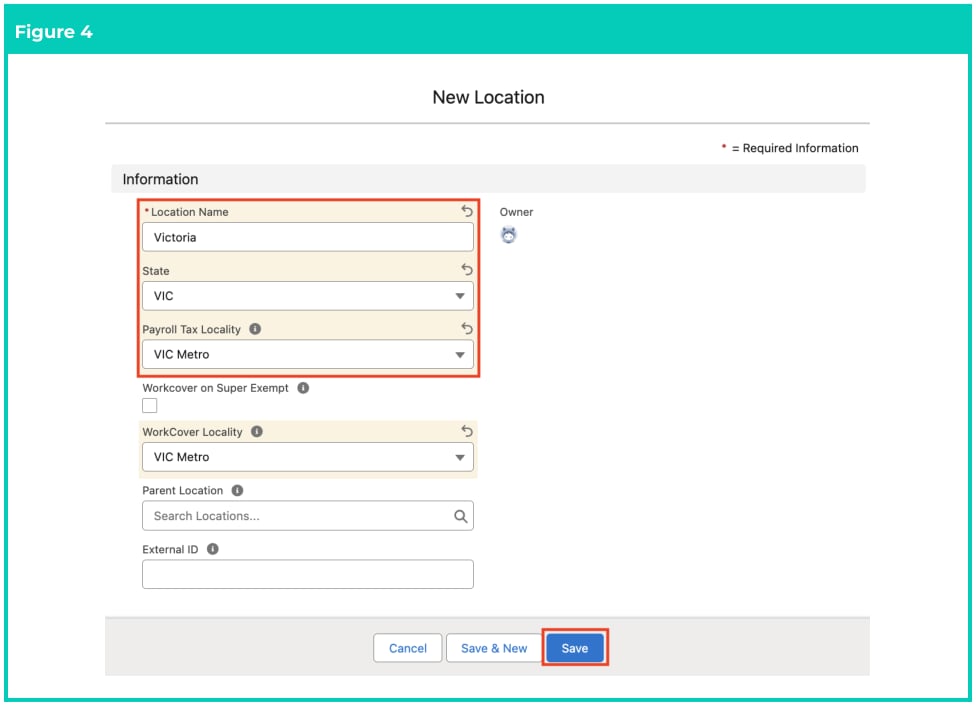
- Populate the following required fields to provide the base details for use within the General
Ledger and the Rate Calculator (see Figure 4):
- Location Name
- State
- To apply an Australian Payroll Tax Locality to this Location, as used within General Ledger reporting and Rate Calculator calculations, populate the Payroll Tax Locality field.
- If WorkCover is exempt on Super for this Location, tick the Workcover on Super Exempt checkbox.
- To apply a WorkCover Locality to this Location, as used by the General Ledger reporting and Rate Calculator calculations, populate the WorkCover Locality field.
- To allow setting a hierarchy of locations, populate the Parent Location optional field.
- To integrate the Location record with an external system, populate the External Id optional field.
- Click on the Save button (see Figure 4).
Important Notes
(Figure 4)The Payroll Tax Locality and WorkCover Locality fields are not utilised as part of the Rate Calculator functionality. They are only utilised by the General Ledger package for calculating Workcover and Payroll Tax oncosts for each Pay Batch and subsequently referenced in Cost of Payroll Journals.It is recommended to create a minimum of one Location record for each state, and also one Location record that can be used as a catch-all for every Location, such as All Locations or Any Location. These catch-all Location records can be used to populate other records where Location information is required to complete calculations, but should not be filtered to a single state.
(Figure 4)The Payroll Tax Locality and WorkCover Locality fields are not utilised as part of the Rate Calculator functionality. They are only utilised by the General Ledger package for calculating Workcover and Payroll Tax oncosts for each Pay Batch and subsequently referenced in Cost of Payroll Journals.It is recommended to create a minimum of one Location record for each state, and also one Location record that can be used as a catch-all for every Location, such as All Locations or Any Location. These catch-all Location records can be used to populate other records where Location information is required to complete calculations, but should not be filtered to a single state.
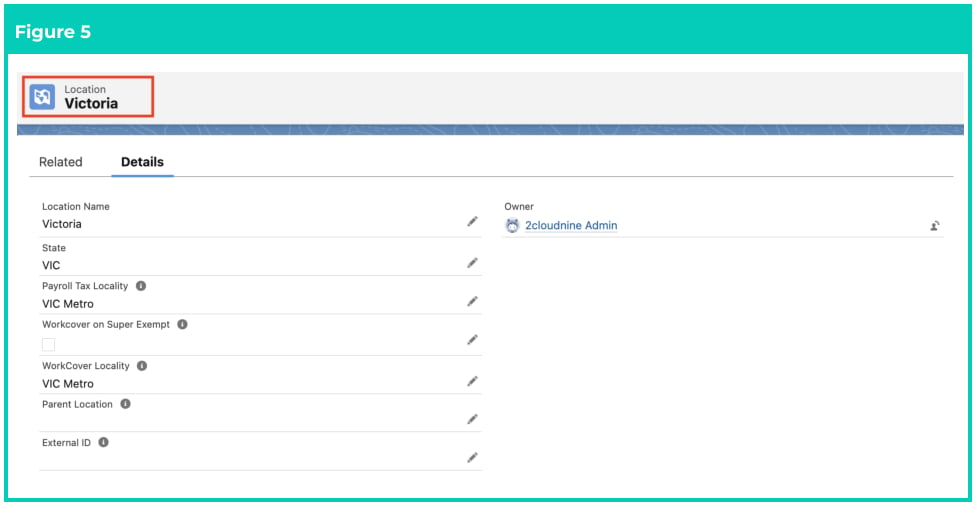
- A new Locations record is now created (see Figure 5).
Locations records CAN NOT be deleted if they have related records or are used in other
records. Deleting records is not recommended unless absolutely essential.
- To modify an existing Location record, open the required record and select the Edit button available on the top right side of the page. You can also double click within fields that need editing, or just click on the pencil icon that appears within fields when hovering with your cursor.
- When complete, click on the Save button.