

Purpose
The purpose of this quick reference guide is to step through the process of creating Pay Condition Allocation records for use with the Field Service Extension. The intended audience for this document are System Administrators / Payroll Users.Steps
Create a Pay Condition Allocation
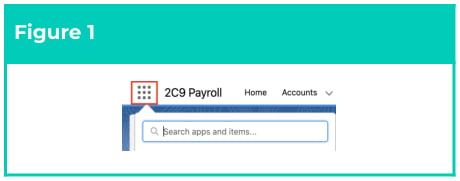
The Field Service Extension uses Pay Condition and Pay Condition Allocations to automate the creation of 2cloudnine Timesheet data. Pay Condition Allocations determine when Pay Conditions are applied during Timesheet integration. They act as the trigger for data creation by linking a specific Field Service Record (Work Order, Work Order Line Item, Expense, Service Appointment or Time Sheet Entry) with a Pay Condition. When a Pay Condition Allocation is identified for Field Service Time Sheet data, the related Pay Condition is referenced to create and insert 2cloudnine Timesheet data. Create a Pay Condition Allocation by following the below steps:- Click on the App Launcher icon (see Figure 1).
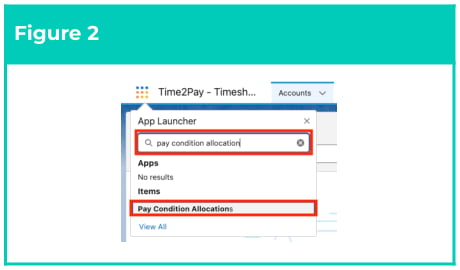
- Go to the Pay Condition Allocations object by using the Search function (see Figure 2).
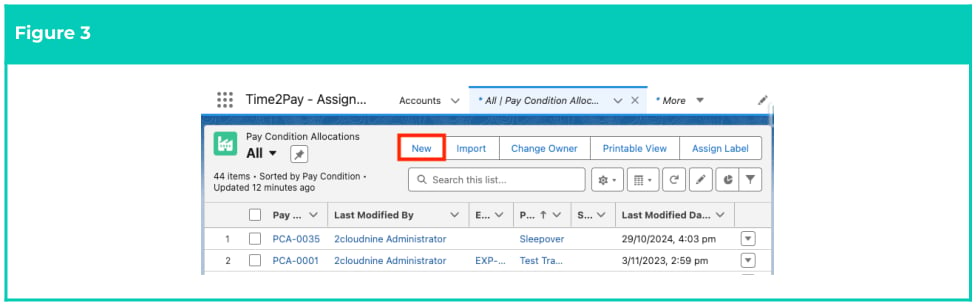
- Click on the New button (see Figure 3).
Work Order Pay Condition Allocation
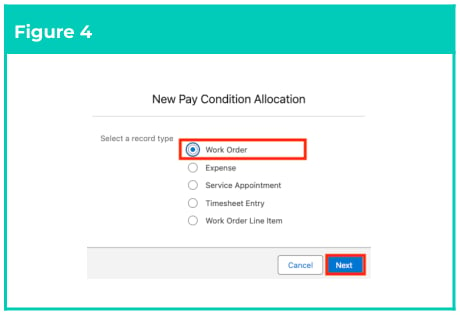
- Select the Work Order Record Type and click the Next button (see Figure 4).
- Follow this step in the sequence provided (see Figure 5):
- To establish a relationship between a Field Service record and the corresponding 2cloudnine data, populate the Pay Condition field using the lookup options available.
- Define the related Field Service record by populating the Work Order field using the lookup options available.
- To indicate data is ready for integration, select New from the available picklist options in the Status field.
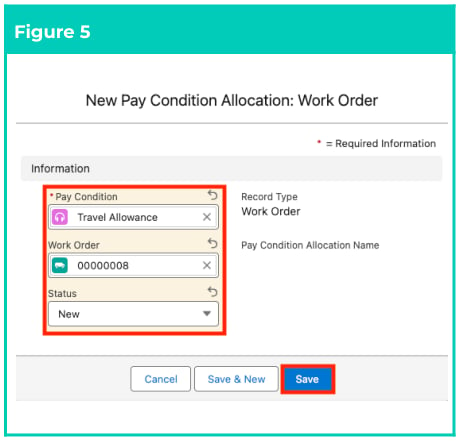
- Click on the Save button (see Figure 5).
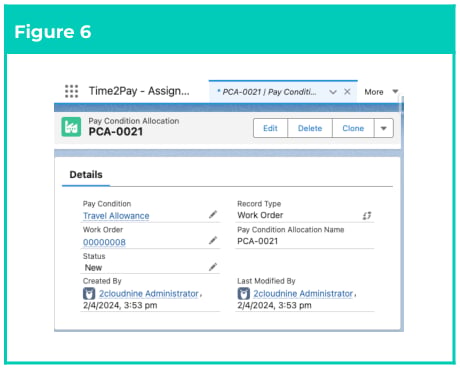
- A new Work Order Pay Condition Allocation has been created (see Figure 6).
Important Notes
(Figure 6)The Field Service Extension will not attempt to process the Pay Condition Allocation until the Status is updated to New.Once data integration is complete, the Field Service Extension will update the Status to Processed.
(Figure 6)The Field Service Extension will not attempt to process the Pay Condition Allocation until the Status is updated to New.Once data integration is complete, the Field Service Extension will update the Status to Processed.
Expense Pay Condition Allocation
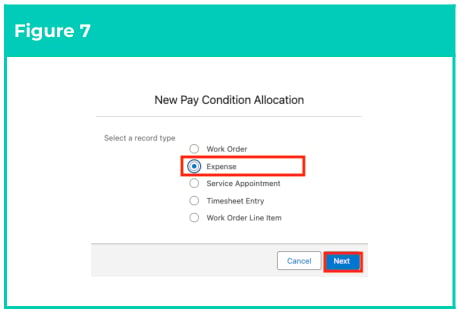
- Select the Expense Record Type and click the Next button (see Figure 7).
- Follow this step in the sequence provided (see Figure 8):
- To establish a relationship between a Field Service record and the corresponding 2cloudnine data, populate the Pay Condition field using the lookup options available.
- Define the related Field Service record by populating the Expense field using the lookup options available.
- To indicate data is ready for integration, select New from the available picklist options in the Status field.
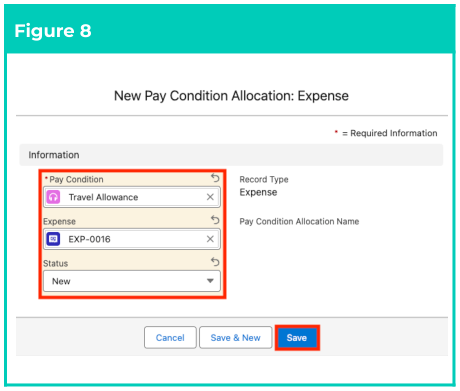
- Click on the Save button.
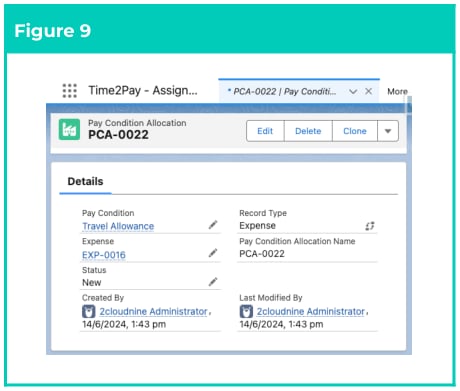
- A new Expense Pay Condition Allocation has been created (see Figure 9).
Service Appointment Pay Condition
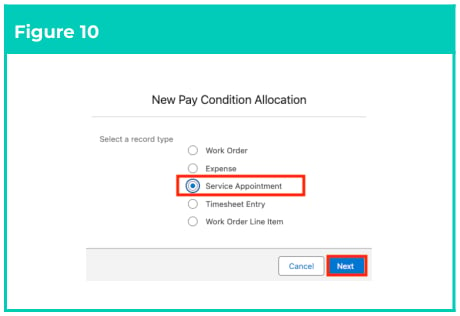
12. Select the Service Appointment Record Type and click the Next button (see Figure 10).
- Follow this step in the sequence provided (see Figure 11):
- To establish a relationship between a Field Service record and the corresponding 2cloudnine data, populate the Pay Condition field using the lookup options available.
- Define the related Field Service record by populating the Service Appointment field using the lookup options available.
- To indicate data is ready for integration, select New from the available picklist options in the Status field.

- Click on the Save button (see Figure 11).
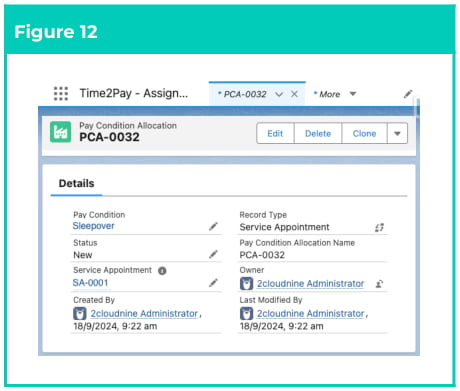
- A new Service Appointment Pay Condition Allocation has been created (see Figure 12).
Timesheet Entry Pay Condition Allocation
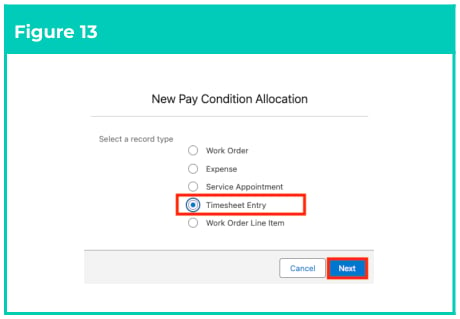
- Select the Timesheet Entry Record Type and click the Next button (see Figure 13).
- Follow this step in the sequence provided (see Figure 14):
- To establish a relationship between a Field Service record and the corresponding 2cloudnine data, populate the Pay Condition field using the lookup options available.
- Define the related Field Service record by populating the Timesheet Entry field using the lookup options available.
- To indicate data is ready for integration, select New from the available picklist options in the Status field.
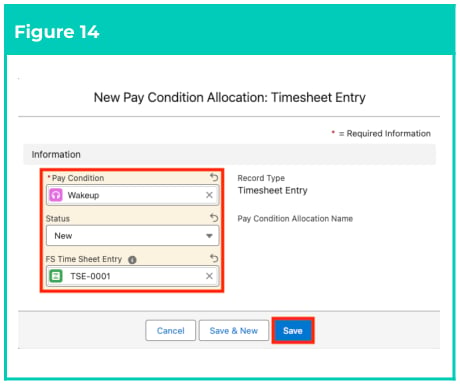
- Click on the Save button (see Figure 14).
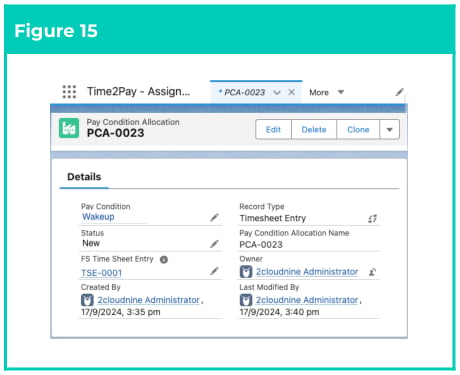
- A new Timesheet Entry Pay Condition Allocation has been created (see Figure 15).
Work Order Line Item Pay Condition
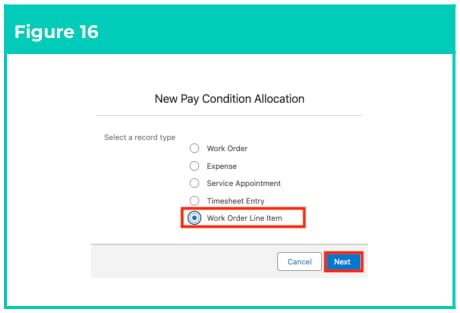
- Select the Work Order Line Item Record Type and click the Next button (see Figure 16).
- Follow this step in the sequence provided (see Figure 17):
- To establish a relationship between a Field Service record and the corresponding 2cloudnine data, populate the Pay Condition field using the lookup options available.
- Define the related Field Service record by populating the Work Order Line Item field using the lookup options available.
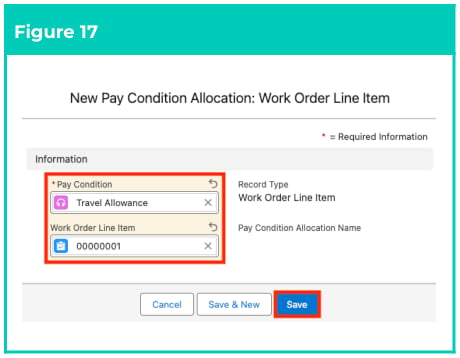
- Click on the Save button (see Figure 17).
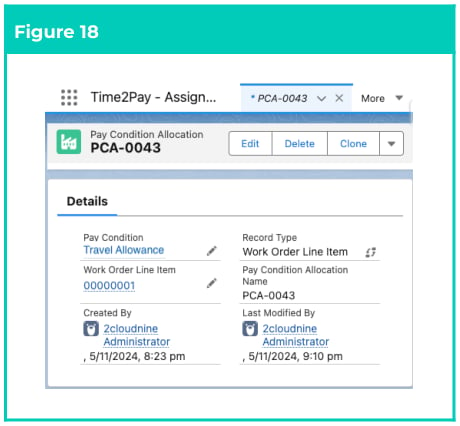
- A new Work Order Line Item Pay Condition Allocation has been created (see Figure 18).
- To modify an existing Pay Condition Allocation record, open the required record and select the Edit button available on the top right side of the page. You can also double click in any of the fields that need editing or just click on the pencil icon that appears within fields when you move your cursor over the field.
- When complete, click on the Save button.
Field Descriptions
Field Name Description Expense The Field Service Expense associated with the 2cloudnine data defined in the related Pay Condition. A look up to the Pay Condition Object that captures the record specifying the 2cloudnine data to be created when integrating the Field Service data into 2cloudnine timesheets. Service Appointment The Service Appointment record to be related with the Pay Condition Allocation. When the Pay Condition utilises the Allowance type Enterable Quantity, the Quantity from the Service Appointment will be used. Status Indicates whether the Field Service Extension has integrated the Field Service data related to the record:- Null/Blank: No data integration action pending
- New: Pending data integration
- Processed: Field Service data integration complete Time sheet Entry The Time sheet Entry record to be related with the Pay Condition Allocation is being attached to. Work Order The Work Order the Pay Condition Allocation is being attached to. Work Order LIne Item The Work Order Line Item the Pay Condition Allocation is being attached to.