This quick reference guide details how to use the FBT File Upload to upload larger volumes of Reportable FBT and Non-Reportable FBT into 2c9 Payroll using a CSV file instead of manually entering all the data. The intended audience for this document are System Administrators and Payroll Users.
The FBT File Upload functionality has been introduced to allow bulk uploading of Reportable and Non-Reportable FBT amounts.Important: To use the FBT File Upload, the following prerequisites MUST be completed:
Depending on your requirements, the Reportable and Non-Reportable FBT Pay Codes must be created and available.
An Integration User needs to be Active and the 2cloudnine Integrations Team must have confirmed this is linked correctly for the FBT File Upload function.
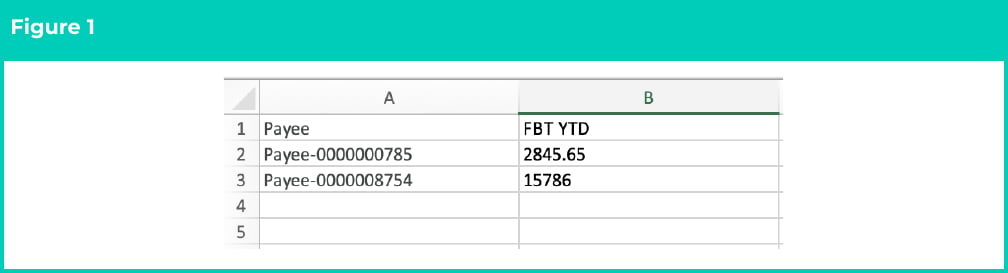
The rows under the first column titled Payee should contain the Payee Names from the Payee records. The rows under the second column FBT YTD should be populated with the ‘grossed up’ FBT YTD amounts.
Save the Excel file in CSV format (for example, Reportable FBT 2024.csv). An example is provided in the screenshot below (see Figure 1):
If you are required to provide data for both Reportable FBT and Non-Reportable FBT Pay Codes, these must be populated on 2 independent spreadsheets.
Once the spreadsheet is complete, the following steps should be completed:
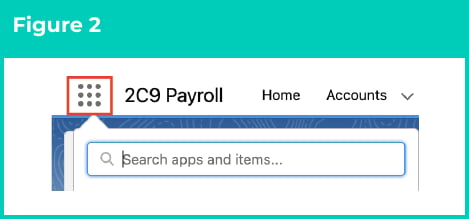
Click on the App Launcher icon (see Figure 2).
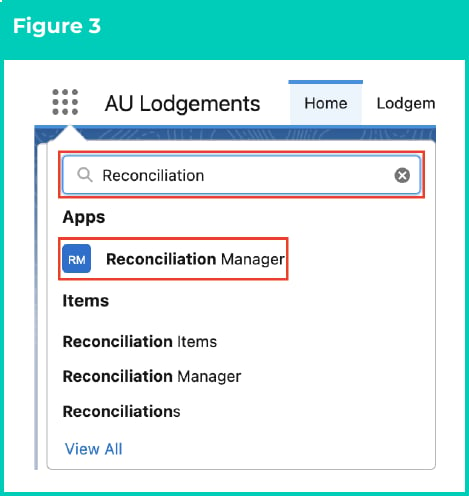
Go to the Reconciliation Manager App by using the Search function (see Figure 3).
Type “Reconciliation Manager” in the search box to locate the app.
Click on the Reconciliation Items button in the navigation menu (see Figure 4).
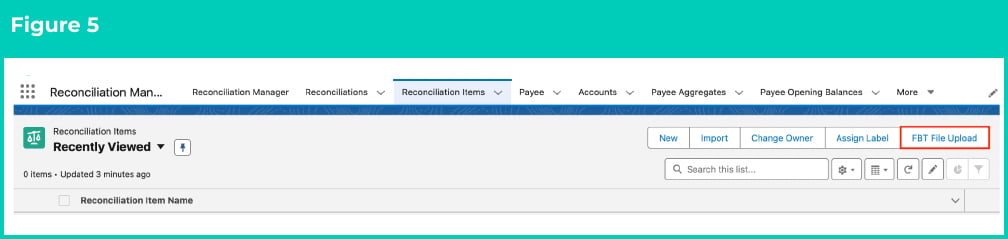
Click on the FBT File Upload button (see Figure 5).
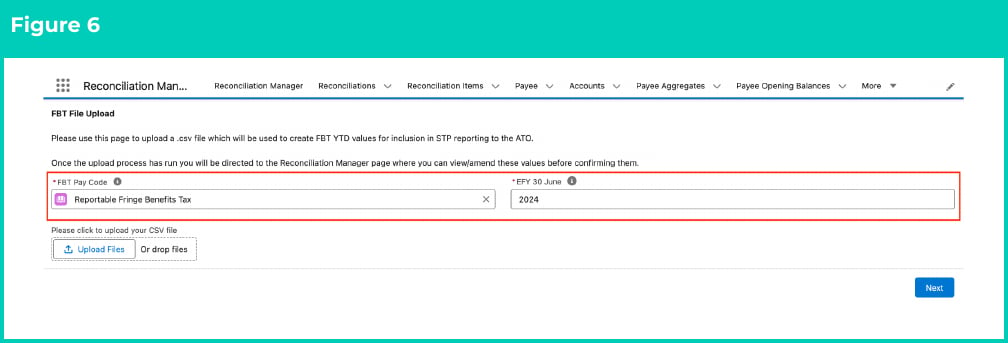
On the FBT File Upload screen, populate the following required fields (see Figure 6):
FBT Pay Code
EFY 30 June
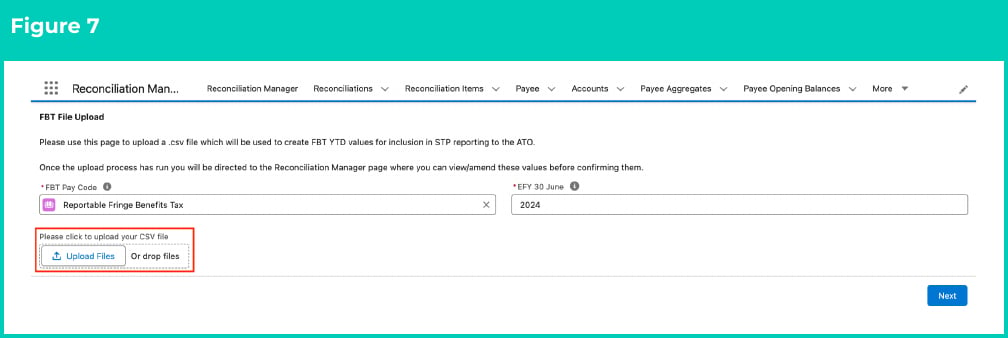
Click on the Upload Files button (see Figure 7).
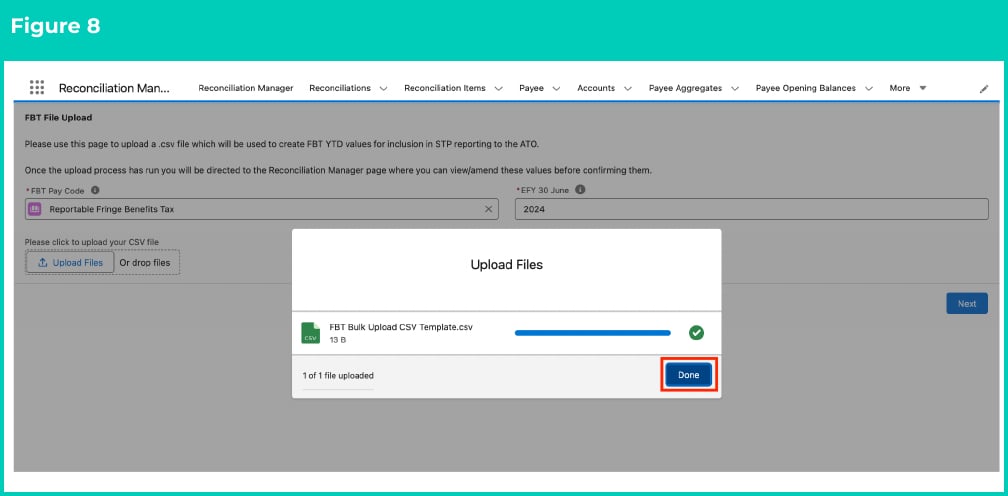
Select and upload the CSV file and then click on the Done button (see Figure 8).
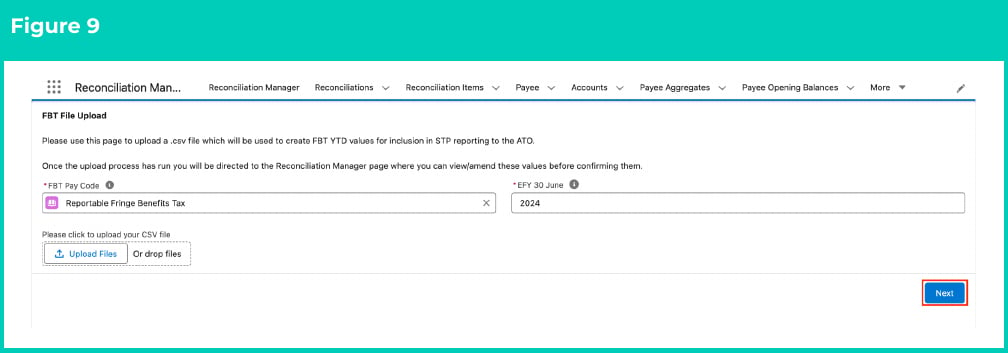
Once all the fields have been populated and the CSV file has been uploaded, click on the Next button (see Figure 9).
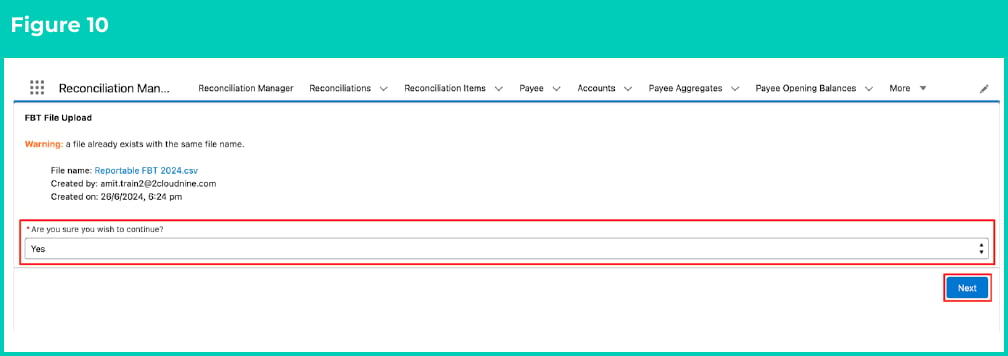
If you have uploaded the same CSV file previously, you will get a warning message saying ‘a file already exists with the same file name.’ Select either ‘Yes’ in the Are you sure you wish to Continue? dropdown, and click on the Next button (see Figure 10), or alternatively select ‘No’, review your file name to be uploaded and repeat the steps to upload the correct file. If you do not get this warning message, skip to step 10.
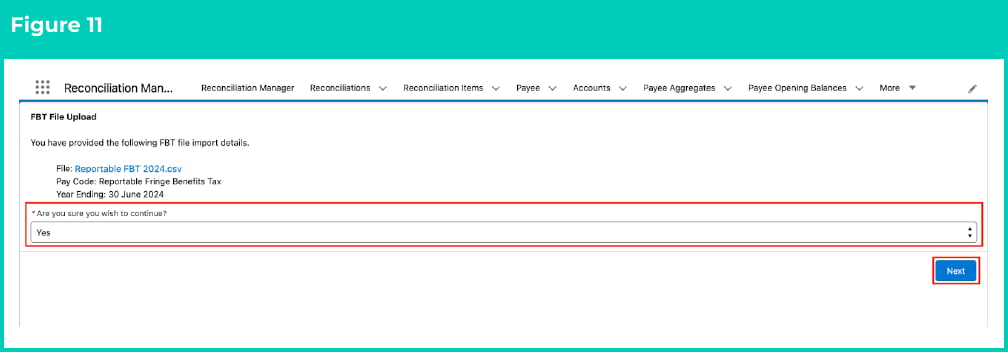
The next screen will confirm the File being uploaded, as well as the Pay Code and Year Ending that will have FBT amounts created for them. Select ‘Yes’ in the Are you sure you wish to Continue? dropdown and click on the Next button (see Figure 11).
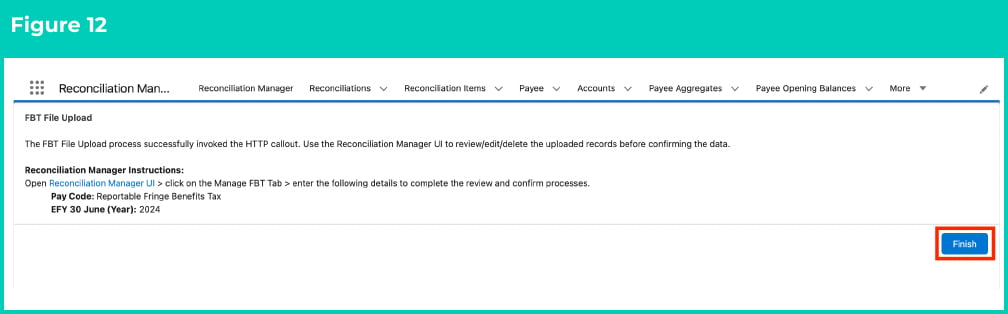
If successful, you will get a confirmation message as below. Select the link on the screen in the message to open Reconciliation Manager UI, to review and complete the final creation of the FBT amounts being created (see Figure 12).
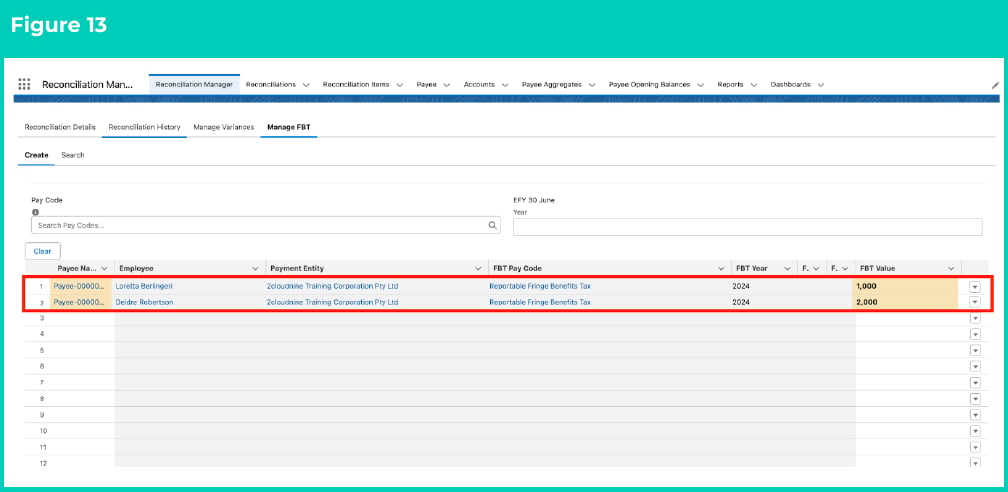
Click on the Manage FBT tab. You will see the newly uploaded values in the table as shown in the screenshot below (see Figure 13).
If the FBT values uploaded via the CSV do not appear in the first few rows, please scroll down to check, as the values may sometimes appear in later rows.
Populate the following required fields:
Pay Code (filters only Pay Codes with record type FBT)
EFY 30 June Year
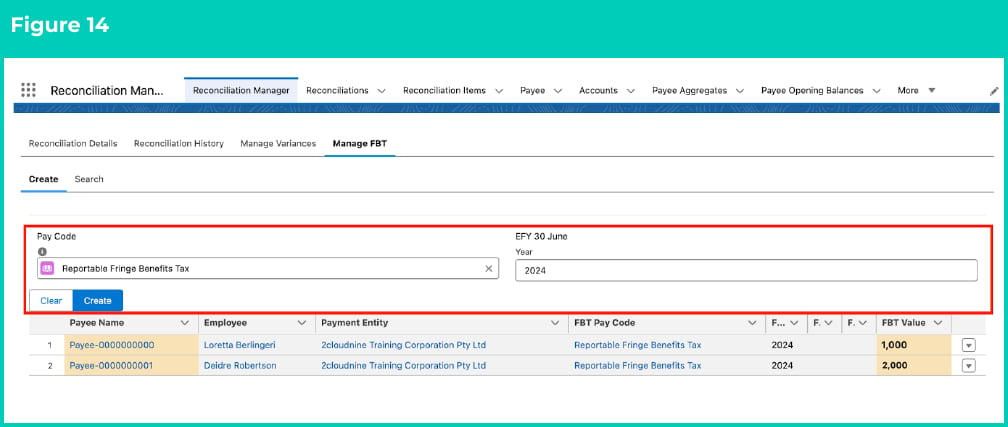
Once all the FBT Values are entered, click the Create button (see Figure 14).
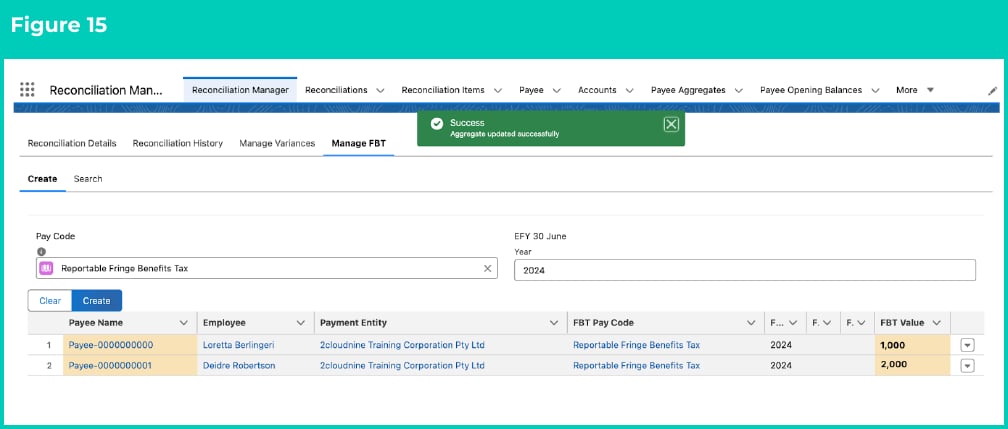
A confirmation message appears indicating ‘Aggregate updated successfully’. The columns FBT Pay Code, FBT Year, FBT Opening Balance and FBT Payee Aggregate populate automatically (see Figure 14).
The FBT Payee Opening Balance record displays under the FBT Opening Balance column and the FBT Payee Aggregate record also displays under the FBT Payee Aggregate column. Both these newly created records will be linked to the most recent Finalised Payee Pay Batch record automatically (see Figure 15).
To learn how to enter FBT amounts individually, please refer to the QRG Manage FBT.
If you are required to upload more amounts for the same FBT Pay Code, or amounts for a different FBT Pay Code, then repeat all these steps again using your new file and the required Pay Code.
Outlines useful information relevant to the Reconciliation functionality. The document includes definitions, prerequisites, and other non-instructional information.
Last modified on July 20, 2026
Was this page helpful?
Assistant
Responses are generated using AI and may contain mistakes.