Purpose
The purpose of this quick reference guide is to step through the process of requesting Stapled Superannuation through the ATO using the Super Stapling Quick Action button on the Payee record. The intended audience for this document are Payroll Users.Steps
Checking an employee’s stapled superannuation information
Checking an employee’s Stapled Superannuation Information is completed in 3 steps- The system will determine if sufficient information is already prepared for inclusion within an STP lodgement to provide the relevant employee information to the ATO required to access the Employee’s Stapled Superannuation information. If not, a zero dollar record is created ready for validation and lodgment.
- The STP validation and lodgment is completed as normal via the STP Manager within 2cloudnine Payroll
- Once the lodgement has been successfully received by the ATO, the employer can login to the ATO Online Services and lookup the employee’s Stapled Super information.
Determining if a zero dollar STP update event needs to be lodged
To determine if a zero dollar STP lodgement needs to be sent to the ATO so an employee’s Stapled Superannuation Information can be accessed, the following steps should be completed:- Go to the Payee object and open the Payee record that requires the Stapled Superannuation to be checked.
- Click on the action button (see Figure 1)
- Select the Stapling Super option The Super Stapling page will open

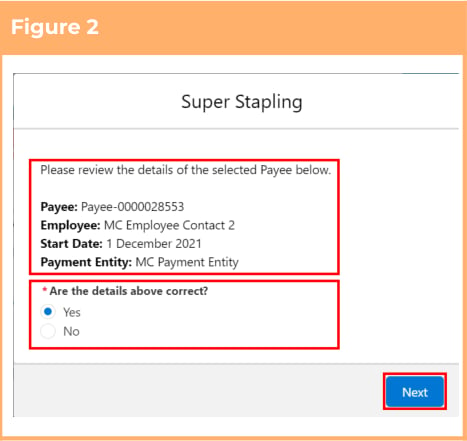
- Check to ensure the information provided is correct and if so, select the Yes option (see Figure 2)
- Click the Next button
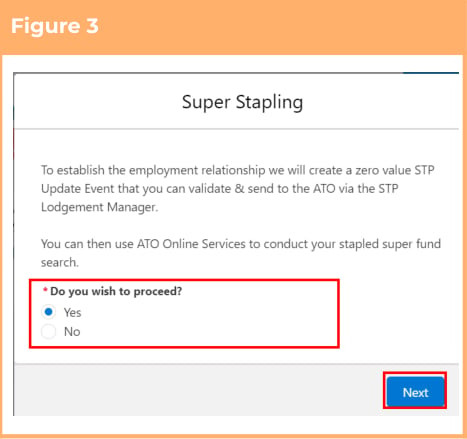
- Read the provided information and, if you would like to proceed, select the Yes option (see Figure 3)
- Click the Next button The STP record will be created ready for validation and lodgment via the STP Manager. A launch button for the STP Manager is available from the final Super Stapling screen
If you do not agree to the zero
value STP record being
created, no further action can
be taken at this time.