

Purpose
The purpose of this quick reference guide is to step through the process of populating CSV Templates for Pay Transactions with the necessary information to enable data to be imported using the Integrated Import Tool. The intended audience for this document are System Administrators / Standard Users.Steps
Populate CSV Templates The CSV Templates provided for the Integrated Import Tool detail the fields and formatting to be used when preparing external data for import into 2cloudnine Payroll, to ensure successful validation and processing. Only one Pay Transaction CSV Template is available for use with the Integrated Import Tool, as no customisations have been implemented as Enhancements for this Record Type. A sample of the formatting used for this template can be viewed below (see Figure 1):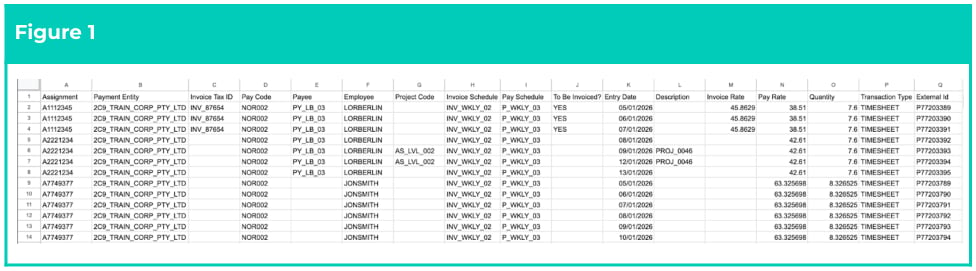
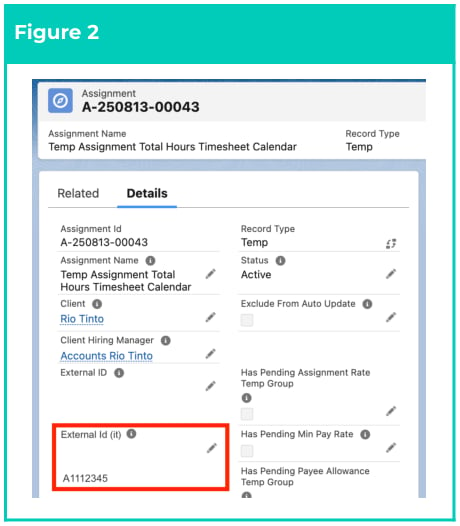
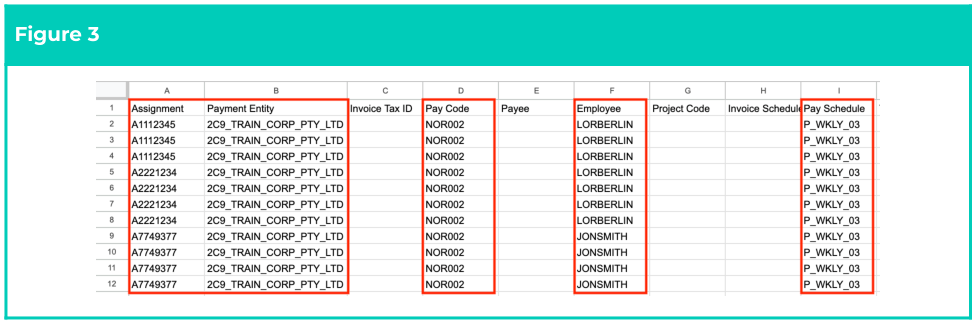
- Identify each 2cloudnine record to be related with Pay Transaction data by using the value found in the External Id (it) field (Figure 2) to populate the cells displayed on the following page (Figure 3):
- Populate Column A with the External Id (it) of the related Assignment.
- Populate Column B with the External Id (it) of the related Payment Entity.
- Populate Column D with the External Id (it) of the related Pay Code.
- Populate Column F with the External Id (it) of the related Employee.
- Populate Column I with the External Id (it) of the related Pay Schedule record.
Important Notes
(External ID (it))When populating the Pay Schedule External ID, please reference the Pay Schedule on the related Assignment. If CSV Pay Transaction data references a Pay Schedule not already populated on the Assignment, Data Import will fail.The External Id field used by the Integrated Import Tool must not be confused with other External ID fields. The correct External ID field can be identified by its API name: External_Id_it__c External ID (it).If this field is not displayed on the Page Layout by default, please contact your Salesforce Administrator for assistance.Please be aware of any auto-formatting that removes leading zeros from the entered data, as import will fail if the data entered does not exactly match the data as it exists in 2cloudnine Payroll.
(External ID (it))When populating the Pay Schedule External ID, please reference the Pay Schedule on the related Assignment. If CSV Pay Transaction data references a Pay Schedule not already populated on the Assignment, Data Import will fail.The External Id field used by the Integrated Import Tool must not be confused with other External ID fields. The correct External ID field can be identified by its API name: External_Id_it__c External ID (it).If this field is not displayed on the Page Layout by default, please contact your Salesforce Administrator for assistance.Please be aware of any auto-formatting that removes leading zeros from the entered data, as import will fail if the data entered does not exactly match the data as it exists in 2cloudnine Payroll.
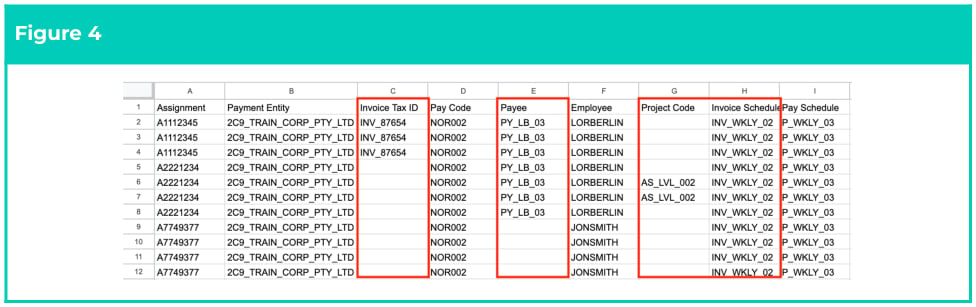
- Reference any additional records related to Pay Transaction data by following the below steps (see Figure 4):
- If invoicing is required, and no Assignment Rates have been created for the Assignment and Pay Code combination referenced, complete the following:
- Populate Column C with the External Id (it) of the related Invoice Tax ID.
- Populate Column H with the External Id (it) of the related Invoice Schedule.
- If multiple Payee records are associated with the related Employee Contact, populate Column E with the External Id (it) of the applicable Payee.
- To include Project Codes, populate Column G with the External ID (it) of the applicable Project Code record.
- If invoicing is required, and no Assignment Rates have been created for the Assignment and Pay Code combination referenced, complete the following:
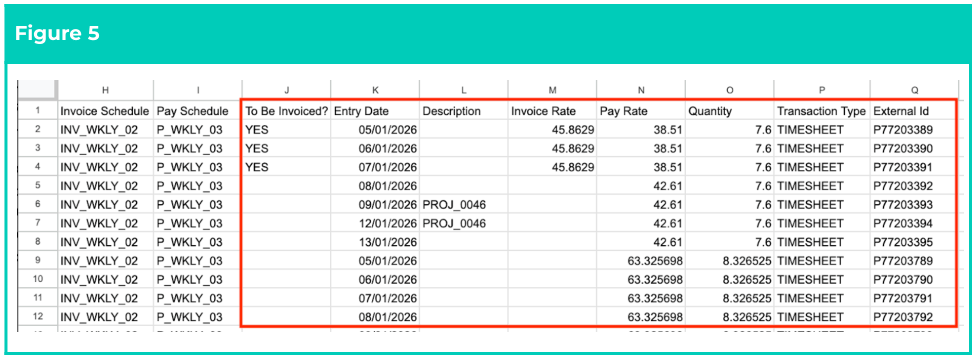
- Populate data for the following required cells (see Figure 5):
- If invoicing is required, and no Assignment Rates have been created for the Assignment and Pay Code combination referenced, complete the following:
- Populate the To Be Invoiced? in Column J with either a Yes or No value.
- If Yes, populate the Invoice Rate in Column M with a whole number.
- To specify the date that each Pay Transaction occurred, populate the Entry Date in Column K.
- Enter the amount (up to six decimal places) of Pay Transactions to be processed by populating the Quantity in Column O.
- To define the type of Pay Transaction to be imported, enter either Timesheet or Allowance in the Transaction Type in Column P.
- If invoicing is required, and no Assignment Rates have been created for the Assignment and Pay Code combination referenced, complete the following:
- Populate the remaining data as follows:
- Populate the Pay Rate in Column N with an amount (up to six decimal places).
- Enter a description for the Pay Transaction by populating the Description in Column L.
- Enter the unique identifier used to reference the Pay Transaction data in its external system by populating the External Id in Column Q.
Important Notes
(Date Format)When entering Dates, the format dd/mm/yyyy must be used.
(Date Format)When entering Dates, the format dd/mm/yyyy must be used.