

Purpose
The purpose of this quick reference guide is to step through the process of updating data to be ready to commence reporting via Single Touch Payroll Phase 2. The intended audience for this document is System Administrators/Standard Users.Steps
Review PAYG Payee Withholdings
To review and update Payee Withholdings, follow the steps below:-
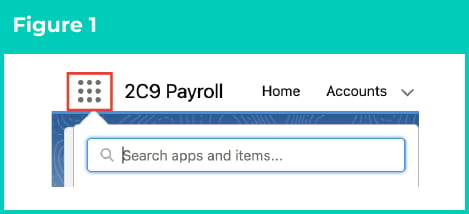
Click on the App Launcher icon. (See Figure 1)
-
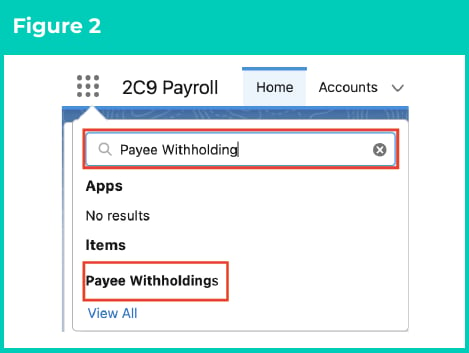
Go to the Payee Withholdings object by using the Search function. (See Figure 2)
-
Select the List View STP2 TFN Check. (See Figure 3)
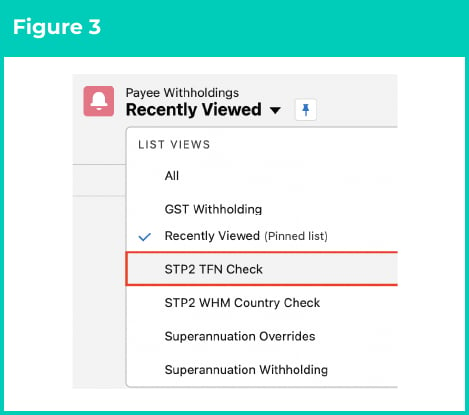
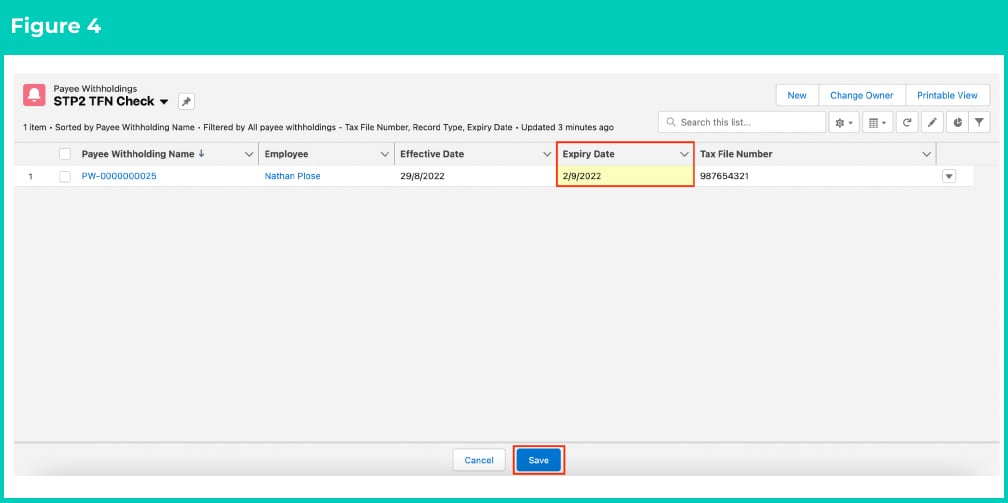
- If a Payee Withholding record is listed here, it will be as a result of an incorrect TFN on an active PAYG Payee Withholding record. This record will need to be expired by updating the expiry date, and a new PAYG Payee Withholding will need to be created using either the correct TFN OR an approved alternative value by the ATO (see figure 4)
-
If any changes are made, select Save to ensure all updates are saved. (See Figure 4)
-
Select the List View STP2 WHM Country Check. (See Figure 5)
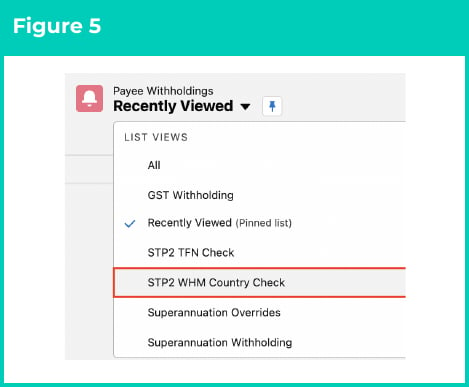
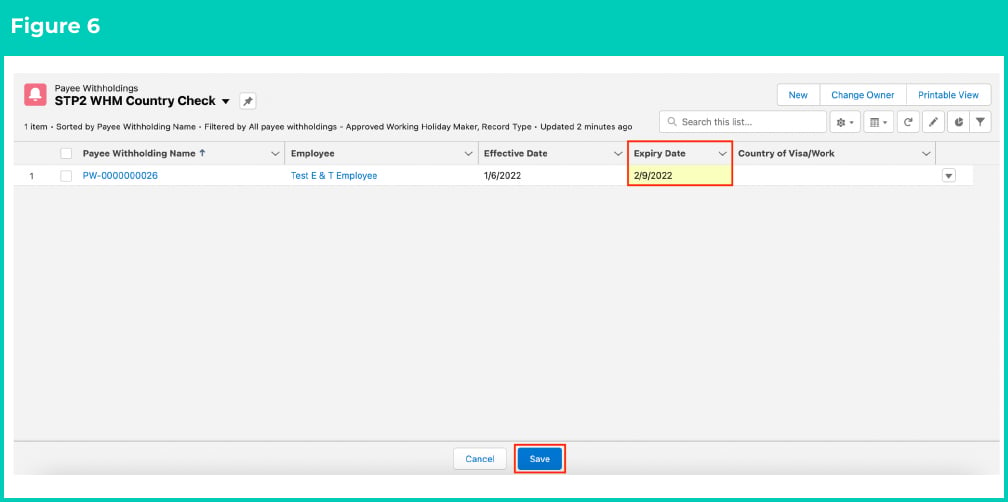
- Any listed PAYG Payee Withholding will be an Approved Working Holiday Maker, with the Expiry Date blank, or greater than 01/07/2022. This PAYG Payee Withholding will need to be expired, and a new PAYG Payee Withholding created to ensure the value in the Country of Visa/Work is populated using the values available in the picklist. (See Figure 6)
-
If any changes are made, select Save to ensure all updates are saved. (See Figure 6)
Review & Update Contact records
To review and update Contact records, follow the steps below:-
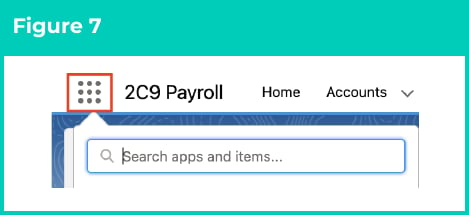
Click on the App Launcher icon. (See Figure 7)
-
Go to the Contact object by using the Search function. (See Figure 8)

-
Select the List View STP2 Birthdate Check. (See Figure 9)

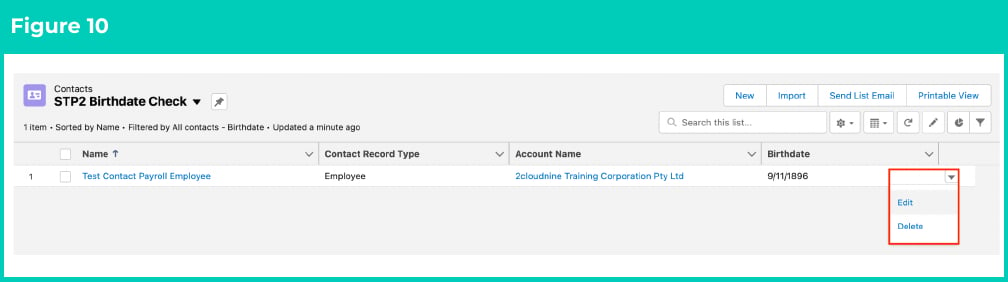
- If a Contact is listed here, it’s because it will have a Birthdate entered that is prior to 01/01/1903 and is not currently blank. This Birthdate will need to be corrected before this Payee can be sent to the ATO using any type of STP files.
-
To edit the record, select the dropdown arrow at the end of the row and then select Edit (see Figure 10)
-
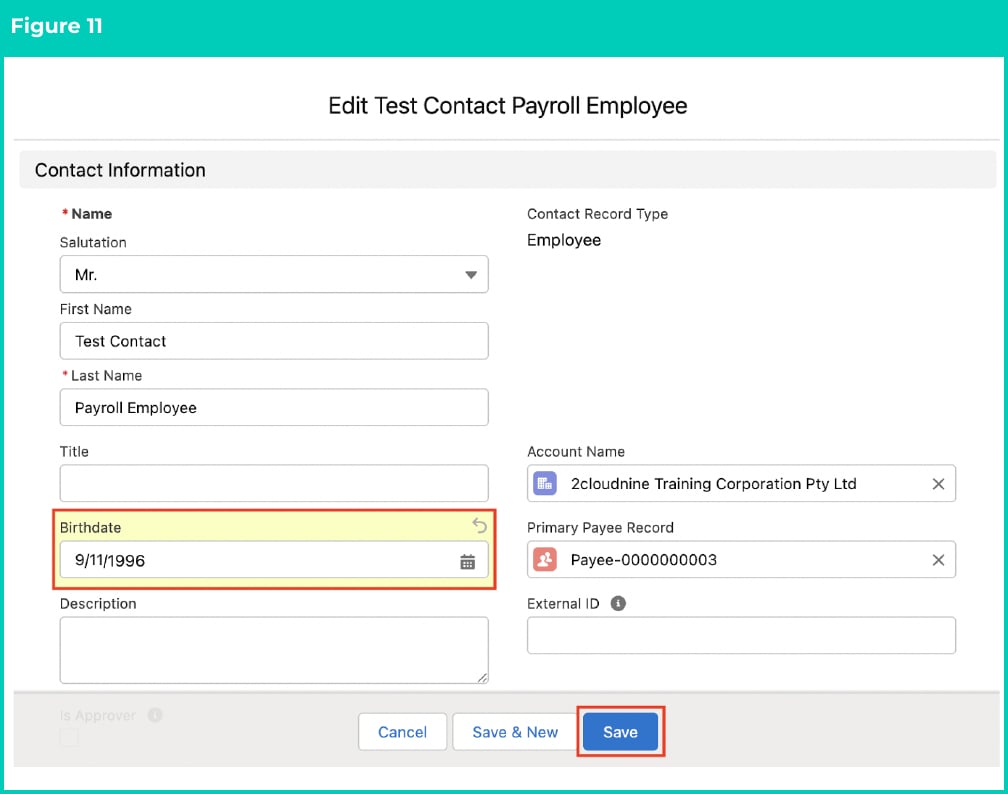
The record will open to enable the birthdate to be updated. If you do not have the correct Birthdate please remove the existing value and when completed, select Save (See Figure 11).
Review & Update Payee Records
To review and update Payee records, follow the steps below:-
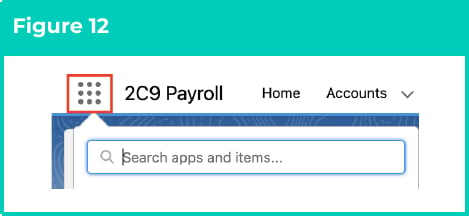
Click on the App Launcher icon. (See Figure 12)
-
Go to the Payee object by using the Search function. (See Figure 13)

-
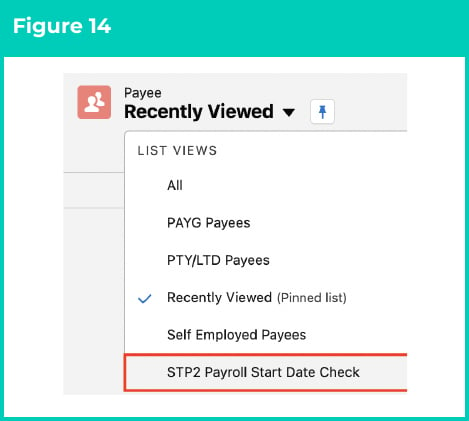
Select the List View STP2 Payroll Start Date Check. (See Figure 14)
-
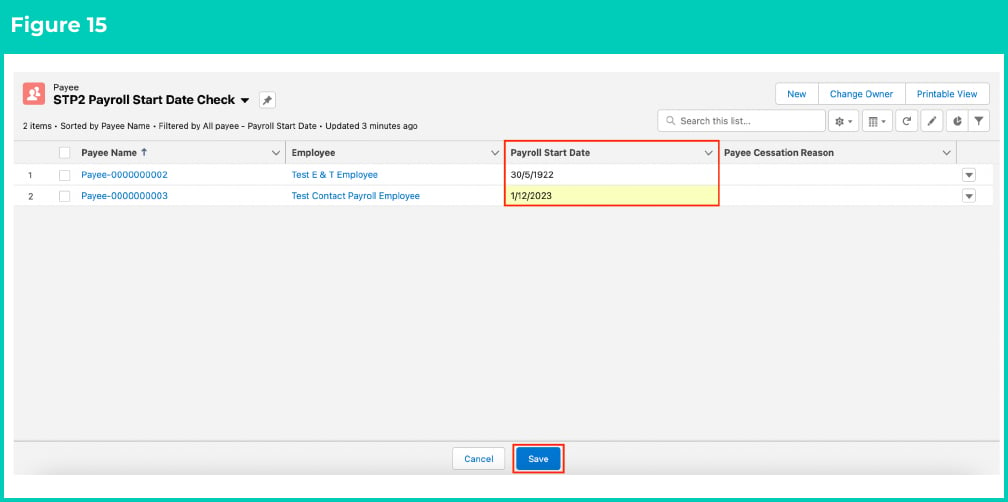
Any listed Payees will have a Payroll Start Date of either blank, or earlier than 01/01/1950 or greater than 1 year in the future. All listed Payees will need the Payroll Start Date updated. When completed, select Save (See Figure 15).
Review & Update Payee Deductions
To review and update Child Support Deduction records, follow the steps below:-
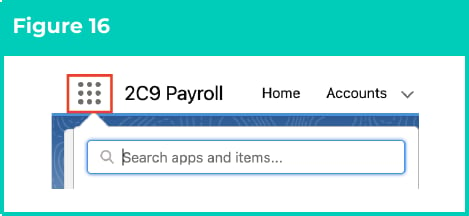
Click on the App Launcher icon. (See Figure 16)
-
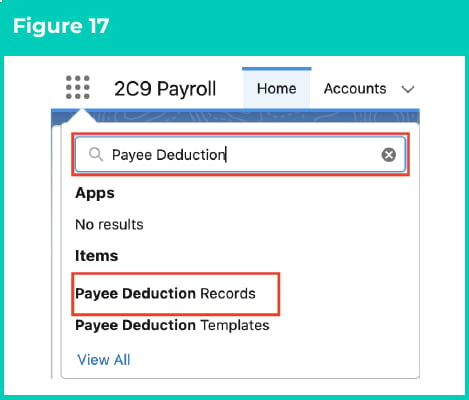
Go to the Payee Deduction Records object by using the Search function. (See Figure 17)
-
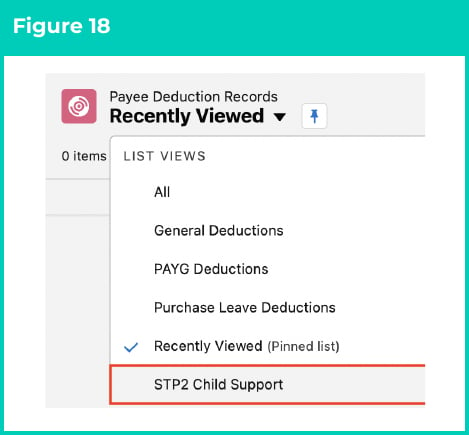
Select the List View STP2 Child Support. (See Figure 18)
- Users are required to review the listed Payee Deductions for those that relate to Child Support Deductions and determine if the current Pay Code listed relates to a Child Support Garnishee or a Child Support Deduction. Users also need to determine which Pay Code should be applied to each Child Support Payee Deduction Record.
- If the Payee Deduction currently has the incorrect Pay Code applied, this record will need to have an Expiry Date entered, and the new Payee Deduction set up with an Effective Date the next day, ensuring the correct Child Support Pay Code is applied. For details on how to set up the new Payee Deduction, please refer to the Create a Payee Deduction - General QRG.