

Purpose
The purpose of this quick reference guide is to step through the process of creating an Employment Cost record. Employment Cost records are used within Rate Calculators to define Employment Costs, as well as in the General Ledger, to create Pay Transaction Distribution records to report additional costs in the Payroll Journals, which can be reported within their Accounting software. When used within a General Ledger, Employment Costs allow you to accurately record and measure your Payroll Tax and Workcover liability for each qualifying Pay Transaction. The intended audience for this document is System Administrators / Standard Users.Steps
Create an Employment Cost record
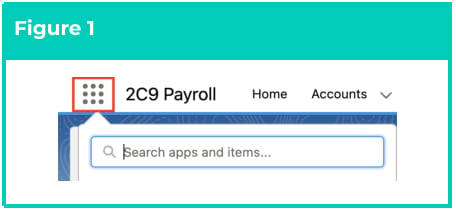
To create an Employment Cost record, follow the steps below:- Click on the App Launcher icon (see Figure 1).
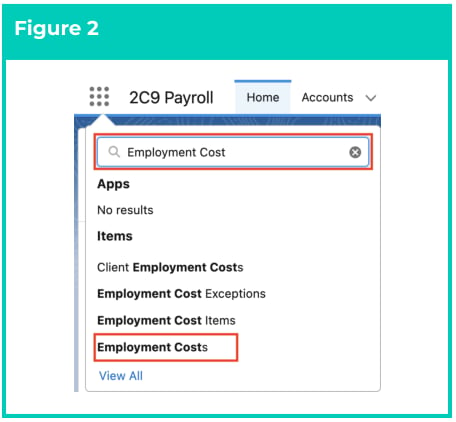
- Go to the Employment Costs object by using the Search function (see Figure 2).
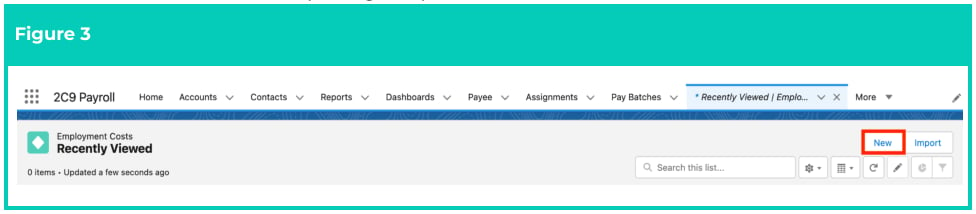
- Click on the New button (see Figure 3).
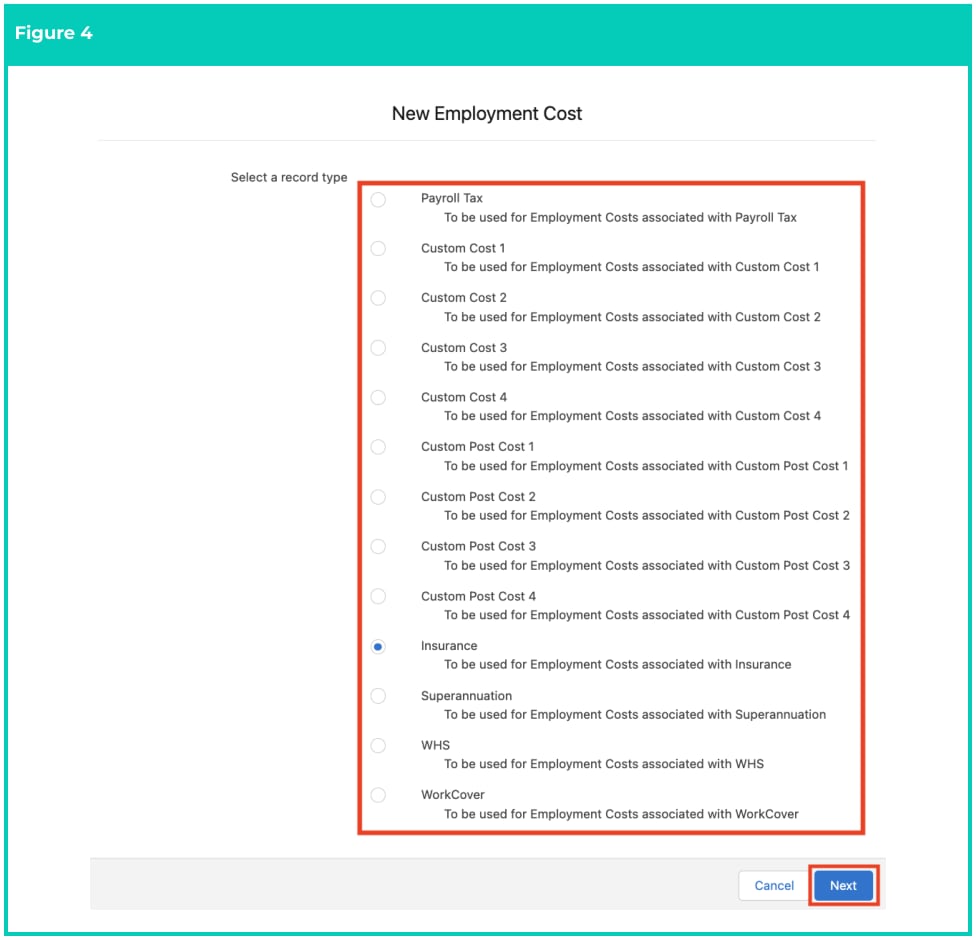
- Please choose one of the following and click on the Next button (see Figure 4):
- Follow steps 5 to 8 when you select one of the following Record Types:
- Custom Cost 1, 2, 3, 4, Custom Post Cost 1, 2, 3, 4, Insurance, Superannuation, or WHS.
- Follow steps 9 to 12 when you select one of the following Record Types:
- Payroll Tax or WorkCover.
- Follow steps 5 to 8 when you select one of the following Record Types:
Important Notes
(Figure 4)It is important to note that while all Record Types are relevant to the Rate Calculator functionality, only Payroll Tax and WorkCover Record Types are used for the General Ledger.
(Figure 4)It is important to note that while all Record Types are relevant to the Rate Calculator functionality, only Payroll Tax and WorkCover Record Types are used for the General Ledger.
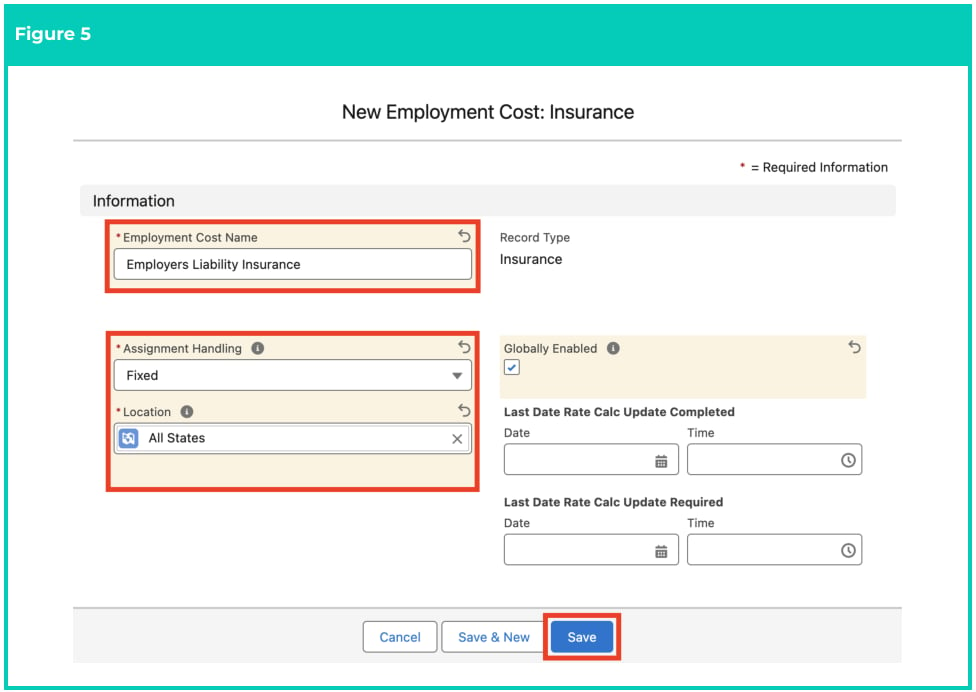
- Populate the following required fields to provide the base details of the Employment Cost record (see Figure 5):
- To define a unique identifier for the Employment Cost, populate the Employment Cost Name field.
- To define how the Effective and Expiry Dates of a child Employment Cost Item will be applied to Rate Calculator Lines, populate the Assignment Handling field using the available picklist options:
- When using Rate Calculator, to create separate Rate Calculator Lines for every Employment Cost Item within the effective period of the Rate Calculator, select Rolling .
- When using Rate Calculator, to create Rate Calculator Lines for only the most recent Employment Cost Item, select Fixed .
- To define the Location that is associated with this Employment Cost, populate the Location field using the lookup options available. In most scenarios, this field must be populated as All .
- In most scenarios, Employment Costs are not client-specific and are used globally. The Globally Enabled checkbox is currently not in use, except for listing Employment Costs under the Globally Enabled list on a Rate Calculator.
- Click on the Save button (see Figure 5).
Important Notes
(Figure 5)While one Employment Cost Item must be created for every Location record, individual Location records should NOT be populated for the parent Employment Cost. Instead, a single catch-all Location record, such as All Locations or Any Location, should be used within Rate Calculator Templates.The Assignment Handling field should be set to Rolling in most cases, so that when Employment Cost Items are expired and replaced with new records, the changes are applied to all related Rate Calculators.The Last Date Rate Calc Update Required and Last Date Rate Calc Update Completed fields are populated via system automation to reflect the status of Rate Calculator updates relating to the Employment Cost record. These fields should never be manually populated or overridden.
(Figure 5)While one Employment Cost Item must be created for every Location record, individual Location records should NOT be populated for the parent Employment Cost. Instead, a single catch-all Location record, such as All Locations or Any Location, should be used within Rate Calculator Templates.The Assignment Handling field should be set to Rolling in most cases, so that when Employment Cost Items are expired and replaced with new records, the changes are applied to all related Rate Calculators.The Last Date Rate Calc Update Required and Last Date Rate Calc Update Completed fields are populated via system automation to reflect the status of Rate Calculator updates relating to the Employment Cost record. These fields should never be manually populated or overridden.
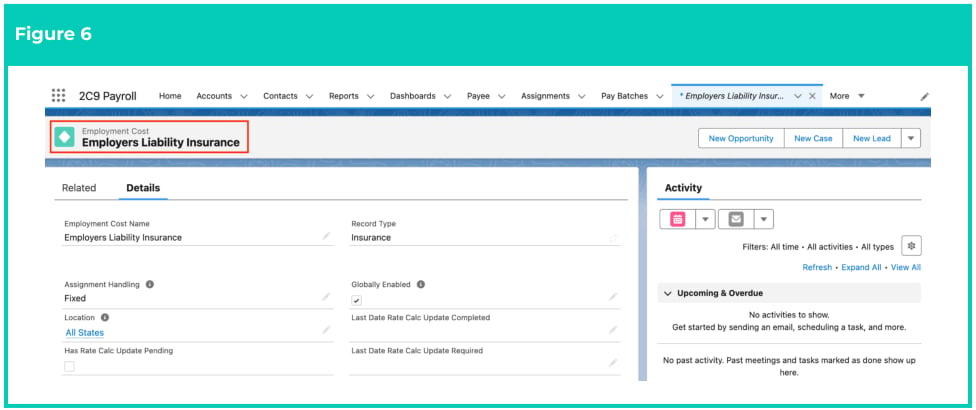
- A new Employment Cost record is now created (see Figure 6).
- For Payroll Tax or WorkCover record Types, populate the following required fields to provide the base details of the Employment Cost record (see Figure 7):
- To define a unique identifier for the Employment Cost, populate the Employment Cost Name field.
- To define the Location that is associated with this Employment Cost, populate the Location field using the lookup options available.
- If a specific Location is not applicable, populate this field with a generic Location record, such as All .
- In most scenarios, Employment costs are not client-specific and are used globally. The Globally Enabled checkbox is currently not in use, except for listing Employment Costs under the Globally Enabled list on a Rate Calculator. Enabled checkbox is currently not in use, except for listing Employment Costs under the Globally Enabled list on a Rate Calculator.
- Click on the Save button.

Important Notes
(Figure 7)While one Employment Cost Item must be created for every Location record, individual Location records should NOT be populated for the parent Employment Cost. Instead, a single catch-all Location record, such as All Locations or Any Location, should be used within Rate Calculator Templates
(Figure 7)While one Employment Cost Item must be created for every Location record, individual Location records should NOT be populated for the parent Employment Cost. Instead, a single catch-all Location record, such as All Locations or Any Location, should be used within Rate Calculator Templates
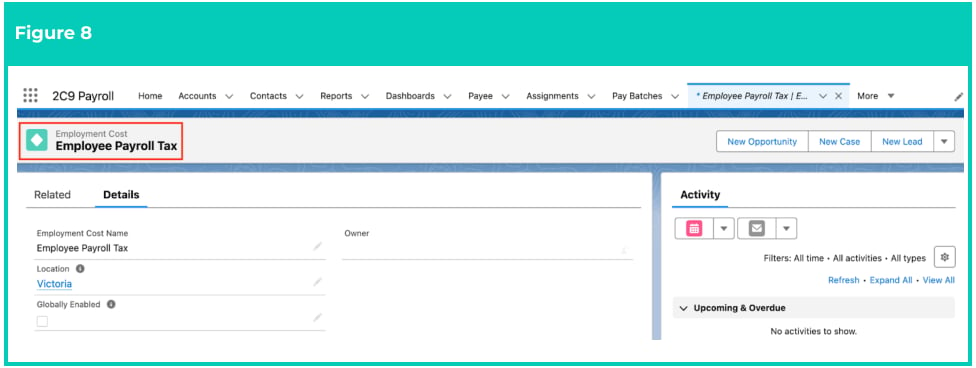
- A new Employment Cost record is now created (see Figure 8).
Employment Cost records CAN NOT be deleted if they have related records or are used in other records. Deleting records is not recommended unless absolutely essential.
- To modify an existing Employment Cost record, open the required record and select the Edit button available on the top right side of the page. You can also double click within fields that need editing or just click on the pencil icon that appears within fields when hovering with your cursor.
- When complete, click on the Save button.