Purpose
The purpose of this quick reference guide is to step through the process of sending email notifications to Leave Approvers for approving and rejecting Leave Events. The notifications are in addition to the automated ones which occur when a Leave Event is Submitted which relates to an Assignment on which they are named as the Leave Approver. The intended audience for this document are Standard Users.Steps
Send Notification to Approve/Reject Leave to Primary or Alternative Approver
To send an email notification to a Primary or Alternative Leave Approver to approve a submitted Leave Event record:- Go to the Payee record.
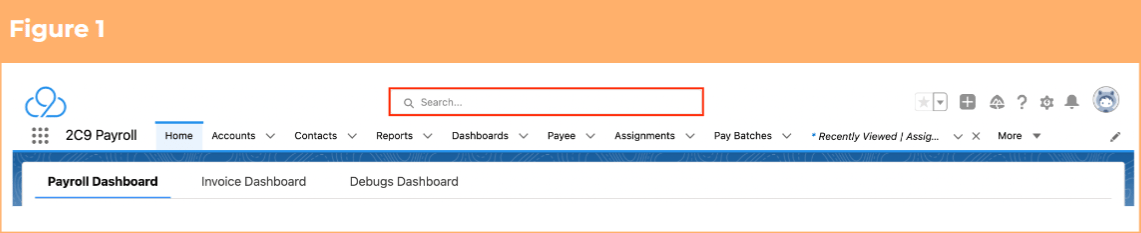
- To identify a Payee record from an Employee record, enter the Employee name into the Global Search. (See Figure 1)
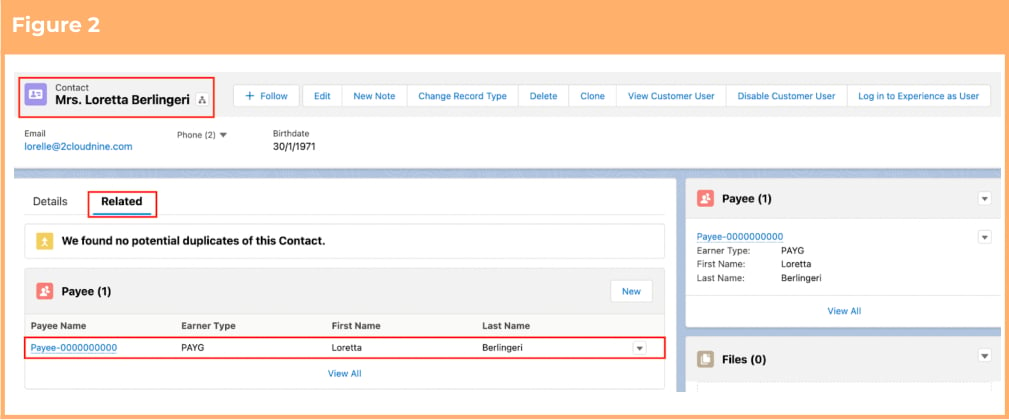
- Select the Employee record from the suggestions provided. (See Figure 2)
- Open the Related tab.
- Identify the Payee record(s).
- Select the Payee record.
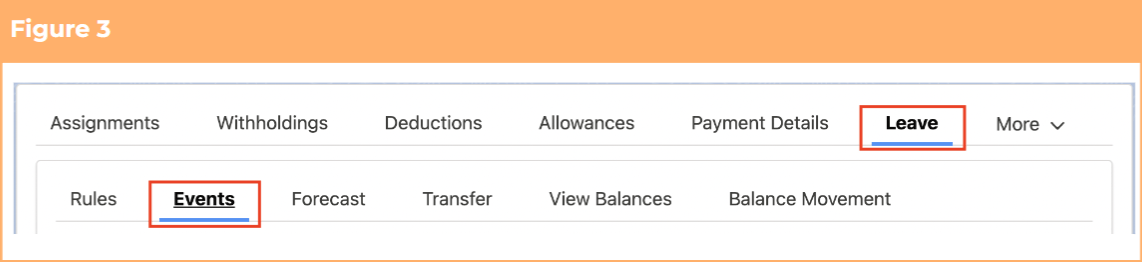
- Within the Payee record, navigate to the Leave tab. (See Figure 3)
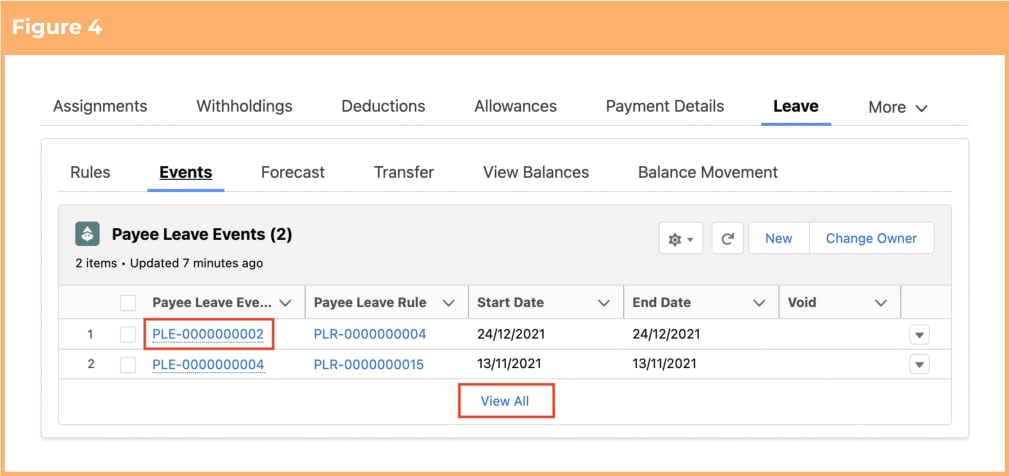
- Click on the Events sub-tab.
- Click on the required Payee Leave Event name to view details of the Payee Leave Event or select View all to expand the view. (See Figure 4)
- To send an approval request to the Primary Approver:
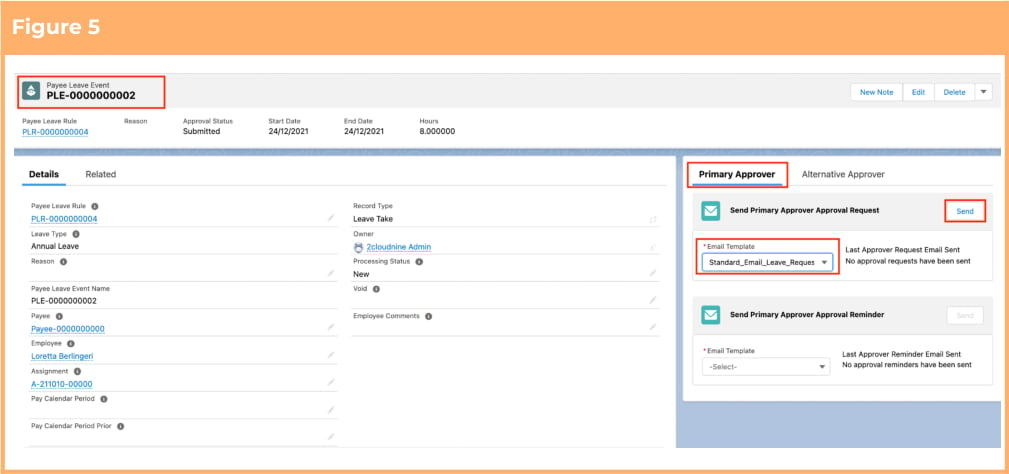
- Go to the Primary Approver tab. (See Figure 5)
- Select the required email template from the picklist under the Send Primary Approver Approval Request section.
- Click Send.
- To send a reminder to the Primary Approver:
- Go to the Primary Approver tab. (See Figure 5)
- Select the required email template from the picklist under the Send Primary Approver Approval Reminder section.
- Click Send.
- To send an approval request to the Alternative Approver:
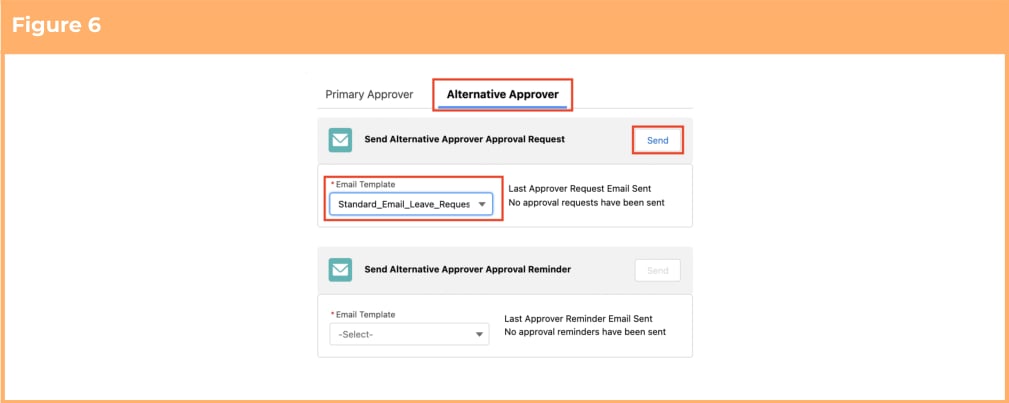
- Go to the Alternative Approver tab. (See Figure 6)
- Select the required email template from the picklist under the Send Alternative Approver Approval Request section.
- Click Send.
- To send a reminder to the Alternative Approver:
- Go to the Alternative Approver tab. (See Figure 6)
- Select the required email template from the picklist under the Send Alternative Approver Approval Reminder section.
- Click Send.